Section 8. Forecasting Module: Forecasting
A. Consumption Forecasts
Consumption-based forecasts, which are based on historical consumption data are most useful in mature, stable programs that have a full supply of planning units and reliable data. This method can be the most reliable predictor of future consumption if the future use is predicted to be very similar to the past. Thus, a user must be able to extrapolate historical data (ideally, 24+ months of monthly actual consumption data is available) and the data must be a series of data over time (i.e. actual adjusted monthly consumption).
There are four basic components for a consumption forecast:
Forecast ≅ Base + Trend + Season + Random
Different extrapolation models will utilize different statistical methods to estimate these different components and produce a forecast. In QAT, users will follow three steps to produce a consumption-based forecast:
- Import/input actual consumption data. This can be done by importing data from the QAT Supply Planning module or inputting data manually.
- Adjust actual consumption data by adding reporting rate and stockouts, and/or interpolating missing data.
- Extrapolate actual consumption data to produce a forecast. QAT has five different extrapolation methods to choose from: Moving Averages, Semi-Averages, Linear Regression, Triple Exponential Smoothing (TES, Holt-Winters), and Auto-Regressive Integrated Moving Average (ARIMA).
A1. Import/Inputting Actuals
There are two ways a user can add actual consumption data to their program:
- Importing actual consumption data from an existing program in the QAT Supply Planning module, or
- Manually input data in the “Data Entry and Adjustments” screen in the QAT Forecasting module
Steps for Importing Data from the QAT Supply Planning module:
-
Navigate to the "Consumption-Based Forecast" -> "Import from QAT Supply Plan" screen
-
Choose the Forecast Program, Range of Actual Consumption data to import, the Supply Plan program and then the Supply Plan version. Note: only forecast programs that have been downloaded to the user’s local computer will be available in the dropdown for “Forecast Program.” See Download/Delete Program for how to download a program to the local computer.
-
Users will then map the Supply Plan Planning Unit to the Forecasting Planning Unit. Note: only planning units that have been added to the Forecast Program in the "Update Planning Units" screen and for which we have checked the checkbox for consumption forecast will be available in the dropdown for "Forecast Planning Unit." See Forecasting Module Planning Units for how to add planning units to a forecast program.
-
Choose "Do not import" in the drop down for any PUs that do not automatically match. In case you have a lot of PUs and you want to select "Do not import" for all the unmapped one you can check the box 'Do not import all unmapped planning units'
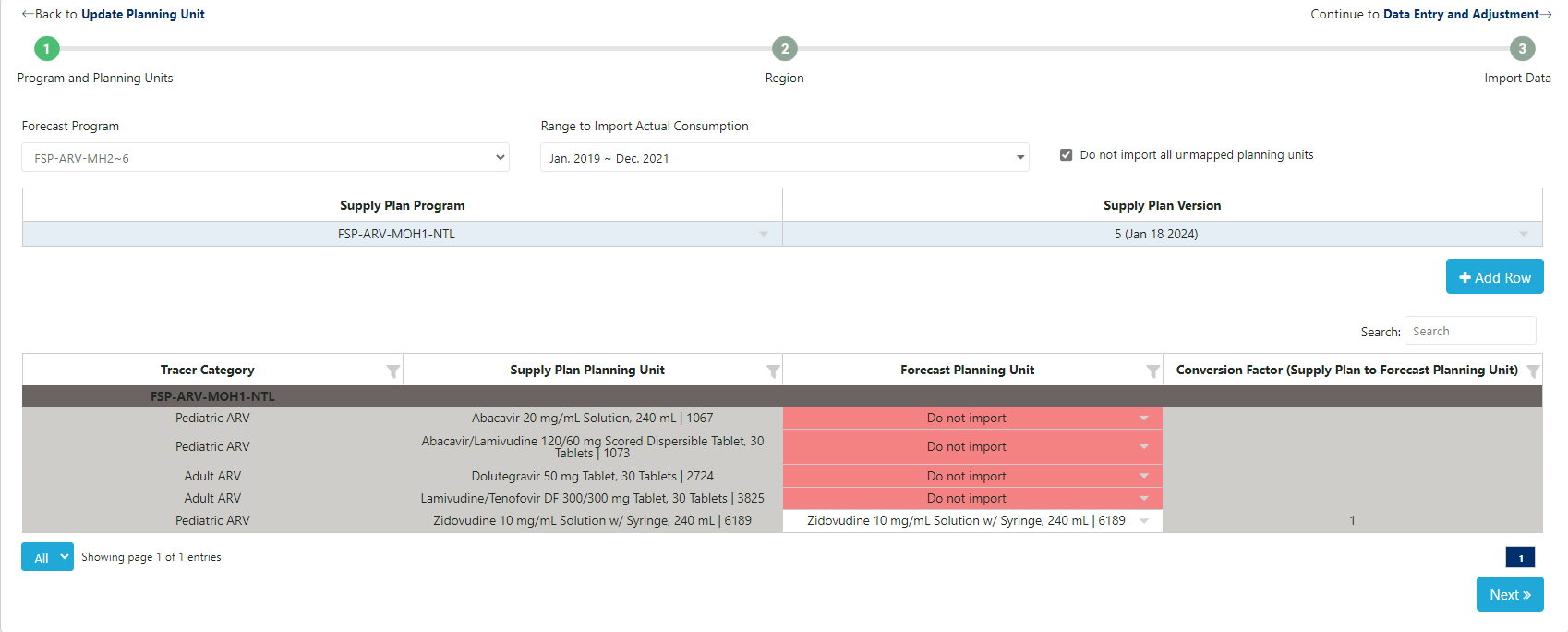
Figure 157: Step 1 for Importing Actual Consumption Data from the Supply Planning Module
-
Users choose which region should be imported into the forecast program and also provide information on the % of the actual consumption that should be imported into the forecast program
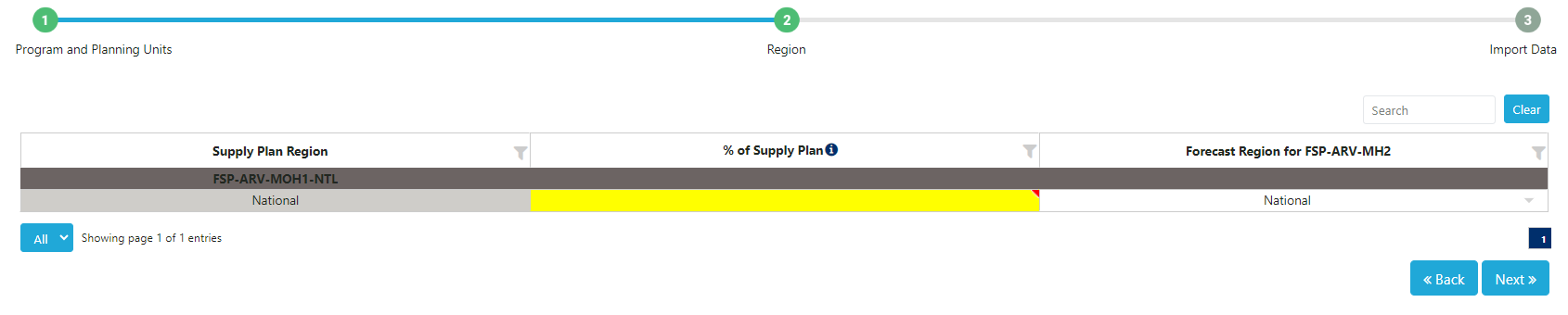
Figure 158: Step 2 for Importing Actual Consumption Data from the Supply Planning Module
-
The last step will allow users to double-check the supply plan actual consumption data to make sure they are importing the correct unit of measure and months of data. If the data already exists in the forecast program, it will be highlighted yellow. If a user imports data that is highlighted yellow, this new import will override the data that already exists in the forecast program. Users can manually uncheck the months of data not to import, if desired.
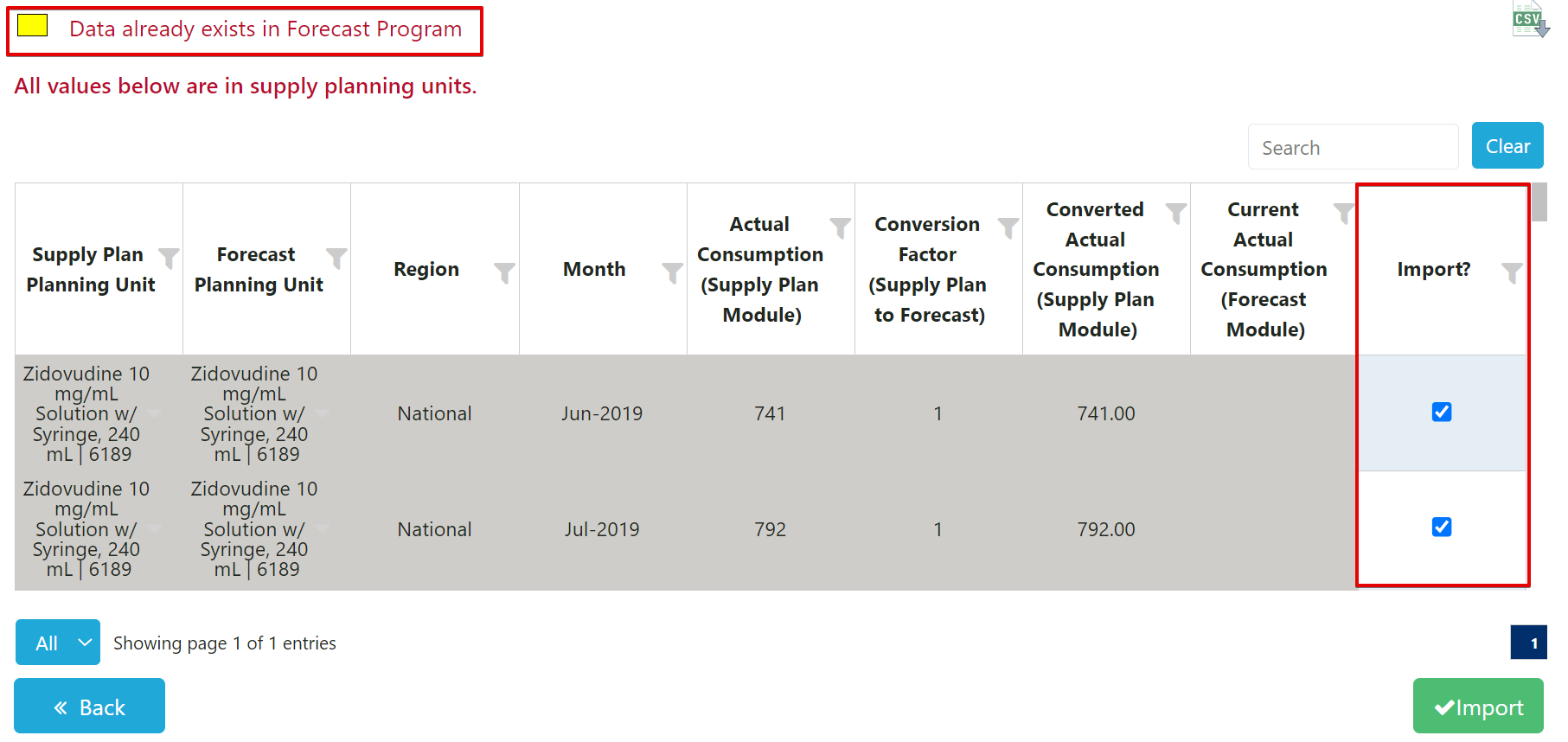
Figure 159: Step 3 for Importing Actual Consumption Data from the Supply Planning Module
-
Click “Import.”
Steps for Inputting Actual Consumption Data Manually
-
Navigate to the "Consumption-Based Forecast" -> "Data Entry and Adjustments" screen.
-
Select the forecast program and the desired review period. By default, QAT pre-selects a date range of 36 months prior to the start of the forecasting period. A non-editable table and all products related to this forecast program are displayed, along with their adjusted consumption data if you have previously entered that data; otherwise, you will see yellow cells indicating that no consumption data has been entered. By default, the products and consumption are shown in planning units. The user can also expand each row of the table to display the consumption by region, if managing a multi-region program.
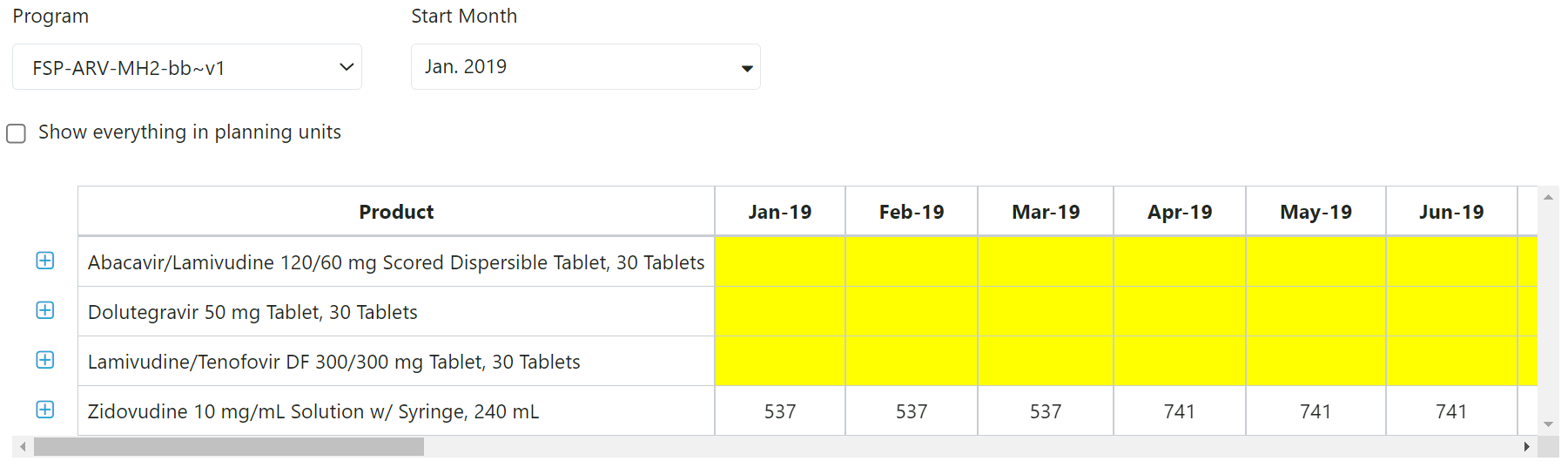
Figure 160: Top Table in Data Entry & Adjustments Screen
-
On the top table, click on a planning unit to display the detailed data table below for that planning unit. The detailed data table will have a section for each region in your program.
-
The detailed data table allows users to add, edit, adjust, or delete historical consumption records.
a. If you would like to enter data manually, enter the historical consumption for each region and month in the ‘Actual Consumption’ row.
b. If you have imported data from QAT, you will see your imported historical consumption in the ‘Actual Consumption’ row.
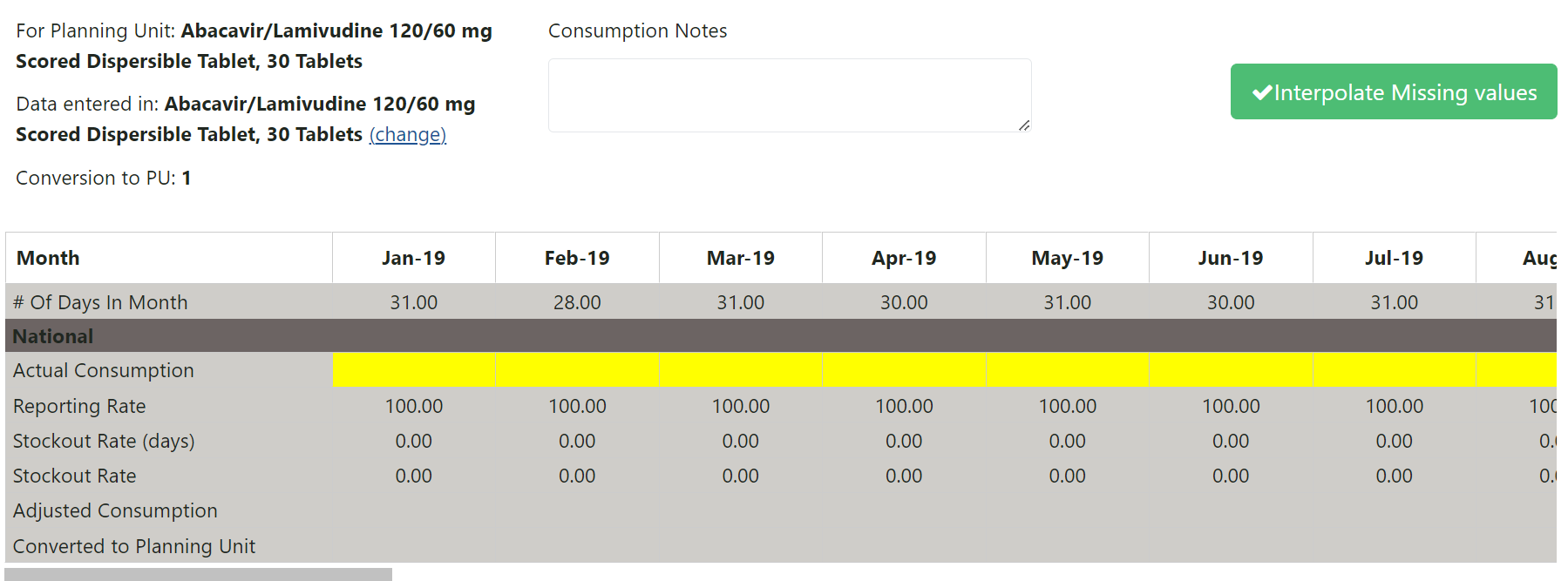
Figure 161: Manual Data Entry Table for Actual Consumption
c. By default, data is assumed to be entered in the Planning Unit. However, the user can specify the appropriate unit for the detailed data by clicking on the “change” link under the Planning Unit name and in the subsequent pop-up, choosing to enter data using the planning unit, the forecasting unit quantities (applying a realm-managed conversion factor) or another user-entered unit (and conversion factor).
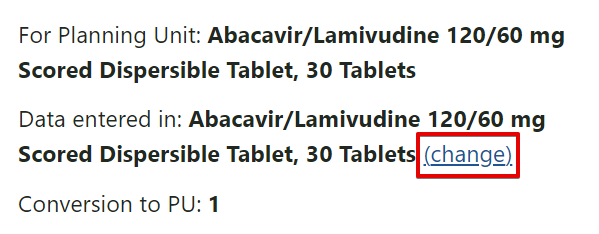
Figure 162: Button for Changing How Data is Manually Entered for Actual Consumption
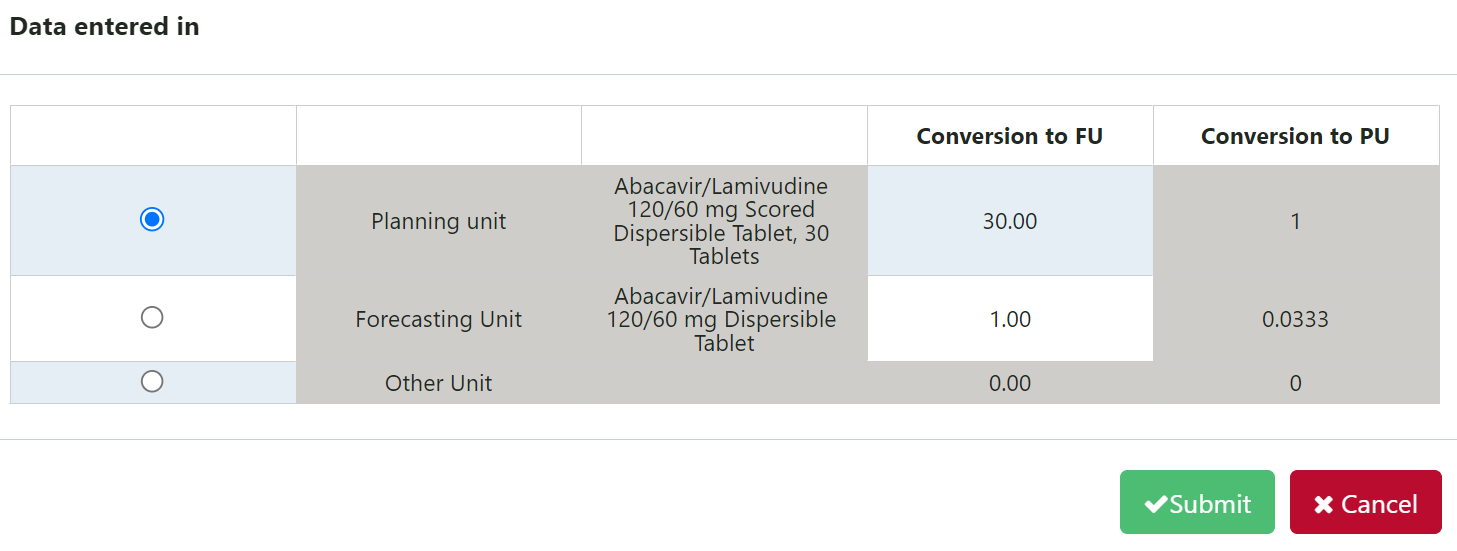
Figure 163: Pop-up for Choosing How Data is Entered
-
Once a user enters data in the “Actual Consumption” row in the bottom data table, click “Submit” in order to save the entries and visualize them in the graph.
a. Users can also copy & paste data from an excel or other tabular formats into the “Actual Consumption” row.
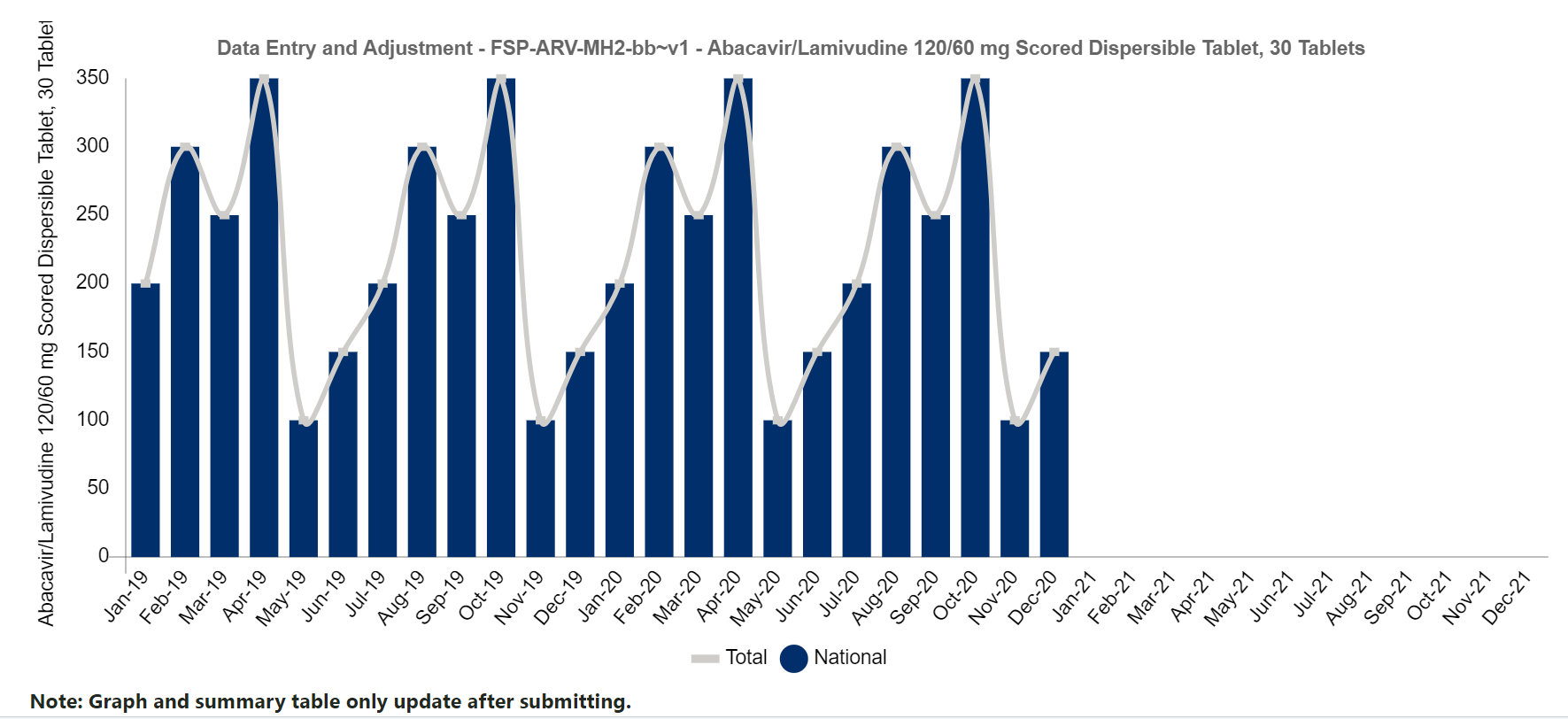
Figure 164: Graphical Display of Manually Entered Actual Consumption Data
A2. Adjustments
Purpose: Enable users to prepare historical consumption data before moving on to the 'Extrapolation' screen. Historical actual consumption can be quantities sold, quantities dispensed to user, or quantities issued by storage facilities. On this screen, users can adjust historical consumption data that has been either manually entered on this screen or that has been imported from a QAT supply plan program (if you desire to import, please proceed first to the 'Import from QAT Supply Plan' screen).
Using this screen:
-
There are three ways to adjust the data:
a. Adjust for under-reporting: The default value is 100% reporting every month. The user can change this to the correct value. QAT will calculate the adjusted consumption due to underreporting. The calculation assumes that facilities that did not report any consumption had the same consumption rate as the ones that did.
b. Adjust for stockouts: For imported data, the number of stockout days is pulled in from the QAT supply plan program, if data is collected. The default value for stock out days is zero days (product assumed always in stock). The user can change this to the correct value and QAT will calculate the adjusted consumption due to stockouts. The calculation assumes that the days the product was stocked out would have had the same consumption rate as the rest of the time the product was in stock. The default value for number of days in a month are based on the calendar days, but users can adjust the number of days used for the stock out calculation in 'Update Version Settings'.
Stack Out Rate = Stocked Out (days)/ (# of Days in Month).
Adjusted Consumption = Actual Consumption / Reporting Rate / (1 - Stack Out Rate)For example, for a given month, a product had a consumption of 1,000 units, was out-of-stock for 5 out of 31 days in the month and the reporting rate was 98%:
Stack Out Rate = 5 days stocked out / 31 days in a month = 16.1%:
Adjusted Consumption = 1,000 units / 98% Reporting / (1 - 16.1%) = 1,217 units.c. Adjust for missing values: Click the green 'Interpolate' button in the middle right of the screen to search for periods where the consumption value is blank and replace them with an interpolated value. QAT interpolates by finding the nearest values on either side (before or after the blank), calculates the straight line in between them and uses that straight-line formula to calculate the value for the blank(s). Note that QAT will not interpolate for months where actual consumption is zero. QAT will only interpolate if there is at least one data point before and one data point after the blank value(s). Mathematically:
-
Where x’s represent months, and y’s represent actual consumption,
-
Where known data values are (x0 , y0) and (x1 , y1)
-
Where any unknown data values are (x, y)
-
The formula for the interpolated line is:
-

Figure 162: Formula for Interpolation

Figure 162: Formula for Interpolation
- Use Detailed Data table to review the adjusted consumption
- Click ‘Submit’ to save any entered/adjusted data. Once the adjustments are saved, the Graph will update (note that it is required to click Submit for this to happen)
- Repeat steps 1-3 for each planning unit that needs to be adjusted.
A3. Extrapolation
Purpose: Enable users to create a forecast by identifying trends and seasons from historical time series data entered by the user in the ‘Data Entry and Adjustment’ screen. Several statistical extrapolation options are available and will be described below. Extrapolations from consumption data are made on a planning unit-by-planning unit basis.
Using this screen:
1) Getting started on extrapolation:
-
Before you use this screen, please ensure you have completed the ‘Data Entry and Adjustment’ screen for each planning unit and region you would like to extrapolate
-
Use the filters at the top of this screen to select the planning unit, region to extrapolate, and date range for historical data to utilize.
-
The user may select one -or several of the extrapolation methods available in QAT, as appropriate to the general consumption pattern and available data, as will be discussed below. See sections 2-4 below for an explanation of the extrapolation methods and how to best choose methods for your forecast.
-
Note that changes in this screen are optional – QAT automatically applies the default extrapolation parameters to all planning units after the Adjustments screen has been completed. The user then makes the final forecast selection in the Compare and Select screen.
2) Extrapolation methods available in QAT
Forecast methods in QAT are organized from simple to sophisticated.
a. Moving Average: Moving average is an average that moves along time, dropping older data as it incorporates newer data. For QAT to calculate the moving average, enter the number months in the past that you would like to use in the calculation of the average. The user may select any positive integer for this field. Entering 5 for example would mean that the projection for the next month in the series would be the average of the preceding five months’ consumption. This method is most useful for short-term forecasts and is sensitive to trends. It is not appropriate for seasonal data
b. Semi-Averages: Semi-average estimates trends based on two halves of a series. QAT divides the actual data into two equal parts (halves) and the arithmetic mean of the values of each part (half) is calculated as the ‘y’ values of two points on a line. The slope of the trend line is determined by the difference between these ‘y’ values over time as defined by the difference of the midpoints of the two halves of the series, or ‘x’ values, of the points. This method is sensitive to trends and useful for short- and medium-term forecasts but is not appropriate for seasonal data.
c. Linear Regression: Linear regression models the relationship between two variables by fitting a linear equation to observed data. Confidence interval: between 0% and 100% (exclusive) e.g., 90% confidence level indicates 90% of possible future points are to fall within this radius from prediction represented by the regression line. This method is not appropriate for seasonal data.
d. Triple Exponential Smoothing (Holt-Winters): In statistics, different types of smoothing are used to filter out the noise so that we can see patterns in a time series dataset more clearly. Exponential smoothing uses older data at exponentially decreasing weights over time. Smoothing parameters in exponential smoothing are set between 0 and 1, with values close to 1 favoring recent values and values close to 0 favoring older values. Users utilizing triple exponential smoothing can choose four parameters:
-
alpha, applies to the level or baseline of the dataset. Higher alpha values give more weight to the more recent data. The QAT default parameter for alpha is 0.2
-
beta, determines how strongly recent trends should be valued as compared to older trends. The QAT default parameter for beta is 0.2.
-
gamma, reflects the seasonal component of the forecast. Seasonal generally refers to repeating patterns within a year. The higher the gamma, the more weight will be applied to the most recent seasonal component of the data. The QAT default parameter for gamma is 0.2.
-
Confidence interval: between 0% and 100% (exclusive) e.g. 90% confidence level indicates 90% of future points are to fall within this radius from prediction. The QAT default confidence interval is 85%.
QAT will only calculate TES forecasts for datasets with 24 or more months of data.
e. ARIMA: ARIMA or autoregressive integrated moving average enables two statistical models designed for stationary time series to be integrated and applied to non-stationary time series, that is, time series that have trends or seasons. It is often applied to short term forecasts. “Auto-regressive” means each point in the regression is influenced by its previous values and "moving average" implies that each point is an average, a linear combination of one or more adjacent points. Both the auto-regression and the moving average are "integrated" together to fit a best model for the series through differencing, or literally using the difference between points on a time series for the analysis instead of the raw values. ARIMA models have three parameters:
-
p or AR (lag order): the number of lag observations in the model. The QAT default parameter for p is 0.
-
d or I (degree of differencing): the number of times that the raw observations are differenced. This value is normally 1 (if there is a trend) or 0 (no trend). Other higher values are possible but not expected. The QAT default parameter for d is 1.
-
q or MA (order of the moving average): the size of the moving average window or the number of differenced observations to be averaged. The QAT default parameter for q is 1.
-
Confidence interval: between 0% and 100% (exclusive) e.g. 90% confidence level indicates 90% of future points are to fall within this radius from prediction. The QAT default confidence interval is 85%.
The ARIMA calculation may be either seasonal or non-seasonal, based on the user’s choice and understanding of their data and expectations of whether or not consumption of a particular product is subject to seasonal influences. QAT’s default selection is for seasonal ARIMA. QAT will only calculate ARIMA forecasts for datasets with 13 or more months of data.
3) Which extrapolation method should I use?
Below are some considerations for selecting a forecast method. Forecast methods in QAT are organized from simple to sophisticated. In general,
- More sophisticated models are more sensitive to problems in the data
- If you have poorer data (missing data points, variable reporting rates, <12 months of data), simpler forecast methods like moving averages are likely more useful.
The choice of extrapolation method depends on the expected pattern in the data. Some typical patterns include:
-
Stationary, where the range of observed values over time hover around an average. Models applied to such datasets may include:
- Moving Average
- ARIMA (non-seasonal)
-
Trending with no seasonal component, where the observed values have an increasing or decreasing trend. Models applied to such datasets may include:
- Semi-averages
- Linear Regression
-
Trending and Seasonal, where the observed values in a dataset have both trend and seasonal components. Models applied to such datasets may include:
- ARIMA (seasonal)
- Triple Exponential Smoothing (Holt-Winters)
-
Seasonal without trend, where the observed values have a seasonal component but no trend. Models applied to such datasets may include:
- Triple Exponential Smoothing (Holt-Winters)
The models suggested here are neither exhaustive nor exclusive. QAT enables the user to apply a variety of extrapolation methods and then to compare them using best fit or forecast error metrics. The second step is to consider whether the forecast values are expected to reflect closely the historical patterns in your data and so whether you will use the error metrics to inform your selection. When choosing an output, (whether by disregarding the error metric or not) it will be important to document your rationale for doing so to inform discussions or reviews of your forecast and to help future forecasters to support their decisions.
4) How do I interpret errors? 1
QAT automatically calculates forecast error metrics using several methods. These include:
-
MAPE (Mean Absolute Percentage Error): can be interpreted as the average percentage difference between predictions and their intended targets in the dataset. For example, if MAPE is 15% then your predictions are on average 15% away from the actual values.
- MAPE = [(1/No. of Observations) * ∑ (|(actual – forecast)|/actual)] x 100
-
WAPE (Weighted Absolute Percentage Error): WAPE is an appropriate metric for when the dataset used has low or intermittent values. A WAPE percentage of 5 means that the forecast was off by 5% over the entire dataset for a certain evaluation period. Depending on the use case, it is recommended to choose a model that gives the least WAPE value.
- WAPE = [ (∑n | (actual – forecast) | / ∑ n (actuals)] x 100
-
RMSE (Root Mean Squared Error): RMSE can be interpreted as the average error that the model’s predictions have in comparison with the actual, with extra weight added to larger prediction errors. Generally, the closer RMSE is to zero, the more accurate the model.
- RMSE = sqrt [∑n (actual – forecast)2] / No. of observations
-
MSE (Mean Squared Error): MSE is the aggregated mean of the squared difference between the actuals and predictions. Large errors are highlighted due to this squaring. MSE is useful when working on models where occasional large errors must be minimized. Generally, the closer it is to 0, the more accurate the model.
- MSE = ∑ n [(actual – forecast)2] / No. of Observations)
-
R2 (the squared correlation between the dependent variable and the fitted values): R2 = 1 – [sum squared regression (SSR) / total sum of squares (SST)], where the sum squared of the residuals for the regression (SSR) is the sum of its residuals squared, and the total sum of squares (SST) is the sum of the distance the data is away from the mean, all squared. The R2 value is always a number between 0 and 1. R2 is a measure the fit of a regression line to a series of historical observations with values closer to 1 indicating a stronger correspondence between the actual and predicted (regression model) values. It is not a measure of error and should not be used by itself to assess the fitness of a prediction, but in combination with other error metrics and the user’s knowledge of the program.
- R2 = 1 – [sum squared regression (SSR) / total sum of squares (SST)]
Apart from R2 the lower the score, the more closely the forecast method result fits the historical data. In models where historical patterns in a data set are expected to be reflected in the future values, a low error value could be used to help select a preferred extrapolation method, and QAT will highlight these best fits in a table. However, if substantial changes which do not fit the historical data are anticipated, the best fit extrapolation may not be the most appropriate forecast to select.
To make the best selection between extrapolation methods for your purpose, before reviewing error metrics, the most important thing is first understanding which method of extrapolation is most appropriate for the expected pattern in the data.
1 https://stephenallwright.com/mse-vs-mae/; https://www.obviously.ai/post/introducing-wape
5) Optimization of TES and ARIMA forecast parameters
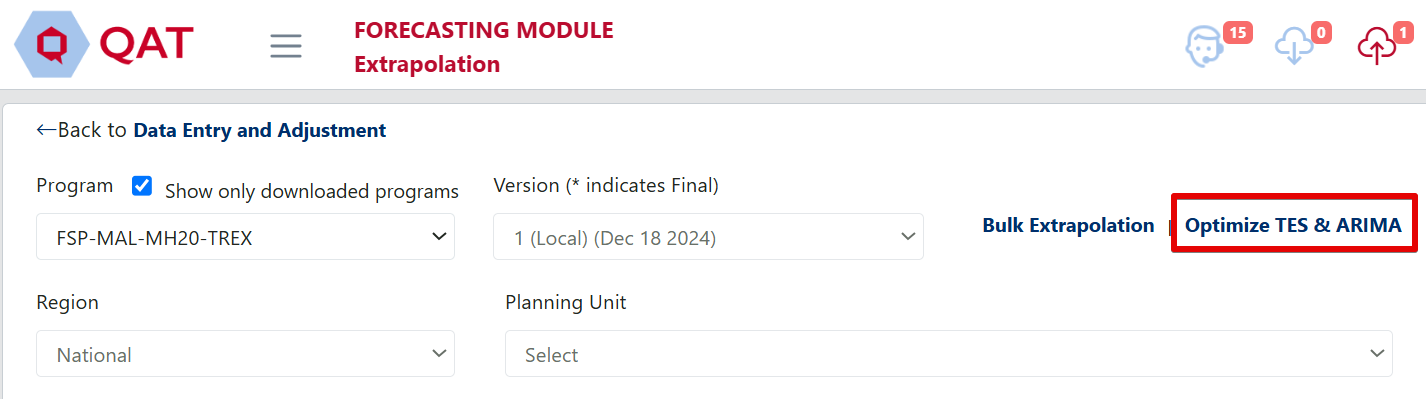
Figure 165: Optimize TES & ARIMA Link
As described in Extrapolation, QAT offers the users multiple extrapolation options including TES and seasonal and non-seasonal ARIMA. Users are free to use the QAT defaults or to enter alternative forecasting parameters with the intention of reducing the error metrics thereby increasing the correspondence between the forecast method outputs the real datapoints in the historical data period. If the user is working online, QAT can optimize the TES and ARIMA parameters by iterating, calculating the RMSE of each iteration, and selecting the parameters that produce the lowest RMSE.
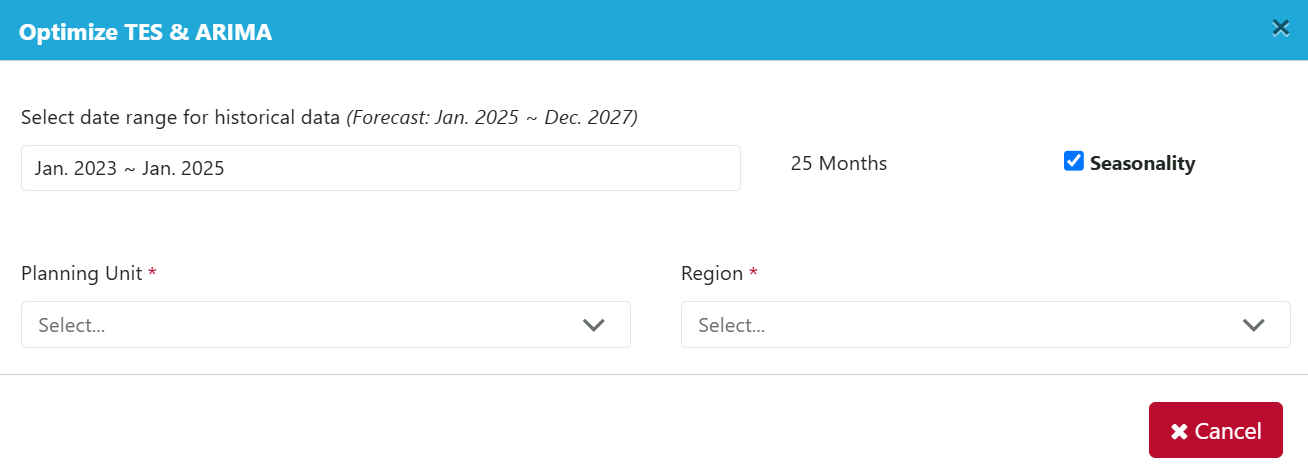
Figure 166: Optimizing TES & ARIMA Pop-up
For TES, QAT calculates 125 iterations of the forecast, testing each of the alpha, beta and gamma parameters in combination with the following values: 0, 0.2, 0.4, 0.8 and 1. Whichever of the 125 combinations for a given product produces the result with the lowest RMSE will be displayed in the extrapolation screen.
For ARIMA or seasonal ARIMA, QAT calculates 24 iterations of the forecast, testing each of the p, d and q parameters in combination, using the following values:
- p: 0 or 1
- d: 0, 1 or 2
- q: 0, 1, 2 or 3
Whichever of the 24 combinations for a given product produces the ARIMA result with the lowest RMSE will be displayed in the extrapolation screen.
Note: Statistics are not magic. The underlying assumption for all these methods of extrapolation are that trends and patterns in the historical data will continue into the future. Therefore, low error metrics do not necessarily guarantee a better forecast.
6) Bulk Extrapolation
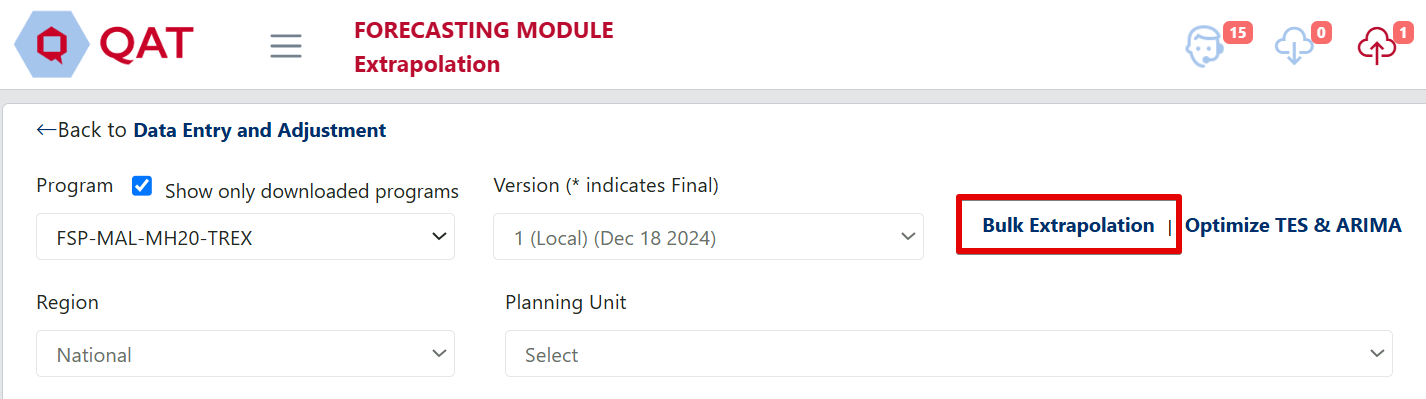
Figure 167: Bulk Extrapolation Link
In the QAT extrapolation screen, the user can compare the outputs of the various extrapolation methods both graphically and in an output table, product by product. This allows the user to deselect extrapolation methods that they feel do not apply to a given product to limit the options in the Compare and Select screen to only those the user chooses to display.
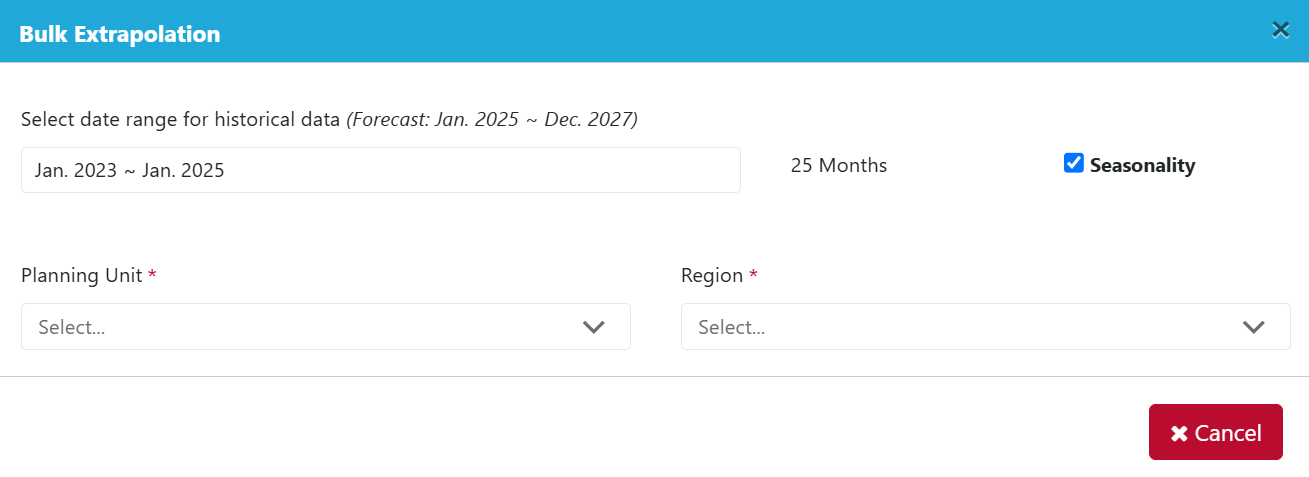
Figure 168: Bulk Extrapolation Pop-up
If the user would prefer to send all of the outputs of the available extrapolation methods for more than one product directly to the Compare and Select screen, the user can select bulk extrapolation. From the Bulk Extrapolation pop-up window, the user may then select an historical date range from which to extrapolate the forecast (only one date range per bulk extrapolation), whether to apply seasonality to their ARIMA calculation, which planning units and regions (if regional data are used) to include in the bulk extrapolation and whether or not to optimize ARIMA and TES parameters for the extrapolation.
After running the bulk extrapolation, all results can be viewed in the Extrapolation Screen, the Compare and Select Screen and the Forecast Summary (regional) Screen dropdown box. The user may select their preferred extrapolation method from either the Compare and Select Screen or the Forecast Summary (regional) Screen.
Bulk extrapolation in QAT is particularly useful when working with a large set of products for which timely, complete and accurate consumption data is available for 12 or more months.
B. Tree Forecasts
Users can conduct a tree-based forecast if the necessary data for a consumption-based forecast is not available or not helpful in predicting future consumption. Tree forecasts flexibly accommodate all other forecast methods, such as morbidity, services, and demographic methods. Users can specify changes over time in a tree, either by directly specifying the rate of change or extrapolating from past data.
B1. Building a Tree
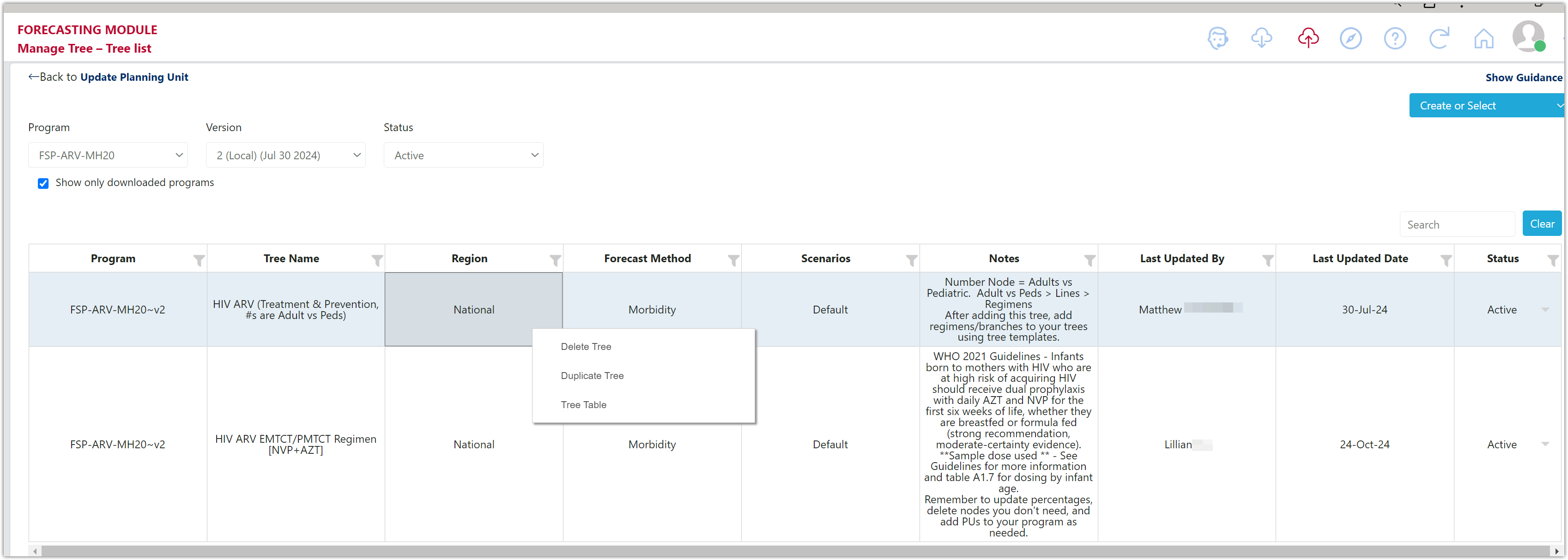
Figure 169: Manage Tree – Tree List (Right click to access actions)
Purpose: Enable users to:
- View a list of their existing trees
- Edit an existing tree by clicking any row
- Right click on a row to
- Duplicate existing trees: Users may also duplicate an existing tree to another program. Users must have access to both programs and have both downloaded to their local computer to duplicate across.
- Delete existing trees: There will be a confirmation screen, but this action is thereafter irreversible. However, if you accidentally delete a tree, you can re-download a program if the deleted tree has been backed up to the server.
- Tree Table: This allows user to edit the selected tree in the Tree Table screen
- Add a new tree to a downloaded program by clicking on the 'Create or Select' dropdown in the top right corner of the screen. New trees can be built:
- manually - select '+ Draw Your Own Tree'
- from a tree template - select the name of the desired template. If a user would like to see a tree template added to QAT that does not exists and it would benefit the QAT community, they can submit a change request to the QAT Ticketing Helpdesk System.
Note: Forecast Viewers can view any tree that has been uploaded to the server and they have access to; however, only Forecast Users/Admins will be able to create and edit/update trees.
Using this screen:
- A forecast program must first be downloaded to build or edit a tree
- Before building and editing a tree, first add the forecast program’s planning units in the ‘Update Planning Units’ screen.
- Building a tree similar to an existing tree?
- Same structure, different numbers: Build only one tree, and use the scenario feature.
- Slightly different structure: Duplicate an existing tree by right clicking on a row and selecting “Duplicate Tree.” Note: If you want to duplicate an existing tree from another program, you must have both programs downloaded, then you can duplicate from one program to another program.
- Want to start from a template instead? See Tree Template section
- Users can also delete trees by right clicking on a row and selecting “Delete Tree.”
a. Node Types & Functions
Building the Tree: The forecast tree is built from the top down, using different types of “nodes”. See the Node Types and Node Actions below. Each forecast tree must start with either an Aggregation node or a Number node, and include one or more Planning Unit nodes, which form the forecast output.
Node Actions:
-
 Delete: Deletes the selected node and all its children.
 -
 Copy/Move: Copies or moves the selected node and all children under the node. The user can select the destination.
 -
 Add Branch Template: Adds a tree template as a branch below the chosen node.
 -
 Add: Adds a child to the selected node.
 -
 Collapse/Expand: Collapse/Expands the current node and all its children. Users can also hover over the dot to choose which node to expand and click once to expand that node and all it’s children. Additionally, there is a “Collapse Tree” checkbox at the top of the Build Trees screen that will collapse every node except for the top node.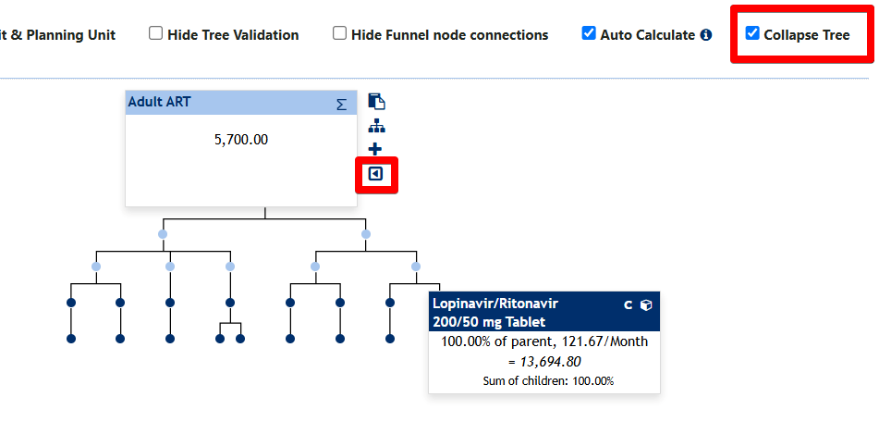
Figure 170: Example of a Collapsed Forecasting Tree
Node Types:
| Node Type | Value | Potential Children | Advanced Functionality |
|---|---|---|---|
| Aggregation ∑ | Sum of children nodes. | ∑ or Number | - |
| Number # | Defined at this node | % or | ⇅,  , ,  , ,  |
| Percentage % | Percentage of the parent. | % or | ⇅, |
Funnel  | Sum of linked source nodes () | % or | - |
| Forecasting Unit | Percentage of the parent and forecasting unit parameters. Can be two different use types:
|  | ⇅, |
| Planning Unit | Percentage of the parent and planning unit parameters. | - | ⇅, |
Node Attributes:
-
∑ Aggregation node-specific attributes: none – it is defined by the sum of its children. For example, if there are two children nodes below the Aggregation node equal to 50 and 100, QAT would automatically add these numbers to define the Aggregation node: 50 (child) + 100 (child) = 150 (Aggregation parent).
-
# Number node-specific attributes:
- Node Unit: dropdown consisting of either patient, client, customer, people, or unit
- Month: choose the month/year this data was reported from. For example, if a user wants to define a number node as Country Population and the data is from January 2020, the node month should be Jan. 2020.
- Node Value: Define the number value for this node. For example, if the Country Population in January 2020 is 500,000, the node value should be 500,000. If this value changes over time, users can utilize the Modeling/Transfer tab to specify the change.
-
% Percentage node-specific attributes:
- Node Unit: dropdown consisting of either patient, client, customer, people, or unit
- Month: choose the month/year this data was reported from. Typically, this will be the start month/year of the forecast.
- Percentage of Parent: define the percentage of the parent node. For example, if half of the parent number node, Country Population, are female, the percentage of parent would be 50%.
- Parent Value for Month: non-editable and provided only as a reference.
- Node Value: auto-calculated by QAT based on the percentage defined by the user and the parent value. This field is non-editable.
-
Forecasting Unit node-specific attributes:
- Month: choose the month/year this data was reported from. Typically, this will be the start month/year of the forecast.
- Percentage of Parent: define the percentage of the parent node.
- Parent Value for Month: non-editable and provided only as a reference.
- Percentage of Parent Value for Month: non-editable and provided only as a reference.
- Tracer Category: dropdown that can be used to help narrow-down forecasting units, but will be auto-filled once the forecasting unit is chosen.
- Copy from Template: advanced functionality, in which a user can utilize a Usage Template to assist with building a tree efficiently. This dropdown is not required.
- Forecasting Unit: dropdown of all available forecasting unit in user program. If a forecasting unit is not available in the dropdown, user should first add it to the Update Planning Units screen.
- Planning Unit: dropdown filtered based on forecasting unit chosen. If there is only one planning unit associated with the forecasting unit, this field will automatically be pre-filled.
- Type of Use:
 Discrete: Every _______ [parent node unit] requires _________ [forecasting unit of measure] __________ times per [day/week/month/year] for _____________ [day/week/month/year]
- Calculate (All in the First Month/Month-by-Month): If selected “All in First Month,” QAT will frontload the total forecasted quantity to the node's start month. If selected “Month-by-Month,” QAT will calculate the quantity discretely month-by-month (see Advanced Techniques for more information).
- Single Use (Yes/No): allows user to determine if this forecasting unit is used over a specific period of time. If “yes” is selected, the length of time for discrete calculations is not needed.
 Continuous: Every _______ [parent node unit] requires _________ [forecasting unit of measure] every _______ [day/week/month/year]
- Lag in months: used to detail if a forecasting unit is delayed or has a phased-product usage. See Advanced Techniques for more information.
-
Planning Unit node-specific attributes: node automatically created when the forecasting unit is added to a tree. Most attributes in the add/edit node screen are non-editable and only for reference; however, a few can be updated based on specific circumstances:
-
Month: choose the month/year this data was reported from. Typically, this will be the start month/year of the forecast.
-
Calculation Override: users can choose to use QAT's auto-calculation for number of Planning Units by clicking “Yes” or manually input a value by clicking “No.” See Advanced Techniques for more information.
-
Percentage of Parent: define the percentage of the parent node.
-
Parent Value for Month: non-editable and provided only as a reference.
-
Percentage of Parent Value for Month: non-editable and provided only as a reference.
-
Tracer Category: dropdown that can be used to help narrow-down forecasting units, but will be auto-filled once the forecasting unit is chosen.
-
Copy from Template: advanced functionality, in which a user can utilize a Usage Template to assist with building a tree efficiently. This dropdown is not required.
-
Forecasting Unit: dropdown of all available forecasting unit in user program. If a forecasting unit is not available in the dropdown, user should first add it to the ‘Update Planning Unit’ screen.
-
Planning Unit: dropdown filtered based on forecasting unit chosen. If there is only one planning unit associated with the forecasting unit, this field will automatically be pre-filled.
-
Type of Use:
-
Discrete: Every _______ [parent node unit] requires _________ [forecasting unit of measure] __________ times per [day/week/month/year] for _____________ [day/week/month/year]
-
Calculate (All in the First Month/Month-by-Month): If selected “All in First Month,” QAT will frontload the total forecasted quantity to the node's start month. If selected “Month-by-Month,” QAT will calculate the quantity discretely month-by-month (see Advanced Techniques for more information).
-
Single Use (Yes/No): allows user to determine if this forecasting unit is used over a specific period of time. If “yes” is selected, the length of time for discrete calculations is not needed.
-
-
Continuous: Every _______ [parent node unit] requires _________ [forecasting unit of measure] every _______ [day/week/month/year]
- Lag in months: used to detail if a forecasting unit is delayed or has a phased-product usage. See Advanced Techniques for more information.
-
-
-
Planning Unit node-specific attributes: node automatically created when the forecasting unit is added to a tree. Most attributes in the add/edit node screen are non-editable and only for reference; however, a few can be updated based on specific circumstances:
-
Month: choose the month/year this data was reported from. Typically, this will be the start month/year of the forecast.
-
Calculation Override: users can choose to use QAT's auto-calculation for number of Planning Units by clicking “Yes” or manually input a value by clicking “No.” See Advanced Techniques for more information.
-
Percentage of Parent: define the percentage of the parent node.
-
Parent Value for Month: non-editable and provided only as a reference.
-
Percentage of Parent Value for Month: non-editable and provided only as a reference.
-
Tracer Category: dropdown that can be used to help narrow-down forecasting units, but will be auto-filled once the forecasting unit is chosen.
-
Copy from Template: advanced functionality, in which a user can utilize a Usage Template to assist with building a tree efficiently. This dropdown is not required.
-
Forecasting Unit: dropdown of all available forecasting unit in user program. If a forecasting unit is not available in the dropdown, user should first add it to the ‘Update Planning Unit’ screen.
-
Planning Unit: dropdown filtered based on forecasting unit chosen. If there is only one planning unit associated with the forecasting unit, this field will automatically be pre-filled.
-
Type of Use:
-
Discrete: Every _______ [parent node unit] requires _________ [forecasting unit of measure] __________ times per [day/week/month/year] for _____________ [day/week/month/year]
-
Calculate (All in the First Month/Month-by-Month): If selected “All in First Month,” QAT will frontload the total forecasted quantity to the node's start month. If selected “Month-by-Month,” QAT will calculate the quantity discretely month-by-month (see Advanced Techniques for more information).
-
Single Use (Yes/No): allows user to determine if this forecasting unit is used over a specific period of time. If “yes” is selected, the length of time for discrete calculations is not needed.
-
-
Continuous: Every _______ [parent node unit] requires _________ [forecasting unit of measure] every _______ [day/week/month/year]
- Lag in months: used to detail if a forecasting unit is delayed or has a phased-product usage. See Advanced Techniques for more information.
-
-
-
Planning Unit node-specific attributes: node automatically created when the forecasting unit is added to a tree. Most attributes in the add/edit node screen are non-editable and only for reference; however, a few can be updated based on specific circumstances:
-
Month: choose the month/year this data was reported from. Typically, this will be the start month/year of the forecast.
-
Calculation Override: users can choose to use QAT's auto-calculation for number of Planning Units by clicking “Yes” or manually input a value by clicking “No.” See Advanced Techniques for more information.
-
Changes Over Time
While the tree structure stays constant throughout time, node percentages and values can change over time. Use the date dropdown to view the tree at any month. The three functionalities below are available in each node and allow the user to control how nodes change over time:
- ⇅ Modeling: Allows user to specify the exact rate of change
- Transfer: Allows users to link two nodes together – so the decrease from the source node is linked to the increase of the destination node. Useful for transitions.
- Extrapolation: Allows users to use historical data to extrapolate future change.
For more information and specific examples of changes over time, see Modeling/Transfers.
b. Building Tree Basics
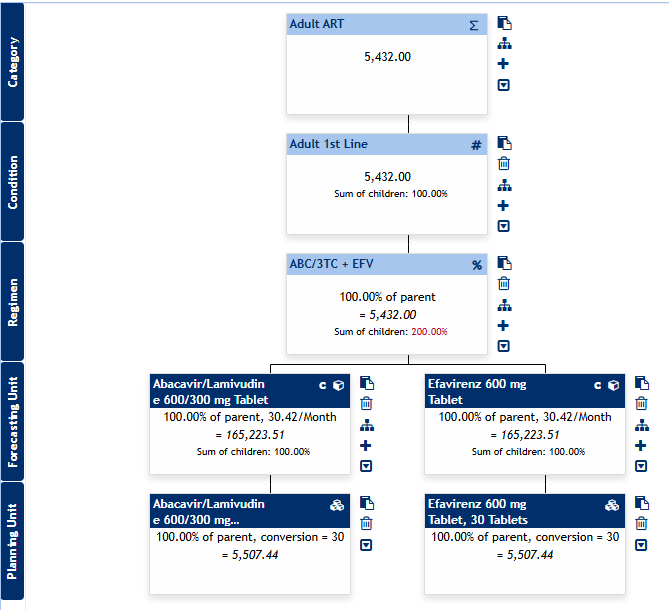
Figure 171: Simple Forecasting Tree Example
Forecasting trees are built from the top-down using different types of nodes. Each forecast tree must start with either an Aggregation node or a Number node, and include one or more Planning Unit nodes. Planning Unit nodes must be the child of a Forecasting Unit node. Thus, a user must have at least three levels of nodes (Aggregation/Number node, Forecasting Unit node, and Planning Unit node) to produce a forecast output.
Steps for Building a Manual Tree:
- Download a program
- Navigate to the Forecasting Tree → Manage Tree screen
- In the top-right of the screen, click the blue ‘Create or Select’ dropdown and select ‘+ Draw your own tree’ from the dropdown
Define the tree details, such as the forecasting method (demographic, morbidity, or services), tree name, and region.
- Once created, users can edit tree details by clicking on the
 icon next to the Tree dropdown.
 - (optional) By clicking on the icon next to the Scenario dropdown, users can add, edit, and delete tree scenarios. For more information, see Scenarios in the section below.
- Once created, users can edit tree details by clicking on the
- By default, QAT will begin with a number node with a value of zero on Level 0. Click on this default node to edit/update the node.
Add a new node (child) below the parent node by clicking on
and choosing the appropriate Node Type. Based on the parent, QAT will automatically filter which child node types are available. QAT will add the new node under the same parent and to the right of any existing nodes. Continue to add nodes based on available data until ending with a Forecasting Unit node and its associated Planning Unit node.- To delete a node, simply click the icon, but note that this will also delete the child nodes under the one being deleted.
To copy or move a node, click on the
icon. In the pop-up, review or select where you want the node to be copied or moved to – the tree, the level of the parent, and the parent.- For copying, QAT will select the same location as the original node by default
- For moving, QAT will select the same tree as the original node by default
- The entire branch (including all child nodes) will be moved/copied.
- Use the checkbox to select if you want to include modeling or not. Note: Transfers are never copied/moved.
As a validation feature, QAT will flag a Planning Unit (PU) node with a red border under two circumstances: 1) if a user has added a Forecasting Unit (FU) and PU, and later changes the FU and mistakenly forgets to also change to the correct corresponding PU, or 2) if a user creates a tree from a tree template which has PUs, but the user does not have those PUs in their program.
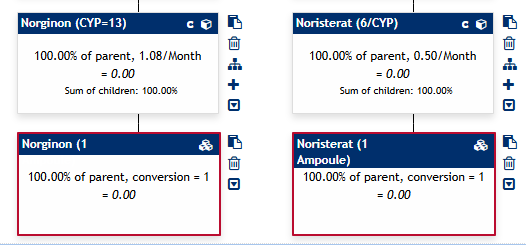
To correct this, users can click on the PU node and choose the appropriate PU from the dropdown list.
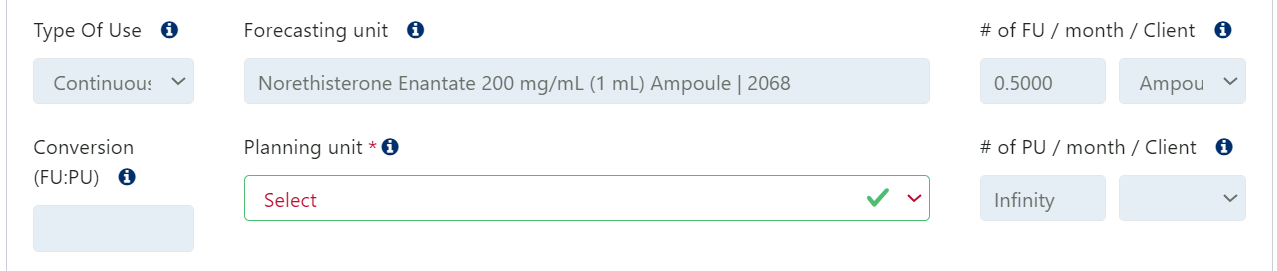
- Tip: users can “clean-up” their tree by clicking any of the checkboxes available (Hide Planning Unit, Hide Forecasting Unit and Planning Unit, or Hide Tree Validation) at the top of the tree.
- To delete a node, simply click the
- (optional) Users can insert a tree template within the body of their tree by clicking the icon to add a branch template. This branch will be added below the current node as a child. This improves the efficiency of adding multiple batches of nodes (a branch) that are the same or similar across an existing tree or a new tree by utilizing templates. For more information on branch templates, refer to Branch Templates.
(optional) Click on the tree levels (dark blue rectangular boxes on the left of the tree) to:
- Name the levels of a tree. This will make a tree easier to read and will be used in the dropdowns and axis of the Modeling Validation screen.
- Reorder branches of your tree as desired by using the up and down arrows to indicate the left-to-right position of the branches. If the list is long, use the “see children of” dropdown to filter the nodes.
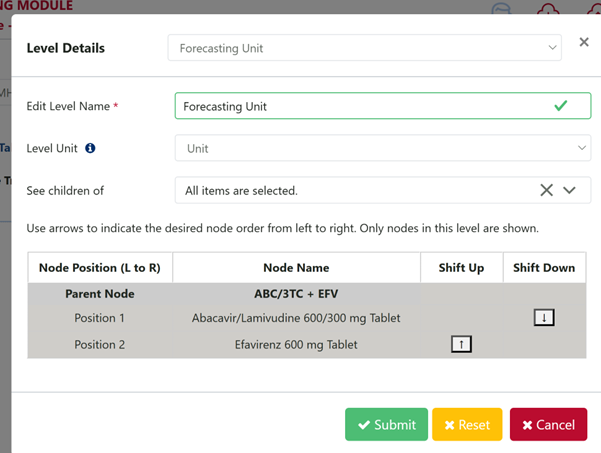
QAT trees are automatically saved to the local computer (for saving a tree to the server, please see Upload Version). The quantities that appear in the nodes are also automatically calculated as a tree changes; however, if QAT is running slow while editing the tree, users can uncheck the “Auto-Calculate” box to stop the backend auto-calculations. To manually see the updated calculations after each edit, users will need to click the
 icon.
icon.- Users can download their trees as PDFs to share with stakeholders by clicking on the
 icon.
icon. - Users can download an outline form of their tree to double check the Sum of Children validation, node values, and their nodes by clicking on the
 icon.
icon.
- Users can download their trees as PDFs to share with stakeholders by clicking on the
(optional) To batch edit values in a tree, user can use the Tree Table screen, which is accessible via a link at the top left of the Manage Tree – Build Trees screen.
- On the Tree Tables screen,
- The dropdowns at the top of the screen should be prepopulated with the same program, tree, scenario, and display date as previously selected, but users can update the dropdowns as needed before making edits.
- Nodes are grouped by node type on different tabs. Navigate to the node(s) you want to edit by using the tabs
- Made edits to any node values by editing the table cells.
- See the example and screenshot in Figure 172
- Note that while the Tree Tables screen is helpful for editing the values of multiple nodes efficiently, the Tree Tables screen does not allow for editing for the tree structure. Please use the Manage Tree – Build Trees screen to add, delete, copy or move nodes.
- Upon returning to the Build Tree screen, users may need to click the icon to see updated values.
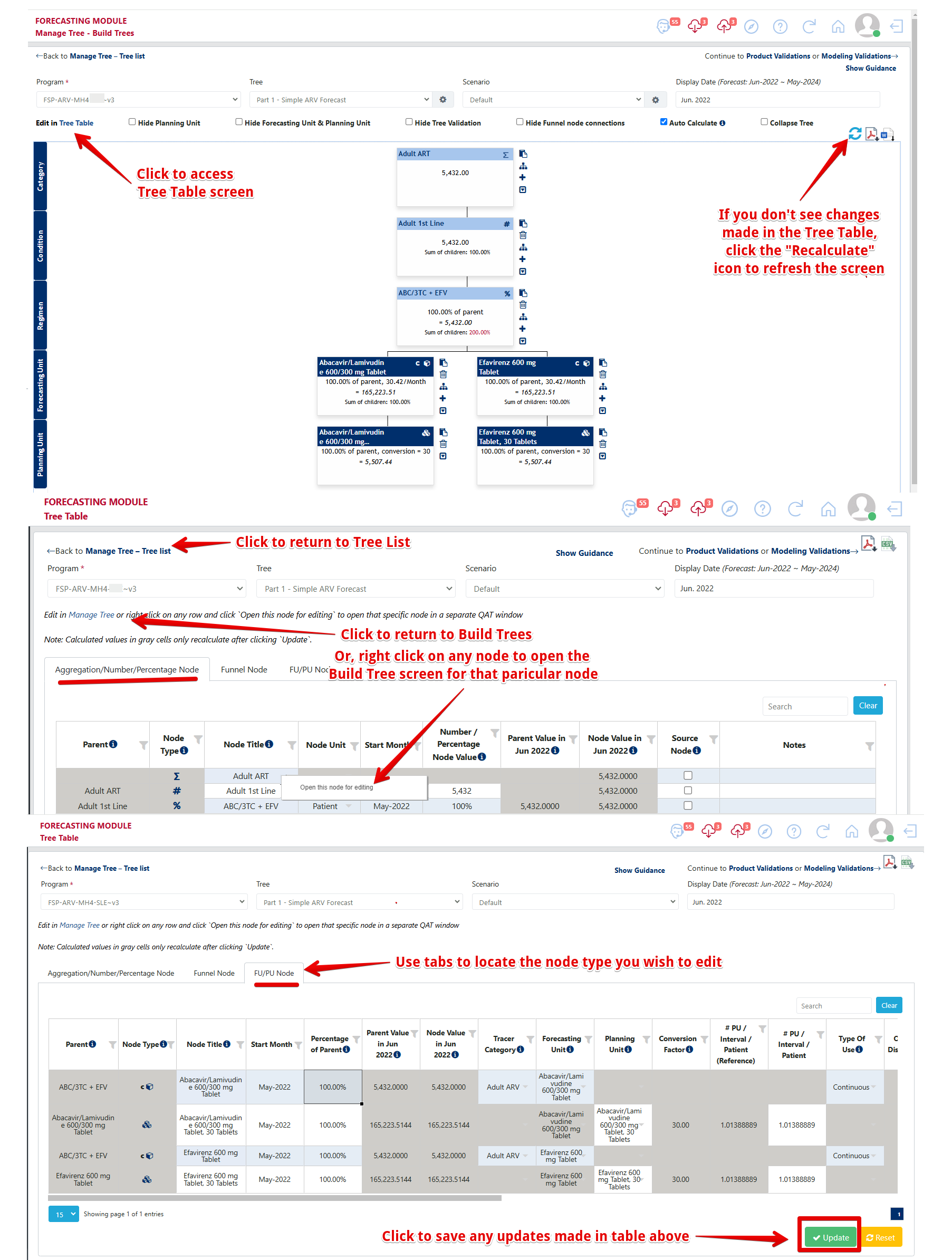
Figure 172: Accessing and Using Tree Table Screen
c. Scenarios
Using Scenarios: Scenarios are used to model different values for the same tree. Scenarios are useful when users would like to analyze the outcome of different changes over time (ex: national target vs. status quo, different levels of seasonality, transitioning planning units at different rates, etc.), but would like to keep the same base structure. To create a tree with different structures (e.g. different regimens, different methodologies), it is recommended to create another tree (tip: utilize the duplicate tree function!). To add, edit, delete or inactivate a scenario, use the icon next to the scenario dropdown. Use the scenario dropdown to select which scenario to view and edit.
| Fixed for All Scenarios | Unique to each Scenario |
|---|---|
| Tree structure | Node value |
| Node Title | Month |
| Node Type | Notes |
| Modeling/Transfer/Extrapolation |
Notes:
- By default, only active scenarios are shown. To view inactive scenarios, click the icon next to the scenario dropdown, followed by “Show Inactive”
- Users can choose different tree-scenario combinations for each Planning Unit in the Compare and Select screen.
d. Modeling/Transfers
Purpose: If a node changes over time, a user can utilize the Modeling/Transfer tab to model growth/loss within a single node or a transfer from one node to another. Note that this functionality is only available for Number (#) Nodes and Percentage (%) Nodes (including Forecasting Units and Planning Units). User can still use the tab to view monthly data for Aggregation and Funnel nodes.
Using this tab: Users can manually enter any desired changes over time (growth/loss/transfer) in the top table, or they can utilize the Modeling Calculator for calculating the monthly rate of change (see ‘Modeling Calculator’ section below for more information). Each entry must be added as separate rows per change in the top table (ie. a node cannot grow and transfer in one data entry row – these must be two separate rows).
- Rules for Transfer Nodes:
- Number nodes can only transfer to other number nodes and must belong to the same level.
- Percentage nodes can only transfer to other percentage nodes and must belong to the same parent.
- Transfers are always negative from the source node and positive to the destination node.
- Extrapolation is not allowed on a node that also has a transfer, whether that be to/from another node.
Modeling Types:
| Modeling Type | # Node Calculation | % Node Calculation |
|---|---|---|
| Linear (#) | +/- a static number each month | N/A |
| Linear (%) | +/- a static percentage each month, calculated based on the starting month | N/A |
| Exponential (%) | +/- a percentage each month, calculated on the previous month as a rolling percentage | N/A |
| Linear (% point) | N/A | +/- a static percentage each month (e.g. if the starting month is 30% and the change is +1% each month, next month is 31%, the next is 32%, and so on) |
Seasonality & Manual Changes:
Click on “Show Monthly Data” to show a table & graph with the node value across time
- This feature is helpful to see how modelling and transfer inputs affect the monthly data in both a graphical and tabular form.
- In the tabular data, users may add a manual change for a specific month or input a seasonality index percentage (only available for # and % nodes), as needed.
- Enter a positive % for an increased value in this month or a negative value for a decreased value. For example, 20% indicates that this month's value is 20% over the non-seasonal value (or 120%), whereas -20% indicates that it is 20% under the non-seasonal value (or 80%).
- For percentage nodes, QAT first calculates the seasonalized value of the percentage before then calculating the value of the node by multiplying the seasonalized percentage and the parent value. In Figure 174, the example show how the unseasonalized percentage of 50% becomes 60% after it’s seasonalized.
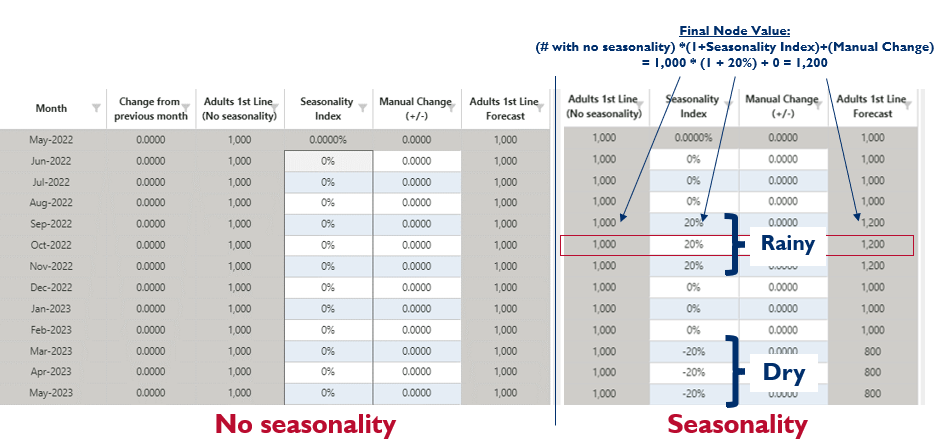
Figure 173: Seasonality in a number node
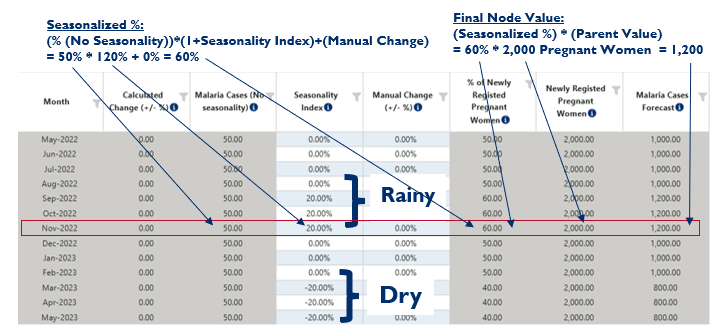
Figure 174: Seasonality in a percentage node
- If a user checks “Manual Change affects future month,” the manual amount added to the end of the month will carry over to the beginning of the next month.
- If neither of these fields are relevant, users can uncheck “Show manual change” or “Show seasonality & manual change” to hide these columns.
Modeling Examples:
Simple Growth (linear #) - the example below shows a population growth each month by 500/month from January 2022 to December 2024.

Simple Loss (linear #) - the example below shows attrition each month by 100/month from January 2022 to December 2024. QAT utilizes a negative number to denote a decrease or loss.

Simple Growth (linear %) - the example below shows a steady population growth each month by 2% from January 2022 to December 2024. QAT has calculated this change to be increasing the population by 108.64 each month.

Simple Growth (exponential %) - the example below shows a population growth each month by 1% from January 2022 to December 2024. Because the growth is exponential, the change differs each month.
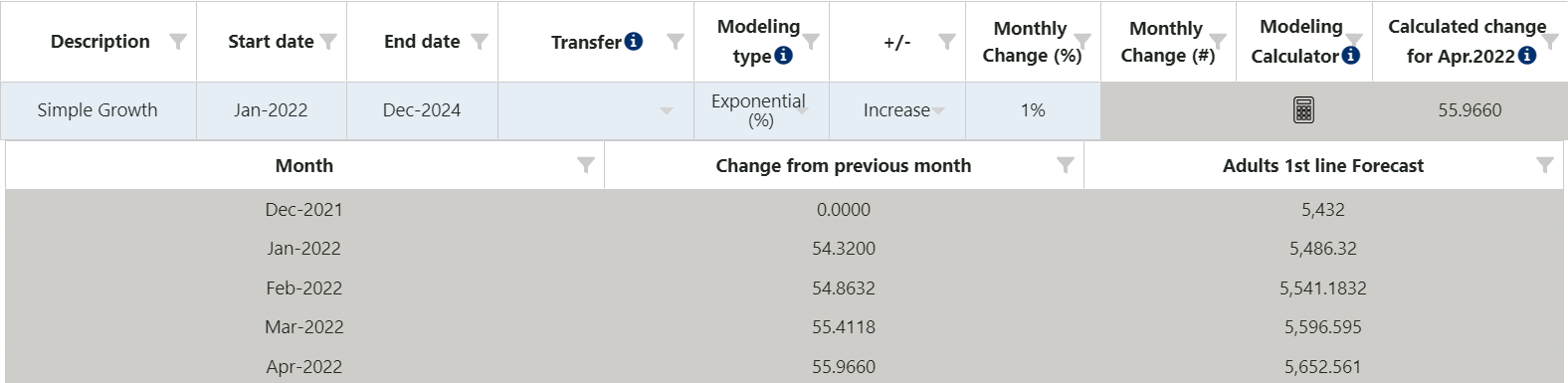
- QAT calculates this change to be 54.32 in Jan-22 month,
- QAT calculates this change to be 54.86 in Feb-22 month, and
- QAT calculates this change to be 55.41 in Mar-22
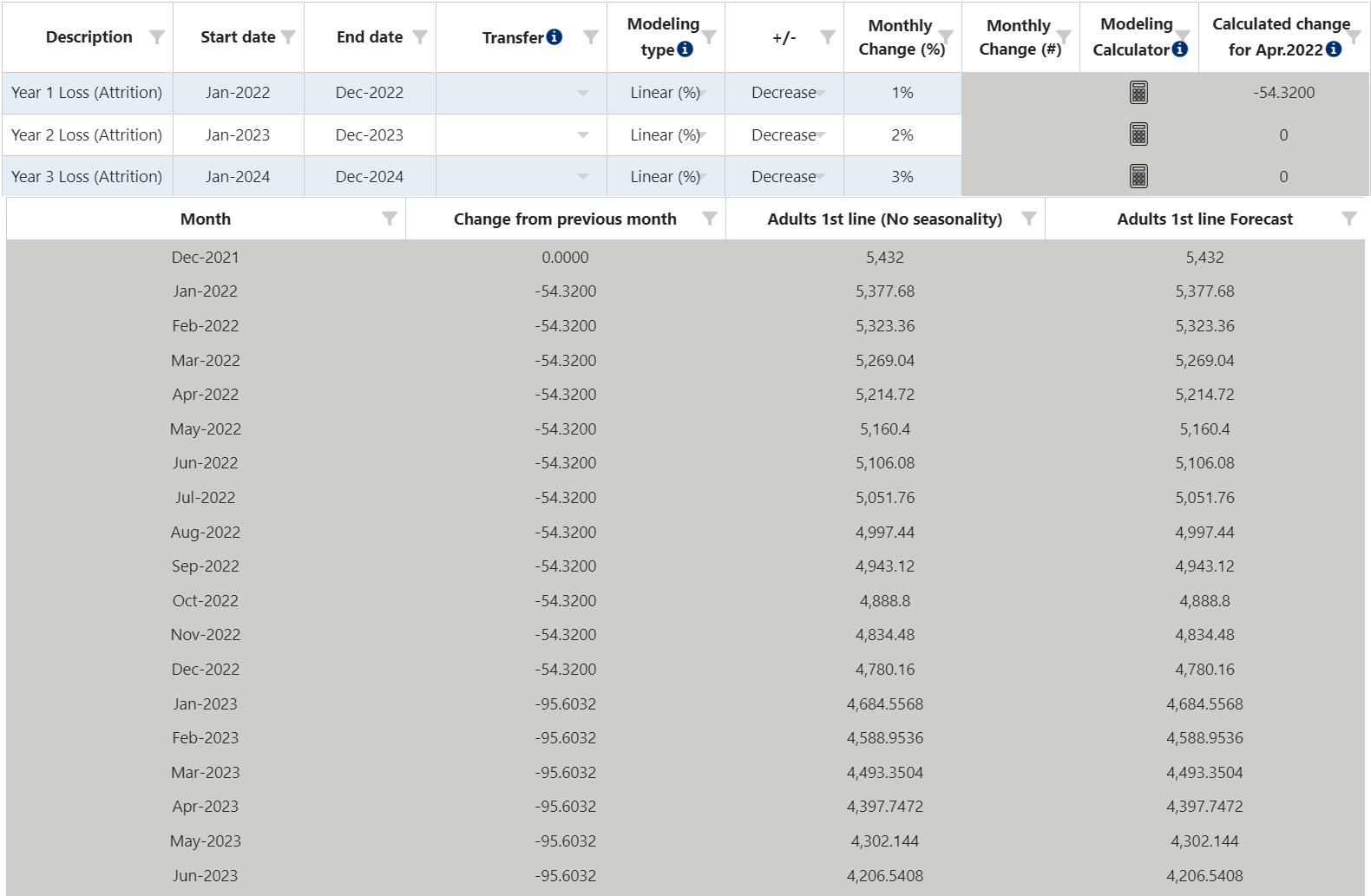
Multi-year Loss - the example below shows a different rate of attrition (loss) each year. Year 1 (January 2022 to December 2022) decreases the population by 1% or 54.32 each month, Year 2 (January 2023 to December 2023) decreases the population by 2% or 95.6 each month, etc. QAT utilizes a negative number to denote a decrease or loss.
Transfer - the example below shows a transfer of 250 patients each month for one year, January 2022 to December 2022, from the current node (Adults 1st Line) to another node (Adults 2nd Line). This transfer will also appear on the other node (Adults 2nd Line) greyed-out to signify a non-editable change.

 Modeling Calculator:
Click on the modeling calculator if you need assistance to calculate the monthly rate of change. The modeling calculator Ending Value/Change is available for all nodes except Aggregation Nodes, and the modeling calculator Annual Target is only available for Number Nodes. Begin by select a Modeling Type (Linear #, Linear %, or Exponential %), and then a Target Type (Ending Value/Change or Annual Target):
Ending Value/Change: Use this if you have target value (non-cumulative) or total desired change over a specific period, rather than a known monthly rate of change.
- The Start Date and Target Date will be filled in based on the original inputs for Start date and End date in the modeling table, which are by default, based on the forecast period. The user can change these if desired. These two dates will flow back into the modeling table.
- The Start Value is the node value at beginning of the month for the Start Date, as calculated by QAT. In other words, the Start Value is the node value before any modeling changes occur. This field is calculated and cannot be directly changed by the user. If the Start Date is the month after the “Month” on the Node Data tab, then the Start Value is equal to the "Node Value” provided by the user on the Node Data tab.
- Period is calculated as Target Date - Start Date (in months). This value is not displayed in the front-end of QAT, but is used in the formulas below.
- Based on the available data or assumptions, enter data in one of the following fields: Target Ending Value, Target Change (%) or Target Change (#)
- After an input is developed, the other fields will be automatically populated, as well the final 'Calculated Month-on-Month Change'.
- When user clicks 'Accept', the Monthly Change (% or #) will be populated back in the main modeling table, based on the formulas below. All negative changes will be displayed as “decrease” and positive changes displayed as “increase”, with the number shown in absolute value.
If user enters Target Ending Value:
| Linear (%) | Linear (#) | Exponential (%) | |
|---|---|---|---|
| Target Change (%) | (Target Ending Value - Start Value) / Start Value | - | - |
| Target Change (#) | - | Target Ending Value - Start Value | - |
| Calculated Month-on-Month Change | (Target Ending Value - Start Value) / Period | - | - |
| Monthly Change (%) | (((Target Ending Value - Start Value) / Period) / Start Value) * 100 | - | ((Target Ending Value / Start Value) ^ (1 / Period) - 1) * 100 |
| Monthly Change (#) | - | Change (#) / Period | - |
If user enters Target Change (%):
| Linear (%) | Linear (#) | Exponential (%) | |
|---|---|---|---|
| Target Ending Value | Start Value + (Start Value * Target Change (%)/100)/100 | - | - |
| Target Change (#) | - | Target Ending Value - Start Value | - |
| Calculated Month-on-Month Change | (Start value * Target Change (%)) / 100 / Period | - | - |
| Monthly Change (%) | (((Target Ending Value - Start Value) / Period) / Start Value) * 100 | - | ((Target Ending Value / Start Value) ^ (1 / Period) - 1) * 100 |
| Monthly Change (#) | - | Target Change (#) / Period | - |
If user enters Target Change (#):
| Linear (#) | |
|---|---|
| Target Ending Value | Start Value + Target Change (#) |
| Change (%) | (Target Ending Value - Start Value) / (Start Value * 100) |
| Calculated Month-on-Month Change | Target Change (#)/ Period |
| Monthly Change (#) | Target Change (#) / Period |
-
Annual Target: Use this if you have target values (cumulative over a year). Instead of simply dividing annual targets by 12, which creates a stairstep pattern that is, the calculator will help provide a smooth forecast.
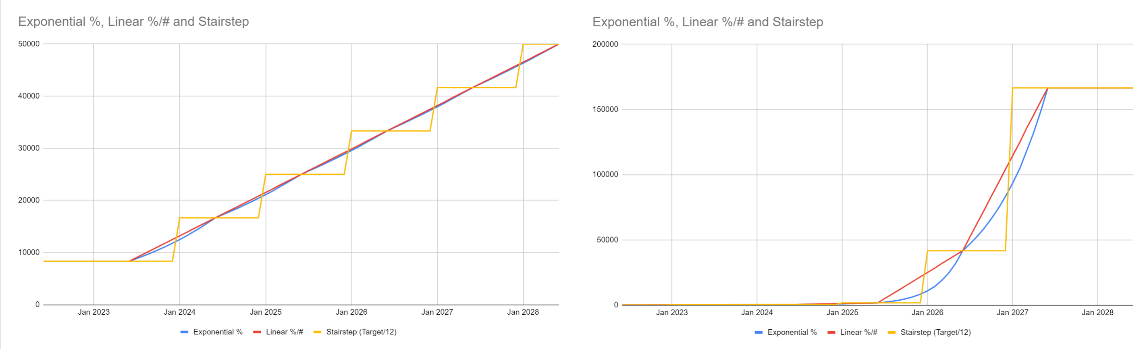
Select the first month of your target and the number of years of targets available.
- QAT will autofill in the yearly rows in the table based on the chosen first month of target, assuming targets are for 12-month periods.
- In the table, enter figures for the year before the target (the actual) and each target year.
- After data entry, click “Calculate” (see below for calculation approach and formulas).
- Review the differences between the desired targets and the QAT calculated numbers. If differences are large, consider if the rate of change follows a linear or exponential pattern and change the Modeling Type (Linear #, Linear %, or Exponential %) and re-calculate if needed.
When user clicks “Accept,” QAT populates the calculated values in two places:
- Node Value tab - Starting Month and Starting Value
- Modeling/Transfer tab – one row is created per 12-month period after the Starting Value. Note that these are not the same periods as the Target Years (see below).
Annual Target Calculation Approach: QAT assumes that 1/12th of the annual actual value was achieved in the midpoint of the actual year, and 1/12th of the annual targets will be reached by the midpoint each target year. QAT then effectively interpolates between those midpoints by calculating a linear or exponential monthly rate of change. This monthly rate of change is then applied to both years - the second half of the first year and the first half of the second year. To achieve this, QAT calculates the following fields:
| Field | Explanation / Formula |
|---|---|
| Annual Change (%) | Change from previous year. Calculated for each year after the first year. |
| Monthly Change (%) / Monthly Change (#)* | Exponential Rate = (Year 2 Value/Year 1 Value)^ (1/12) -1 |
| Node Month** | = n-7, where n is the first month of the target. |
| Node Value** | Assumed to be the first value (the actual value) provided by the user divided by 12, since this is assumed to be the midpoint of the year. |
| Calculated Total | Beginning with the Node Month and Node Value, and applying the Monthly Change (% or #), QAT calculates each monthly value, then provides sums the values across 12-month periods. |
| Difference (Target vs Calculated, #) | Calculated for each year after the first Actual year. This difference will be large if the annual change varies significantly between years. |
| Difference (Target vs Calculated, %) | Calculated for each year after the first Actual year. This difference will be large if the annual change varies significantly between years. |
- These values don’t appear in the ‘Modeling Calculator’ section, but populate in the top modeling/transfer node table after user clicks “accept.”
** These values don’t appear in the ‘Modeling Calculator’ section, but populate into the main node fields after use clicks “accept.”
e. Extrapolation
Purpose: The extrapolation tab allows users to forecast future node values by extrapolating from past values. This functionality is only available for number nodes, and is similar to the ‘Extrapolation’ screen, but is conducted in a tree node instead. For a given node, users must choose between modeling/transfers or extrapolation, but cannot use both at the same time. More details on extrapolation methods can be found under Extrapolation.
Using this tab:
- First, select the checkbox next to ‘Extrapolate’ in the Add/Edit Node.
- Select ‘Show Data’.
- In the table, enter any actual values and reporting rates for your past data. From this input, QAT will calculate adjusted historical values. If you need to change the period for data, change the start and end month at the top of the node under ‘Start Month for Historical Data’.
- If there is missing data, use the green Interpolate button to fill in missing data. Interpolate can only be used if there is data on both sides of the month missing data.
- (optional) Select which forecast method(s) you wish to display and update the extrapolation parameters.
- Click “Extrapolate.” All selected forecasts will display in the main table and the graphs.
NOTE: The minimum values needed to get correct graphs and reports for the various features are below:
- TES, Holt-Winters: Needs at least 24 months of actual consumption data
- ARIMA: Needs at least 14 months of actual consumption data
- Moving Average, Semi-Averages, and Linear Regression: Needs at least 3 months of actual consumption data
- (optional) In the table, add any manual changes (+/-). These changes are added or subtracted on top of the extrapolated values.
- After reviewing the main table, the error table, and the graphs, select the desired forecast method at the bottom of the screen and click “Save.”
- Note: If you change any inputs, you will be required to extrapolate again to update calculations, before selecting a new method.
f. Advanced Techniques
Tips for specific use cases:
-
Delayed or phased product usage? Sometimes, the product consumption is delayed in relation to the other higher levels of the tree. In the relevant Forecasting Unit node, use the Lag field to indicate this delay.
- For example, if the product usage will begin 2 months after the parent node dates, enter “2” in this field.
- This field can also be used where the product switches over time – for example, if forecasting units A, B, and C are used in secession for two months at a time, you can set up your tree with Forecasting Unit A (discrete for 2 months, lag=0), Forecasting Unit B (discrete for 2 months, lag=2), Forecasting Unit C (discrete for 2 months, lag = 4).
-
Discrete product usage over a longer period of time? (first month forecasting vs. forecasting month-by-month): QAT has the option to calculate discrete product usage in forecasting unit nodes in two ways:
- by frontloading the discrete quantity consumed per patient in month 1 (choose "Calculate" = "All in the First Month") or
- by disaggregating the discrete quantity consumed per patient by month (choose "Calculate" = "Month-by-Month").
- By default, QAT will assume "All in the First Month" (frontloading); however, users have the option to select "Month-by-Month" for the alternative method. This alternative calculation could be useful for Planning Units (PUs) that have low consumption patterns over a period of time or if applying to a newly initiated patient group. For example, if a pregnant woman is required to take a nutritional supplement once/month for the duration of the pregnancy (nine months), by default QAT would calculate nine supplements in month 1 (frontloading). Without frontloading, QAT would calculate one supplement in month 1, one supplement in month 2, one supplement in month 3, and so forth.
Example calculation (All in the First Month vs. Month-by-Month) – no modeling applied:
o All in the First Month: There are 10 patients that require 1 bottle for treatment over the course of 6 months; thus, the # of Planning Units per patient = 6. When calculating “All in the First Month,” QAT will frontload the forecasted quantity and assume that all 60 bottles (10 patients * 6 bottles per patient) are forecasted each month.
| Month | Jan | Feb | Mar | Apr | May | Jun | Jul | Aug | Sep | Oct | Nov | Dec |
|---|---|---|---|---|---|---|---|---|---|---|---|---|
| # of Patients | 10 | 10 | 10 | 10 | 10 | 10 | 0 | 0 | 0 | 0 | 0 | 0 |
| Total Forecasted | 60 | 60 | 60 | 60 | 60 | 60 | 0 | 0 | 0 | 0 | 0 | 0 |
Total Forecasted in 6-month Period = 360 Bottles
o Month-by-Month: There are 10 patients that require 1 bottle for treatment over the course of 6 months; thus, the # of Planning Units per patient = 6. With “Month-by-Month,” QAT will evenly distribute the forecasted quantity across the time period. Thus, QAT will assume that 10 bottles are forecasted in month 1 (10 patients * 1 bottle). In month 2, those same 10 patients will each return for another bottle, while a new patient group of 10 will also each need 1 bottle [(10 patients * 1 bottle) + (10 patients * 1 bottle)] for a total of 20 bottles forecasted in month 2, and so forth.
| Month | Jan | Feb | Mar | Apr | May | Jun | Jul | Aug | Sep | Oct | Nov | Dec |
|---|---|---|---|---|---|---|---|---|---|---|---|---|
| # of Patients | 10 | 10 | 10 | 10 | 10 | 10 | 0 | 0 | 0 | 0 | 0 | 0 |
| Total Forecasted | 10 | 20 | 30 | 40 | 50 | 60 | 50 | 40 | 30 | 20 | 10 | 0 |
Total Forecasted in 6-month Period = 160 Bottles
Total Forecasted in 12-month Period = 360 Bottles
Example calculation (All in the First Month vs. Month-by-Month) – modeling applied: o There are 10 patients that require 1 bottle for treatment over the course of 6 months; thus, the # of Planning Units per patient = 6. There is also an expected increase of 5 new patients per month. Using the logic above for calculating “All in the First Month” and “Month-by-Month,” QAT will calculate the following number of bottles to be dispensed over a 12-month period:
| Month | Jan | Feb | Mar | Apr | May | Jun | Jul | Aug | Sep | Oct | Nov | Dec |
|---|---|---|---|---|---|---|---|---|---|---|---|---|
| # of Patients | 10 | 15 | 20 | 25 | 30 | 35 | 0 | 0 | 0 | 0 | 0 | 0 |
| All in the First Month | 60 | 90 | 120 | 150 | 180 | 210 | 0 | 0 | 0 | 0 | 0 | 0 |
| Month-by-Month | 10 | 25 | 45 | 70 | 100 | 135 | 125 | 110 | 90 | 65 | 35 | 0 |
Total Forecasted (All in the First Month) = 810 Bottles
Total Forecasted (Month-by-Month) = 810 Bottles
-
Desire a specific value for number of Planning Units per patient? A user can specify a specific value for number of Planning Units per unit* (discrete) or per unit* per month (continuous) by choosing “No” for “Use QAT's Autocalculation for # of Planning Units?” Unless overridden by a user, QAT will utilize the auto-calculation by default. (* In this case, unit could be patient, test, client, etc)
-
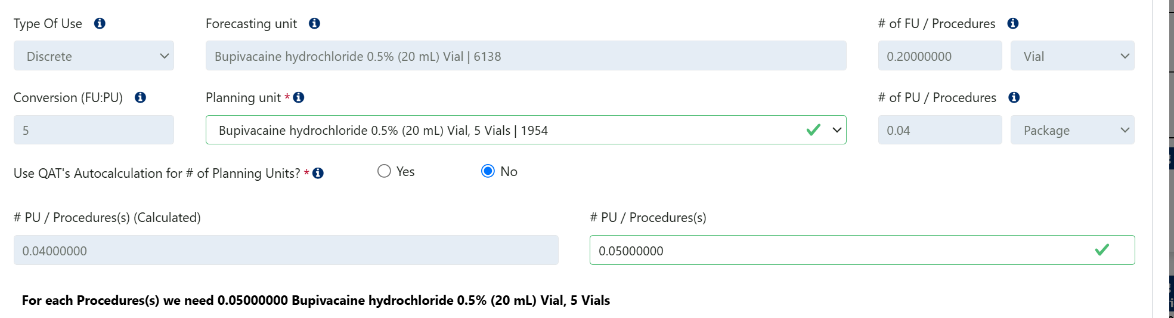
Discrete Example: If every 1 vial of bupivacaine is supposed to be used every 5 procedures, then the number of forecasting units / procedures is 0.2 vials. With a planning unit of 5 vials, QAT calculates that 0.2/5 = 0.04 planning units are used per procedure. However, a user can toggle the radio button to “No” and choose to override this with knowledge of actual usage rates and enter 0.05 planning units. Always add a note when you override QAT’s calculation.
-
Continuous Example: If a patient requires 1 tablet per day indefinitely of TLD 30-tablet bottle, QAT will calculate this as 30.4167/month or 1.0139/day to account for months that have 30 days, 31 days, 28 days, etc. However, a user may choose to toggle the radio button to “No” and choose to override this to 1 planning unit/month. provide the override value of 1. Always add a note when you override QAT’s calculation.

-
-
Repeating Forecasting usages? If multiple Forecasting Unit nodes share the same settings, consider using the Usage Template screen to save your common usages, and then using the “Copy from Template” field to populate the fields in the forecasting unit nodes.
-
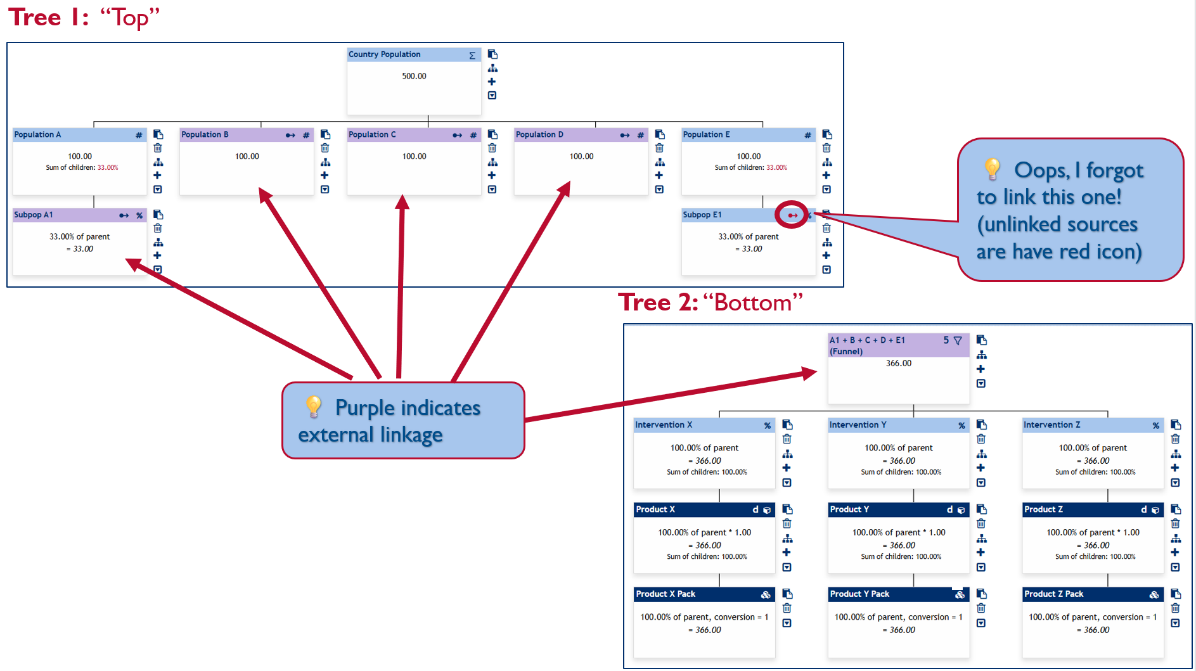
Aggregate node values for further calculation? (Funnel Nodes): In some cases, users may want to link the value of one node to another node, or aggregate multiple nodes into one node before adding additional nodes below. ¶¶Please note this feature is different than linking nodes via modeling/transfer, which is for linking changes in one node to changes in another node, rather than aggregation. This is also different from using aggregation nodes, which aggregate only upwards, and don't allow further calculation¶¶
Use cases:
- Viral Load tests are used by various populations, but all populations will use the same mix of instruments. Start with a demographic tree which ends in multiple populations. The different populations need to be summed and the various instrument branches sit under the sum.
- Malaria Patients enter the health system through different channels (community health workers vs public health facilities), which have different testing algorithms, but once a patient tests positive, they receive the same “mix” of treatments. The different populations testing positive need to summed and the various treatment regimens sit under the sum
- Various Contraceptive Methods differ in how they are calculated, but they all derive from the same country population, which needs to be updated each quantification, and may have modeling over time. One tree can be built for implants and injectables, and another built for condoms, but the two trees are linked together at the country population node so their values remain consistent
How to link values
- Indicate (on # or % nodes) that they are "source nodes"
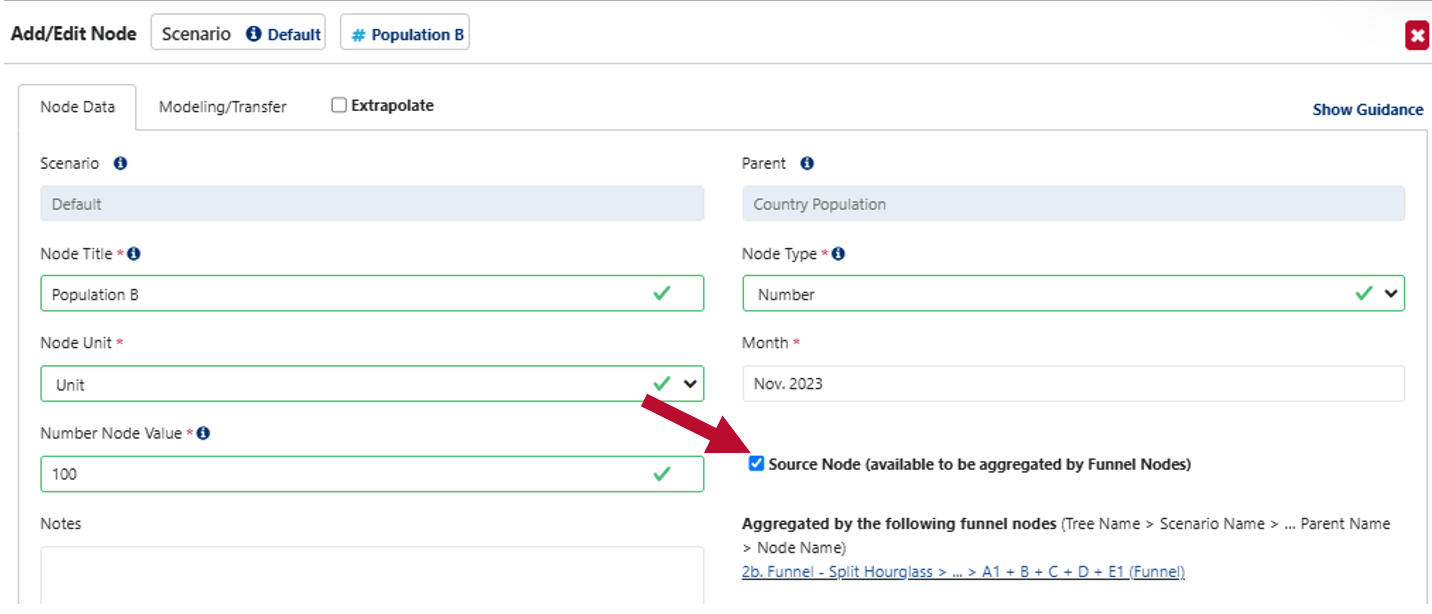
Figure 175 Indicating source nodes
- Create new "funnel nodes" and select which source nodes to aggregate from. Note: Funnel nodes can “sit” anywhere on the tree – that is, you can make the first node of a tree a funnel node, or build funnel nodes under any aggregation, number of percentage node. This is because the value of funnel nodes does not derive from their parent, but from the sources they are linked to.
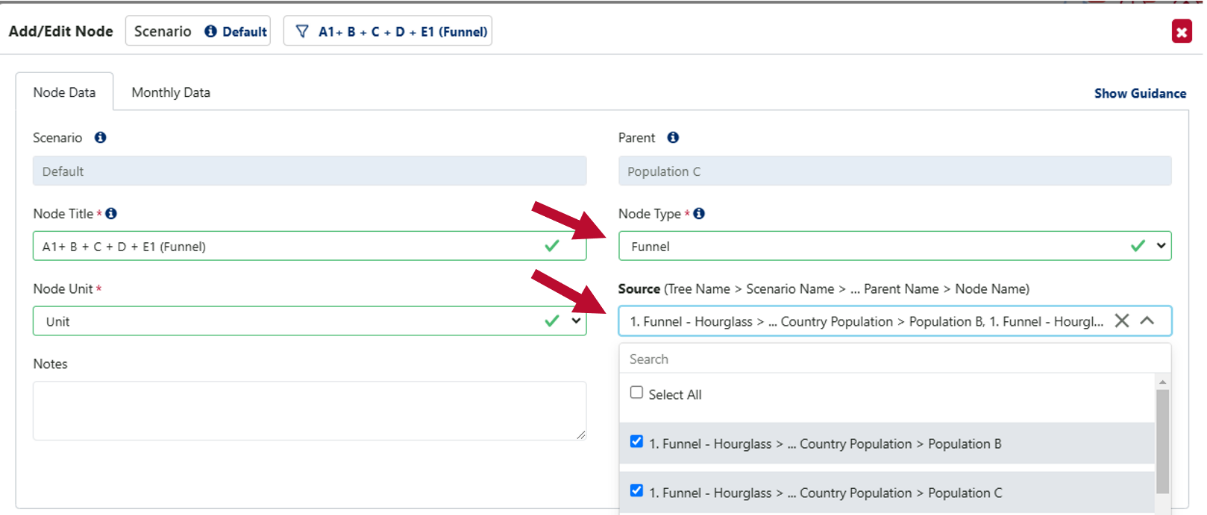
Figure 176 Adding funnel nodes
-
Add any "child" nodes under the funnel nodes - these will likely be the product nodes. Funnel nodes allow for lots of flexibility as they may be used within one tree or multiple trees, can be used on any level, and
-
User can either link internally within one tree
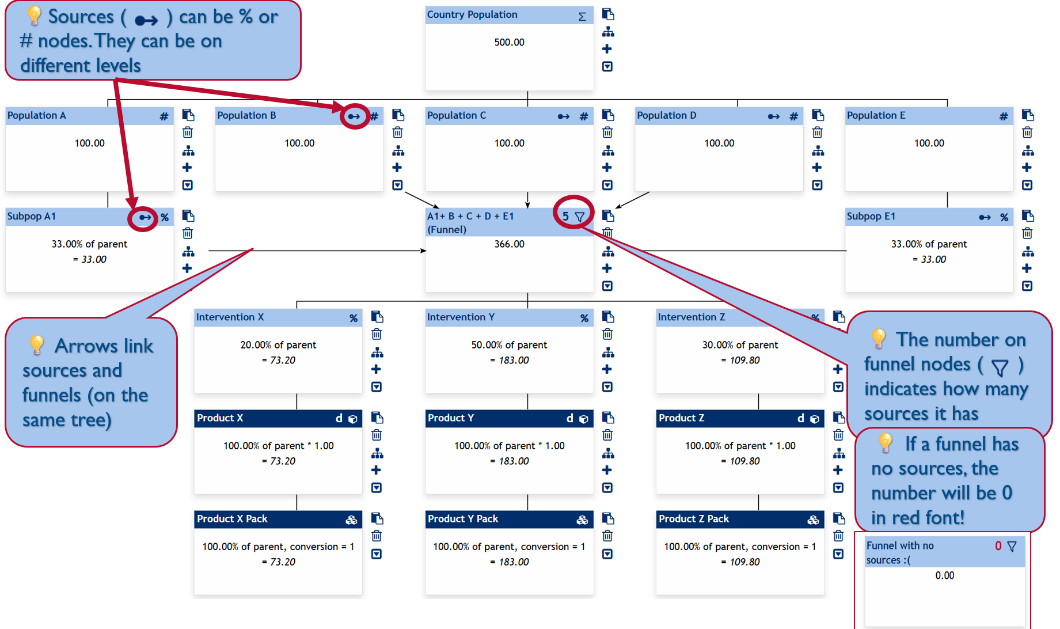
-
Users can link externally between trees (source nodes on one tree, funnel nodes on a different tree)
-
B2. Modeling Validations
Purpose: Once a tree has been built, users can use the Modeling Validation screen to view the change over time. This is useful if the forecast has applied modeling/transfers in one or mode nodes.
Using this screen:
-
Go to 'Tree Forecast' and select 'Modeling Validations'.
-
Select the screen filters using the dropdowns.
- Program: You must be online to view program versions on the server. When offline, only downloaded local programs can be selected.
- Level:
- When creating a tree, it is useful to re-name the levels. The 'level' dropdown in this screen will show the different level names that you have chosen. This makes it easier to identify what the data is showing, rather than using level 0,1,2,3, etc.
- The level dropdown will automatically group Planning Unit and Forecasting Unit into it’s own levels in case these nodes are on separate levels of your tree. Therefore, if you also have a level called 'Forecasting Unit', selecting the 'FU' level and 'Forecasting Unit' level will populate the same results. However, if you have a forecasting unit on level 4 and another one on level 5, the 'FU' level will show both of those.
- X-Axis Display: The data can be shown by months (default) or aggregated by calendar year or fiscal year. (See Figure 154)
- When aggregating by year, it is helpful to use the 'Show Data' feature to confirm which months are included in the aggregated chart, and to confirm if there is data for all the months that are expected
- When aggregating by fiscal years - you must select the which month your fiscal year starts in. For example, if your Fiscal Year 2023 is from October 2022 to September 2023 – you can select the option that . QAT will always show the examples using the current calendar year.
- Y-Axis Display: The data can be shown by number of units, as well as by percentage. (See Figure 149 versus Figure 147)
-
To view the tabular data, select the 'Show Data' blue button in the bottom right of the screen.
-
When viewing the graph, the user can hide elements by clicking on the legend. To unhide, re-click on that part of the legend.
-
This screen can be exported in both CSV and PDF format by selecting the icon(s) in the top right corner.
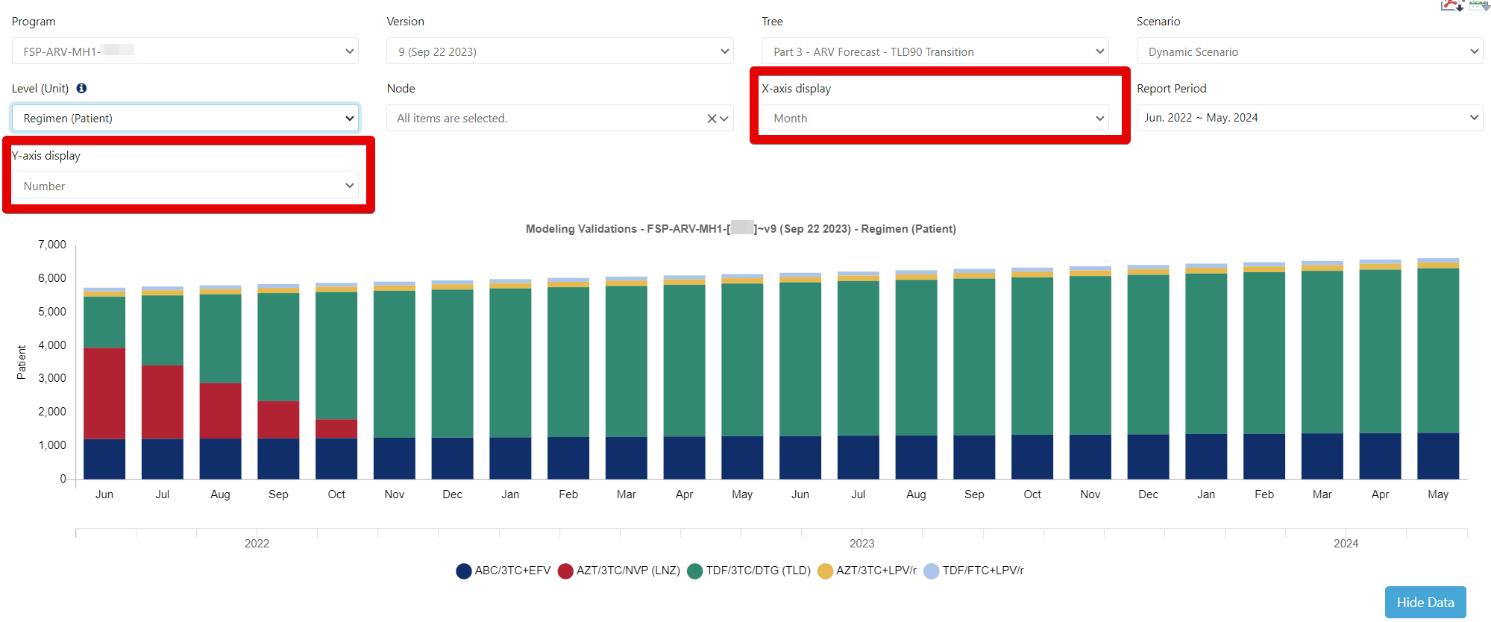
Figure 177: Modeling Validation Screen (by number and month)
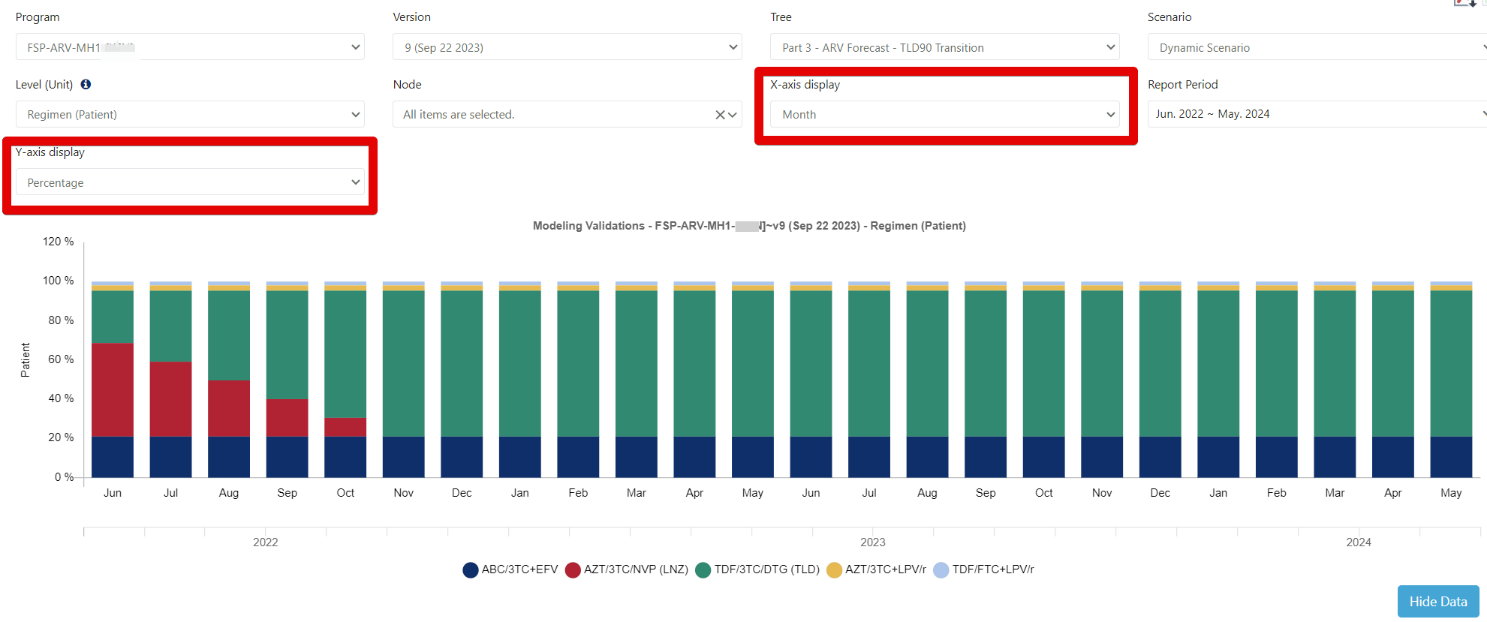
Figure 178: Modeling Validation Screen (by percentage and month)
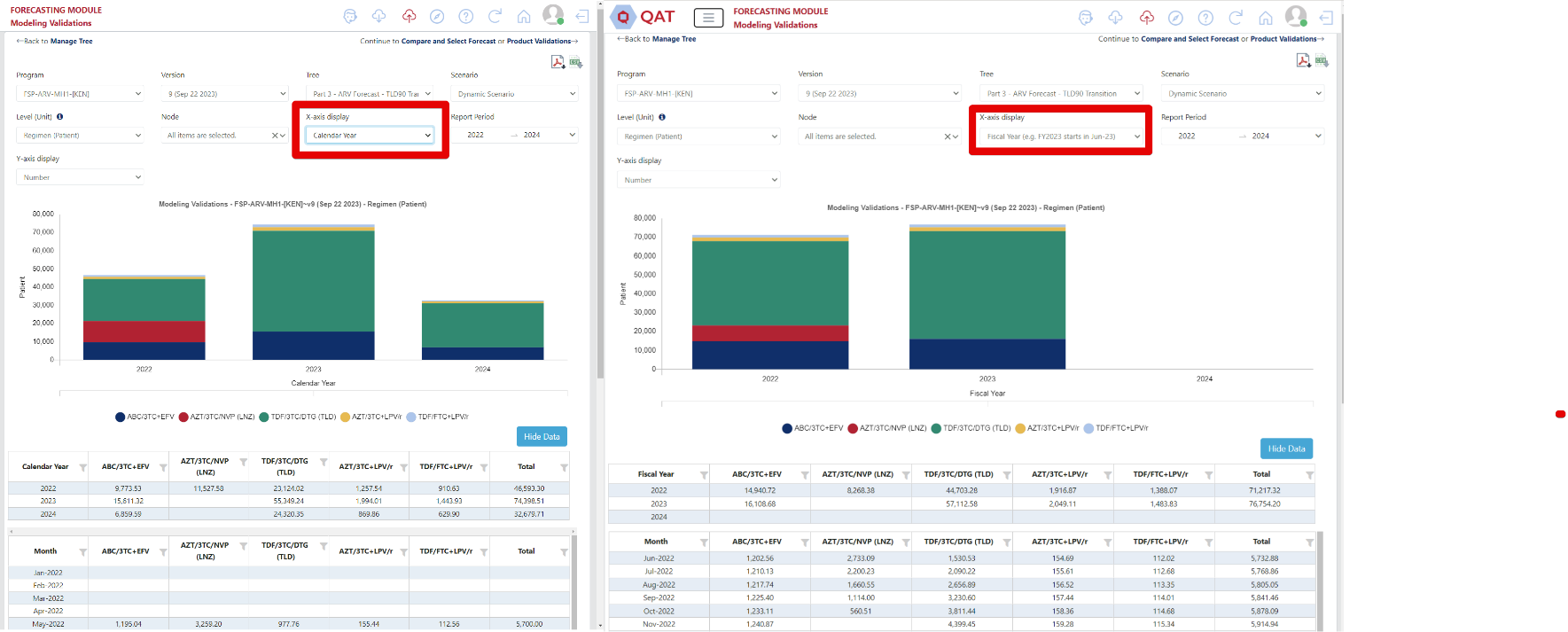
Figure 179: Modeling Validation Screen (by Calendar Year vs by Fiscal Year)
B3. Product Validations
Purpose: Once a tree has been built, users can use the Product Validations screen to check the usage for the products in the forecast tree. This is useful for seeing multiple products at a time.
Using this screen:
-
Go to 'Tree Forecast' and select 'Product Validations'.
-
Select the screen filters using the dropdowns.
- Only downloaded local programs can be selected in this screen.
-
This screen can be exported in both CSV and PDF format by selecting the icon(s) in the top right corner.
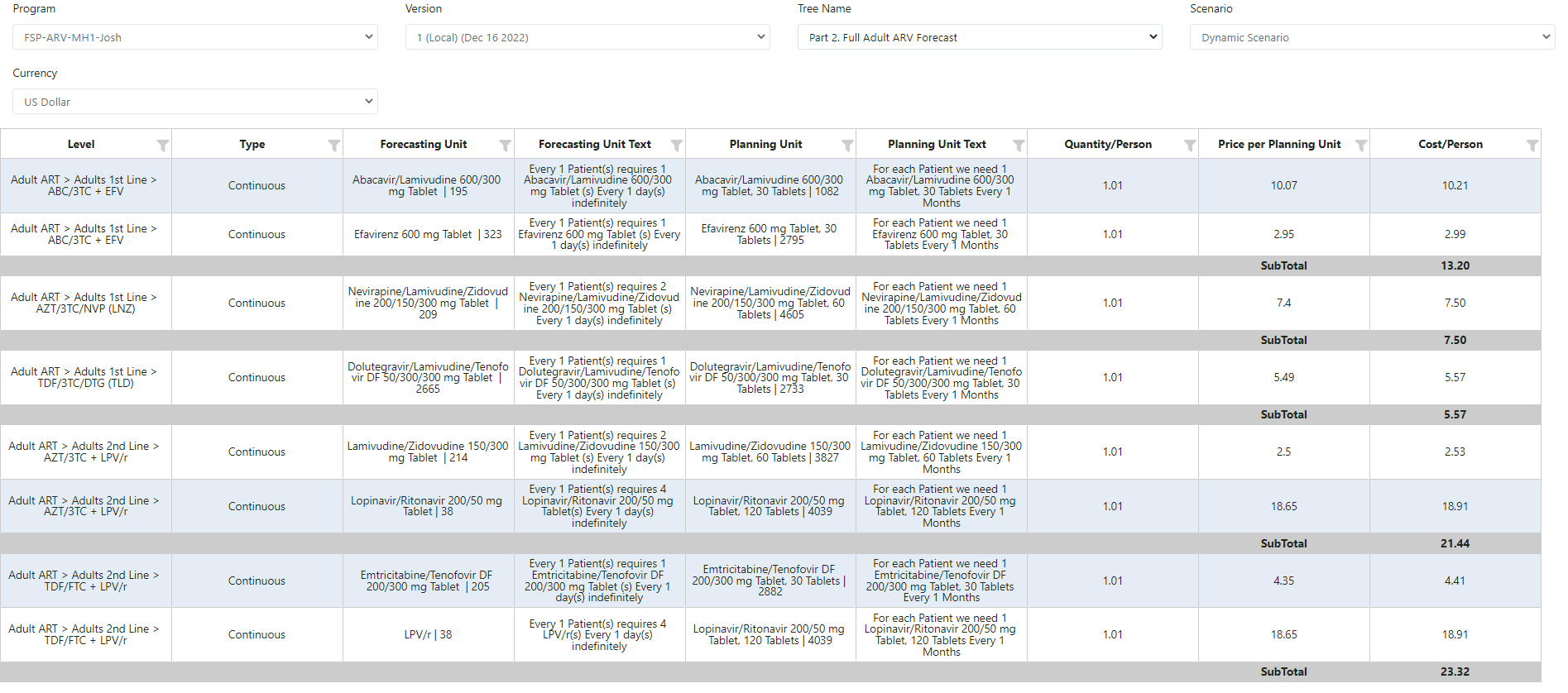
Figure 180: Product Validations
B4. Using Templates
a. Tree Templates
Purpose: To enable users to begin designing their forecast tree from a pre-established template. Note: tree templates are managed at the realm (global) level.
Using tree templates: User can add tree templates in two different locations: ‘Manage Tree’ screen or ‘Tree Templates’ screen. Note: a program must be downloaded in order to create a tree template.
Method 1:
-
Navigate to ‘Tree Forecast’ → ‘Manage Trees’.
-
In the top-right of the screen, click the blue ‘Create or Select’ dropdown and select the desired tree template.
-
In the “Tree Details” Pop-up:
a. Confirm or update the Program, Forecast Method, Tree Name, Regions, and Notes sections.
b. If there are any planning units that are in the template but are missing from the program, QAT will flag them in a bottom section of this pop-up (see Figure 150), wherein a table displays any missing planning units.
i. If there are planning units that are missing in the program (including those inactive or unchecked for Tree Forecast) and are recommended for utilizing the chosen tree template, users can click the “Add/update selected planning units” button and QAT will automatically add the planning units to the user’s program.
ii. If the user would like to create the tree without the recommended planning units, users can click the “Create tree without adding planning units” button and the planning units will not be added to the user’s program. This could be useful when a user would like to utilize a tree structure but have different planning units they would like to forecast.
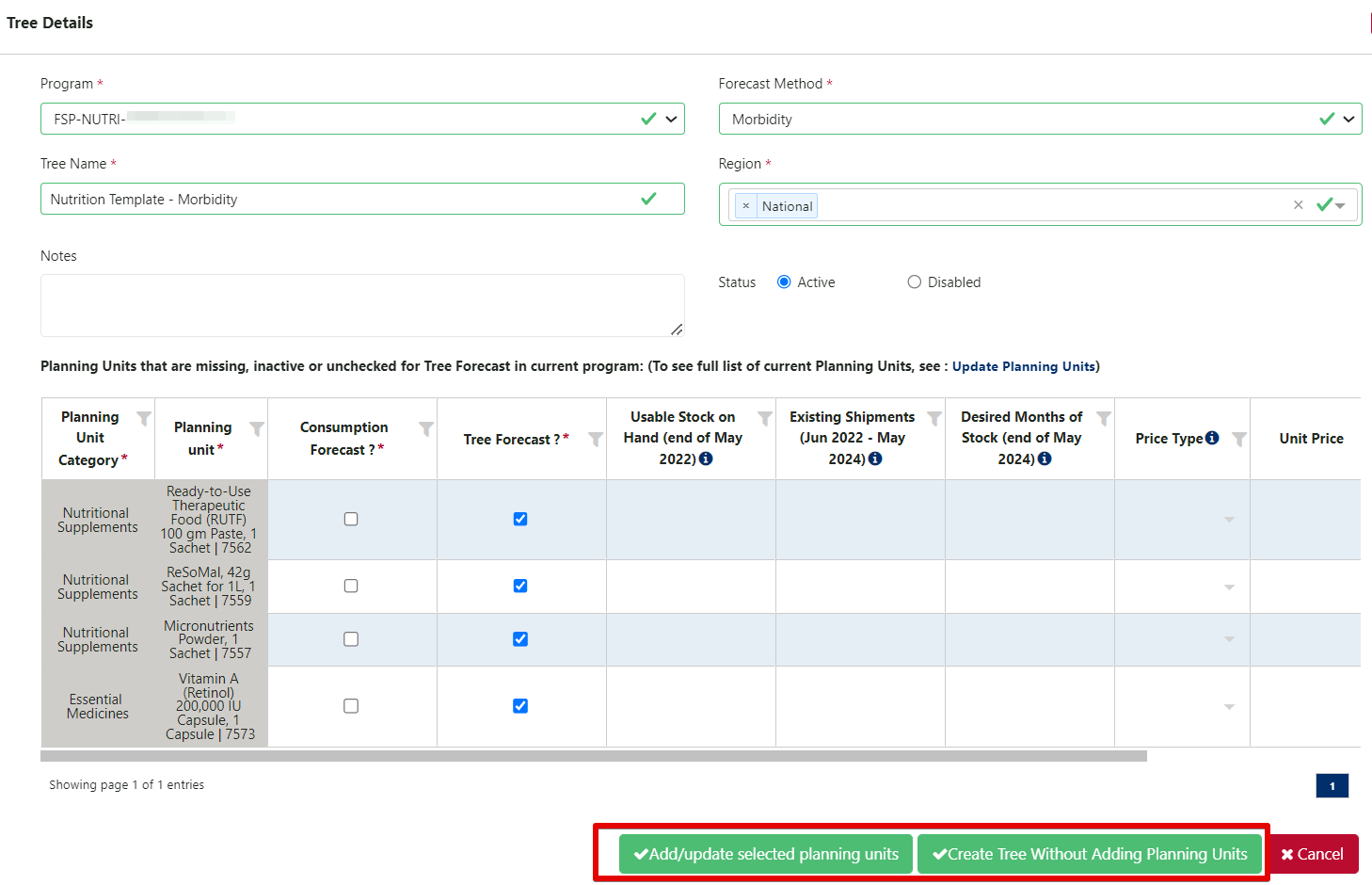
Figure 181 Tree Details Pop-up with 'Missing Planning Units'
c. Note that all of the tree details can be updated at a later stage by clicking the gear icon  next to the tree dropdown and planning units can be added by navigating to the ‘Update Planning Units’ screen.
- QAT will automatically create the tree template for the user’s program and navigate to the ‘Build Tree’ screen.
Method 2:
- Navigate to ‘Tree Forecast’ → ‘Tree Templates.’
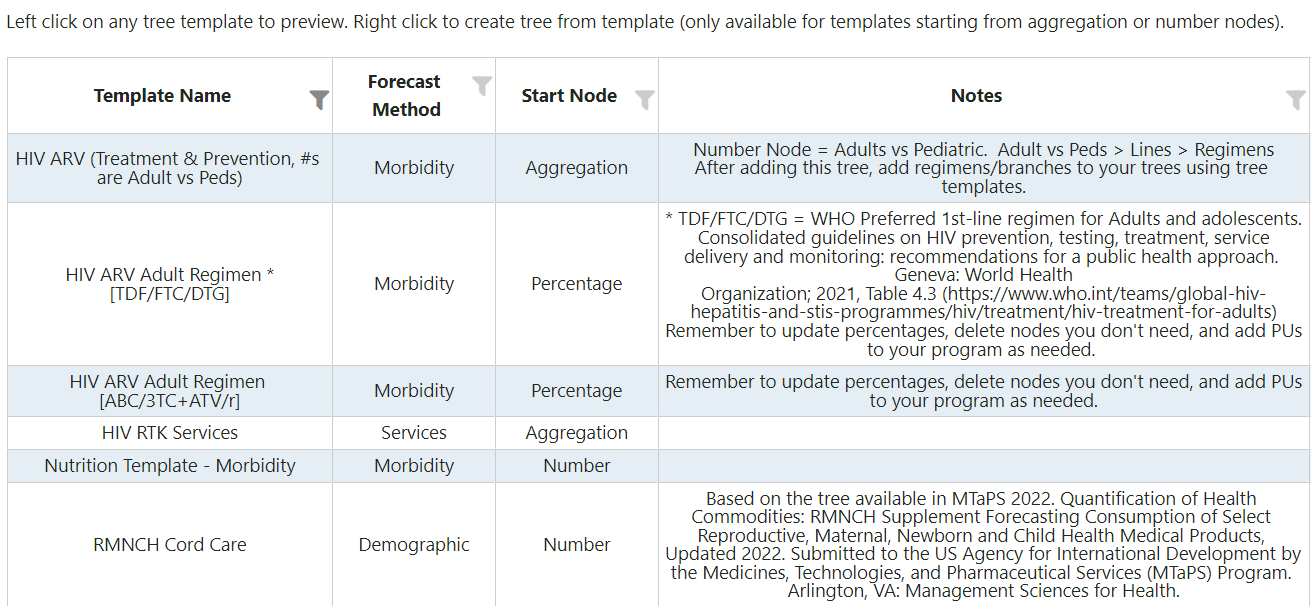
Figure 182: Tree Templates Screen
-
Review the different tree template options, paying special attention to the Forecast Method & the Start Node type. Users can click on any row to review the tree template, its structure, and various nodes.
a. Note: those nodes that start with a Percentage node are used specifically for Branch Templates and cannot be used as a tree template. Users must first create a starting node (Number or Aggregation), before adding a Branch Template (for more information, please see Branch Templates).
-
Once a user has reviewed the tree template, they can click “Use this template” in the top right corner of the screen.
-
Continue to follow steps 3-4 from Method 1 to finalize the tree template creation.
General Recommendations on Tree Templates:
-
In general, tree templates contain values of “0” and “0%” at all levels except the forecasting and planning unit nodes. User can then customize the tree based on their requirements – for example:
-
Click each node to edit the values to actual values.
-
Rename any node titles.
-
Replace any products by either:
- editing the forecasting unit node – but be sure to also open the child planning unit node and select the correct planning unit.
- deleting the forecasting & planning unit nodes and adding new ones.
-
Copy any nodes or branches (user can copy multiple nodes by copying the top of a branch of nodes).
-
Delete any nodes or branches.
-
Add notes to explain any information sources.
-
-
If there is a Tree Template that would benefit the QAT community, users can request it via the QAT Ticketing Helpdesk System.
b. Branch Templates
Purpose: Branch templates enable users to add a tree template, including the structure and all the various child nodes as a branch within a pre-existing tree. Note: branch/tree templates are managed at the realm (global) level. If there is a Tree/Branch Template that would benefit the QAT community, users can request it via the QAT Ticketing Helpdesk System.
Using Branch Templates:
-
Users should first review the different tree/branch template options, paying special attention to the Forecast Method & the Start Node type in the ‘Tree Forecast’ → ‘Tree Template’ screen.
-
Navigate to ‘Tree Forecasts’ → ‘Manage Trees,’ and select the desired tree.
-
Click on the
 symbol. This will add the branch template as a child to the selected node.
a. Based on the parent node chosen, QAT will only display branch templates that are allowed to be added as potential children based on the Start Node in the ‘Tree Template’ screen (see Node Types & Functions for the potential children options for each node type).
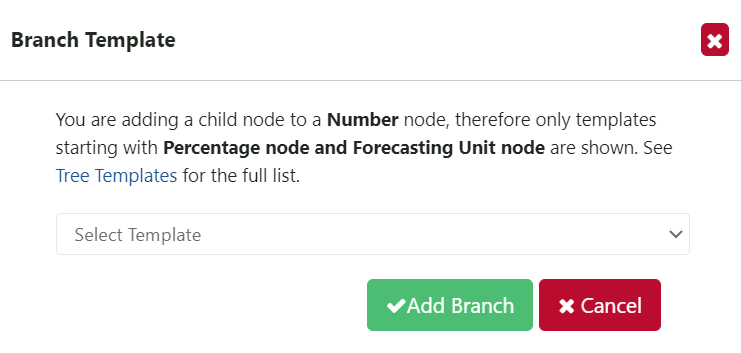
Figure 183: Adding a Branch Template
-
Once a branch template is chosen, click “Add Branch.”
-
If there are any planning units that are in the branch template, but are missing from the program, QAT will flag them in a bottom section of this pop-up (see Figure 153), wherein a table displays any missing planning units.
a. If there are planning units that are missing in the program (including those inactive or unchecked for Tree Forecast) and are recommended for utilizing the chosen branch template, users can click the “Add/update selected planning units” button and QAT will automatically add the planning units to the user’s program.
b. If the user would like to add the branch without the recommended planning units, users can click the “Add branch without adding planning units” button and the planning units will not be added to the user’s program. This could be useful when a user would like to utilize a branch structure but have different planning units they would like to forecast.
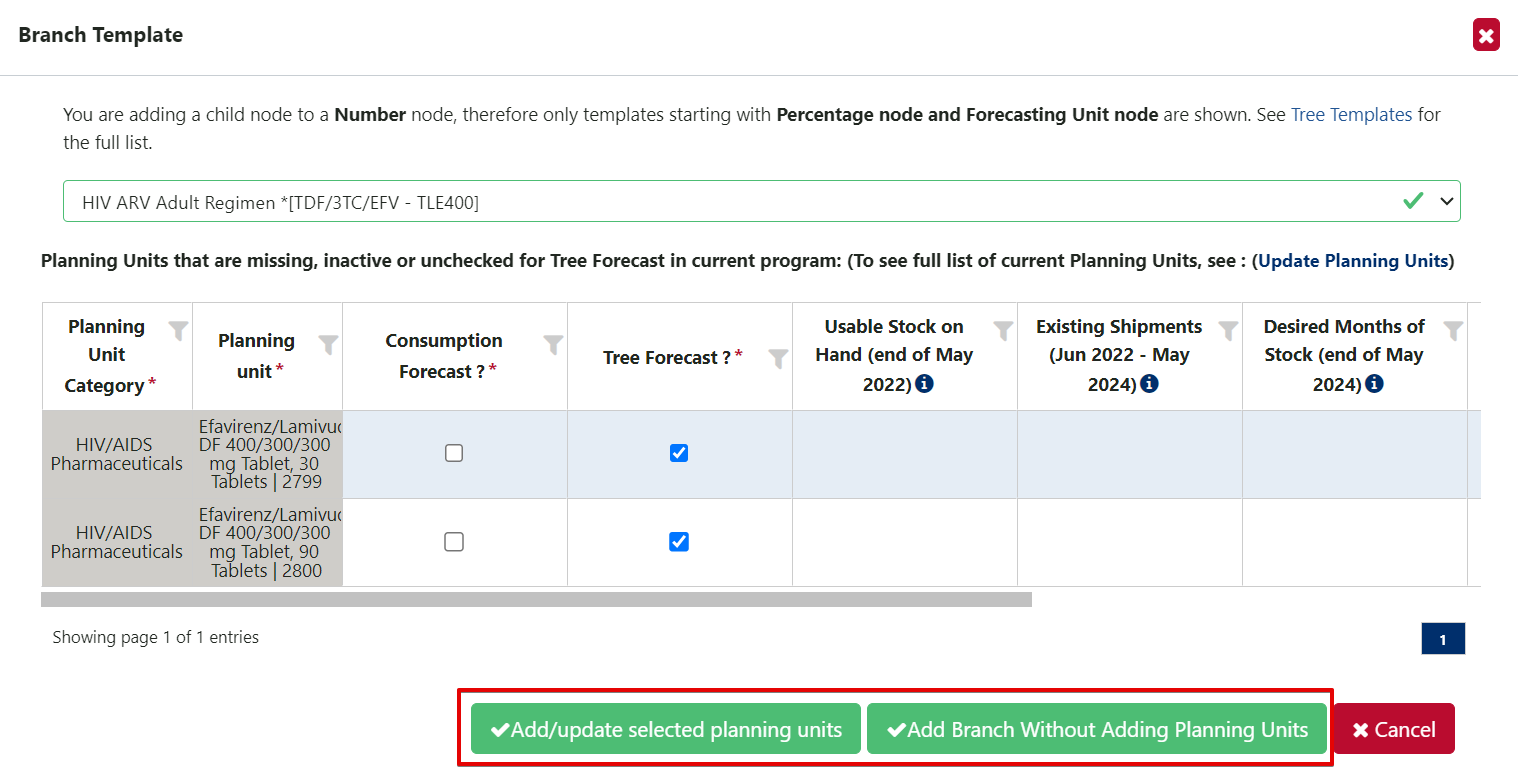
Figure 184: Adding PUs from a Branch Template to a Program
c. Usage Templates
Purpose: Usage templates allow the user to fill in the details for a forecasting unit node all at once. Usage templates can be global or program specific. Note that program-specific templates are managed by forecast program admins. User must be online to manage templates, but can be offline to use them.
To use usage templates:

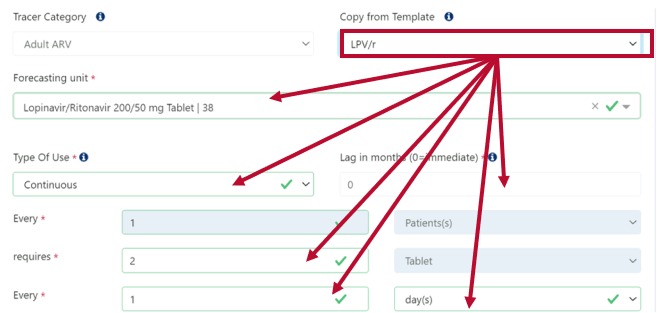
Figure 185: Using a Usage Template in a forecasting unit node
- Ensure the program has the planning unit related to the usage template. Remember, usage templates are based on the forecasting unit, but each planning unit is related to a specific forecasting unit. For example, if the program has the planning unit “Lopinavir/Ritonavir 200/50 mg Tablet, 120 Tablets”, all usage templates with the associated forecasting unit “Lopinavir/Ritonavir 200/50 mg Tablet” will be available when designing the tree.
- In the Build Tree screen, create or edit an existing forecasting unit node (See Section B1 for more). If creating a new node, be sure to first select the node type as “forecasting unit”, and double check that the ‘month’ and ‘percentage of parent’ fields are correct.
- (optional) Select a Tracer category to filter the available usage templates
- Using the “Copy from Template” dropdown, select the desired usage templates
- All subsequent fields will be populated
- Click “Update” to save changes.
To manage usage templates (forecast program admins only):
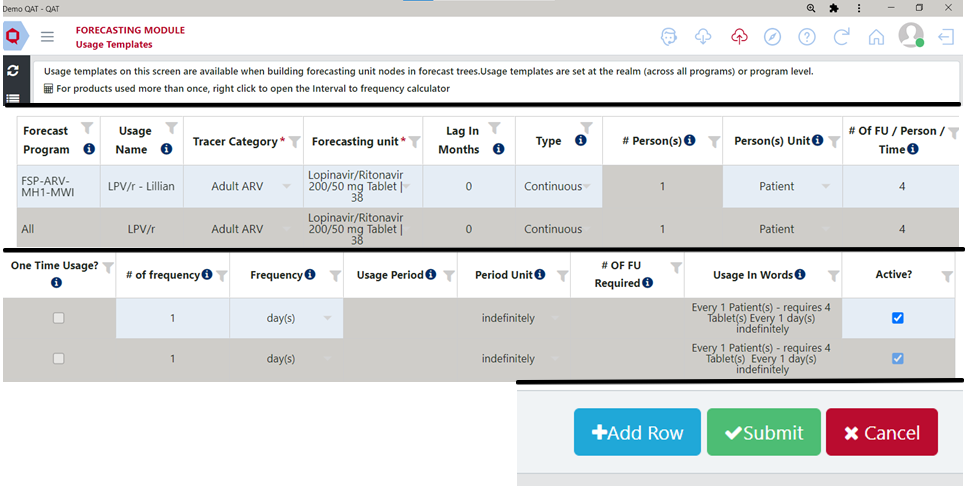
Figure 186: Managing Usage Templates
-
Ensure QAT is in online mode and navigate to Tree Templates > Usage Templates. Global templates will be greyed out and not editable.
-
To create a new usage template, click “add row.” To edit an existing usage template, skip to the next step.
-
Populate or edit the row for the usage template as desired
- The “usage name” column is what will appear in the dropdown.
- Use the horizontal scroll bar to access all the fields in the table.
- Use the tooltips (hover mouse over “i" icons) to guide you
- Use the second to last column “Usage in words” to verify that everything is entered correctly.
- For products used more than once, there is a calculator to help you convert interval to frequency. Right click on the row you are editing to open the “Calculate Usage Frequency” screen. Enter the interval and desired frequency unit (day, month, week or year) and the calculated frequency number and unit will be populated in the table.
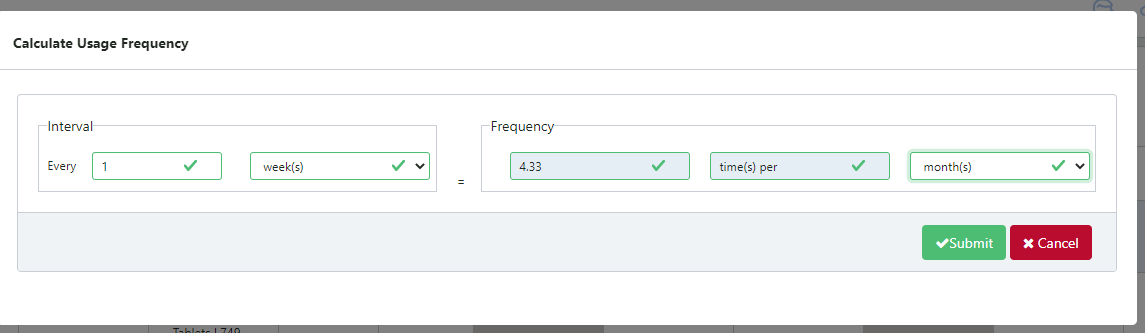
Figure 187: "Calculate Usage Frequency" screen
- Click “Submit” when finished.