Section 2. Getting Started
A. System Requirements
The QAT is primarily expected to be accessed via laptops and desktops with standard operating systems such as MS Windows, Linux/Ubuntu, and iOS. The recommended web browser is Google Chrome, but Chromium, Edge, Mozilla Firefox or Safari may be utilized.
It is also suggested that each user of QAT have enough space on their C:drive to allow for storing browser cache data successfully. The amount of space needed depends on the size of the QAT program that is being downloaded and how many apps are currently running and utilizing browser data. Temporary storage is shared among all web apps running in the browser. This shared pool can be up to 1/3 of the of available disk space. Each app can then have up to 20% of the shared pool. For example, if the total available C:drive space is 60 GB, the shared pool is 20 GB; thus, QAT can potentially utilize up to 4 GB. This is calculated from 20% (up to 4 GB) of 1/3 (up to 20 GB) of the available C:drive space (60 GB).
B. Levels of Hierarchy in QAT
The QAT system has three levels of hierarchy for conducting operations. The hierarchy levels are as follows:
Application Masters → Realm-level Masters → Program-level Masters
- Application Masters is the top-most data hierarchy level in QAT. Application master data applies to all the Realms and Programs within QAT. Most of it is only accessible to Application Admins, though a few of the Application functions are available to Realm Admins such as adding and updating users and assigning roles to users. Application Admins can select the specific application-wide master data they want to add or update.
- Realm Level Masters covers all the master data for that Realm which apply to its forecasting and supply planning programs. The Realm Admin will be able to view, create and edit this master data. Programs, Technical Areas, Planning Units, Procurement Agents, and Tree Templates are a few examples of realm master data that the Realm Admin can add and maintain. A lot of the realm level masters are accessible for viewing to Program Admins; however, they do not have the ability to add/update this data.
- Program Level Masters is the third level of hierarchy in QAT. While program admins cannot add programs, they can update the program information (e.g., lead times, freight costs, etc.) within their assigned program(s). Program Admin and Program Users can also add and update the program’s data, such as consumption adjustments, extrapolation, and managing trees (in forecasting); and consumption, inventory, shipments (in supply planning).
For more on functionality for Application- and Realm-level administrators, please see Annex 1: Application & Realm Administrator Manual.
Programs are a combination of Country, Technical Area (1 or more), Organization and Region. For example, FASPonia–ARV-MOH-National, is a supply planning program under the Global Health Realm for the management and planning of antiretrovirals for the ministry of health of the fictional country FASPonia, and the consumption and inventory data is captured at a national level (region).
C. User Roles and Permissions
Users can be assigned one of many roles available in QAT that define what level of data users have access to and how they interact with that data, according to the following hierarchy:
Application-level data → Realm-level data → Program-level data
Users will have access to one or more levels of data as per the roles and permissions assigned to them. Roles are defined centrally at the Application or Realm Level. A role can have multiple permissions assigned to it. These permissions define what actions a user is entitled to. A user can be assigned multiple roles and can vary the role based on program access. For example, a user could be a supply plan program admin for program A and a supply plan reports viewer for program B. (NOTE: Roles can be assigned to only those users that are registered in QAT).
The vast majority of QAT users – in-country health program managers and officers - will interact with the application at the program level; thus, this manual will focus mainly on tasks and functions that apply to this group. The Program Admin and Program User roles are usually configured to have access to one or multiple program(s) within a geographic jurisdiction i.e., a Program Admin can only manage assigned program(s) in their country, but not a realm.
A Realm Admin manages master data and can have access to all programs within that realm. At the Application level, there is an Application Administrator role. This role has exclusive access to create application-wide data structures, including adding languages, roles, creating realms, updating static and dynamic labels, among other business functions.
Please refer to Annex 4: Business Functions for a table with the full list of QAT business functions available per user role.
D. How to Log into QAT and Install the Progressive Web Application (PWA)
How to log in to QAT for the first time (online)
- If you do not have a user profile, please contact the realm administrator to create a new user account and corresponding role on your behalf.
- Once the account is created, the new user receives an email to “Reset Password”.
- The “Reset Password” link will redirect the user to the QAT website to create the new password. Once complete, click “Submit”. a. Note: the “Reset Password” link will be valid for 24 hours and can be used only once. If needed, the user can generate the link again to reset the password by clicking “Forgot Password” on the login screen.
- Afterwards, the user will be redirected to the sign in screen. Using the User ID email and the created password, log in to QAT.
Note: The password must: be at least six characters long, start with a letter, not be the same as your username or your last password, and must include at least one special character, one number, and one uppercase letter.
Installing the QAT Progressive Web Application
Progressive web applications (PWA) are standalone browsers that bring an app-like look and feel and are installed on the Desktop. Users can only install the QAT PWA through Google Chrome and Edge. The PWA can be used in online or offline mode.
- Go to https://www.quantificationanalytics.org/
- Click on the add button in the address bar.
- Click “install” when the small pop-up appears.
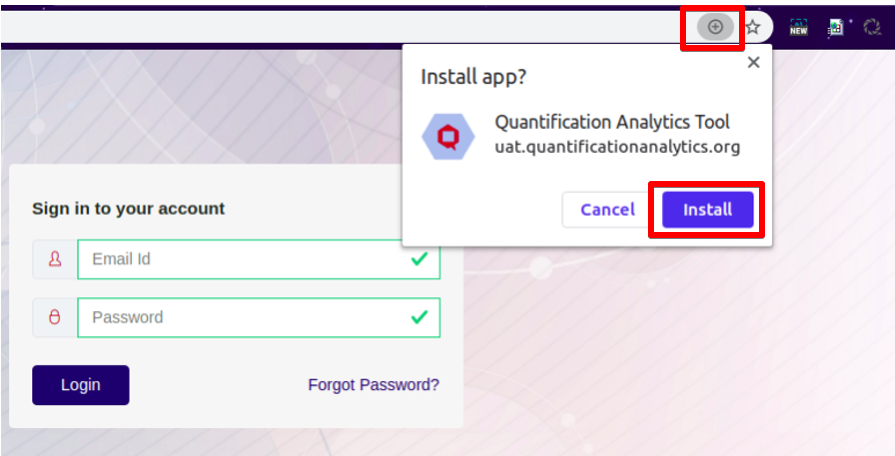
Installing the PWA
- An icon will appear on your Desktop as a standalone application. Users can directly open from the desktop or type chrome://apps/ in the browser.
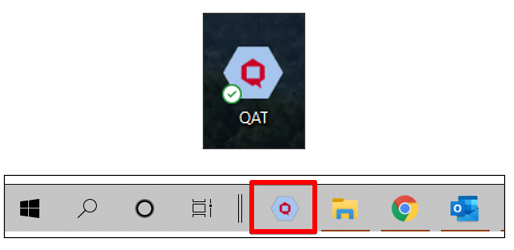
QAT PWA Icons
Note: Users can utilize the PWA and browser versions concurrently; however, when making changes in one, a refresh is needed in the other so changes are made effective (see When and How to Conduct an Application Refresh).
Steps to Install PWA When the Install Button is Not Available
- In your Chrome browser, navigate to https://www.quantificationanalytics.org/
- Click on the three vertical dots on the top righthand corner of the browser
- Select "Cast, Save, and Share"
- Click on "Create Shortcut"
- A QAT icon will be displayed on your desktop.
- Click on the "QAT" icon to open PWA of QAT application.
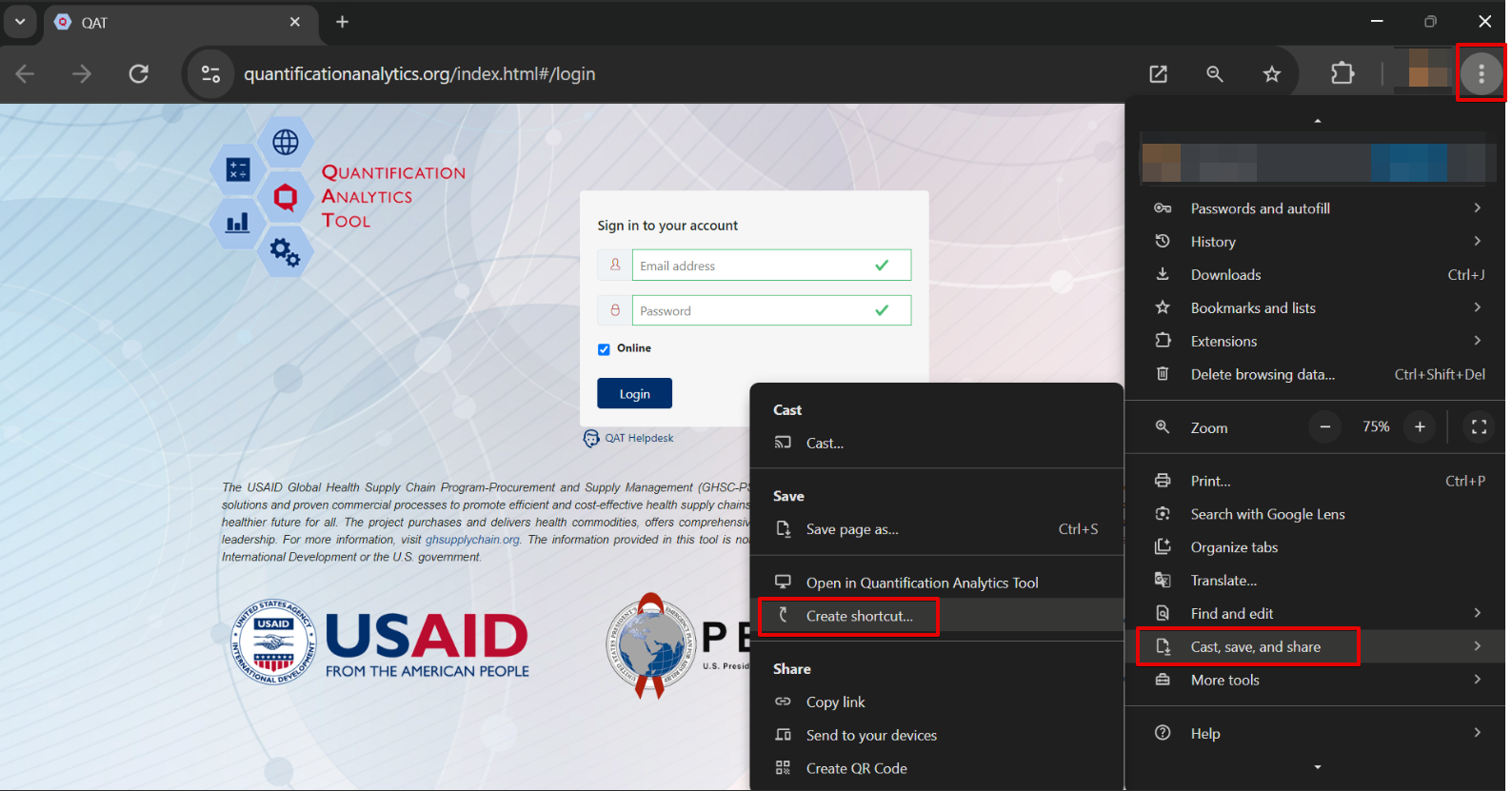
Install PWA Alternate Method
E. How to Log into QAT for Existing Users
Login
- To log in, type the URL https://www.quantificationanalytics.org/ in the browser bar and press enter, or open the PWA from your desktop.
- A login screen will be displayed.
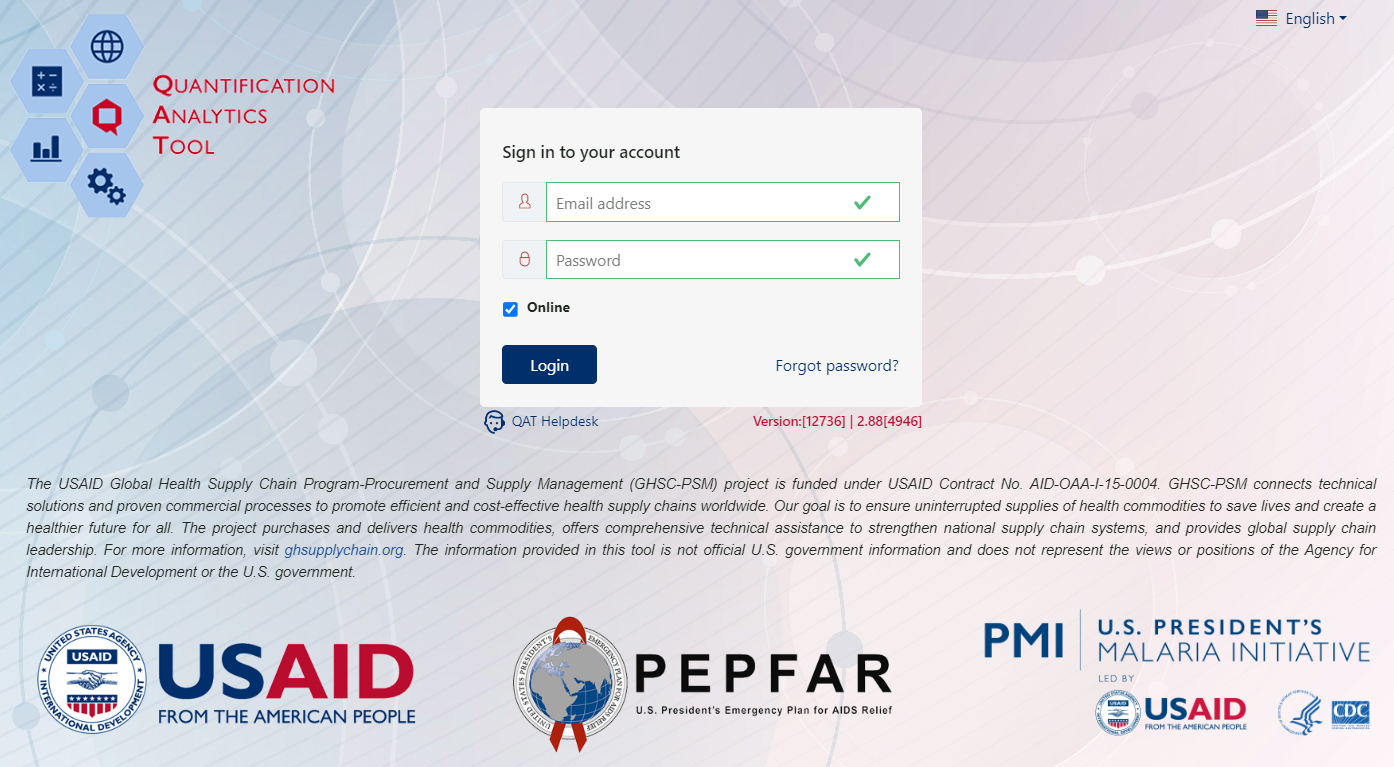
Log-in Screen
a. Type the username and password in the required fields. b. Click on the “Login” button.
-
Note: A user can choose to login “online” or “offline” using the checkbox above the “Login” button. For more information on working in QAT offline, see Section F. Working Offline.
-
When logging in using "online" mode – QAT will undergo master data sync. If you see a message about a "more recent server version" – see Figure 36 in Section 3.B for more information.
Logging out
- Go to the top right corner of the screen.
- Click on the logout button icon to the right of the profile icon.
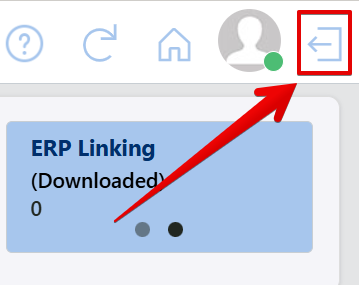
Logout Icon
- A pop up will appear asking "Are you sure you want to log out?" – click "yes" to log out
Change Password
- Within QAT, click the Profile icon on the top right corner of the screen.
- Click "Change Password".
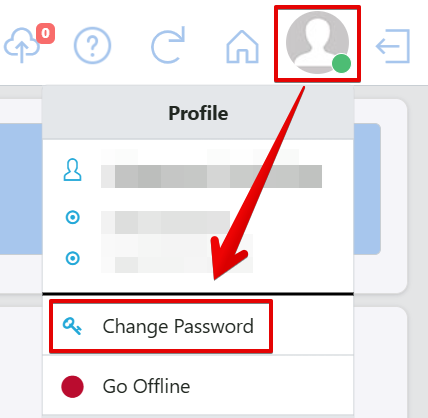
Profile Icon
- Once on the 'Change Password' screen, enter your old password followed by the desired new password.
- The new password must meet the following criteria:
- Password must be at least 6 characters
- Password should not contain the word 'password'
- Password must contain at least 1 special character
- Password must contain at least 1 number
- Password must contain at least 1 uppercase letter
- Password must start with a letter
- New Password should not be the same as your username
- New password should not be the same as your last password
- Confirm the new password by typing it again.
- Click "Submit".
If user forgets their password
- A user that has forgotten their password, can click on the "Forgot Password?" link to reset it.
- Type the email address the user is registered in QAT with and click "Submit".

Forgot Password Screen
- The user will get a link via email to reset their password.
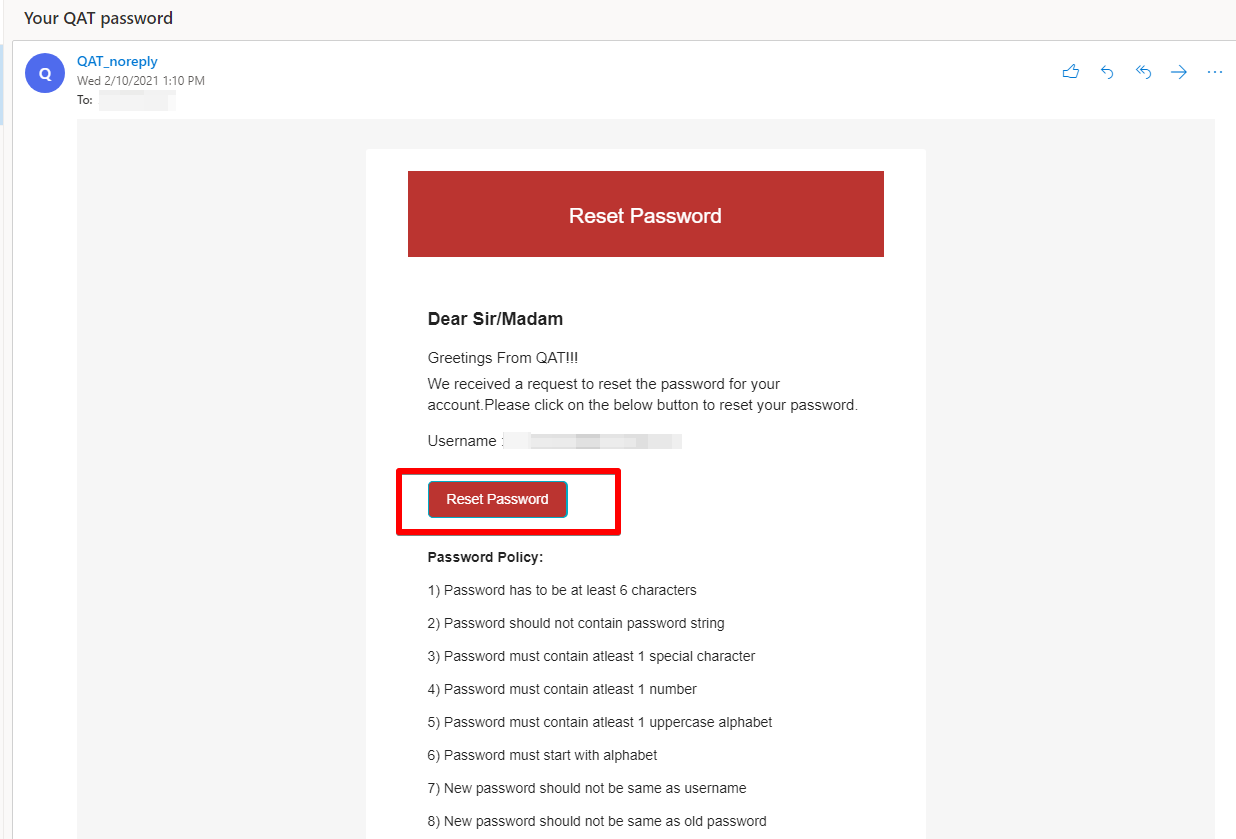
Reset Password Email
- The "Reset Password" link will redirect you to QAT, where you will input your new password. Once complete, click "Submit".
- After clicking "Submit" the user will be redirected to the login screen. Using the User ID email and the newly created password, log in to QAT.
Note: A QAT user password will be valid for up to one year from the date it is created/updated.
F. Working Offline
QAT is a hybrid tool and can be operated in both the online and offline mode. There are two ways to force the offline mode of QAT: on the login page before logging into QAT or under the profile settings after logging into QAT. It may be useful to switch to the offline mode of QAT when internet bandwidth is low.
 |  |
|---|---|
| Offline Button on Profile Page | Offline Button on Login Page |
The Profile icon on the top right corner shows a green-colored circle when working in online mode. When the user switches to offline mode the color changes to red, as shown on the screenshot below.

Offline vs. Online Icon
The below table details some of the key functionalities that can be done in QAT offline as well as some of the functionalities that must be done online:
| What can a user do Offline?* | What must a user do Online? |
|---|---|
| Import/Export supply plans/forecasts | Reset password |
| View master data | Sync master data |
| Build Trees/Scenarios | Update program info, planning units, version settings, or budgets |
| Enter/update supply plan transactional data, and manually enter/adjust consumption data | Import forecast data to/from the Supply Planning Module to/from the Forecasting Module |
| Extrapolate using moving averages or semi-averages | Extrapolate using linear regression, triple-exponential smoothing (TES), or ARIMA methods |
| Supply/Scenario plan | Create tickets |
| View QAT Problem List | Download/Upload supply plans/forecasts |
| View program reports & forecast outputs | View global reports |
*Note: Even when online, functions in the "offline" column require that that a program is downloaded- see Section 3 for more information
G. QAT Release Updates
To maintain the QAT application, regular version releases are pushed automatically to the QAT application and all realm users. These version releases could occur due to the following:
- Regularly scheduled maintenance for bug fixes and application optimization
- Unplanned emergency maintenance for high priority/urgent bug fixes
- Periodic updates related to enhancements or new features
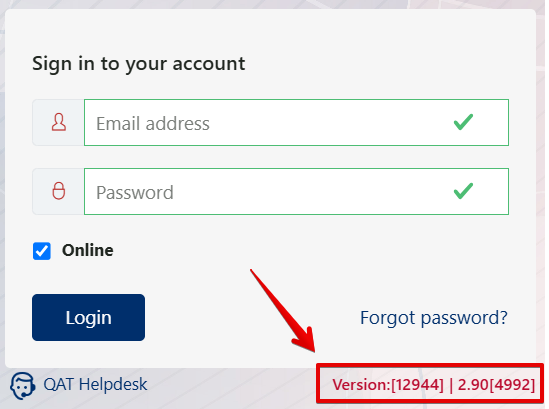
QAT Version Releases
Most version releases will not require significant action from the user, except to refresh the QAT application prior to logging-in. QAT will prompt user that there is a new version of QAT on the login page:
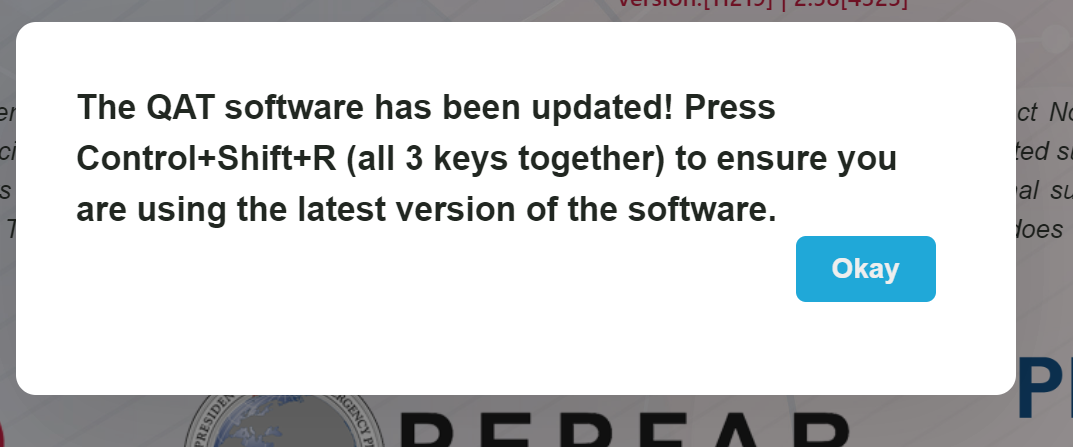
New QAT Version Released Prompt for Users
If there is a major change to the structure of the QAT backend architecture, users may be required to upload their latest version to the server (see the Upload section for more information) to avoid losing data once the new version of QAT is released. The QAT Support Team (support@quantificationanalytics.org) will inform users well in advance if a program upload is required.
H. Troubleshooting
When a user comes across a potential system issue with QAT, they should attempt to troubleshoot the issue by trying the solutions outlined in this section, in the order they are described (i.e. try H1 first, and if that does not work, then attempt H2, and then H3). If none of these steps resolve the issue, the user should submit a helpdesk ticket to report the bug (see section on ‘Reporting a Bug’).
H1. When and How to Conduct an Application Refresh
The QAT development team deploys incremental software releases to address the bugs and changes needed for the application. QAT prompt users to do so on the log-in screen after each release (see Figure 12). To conduct an application refresh, users should press "Ctrl" + "Shift" + "R" at the same time on their keyboard.
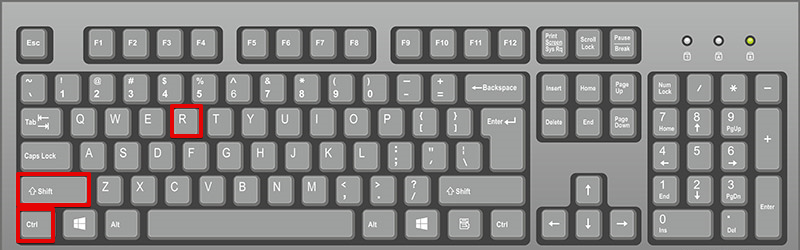
Hold Ctrl + Shift + R (all 3 keys) to conduct an Application Refresh
The application refresh can also be used to help troubleshoot any issues experienced while using QAT. After holding all 3 keys, the software should reload automatically. Note that the application refresh is different than simply refreshing the browser ("Ctrl" + "R").
H2. When and How to Conduct a Full Master Data Sync (MDS)
If an application refresh ("Ctrl" + "Shift" + "R") does not solve your software issue, you can try conducting a "Full Master Data Sync." To do so, please ensure you have a stable internet connection, and then click on the "Full Master Data Sync" link at the bottom of the application (see Figure 13). This solution is likely to work if you are experiencing master data issues that may be the result of unstable internet that disturbed the regular Master Data Sync (MDS) described in Section 2.J Navigation and Menu Bar.
- In a regular MDS, only incremental changes are synced between the server and your local computer based on the last time a MDS was completed.
- In a full MDS, the entire master data is loaded irrespective of the last time QAT was synced, as if this is the first time you are loading master data. Therefore, this will take longer than a normal MDS.
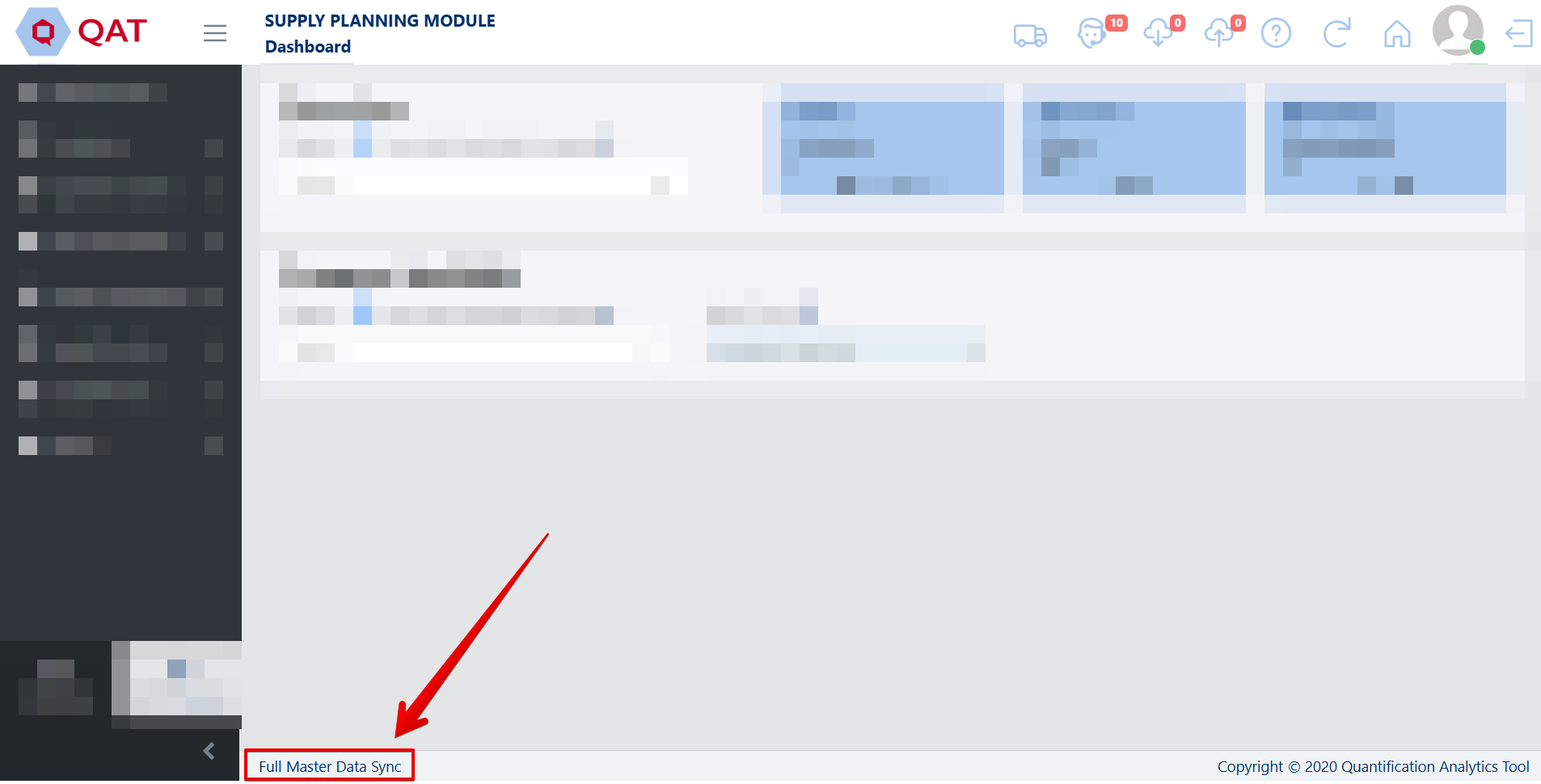
Full Master Data Sync
H3. When and How to Clear Site Data
If refreshing QAT (Ctrl + Shift + R) and a Full Master Data Sync do not resolve the issue, the user should attempt to clear site data in order to troubleshoot the issue. Follow the below steps in order to clear site data on your QAT:
Warning: Clearing site data on QAT clears all local data on the PWA and Web Browser, including any changes that you have made since you last uploaded. Ensure you have uploaded any unsaved programs before clearing site data.
- Click on "Ctrl"+"Shift"+"I" keys at the same time on your keyboard.
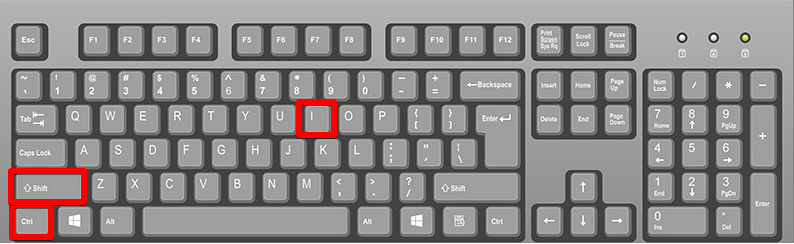
Ctrl + Shift + I
- Go to "Application".
- On the left-hand side of the screen, click where it says "Storage".
- Once on the "Storage" screen, select "Clear site data." This will clear any data that was not uploaded.
- Log in again to QAT and re-download any programs you need. (Clearing site data erases all programs from your local machine so you will need to re-download those programs.)
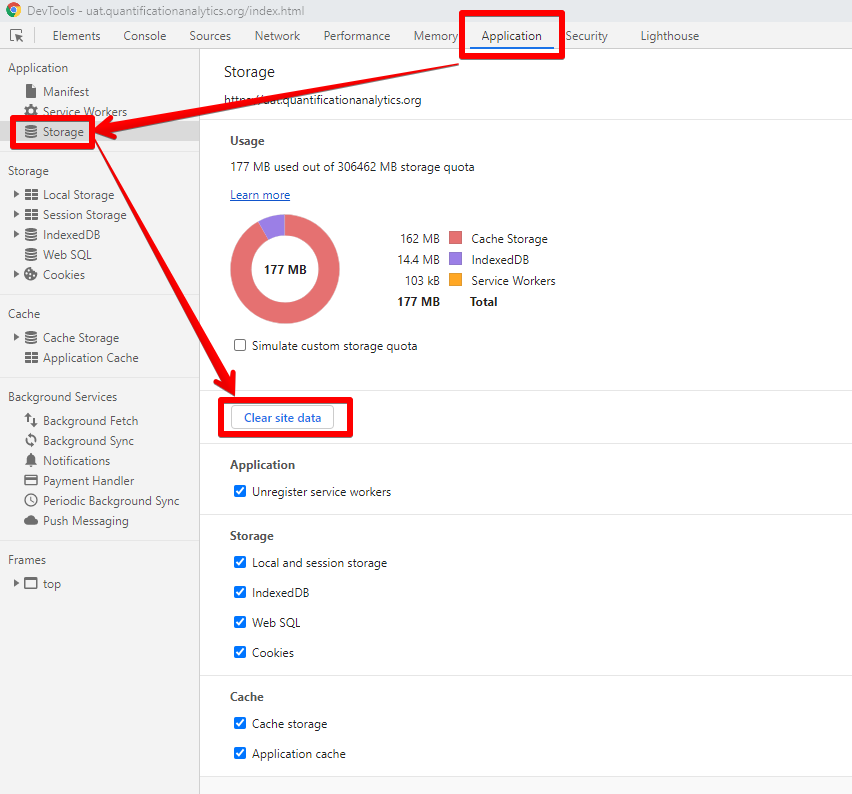
Clear Site Data
H4. Troubleshooting Network Errors
Users may see the following error message when logging in or while using QAT:
"Network error. Please check your internet connection or contact your organizational IT department to ensure api.quantificationanalytics.org/# and www.quantificationanalytics.org/# are whitelisted for firewall access."
This message appears for two reasons: 1) Unstable internet, or 2) Restricted internet.
Unstable Internet: Use another internet with a stable or faster connection, or try again later.
Restricted Internet: QAT can be accessed by most private internet connections, but sometimes organizational IT systems have stricter security control, and thus they are flagging QAT as a potential threat. In this case, users have two options:
- Use another internet connection without restrictions, or
- Enable firewall access by whitelisting the below two site URLs. User may need to contact their organizational IT staff for assistance
I. QAT Helpdesk and Tickets
I1. Tickets for Adding/Updating Users and Master Data
When a user needs to either add or update a user or master data for any reason, they may do so by taking out a helpdesk ticket. Before requesting any additions or changes to the master data in QAT, the user should first check the realm-level master data (Realm Level Masters >> Product) and the Program Catalog Report to make sure the information does not already exist. For more information on how to access and use master data, please see Program Management and Realm Masters. For information on how to access the Program Catalog, please see Program Catalog. To access the QAT Helpdesk:
- Users can access the QAT Helpdesk from two different locations in QAT: a. On the login page, and b. from the top right ribbon in QAT
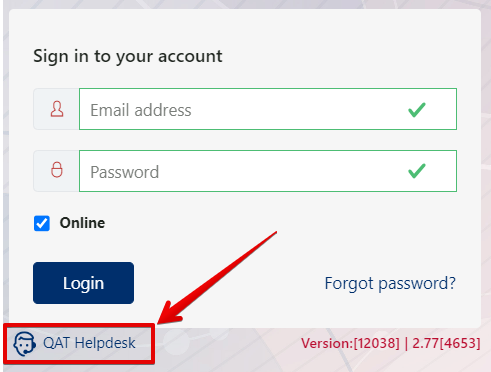
QAT Login Screen Helpdesk

QAT Top Ribbon Helpdesk
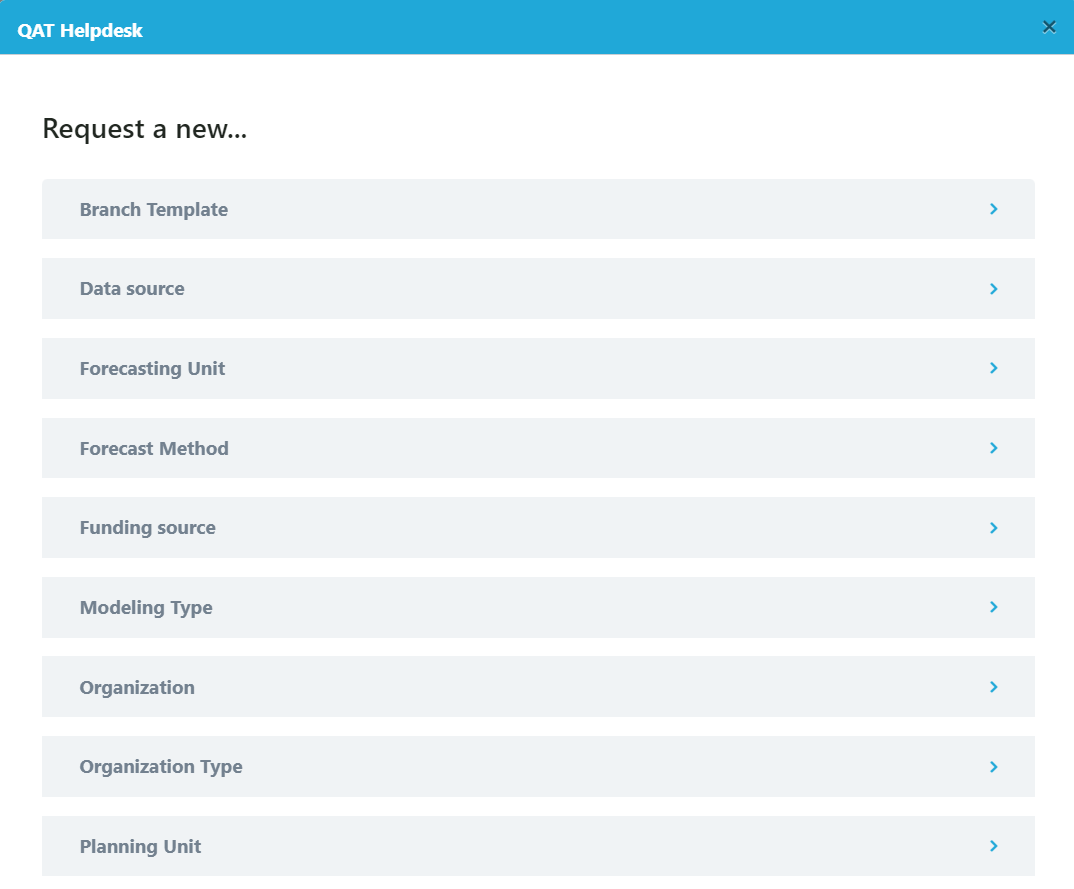
- Four options will appear for taking out a ticket: Add/Update User, Add/Update Master Data, Change Request, and Report a Bug. See below sections on Change Requests and Report a Bug.
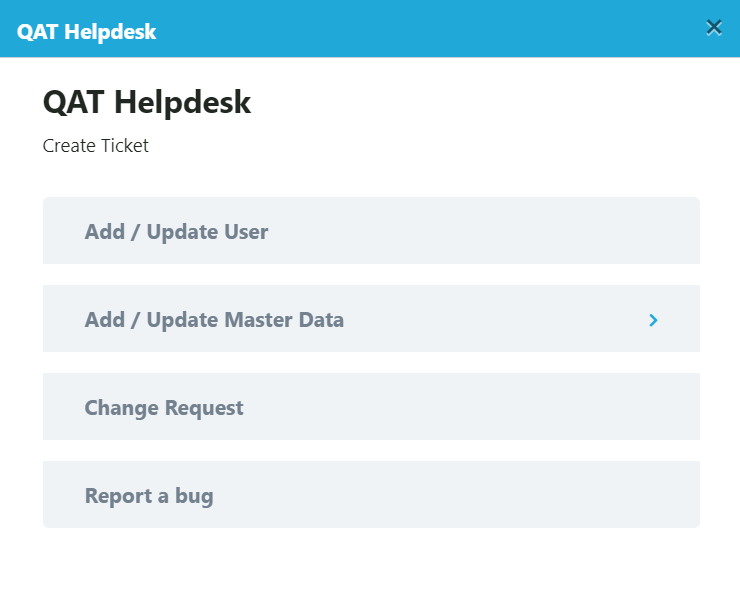
QAT Helpdesk Menu
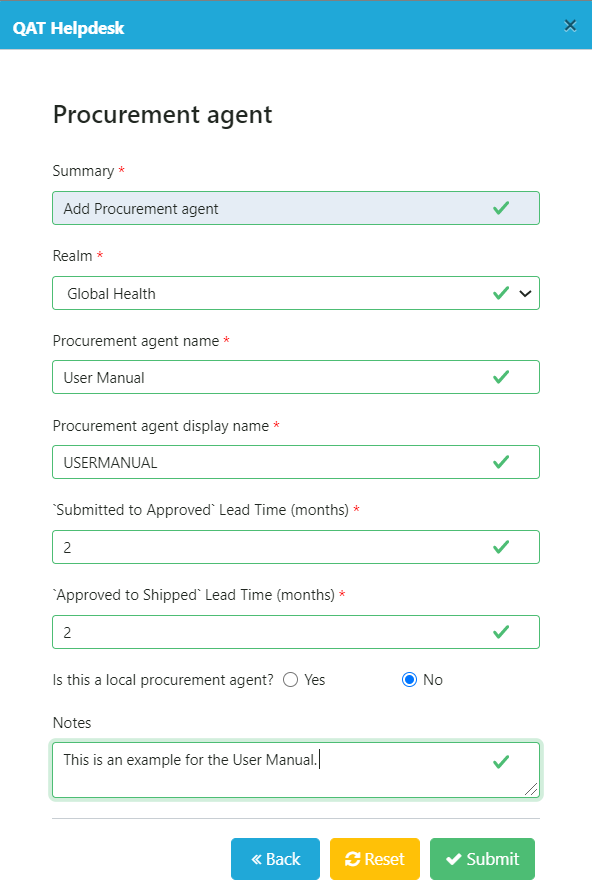
- Choose to Add/Update User or Add/Update Master data. Either option will take you to different screens for more information.
- Enter the information required in the form and click "Submit."
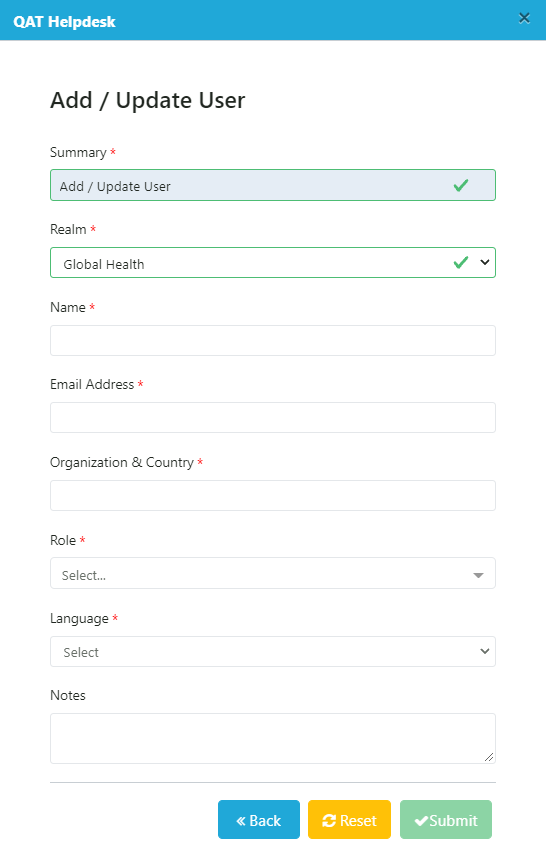
Add/Update User Screen
 |  |
|---|---|
| Add Master Data Screen | Add Procurement Agent Master Data Screen |
After submitting a ticket, the user will be assigned a Ticket Code number (ex: QAT-570). The user will also receive an email notification and the number of "Open Tickets" on the top ribbon in red will increase. This ticket number corresponds to the ticket number stored in the JIRA software management tool. For more information on managing tickets and the JIRA software management tool, please see Managing Tickets.
I2. Requesting a Change
When a user has an idea for a new feature, functionality, or design element that would make QAT a better application for all users, such as a new report, removing an unnecessary column, etc., they may request a change through the QAT Helpdesk. All change request tickets will require a detailed description and screenshots. Once the technical team receives a user's change request ticket, it will be reviewed for feasibility and usefulness to all QAT users. If the change request is accepted, it will not be made available in QAT immediately, but will placed in a queue based on realm business priority, criticality, and LOE requirements. To request a change in QAT:
- Click on the QAT Helpdesk icon.
QAT Helpdesk Icon
- Click on "Request a Change" from the QAT Helpdesk menu options.
- Complete the form by filling out the required information and click "Submit,"
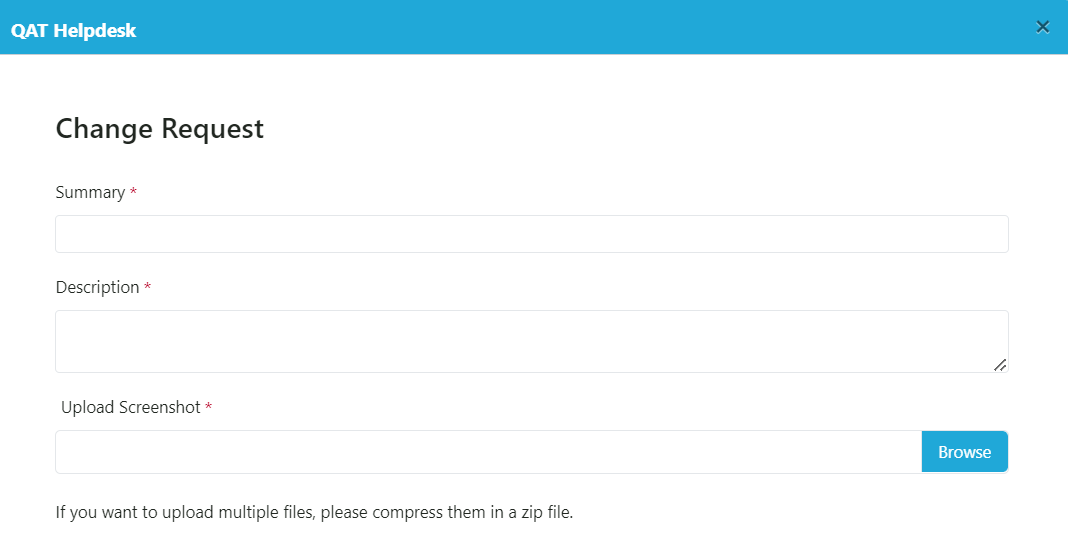
Change Request Ticket
- After submitting a ticket, the user will be assigned a Ticket Code number (ex: QAT-570). The user will also receive an email notification and the number of "Open Tickets" on the top ribbon in red will increase. This ticket number corresponds to the ticket number stored in the JIRA software management tool. For more information on managing tickets and the JIRA software management tool, please see Managing Tickets.
I3. Reporting a Bug
When a user comes across a potential system issue with QAT, they should attempt to troubleshoot it through an application refresh and/or clearing site data. If neither of these steps resolve the issue, the user should submit a helpdesk ticket to report the bug.
The bug ticket will be addressed by the development team per the business priority, criticality and available 'capacity' via the incremental releases. The steps to raise a ticket in QAT is shown below:
- Open the QAT Helpdesk screen and click on "Report a bug".
- Enter a summary of the bug as well as a description of the bug. Please be descriptive and provide as much detail as possible (e.g., what program/version/functionality you were working on, steps you took to obtain the bug, etc).
- Upload a screenshot of the bug by clicking the "Browse" button and pulling a saved screenshot file from your computer. a. It is also helpful to provide the program export, if possible (see Program Exports on how to export a local program) b. Note: If you want to upload multiple files, place the multiple screenshots in a folder on your computer and zip it before browsing in QAT. Then, upload the zipped folder.
- Choose a priority (Highest, High, Medium, or Low) for the bug based on the urgency and how it affects daily work in QAT a. Response and resolution times for bugs will be based on priority level
- Click on the "Submit" button to raise the ticket.
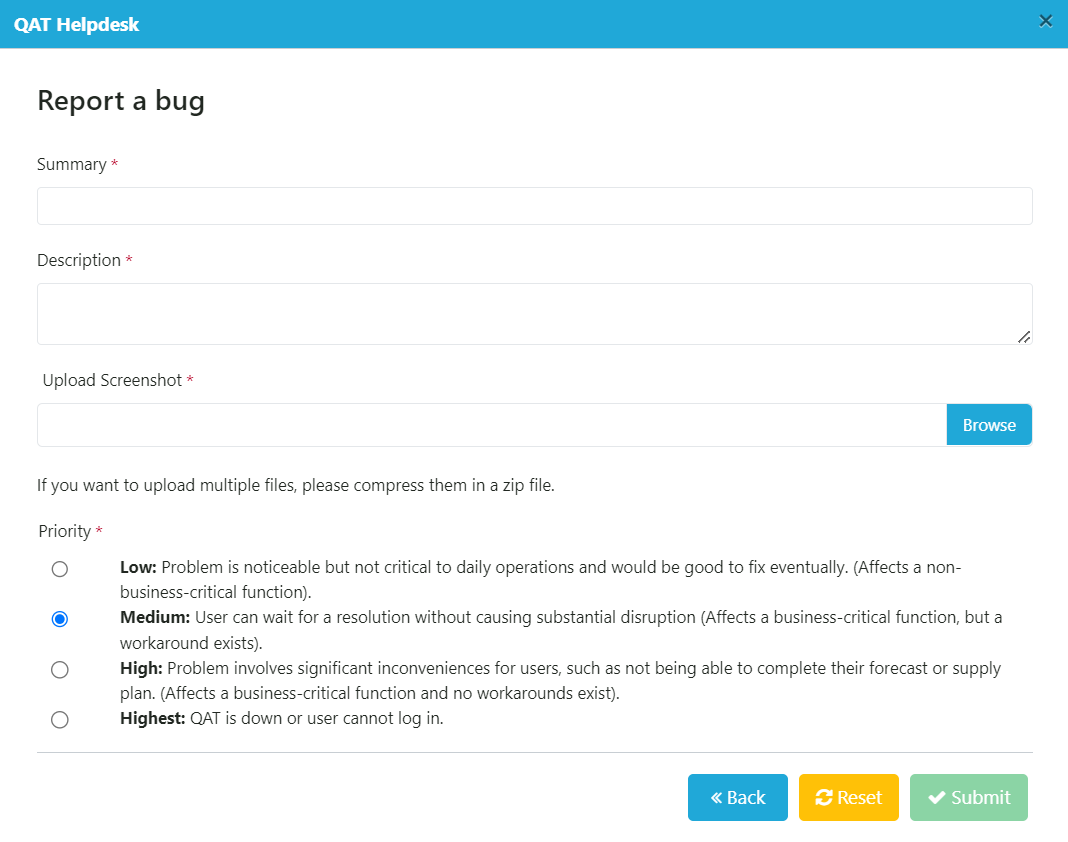
Report a Bug
I4. Managing Tickets
For enhanced visibility, QAT will give users the option to manage and check the status of their tickets, whether they are adding/editing a user or master data, requesting a change, or reporting a bug. When a user submits a ticket, they will be assigned a Ticket Code number (ex: QAT-570). The user will also receive an email notification and the number of "Open Tickets" on the top ribbon in red will increase. This ticket number corresponds to the ticket number stored in the JIRA software management tool.
 | |
|---|---|
| Helpdesk Ticket Code Number | Number of Tickets on Top Ribbon |
From the email notification, users may click on “View Requests” to see the status of their ticket. Users may also add additional comments and screenshots to their request, if desired. Users will always receive an email notification once the ticket has been completed.
Note: In order to fully access the ticket via the JIRA software management tool, users must create an account with a username and password in JIRA. Creating an account in JIRA is optional. JIRA is an outside software management tool that can be accessed through the link provided in the email, by clicking on the HelpDesk icon and then choosing “Manage my tickets” in the top right corner of the pop-up, or directly through https://qathelpdesk.atlassian.net/servicedesk/customer/portals.
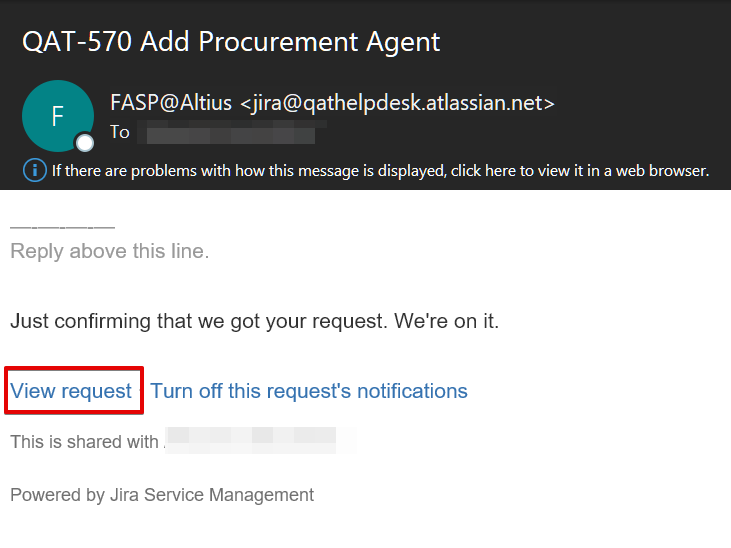
Email Notification for QAT Ticket
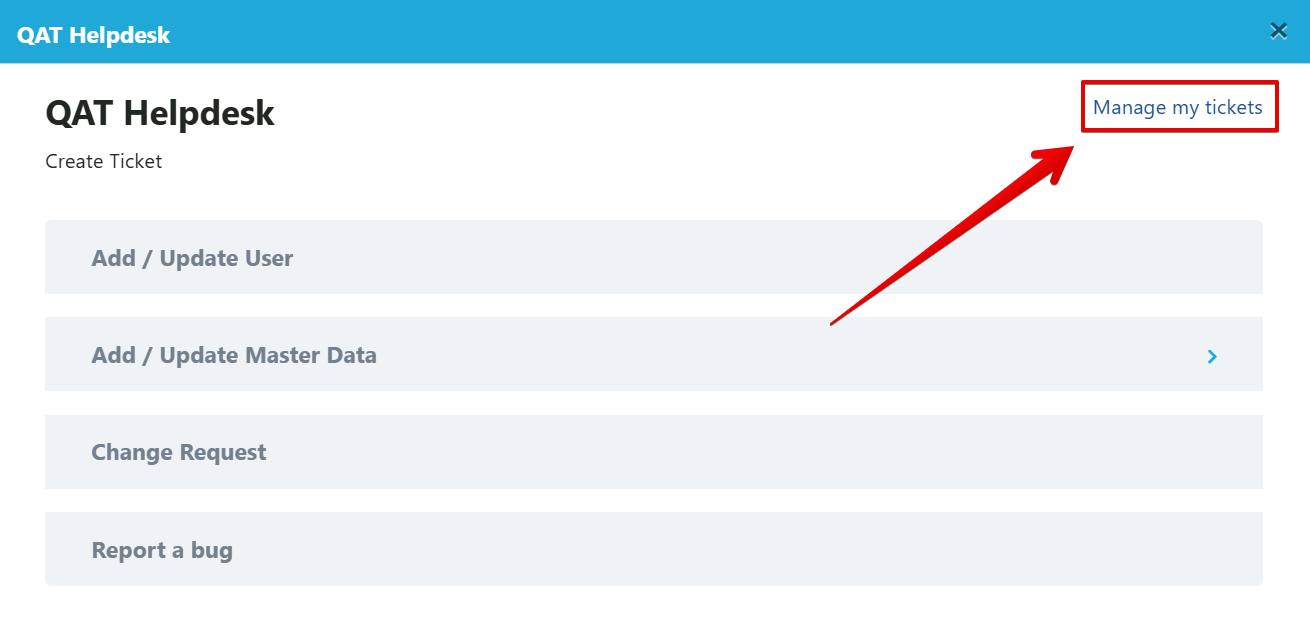
Option to Navigate to JIRA
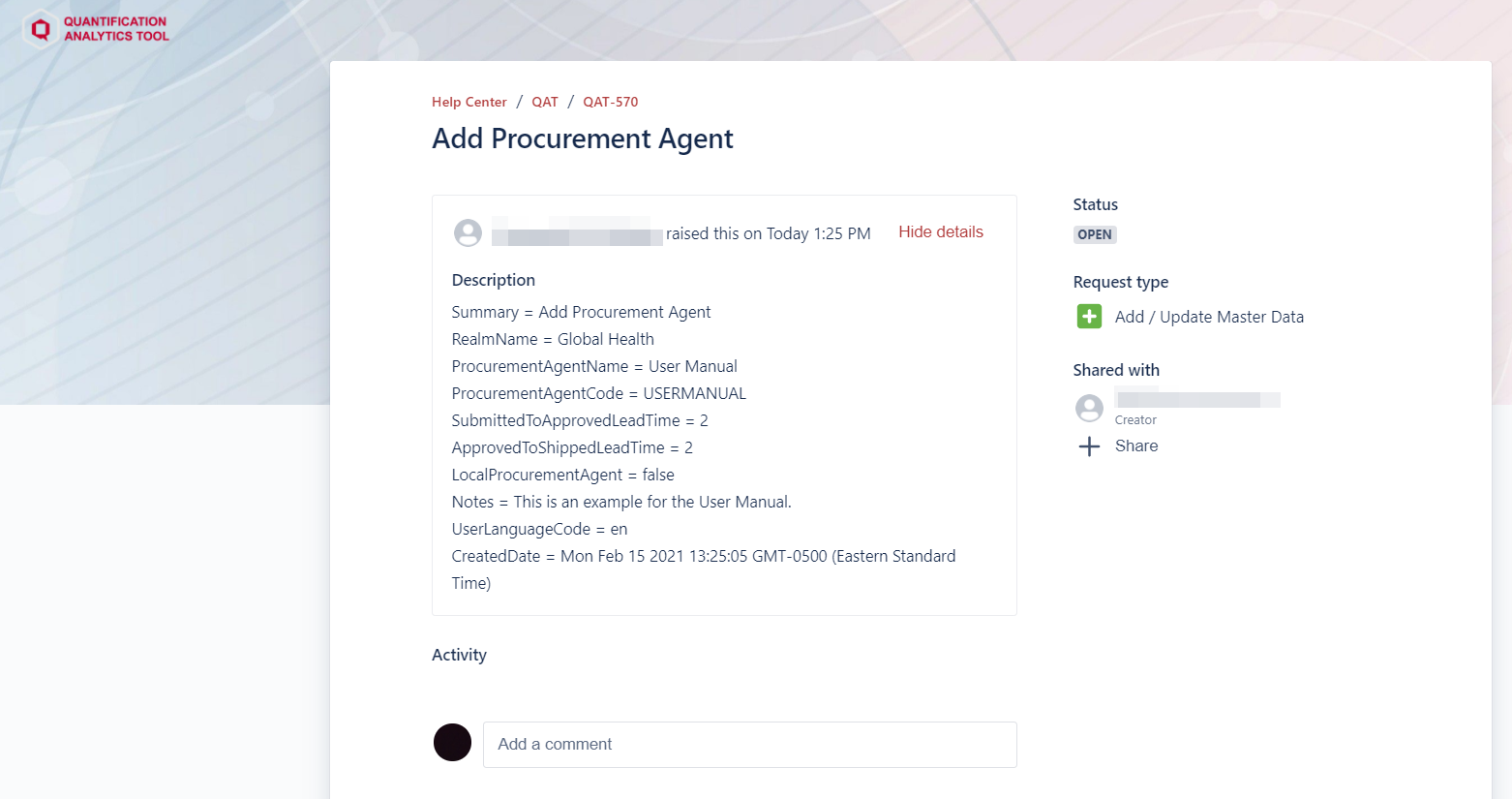
JIRA Ticket Management
J. Navigation and Menu Bar
Basic Navigation
Once logged into QAT, the below screen will appear:
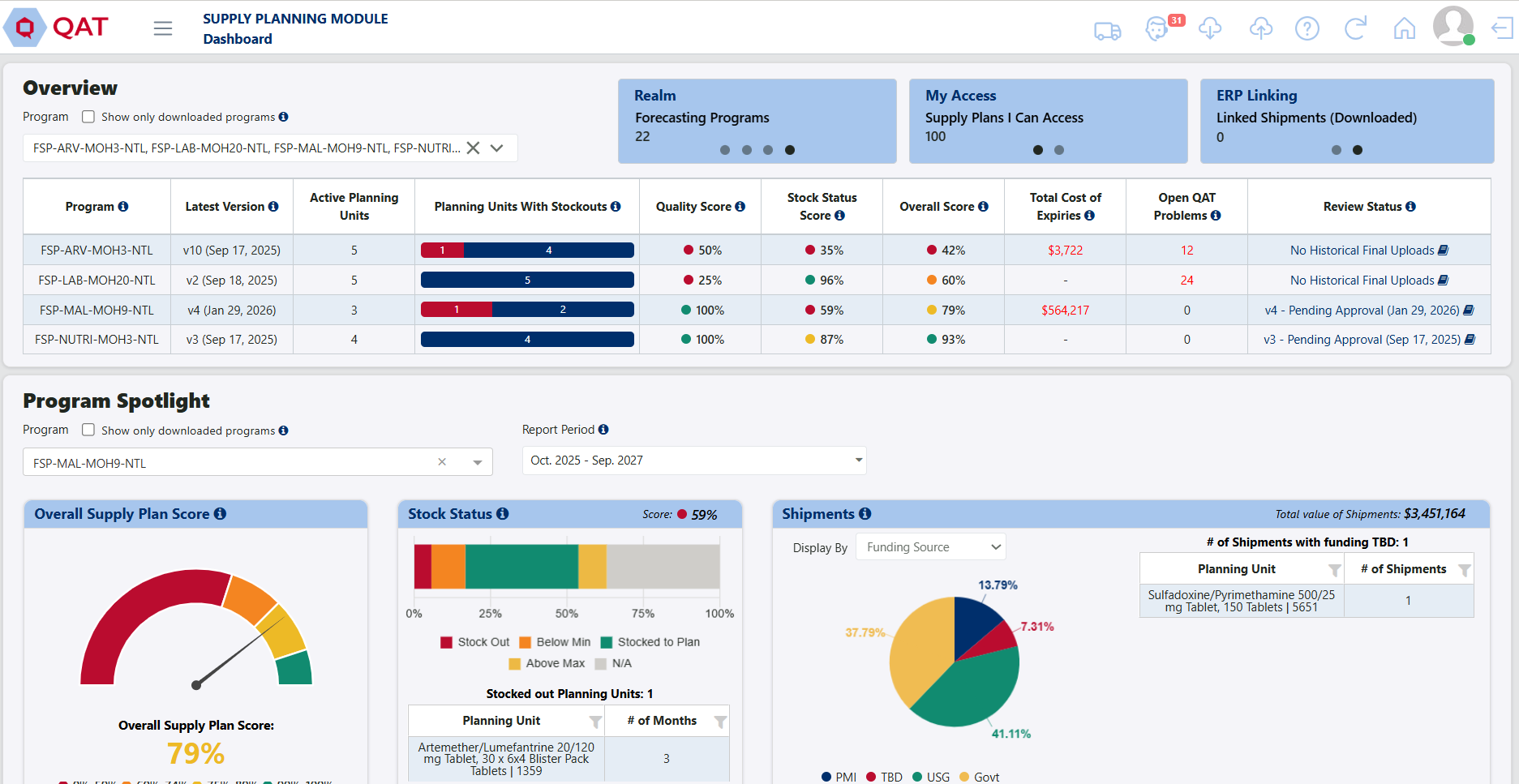
Supply Planning Module Home Screen
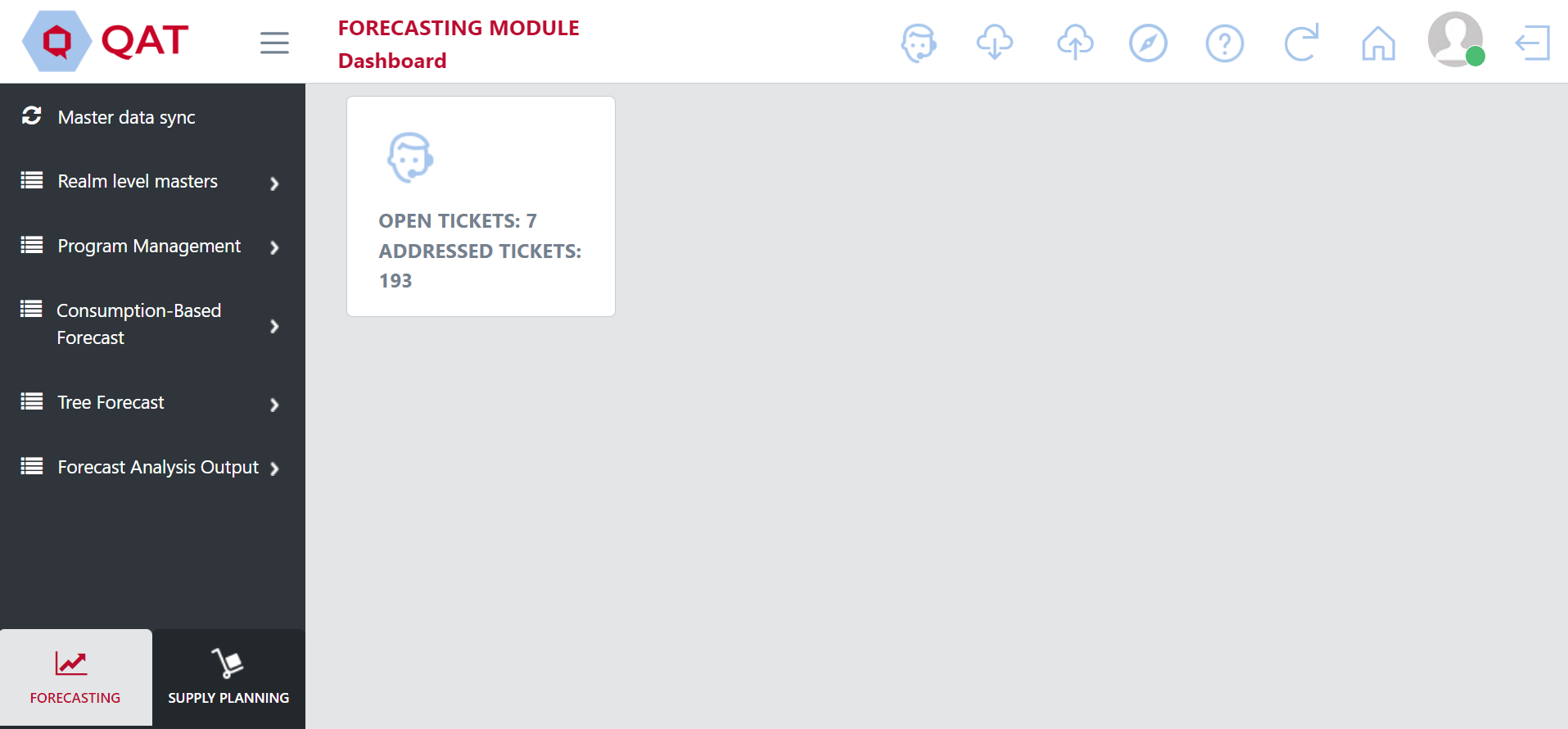
Forecasting Module Home Screen
In the main area of the home page will be an application dashboard. The Supply Planning Module has an enhanced dashboard with visualizations and analytics regarding downloaded and server-based programs a user has access to. For specific information on the Supply Planning Module dashboard, see QAT Dashboard.
For the Forecasting Module, the number of tiles, and types of tiles will depend on the access according to the role assigned to the user. Users will see one tile for program they've downloaded (i.e. When in the forecasting module, users will see one tile for every forecasting program they've loaded). By clicking on the down arrow on the Forecasting program tile, a user can 1) Delete the program from your local computer, 2) Proceed to the Version Settings for the program, 3) Proceed to the list of Forecasting Trees, or 4) Proceed to the Consumption Data Entry & Adjustment screen.
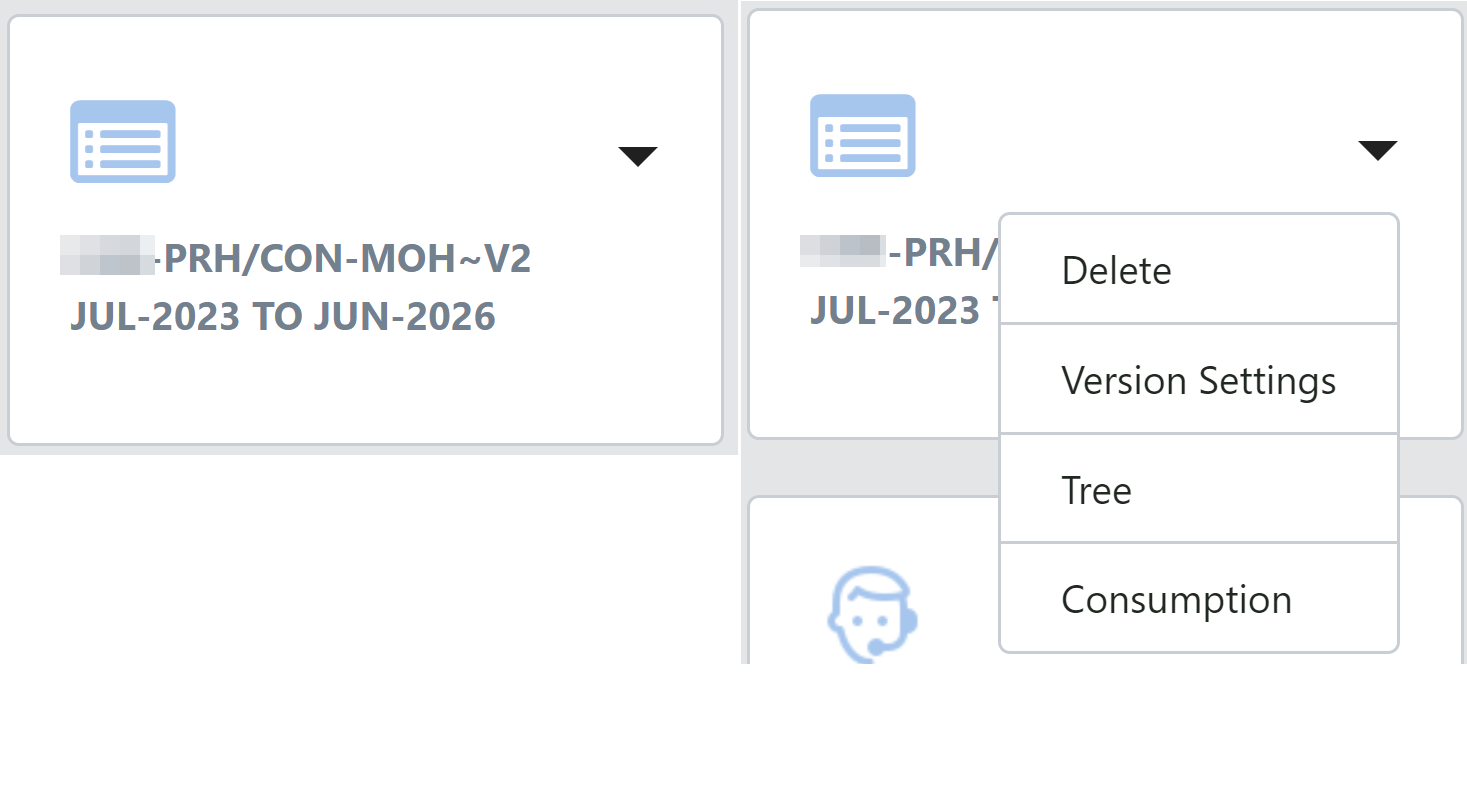
Forecasting Module Program Tile
In addition to the application dashboard, the screen consists of the top ribbon and a menu sidebar on the left-hand side. All the functions available in the ribbon and sidebar will be accessible to the user throughout the tool no matter which screen they are viewing.
To return to the Dashboard screen, the user can either click the home icon in the top ribbon or the QAT logo in the top left corner of the screen.
 Or
Or 
Top Ribbon for Supply Planning Module

Top Ribbon for Forecasting Module

| Screenshot | Function |
|---|---|
 | Logs user out of QAT. |
 | The profile icon is green when working online and red while working offline. When the user click on the icon, they are able to:
|
| Returns user to the dashboard/home screen. |
 | Downloads the QAT user manual to the user's computer. The file can be found in the Downloads folder on the user's computer. |
 | Refreshes the current page a user is working on. |
 | Informs the user when a program stored on the local server has non-uploaded changes and should upload that program to the server. If the icon is blue, there are no programs non-uploaded. If the icon is red, there are program(s) that should be uploaded to the server. The number in the red box indicates the number of programs that should be uploaded. |
 | Informs the user when there is a newer version on the server for of one of their locally downloaded programs. If the icon is blue, the user has the most up to date version of all downloaded programs. If the icon is red, there are program(s) that are outdated compared to the server. The number in the red box indicates the number of programs that have outdated versions. |
 | Opens up the QAT Helpdesk where users can create tickets to add/update master data, propose change requests and report a bug. The number in the red box indicates thet number of open tickets a user has. For more information on the helpdesk, refer to QAT Helpdesk and Tickets. |
 | Directs the user to the ERP Shipment Notification page. This page will inform users if there are any important updates that need to be reviewed for a linked ERP shipment. For more information on these notifications and which will be flagged, refer to ERP Shipment Linking. Note: this icon is only available in the QAT Supply Planning Module. |
 | Opens a Show Guidance webpage on an Introduction to QAT Forecasting. This document provides a high-level overview on the QAT forecasting process flow. Note: This icon is only available in the QAT Forecasting Module. |
Sidebar Menu:
The sidebar menu is where the user can navigate to the different screens within QAT. The options available in the sidebar will vary based on the access according to the role assigned to the user. Within the sidebar there are menu items. Clicking into one of those items will expand to show a list of sub menu items. As the user selects different items from the menu, the respective data will be displayed in QAT.
Within the sidebar menu, you will find the following menu items:
- Supply Planning Module
- Master Data Sync - Clicking on this button will sync the updated master data to your local version. This function is done automatically when logging into QAT, but this button provides the user to do so without logging out and logging back in.
- Application Masters (only available to Application and Realm Admins) – view/add/edit application-level data.
- Realm Level Masters – view/add/edit realm level data.
- Program Management – view/add/edit program level data. Download/Upload/Delete/Import/Export programs. Conduct supply plan reviews.
- Supply Plan Data – Add/Edit supply plan data.
- Supply Planning – View/edit supply plan. Scenario Plan.
- Reports – View Reports. Edit QAT Problem List.
- Forecasting Module
- Master Data Sync - Clicking on this button will sync the updated master data to your local version. This function is done automatically when logging into QAT, but this button provides the user to do so without logging out and logging back in.
- Application Masters (only available to Application and Realm Admins) – view/add/edit application-level data.
- Realm Level Masters – view/add/edit realm level data.
- Program Management – view/add/edit program level data. Download/Upload/Delete/Import/Export programs.
- Consumption-Based Forecasts – Import/add/adjust and extrapolate consumption data.
- Tree Forecasts – Build and manage forecast tree. View modeling and product validations.
- Forecast Analysis Outputs – Compare & select final forecasts. View other output reports.
| Screenshot | Function |
|---|---|
 | Completely collapses the sidebar menu to create more space on the screen. Clicking the icon once will make the menu disappear. Clicking it again will make it re-appear. |
 | Minimizes the sidebar menu while not making it completely disappear. Creates some more space on the screen. |
 | Shown when sidebar menu is minimized. Click to expand and show the full sidebar menu. Also used to expand and show sub menu items under menu items. |
 | Shown when sub menu items are displayed. Click to collapse sub menu items. |
 | Buttons that allow users to toggle between the Forecasting and Supply Planning Module in QAT, if their user access allows. |
Buttons Found Throughout QAT
The following buttons are frequently found on the different QAT screens:
| Buttons | Action |
|---|---|
 | Submits and makes changes. |
 | Cancels the unsubmitted changes. |
 | Reverts unsubmitted data back to previous format. |
 | Adds a new record to the database. |
 | Updates records. |
 | Helps users to search the desired information. Searches all fields in the table displayed. |
 | Allows a user to clear search fields. |
 | Indicates mandatory data entry fields. |
 | Displays explanations/definitions and formulas on commonly used terms in the specified window/report. |
 | Provides high-level guidance on how to best use the current page. |
 | Exports report PDF, CSV or Word (options depend on the screen). |
K. Changing Language
To ensure that QAT is adaptable to users around the world, the application displays text in four different languages: English, French, Portuguese, and Spanish. Users are encouraged to submit tickets if they would like to see a particular label translation improved. (Note: Translations for application labels can be edited only by application admins. Instructions on how to do so can be found in the translation section.)
There are two ways to change the language displayed for the user:
- Login Screen: On the top right corner of the login screen, there is a drop-down menu from which users can select their preferred language ahead of logging in. This will not only change the text once you are logged in to QAT but it will also change the text displayed on the login screen.
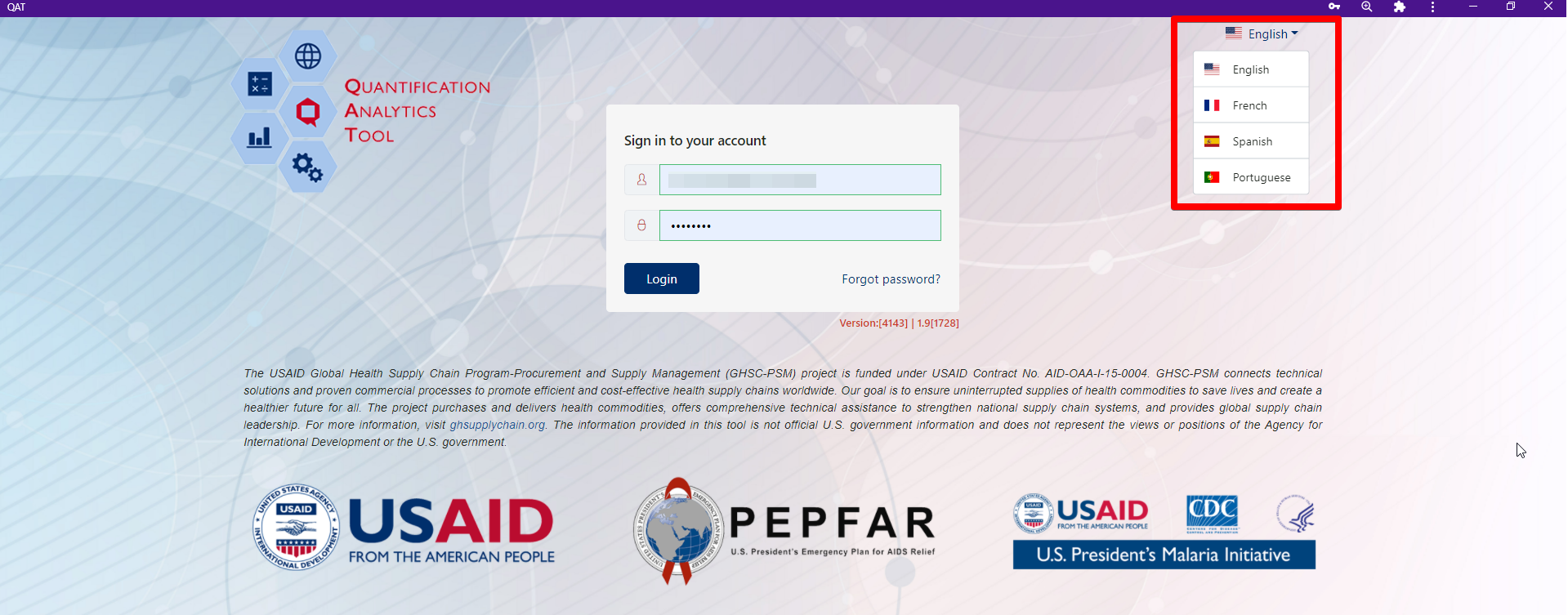
Login Screen Language Change
2. Within QAT: Once logged into QAT, the user may change the display language by clicking on the user profile icon on the top right corner of the screen, selecting the preferred language and then the tool will automatically update it's text/labels.
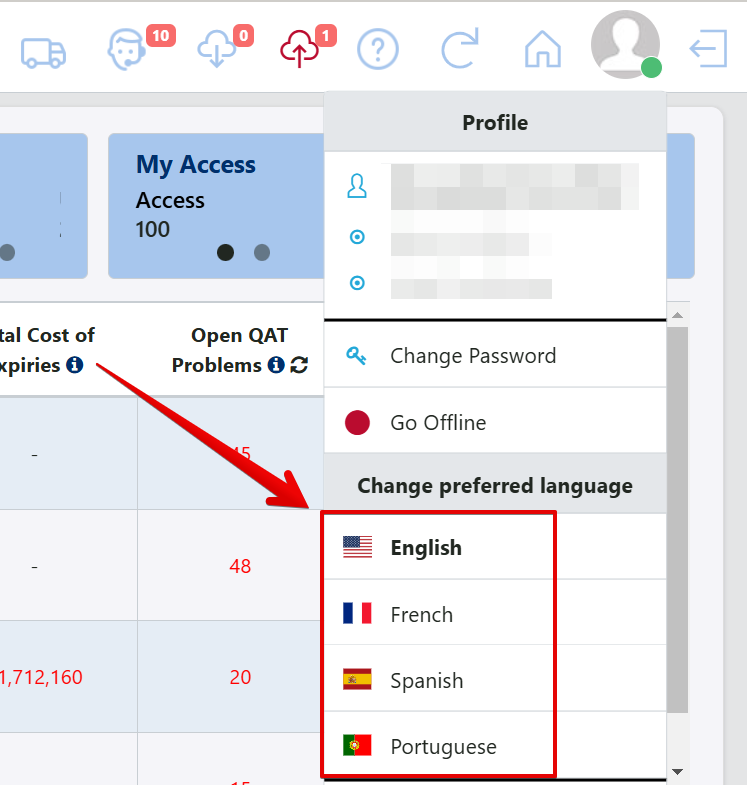
In Tool Language Change
L. QAT Dashboard
The supply planning dashboard provides a comprehensive interface with enhanced visualizations and analytics. It is structured into three main sections: Ticker, Overview, Program Spotlight.
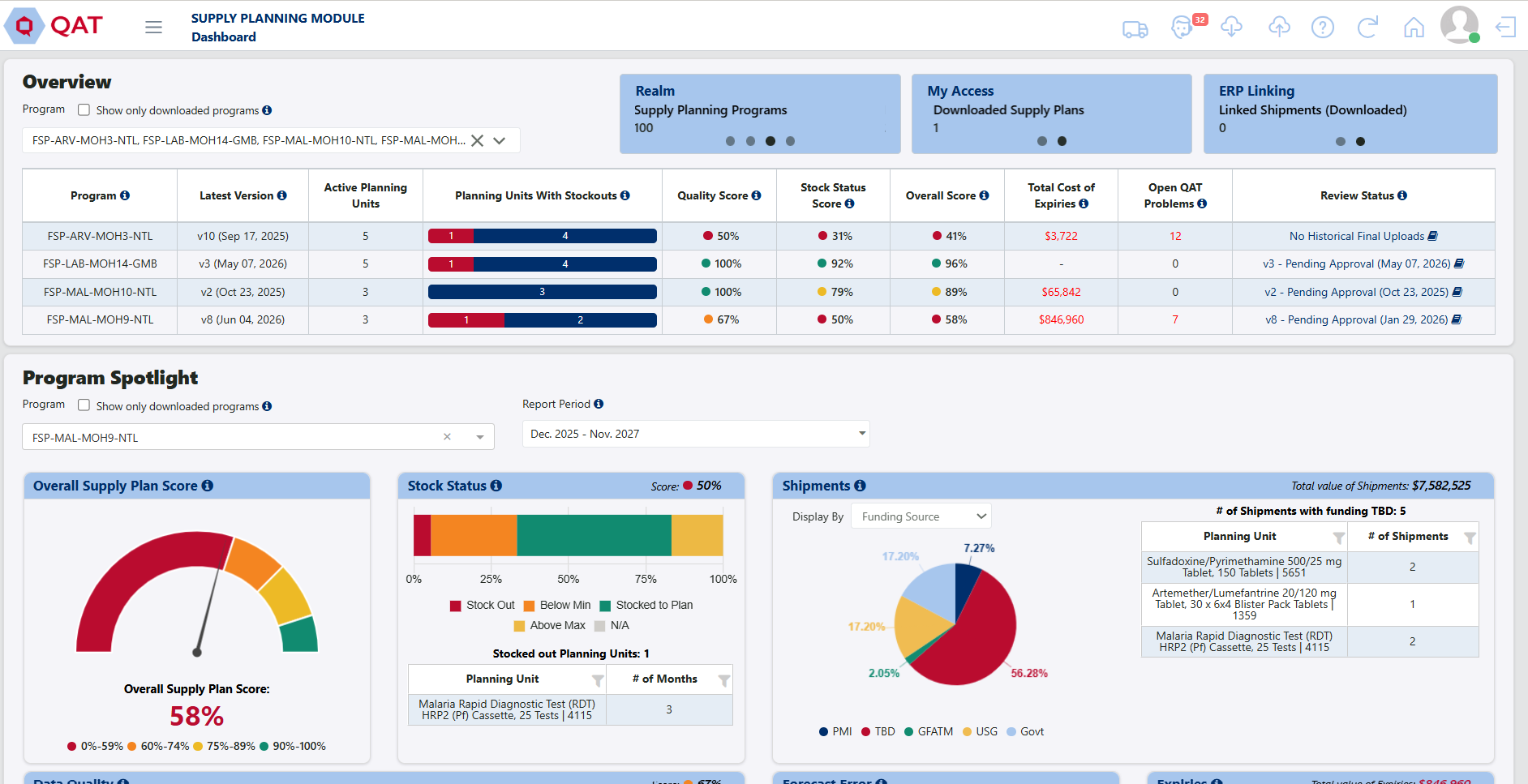
Supply Planning Dashboard
- Ticker – This section displays key information through three automatically scrolling tiles.
To manually navigate the tiles, click the dots at the bottom of the tiles. Each tile links to relevant screens. Click on the tile name to be directed to that screen (if you lack access, an appropriate message will display). For example, clicking on the ‘ERP linking’ tile will take you to the ERP Linking screen.
- Realm: Provides global metrics, such as the number of countries, users, supply plan- ning programs, and forecasting programs.
- My Access: Highlights the supply plans you have access to, including downloaded supply plans.
- ERP Linking: Displays number of linked shipments by realm and downloaded programs.

Dashboard Ticker
- Overview – This table offers a high-level summary of one or more programs based on your access.
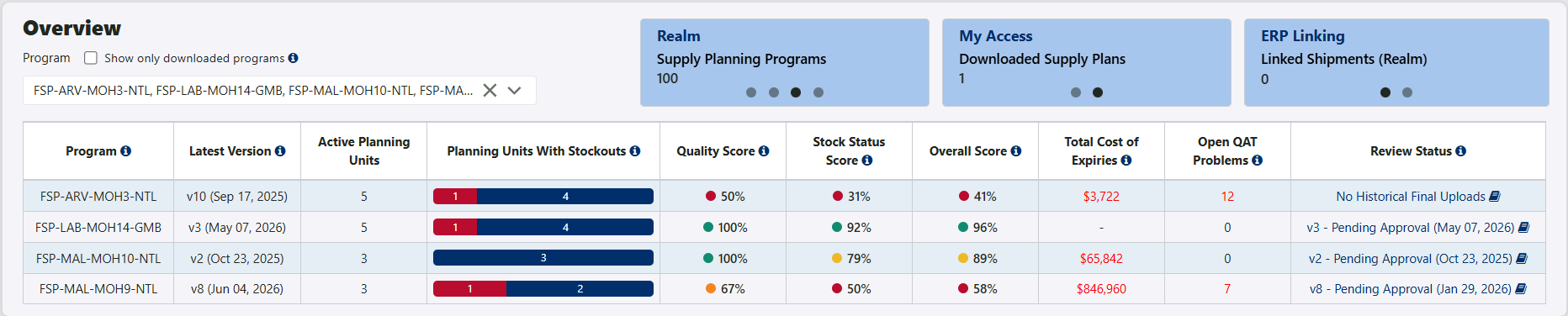
Overview Section
Selecting Programs:
- Programs can be server-based or downloaded but not both
- Multi-select available for programs
- Offline mode limits selection to downloaded programs only, with the checkbox for server programs greyed out
- For server programs, some columns/features (e.g., action column and QPL links) are not displayed
- Note: downloaded and server versions may display different data, if items have be updated on the local version and not uploaded, or if the QPL has been recalculated based on today's date.
Features of the Overview Table Each column is designed to present actionable data:
- Tooltips: Hover over tool tip icon in each column for further details
- Sorting: Programs are sorted alphabetically, with an asterisk indicating final and approved versions.
- Links and Icons:
- The 'Action' column allows users to delete out a local program as well as click on the cloud icons to be re-directed to the upload or download screens. The cloud icon will appear in red if that downloaded version is outdated. The 'Action' column does not appear on the overview table for server programs.
- Clicking on the number in the 'Open QAT Problems' column will direct the user to the QAT Problem List (QPL) for that program. This does not appear for server programs.
- Clicking on the status in the 'Review Status' column will direct the user to the Supply Plan Version & Review screen while clicking on the notebook icon in the same cell will open up the notes history for that program.
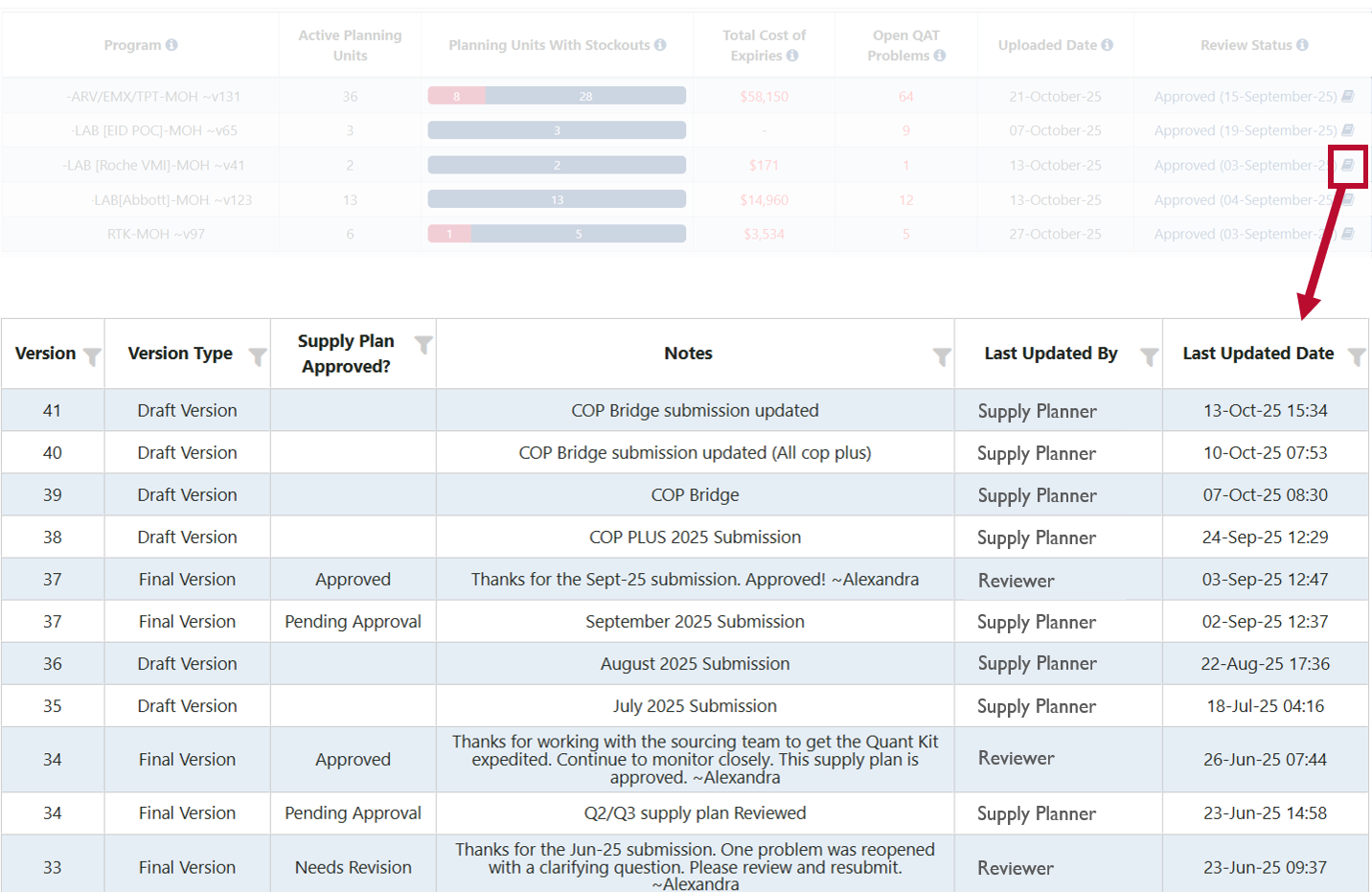
Version Notes
- Program Spotlight – This section provides detailed insights into a single program’s key metrics. Make sure to utilize tooltips and embedded links for efficient navigation and data exploration. All 5 sections have a tool tip next to the header and each header is linked to a QAT screen that you can access by clicking on the header.
Selecting a program:
- Supports server or downloaded programs (single select only)
- Server programs default to the latest version (draft or final)
- Offline mode limits selection to downloaded programs.
Report Period:
- Only affects the Shipments, Forecast Error, and Expiries sections. The Overall Supply Plan Score and Data Quality section are based on the QPL calculations and the Stock Status section is always 18 months into the future (including current month)
- Server programs: Defaults to 6 months past and 18 months future (editable)
- Downloaded programs: Defaults to 6 months past and 18 months future (non-editable on the dashboard). Admins can set custom defaults by program via the Update Program Info screen.

Dashboard Default Report Period in Program Settings
Spotlight Metrics
Overall Supply Plan Score
- The large dial displays the Overall Supply Plan Score for a specific program. The Overall Supply Plan Score is an average of the Quality Score and the Stock Status Score. In general, higher scores indicate stronger supply plan performance. For more information on how scores are calculated, see the Supply Plan Scorecard Report.
Stock Status:
- Bar graph displays the percentage of months in the report period by stock category. Can hover over graph for detailed breakdowns.
- Visual customization: Can hide legend elements or copy/paste graph.
- The accompanying table shows stockout details per planning unit (PU).
- Displays the Stock Status Score, which is based on the number of months (18 months in future) each planning unit is stocked‑to‑plan.
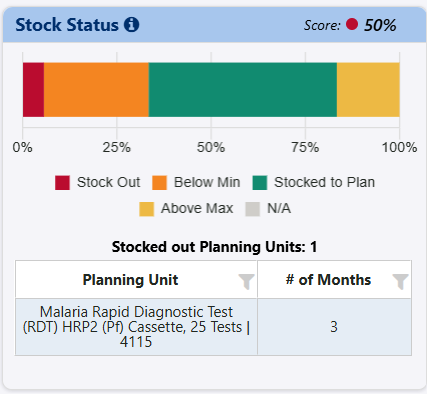
Stock Status Section
Data Quality:
- Reflects QAT problem List metrics, independent of the report period.
- Updates dynamically with changes made in QPL if user has refreshed the QPL. Otherwise, user can click the refresh icon next to the Data Quality header to refresh the data displayed.
- Diplays the Data Quality Score, which is an average of the percentage the supply plan is in-compliance according to the four data quality dials.
- Dials for:
- Forecasted consumption: Counts the number of PUs that have at least one month of missing forecasted consumption in the next 18 months.
- Actual Inventory: Counts the number of PUs that have no recent actual inventory data in the last 3 months.
- Actual Consumption: Counts the number of PUs that either have no actual consumption data in the last 3 months or a gap in actual consumption data in the last 6 months.
- Shipments: Counts the number of PUs that have shipments with receive dates in the past, or shipments that should have been "submitted" based on program lead times.
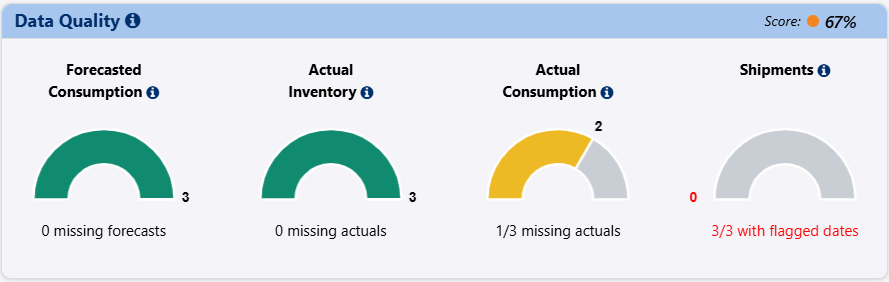
Data Quality Section
Forecast Error (Server Versions Only):
- Average percentage error calculated for the report period.
- Errors above a set threshold (default 50%) are highlighted in red. Admins can adjust thresholds per PU and program in the 'Update Planning Units' screen.
- Missing data displays a caution icon with an explanatory note.
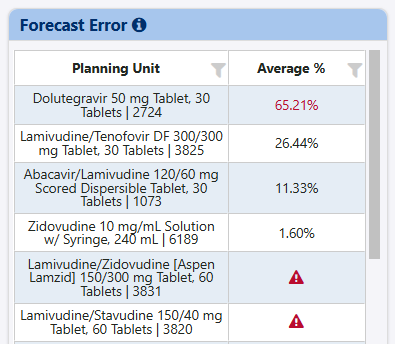
Forecast Error Section
Shipments:
- Pie chart of shipments by funding source, procurement agent, or status using the dropdown to designate which one.
- Hover over pie chart for cost breakdowns. The cost breakdown is using the total value of shipments in that report period as the denominator.
- The accompanying table shows the # of shipments with funding TBD in the report period.
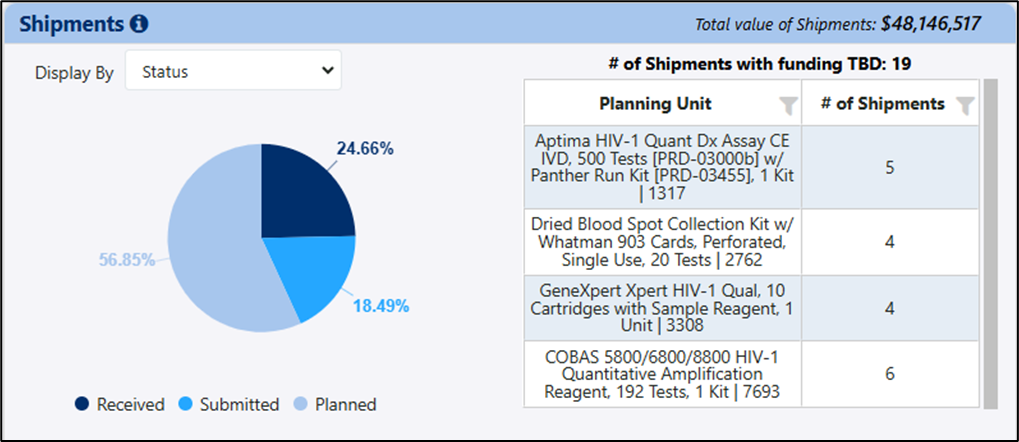
Shipment Section
Expiries:
- Displays expiries within the report period, including quantity and total cost
- Total expiry value across all planning units for the selected program appear at the top right of the section.

Expiries Section