Annex 5: PipeLine Program Import
In certain cases, users will be granted a special set of credentials that can import PipeLine databases if they desire to set up their program this way (see Setting up a new program in Annex 1).
Step 1: Convert the .accdb file into a JSON file:
About the PipeLine Access DB to JSON conversion tool: Since the QAT system is only able to import program data in JSON format and PipeLine databases are in .accdb format, QAT has a downloadable tool for converting the .accdb file into a JSON file, thus allowing importation into QAT. Once installed, this tool does not require internet access to run. Also, this tool allows the user to choose their preferred language.
- Confirm that you have the appropriate System Configuration Requirements:
- Operating System: Windows / Linux / Ubuntu
- Other Software : Java JDK 1.8 and above.
- Confirm that your PipeLine data is fully updated:
- The database cannot have negative inventory values.
- All the shipment, stock, consumption data must be updated.
- Go to "Program Management" and click on "PipeLine Program Import".
- On the top right corner click on the "Add" button. It will lead to a file input screen.
- Click on the downward arrow button on the top right corner.
- Click the "Download PipeLine Converter" will on the screen, then select your computer's operating system (Windows or Linux). The converter will be downloaded in zip file.
- Open the converter file and run the tool (.exe file / .java executable file), the following screen will be displayed:
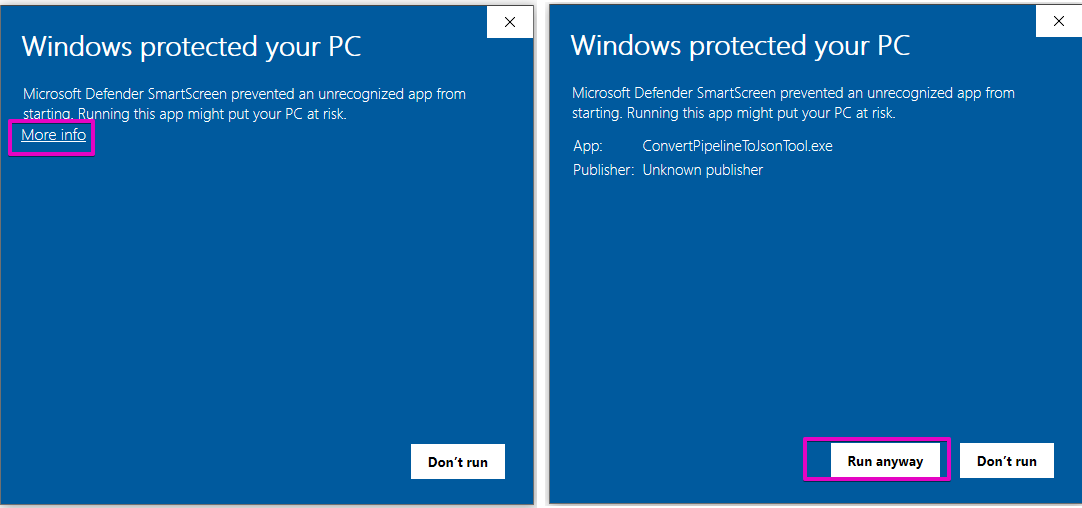
Figure 251: Caution Message during PipeLine Import
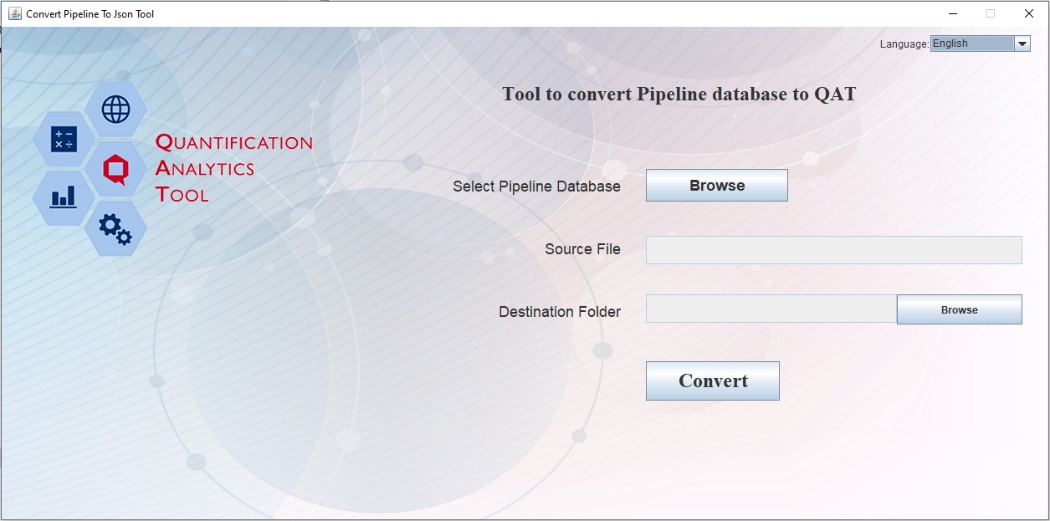
Figure 252: PipeLine Import Screen
- Click on first Browse button to search for the desired .accdb file to import.
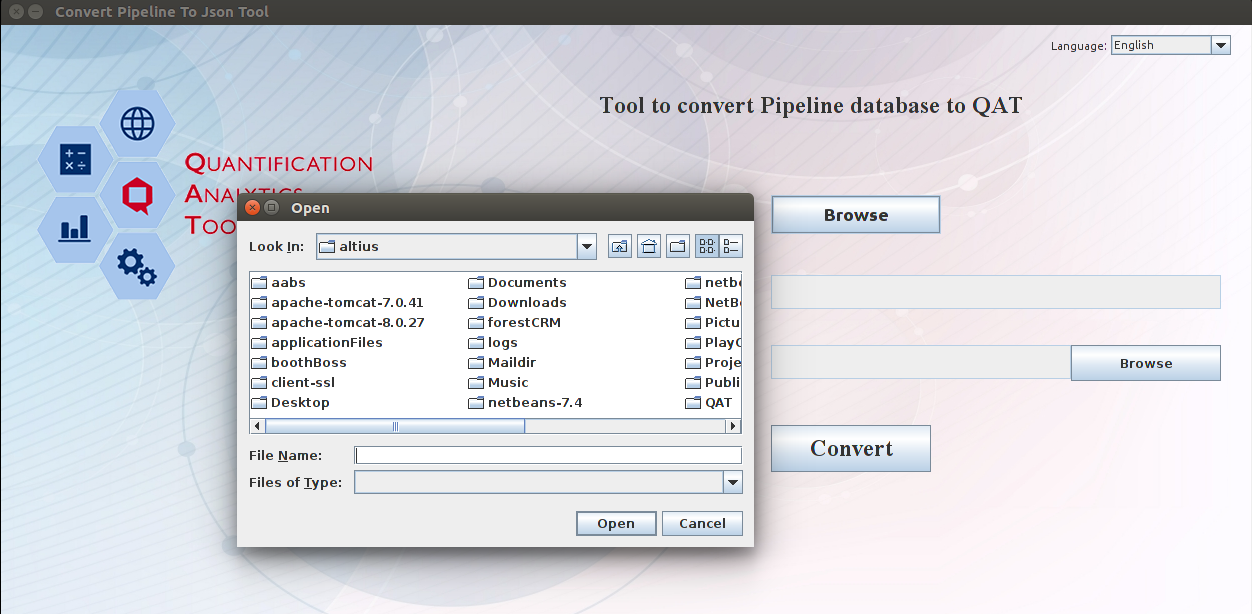
Figure 253: PipeLine Import Screen – Browse
- Click the second Browse button to select the location where the converted file will be stored on the user's local machine.
- Click on Convert. When the file is converted into .json format, you will receive the notification below:
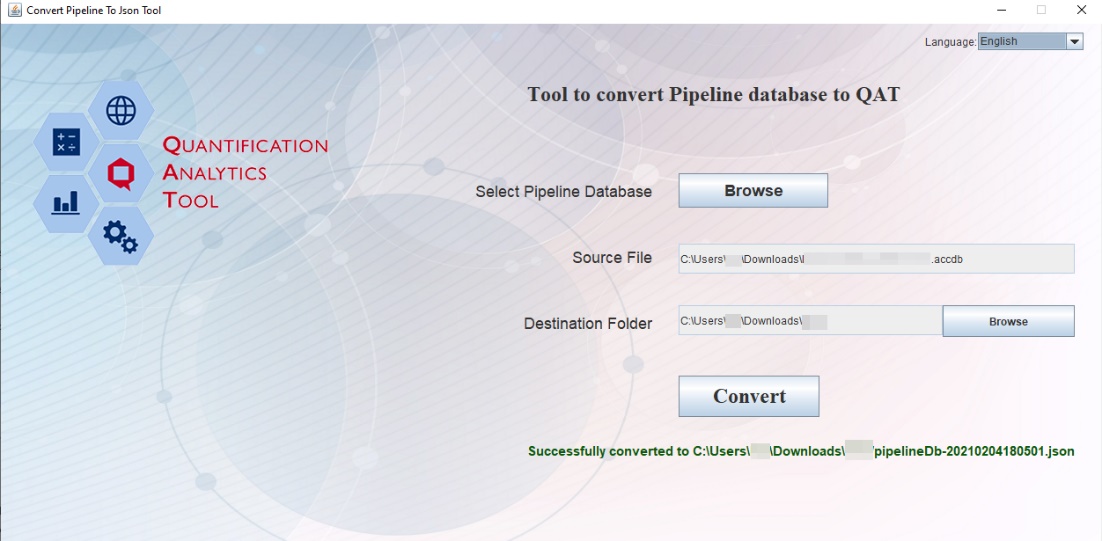
Figure 254: Successful Import PipeLine Screen
Step 2: Upload the JSON file into QAT:
- In QAT go to "Program Management" > "PipeLine Program Import" menu item.
- Click on the "Add" button, and a new screen will be opened. Browse to find the converted JSON file (from Step 1) from the local machine. Click on "Submit".
- After completing the process, the user will get a message that the program is successfully imported.
- This program will be shown as a row in the program list. Click on that row to continue to Step 3.
Note: While doing the program setup the QAT user can select multiple technical areas from the technical area dropdown list.
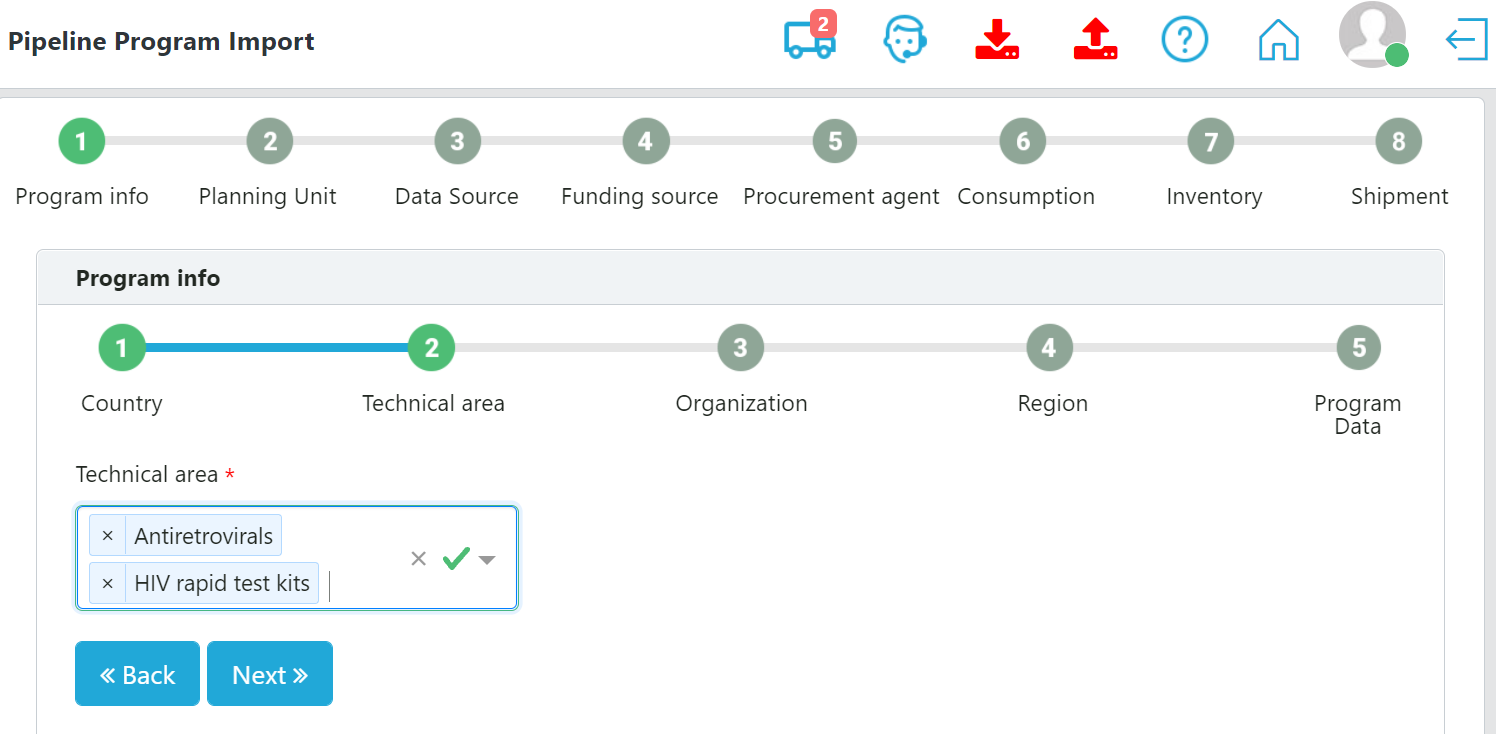
Figure 255: PipeLine program import, multiple technical areas
Step 3: Configure data for import into QAT
After importing PipeLine data, the user will navigate through a series of screens where there will be prompts to enter data. After editing data on one screen, the user should click "Next" to move to the following data entry screen. If needed, navigate to previous screens by clicking "Back". The user should navigate through the following screens: Program Info, Planning Units, Data Source, Funding Source, Procurement Agent, Consumption, Inventory, and Shipments.
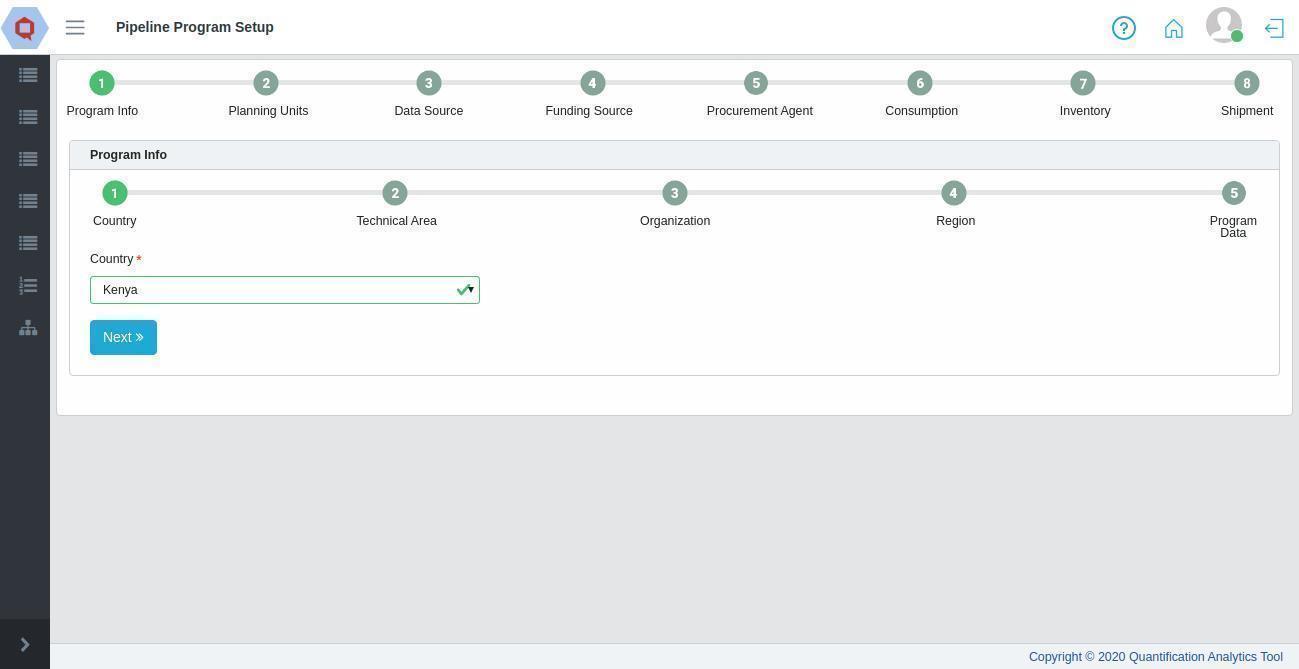
Figure 256: PipeLine Import - Country
Each of these major screens have sub-screens where users need to enter data and map current PipeLine data to QAT realm-level master data; for example, the PipeLine products need to be mapped to QAT's planning units. At the last step (Shipment screen) a pop-up will be displayed if any program contains negative inventory.
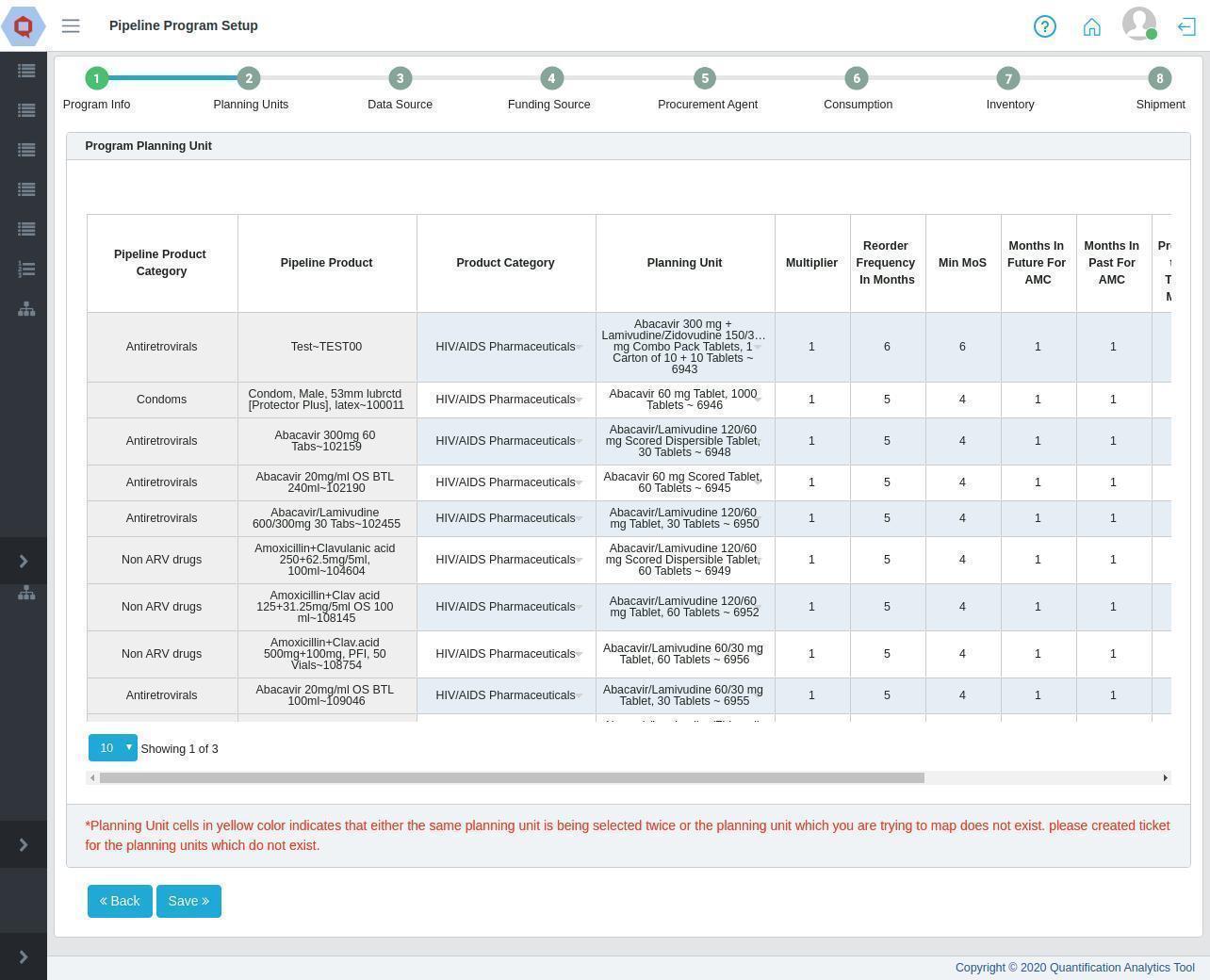
Figure 257: Pipeline Import - Planning Units
After the file is successfully imported to QAT:
- The users can go to "Program Management".
- Click on the "Programs" menu item.
- The program list will show the imported program.
- Now the user can "Download", "Import" and "Export" that program.