Section 7. Forecasting Module: Program Data
A. Introduction
A forecast is an estimate/prediction of the quantities of products to be consumed/utilized by clients or consumers over a future period of time. In QAT, the forecast process is generally conducted in a specific order (see Figure to the right).
First, set up a program using Update Program Info or select a previous program using Download or Delete Program. After downloading the program, add information on the forecast period, threshold (%), products, and other program settings in the Update Version Settings and Updating Planning Unit screens. In QAT, users can either create forecasts by designing forecasting trees (tree-based forecast) or by leveraging historical consumption (consumption-based forecast) to reach a final forecast. For each product, choose consumption or tree methodology, or both!
Consumption-based forecasts are most useful in mature, stable programs that have a full supply of products and reliable data. This method can be the most reliable predictor of future consumption if future use is predicted to be very similar to the past. Ideally, 24+ months of monthly actual consumption data is available. If the necessary data for a consumption-based forecast is not available or not helpful in predicting future consumption, conduct a tree-based forecast, which flexibly accommodates all other forecast methods, such as morbidity, services, and demographic methods. Users can specify changes over time in a tree, either by directly specifying the rate of change or extrapolating from past data.
Once the various forecasts have been created, users can navigate to the Forecast Analysis and Outputs section to view and compare forecasts, and select the final forecast.
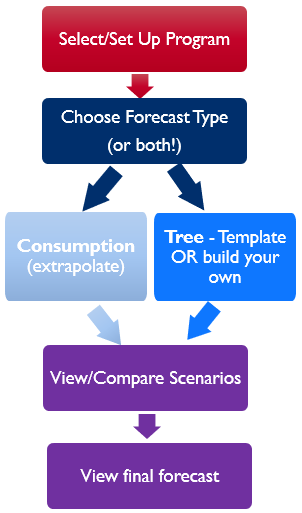
Figure 156: QAT Forecasting High-level Process Flow
B. Program Information
Purpose: Enables users to update their basic program information after initial creation.
Using this screen:
Program Admins can use the main screen to:
- Update Forecast Program Name, Program Manager, and the Notes field. Program Admins can also choose to disable or activate a program in this screen. For changes relating to the technical area, organization, or program display name, Program Admins must request the change from a Realm Admin through the QAT Helpdesk System.
Realm Admins can use the main screen to:
- Update the Technical Area, Organization, Forecast Program Name, Program Display Name, Program Manager, and the Notes field. Realm Admins can also choose to disable or activate a program in this screen.
C. Version Settings

Purpose: Enables users to update their program settings and view details about previous versions. For viewing forecast results, use the screens in the Forecast Analysis Output section.
Using this screen: Note: A forecast program must be downloaded to update version settings. All past versions of each forecast program will be in a read-only format; only the local version is available for updating and editing.
On this screen, users can:
Update the following program settings for the downloaded, local program:
Version Notes – a free form editable text field that allows users a place to provide general notes about a particular forecast version. It is also visible and editable when uploading a program.
Date Uploaded/Uploaded by User – denotes the user that uploaded each version of the forecast to the server and on what date. Useful for understanding the lifecycle of each program.
Forecast Start, Forecast Period (Months), and Forecast End – based on the start & end date, QAT will automatically calculate the forecast period in months. Alternatively, users can choose to enter a forecast start date and number of months in the forecast period, and QAT will automatically calculate the forecast end date.
# Of Days in Month – used in consumption-based forecasts for adjusting actual consumption against the number of days stocked out. A user can choose anywhere from 15 to 31 days; however, QAT will default to “calendar days.” This field could be useful if a facility only wants to use business days (~20 days) to calculate the stockout rate.
Stock Out Rate = Stocked Out (days) / (# of Days in Month)
Adjusted Consumption = Actual Consumption / Reporting Rate / (1 - Stock Out Rate)
Freight percentage – used in forecasting output screens and reports for estimating total procurement costs. This field is not mandatory and can be updated at any time.
Forecast Threshold – this metric is used in the Compare and Select screen. QAT compares available Consumption Forecasts and Tree Forecasts. For any Tree Forecasts, QAT will flag the percentage above the highest or below the lowest Consumption Forecast. The comparison will be highlighted in red text if it is outside the threshold percentages set by the user in this screen. Assuming reliable actual consumption data, this comparison helps users determine if their Tree Forecasts are realistic. These two fields, high and low, are not mandatory and can be updated at any time.
See a historical lifecycle of each program through all its versions.
View all version settings above
(Right click) View the Forecast Validation screen (same screen as viewed during the Upload process) – which lists missing forecasts, missing data and all notes. This serves as an easy for users to understand previous forecasts without downloading them. Use the Monthly Forecast, Forecast Summary or Version Comparison screens to view the forecast outputs from other versions.
D. Planning Units
Purpose: Enables users to add and update planning units and the associated planning unit settings that will be used in their forecasts and for calculation in the forecast output screens.
Using this screen: Note: A forecast program must be downloaded to add or update planning units and their settings.
- Add Planning Units – Users will need to add any planning units in this screen that they would like to forecast. Planning Units can be added manually or copied and pasted from the Supply Planning module ‘Update Planning Unit’ screen, if the planning unit have already been added to a user’s supply plan.
- Update Planning Unit Settings – Users can also use this screen to update any planning units and their associated settings. Users should always Master Data Sync after updating any setting in order to see the changes take place in other forecasting module screens. Planning Unit settings and brief explanations is as follows:
| Column Name | Description | Used Where? |
|---|---|---|
| Conversion Factor (FU:PU) | A non-editable field providing information on the conversion factor between the chosen PU and it's associated FU. | Select screens (Data Entry & Adjustment, Compare & Select, Monthly Forecast) allow data entry/viewing in PU or FU |
| Consumption Forecast? | For each PU, users can choose one or both methods. If the forecast type is checked for the PU, it will appear in the Consumption and Tree screens. | Building your forecasts and then analyzing in the Compare & Select screen |
| Tree Forecast? | ||
| Stock on Hand (start of forecast period) | The actual or projected stock (quantity) at the beginning of your forecast period. Users can utilize the supply planning module to determine the SOH, if desired. | Forecast Summary to calculate the procurement gap |
| Existing Shipments (forecast period) | Total existing shipment quantity during the forecast period. Users can utilize the supply planning module to determine the existing shipment quantity (it is recommended to not include planned shipment quantities unless there is a high likelihood of ordering). | |
| Desired Months of Stock (end of forecast period) | The MOS you wish to have at the end of your forecast. | |
| Price Type | Choose a specific procurement agent or "Custom." | Forecast Summary to calculate the cost of the procurement gap |
| Unit Price | Auto-filled based on procurement agent or manually entered by a user. |
Table 9: Forecasting Module Planning Unit Settings
E. Equivalency Units
Purpose: Enable users manage Equivalency Units. Equivalency Units (EUs) allow users to aggregate data across products that are different, but related. They allow users to group multiple forecasting units for aggregation in the Reports and Outputs.
Using this screen:
Mapping equivalency units to forecasting units Use the main screen to manage mappings between equivalency units and forecasting units. Realm-level mappings are available to all users and are indicated by Program "Realm Level." However, program admins can create program-specific mappings (by adding a row and tagging it to a specific EU). If there are any conflicts, program-specific mappings will take precedence and be used instead of realm-level mappings.
For example, a user is forecasting medicines to treat QATitis, a condition where people cannot stop using QAT. The user may forecast by different treatments (different forecasting units) but want to see how they are aggregated together. For the example below, a patient would need 14 tablets of FASPicillin, or 1 tube of FASPasone (cream), or 0.5 vials of FASPicaine, or 2 bars of chocolate to treat QATitis. Thus, if different patients are undergoing different treatments, a user can aggregate these different treatments by creating/using an Equivalency Unit (EU).
| Equivalency Unit | Forecasting Unit | Conversion to EU | Average Treatment required to cure QATitis |
|---|---|---|---|
| 1 Treatment for QATitis | 1 tablet of FASPicillin | 14 | 1 tablet a day for 2 weeks |
| 1 Treatment for QATitis | 5mL tube of FASPasone (cream) | 1 | 0.5mL/day applied on the forehead over 10 days (1 tube total) |
| 1 Treatment for QATitis | 2mL vial of FASPicaine (injection) | 0.5 | One injection of 1mL (Two people can share one vial) |
| 1 Treatment for QATitis | 1 bar of white chocolate | 2 | 2 bars of chocolate. The type of chocolate does not matter, as all chocolate contains the natural form of FASPicillin. |
| 1 Treatment for QATitis | 1 bar of dark chocolate | 2 | |
| 1 Treatment for QATitis | 1 bar of milk chocolate | 2 |
Table 10: EU Example - Treatment for QATitis
Steps to creating and managing equivalency units
- A user should first check to see if the EU exists already in the QAT Master Data by navigating to “Realm Masters” → “Equivalency Units.”
- If the EU does not exist, click on “Manage Equivalency Unit” then “Add Row” and users can input the EU they would like to utilize for their specific program throughout QAT. This EU will be program-specific and will not be available to other programs. If there is an EU that would benefit the QAT community, users can request it via the QAT Ticketing Helpdesk System.

- If the EU exists and a user would like to map forecasting units to the existing EU, they can click “Add Row” on the main screen and map the forecasting unit to the program-level EU. If a user would like to map the forecasting unit to an existing realm-level EU and thinks it would benefit the QAT community, users can request it via the QAT Ticketing Helpdesk System.
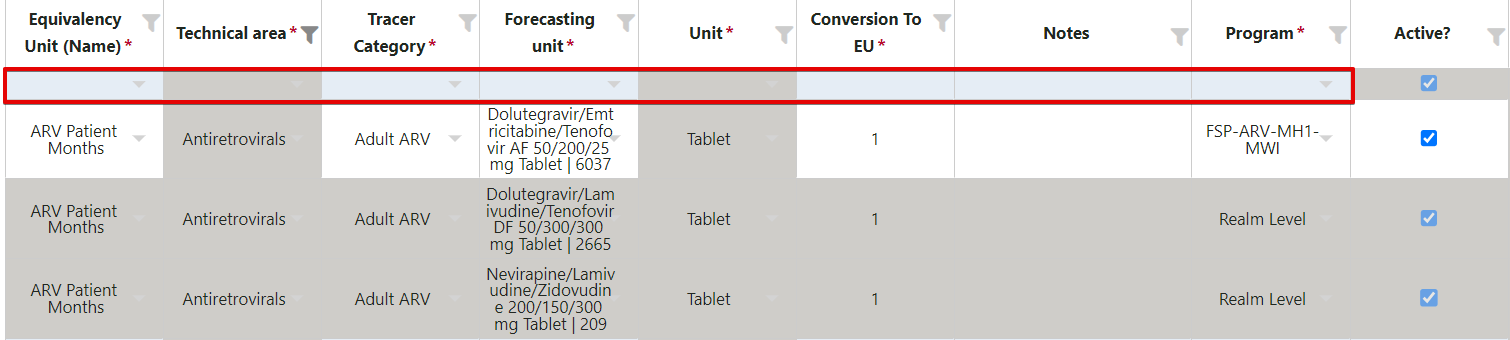
- Users can also edit program-specific EUs on the main screen as well.
- User must click “Submit” when they have finished editing and Master Data Sync, in order to see the EU available from the dropdowns in the Reports and Outputs screens.
Where are equivalency units used?
- In the Compare and Select screen, the user can display their forecasts in EUs. Using the example above, a user that forecasts 10,000 bars of dark chocolate per month, could elect to display their forecast in the EU of “Treatments for QATitis” and display their forecast as 5,000 “Treatments for QATitis” per month instead.
- In the Monthly Forecast screen, the user can display their selected forecasts by individual planning units, or aggregate across planning units if they are connected by EUs. For example, if a user forecasted 10,000 bars of dark chocolate, and 10,000 bars of white chocolate and 14,000 tablets of FASPicillin per month, QAT would display 7,000 “Treatments for QATitis”.
- In the Forecast Error (Monthly) report screen, users can also view the actual and forecasted consumption in Equivalency Units.
| Forecast | Equivalent in "Treatments for QATitis" |
|---|---|
| 10,000 bars of dark chocolate | 5,000 |
| 10,000 bars of white chocolate | 5,000 |
| 14,000 tablets of FASPicillin | 1,000 |
| Total | 7,000 |