Annex I: Application & Realm Administrator Manual
A. Introduction
While the focus of the user manual is to guide program administrators and users on how to supply plan in QAT, the objective of this annex is to provide guidance on functionalities available to application and realm administrators only. Application masters are mainly available to the App Administrator (with a few exceptions), while Realm Level Masters are available to both App and Realm Administrators.
B. Application Dashboard
The functions available on the Forecasting Application Dashboard will be visible according to the user's role. Below is an explanation of the tiles unique to App and Realm Level Admins. For an explanation of other tiles (tickets and program), please see Navigation and Menu Bar. See QAT Dashboard for information on the enhanced supply planning dashboard.
In the screenshot below, the role assigned is "App Level Admin".
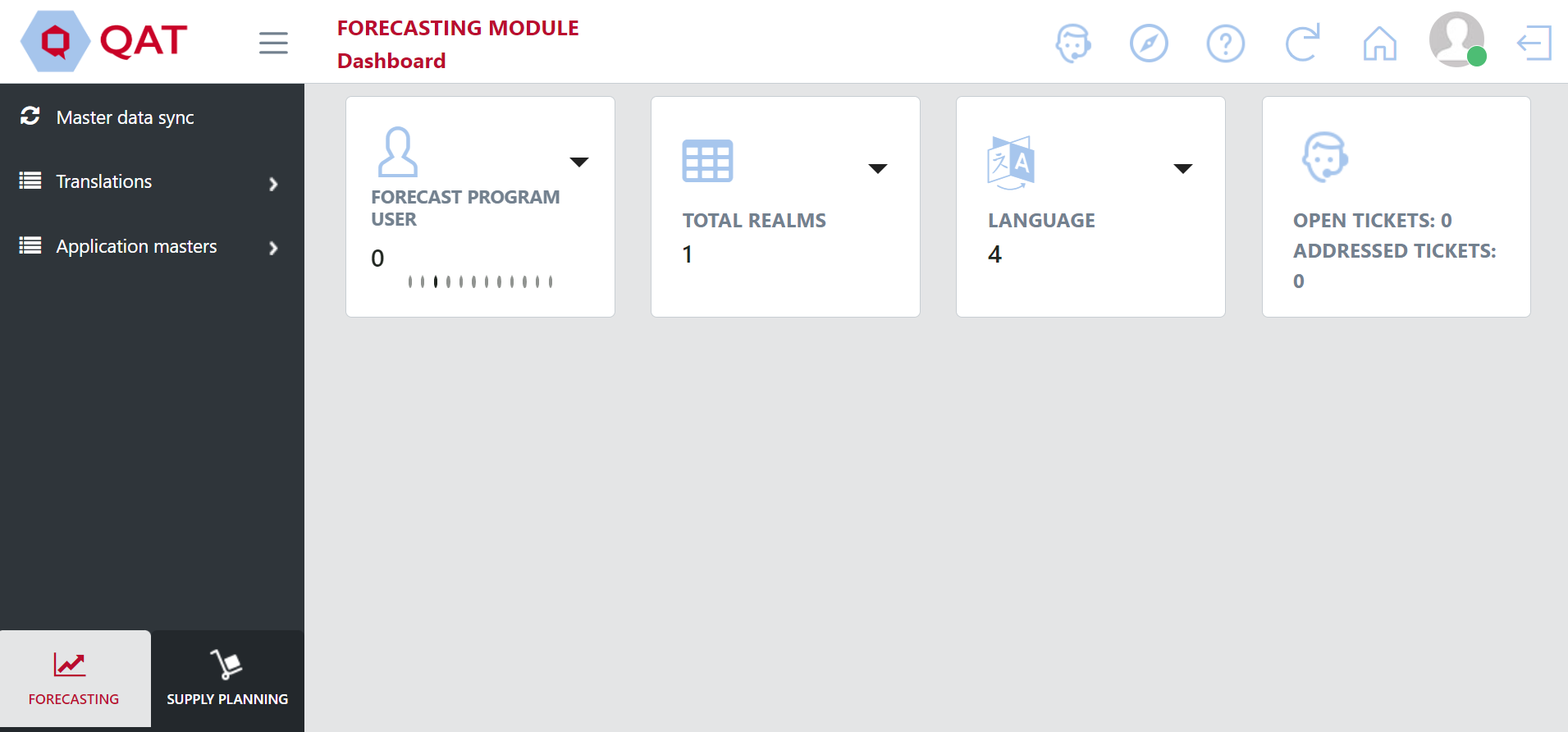
Figure 192: App Level Admin Dashboard
In the screenshot below, the role assigned is "Realm Level Admin".
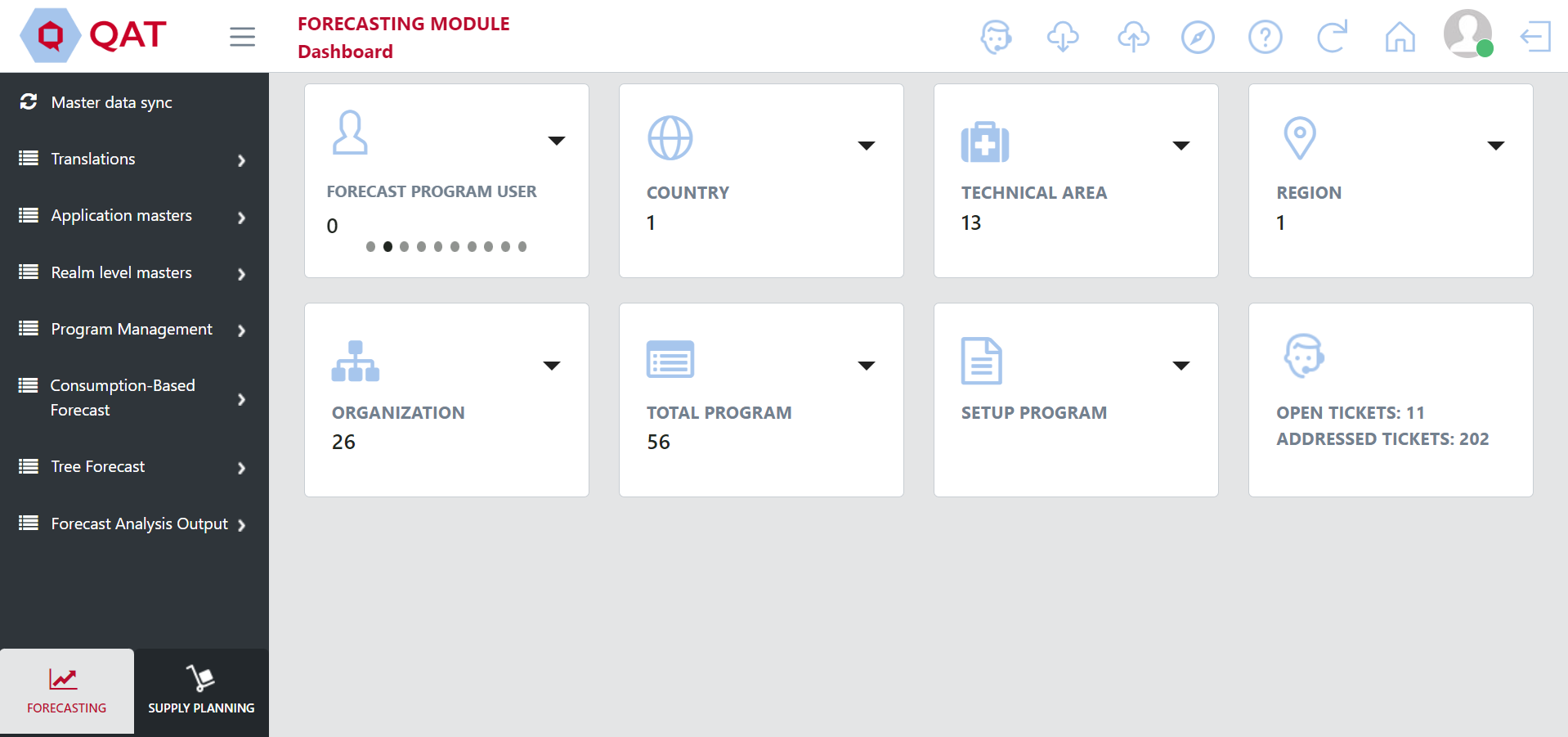
Figure 193: Realm Level Admin Dashboard
App and Realm Admin Tiles:
| Which Admins? | Screenshot | Explanation |
|---|---|---|
| App & Realm | 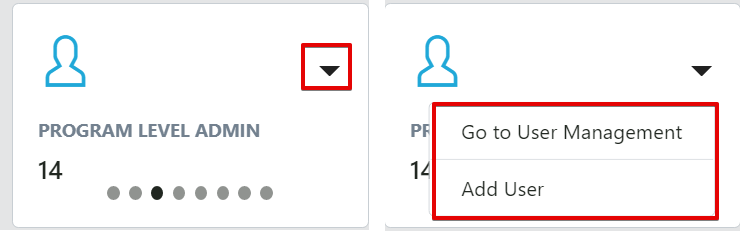 | This tile displays the number of users in each role. Clicking on the pull-down button displays two functions ("Go to User Management" and "Add User"). Both redirect users to the "Application Masters" > "User" (See Users for more) |
| App | 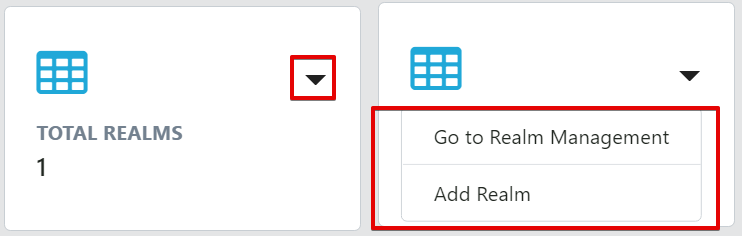 | This tile displays the total number of realms in the app. Clicking on the pull-down button displays two functions ("Go to Realm Management" and "Add Realm"). Both redirect users to the Realms screen, which is also accessible in the left menu under Application Masters > Realms (See Realm for more) |
| App | 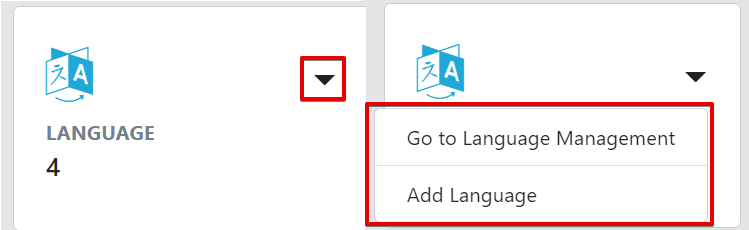 | This tile displays the number of languages in the app. Clicking on the pull-down button displays two functions ("Go to Language Management" and "Add Language"). Both redirect users to the Language screen, which is also accessible in the left menu under Application Masters > Language (See Language for more) |
| Realm | 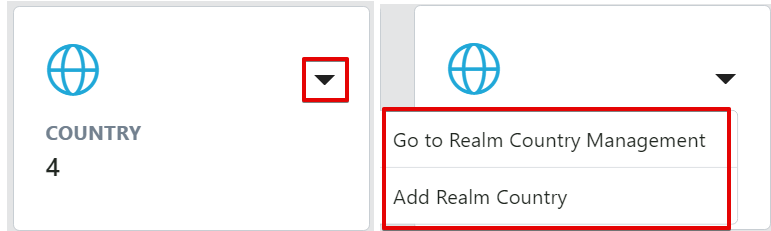 | This tile displays the number of countries in the realm. Clicking on the pull-down button displays two functions: "Go to Realm Country Management" brings users to a table of countries, which is also accessible in the left menu under Realm Masters > Country. "Add Realm Country" brings users to the Realm screen, which is also accessible in the left menu under Application Masters > Realm, where users can map countries to the realm (See Realm Country for more) |
| Realm | 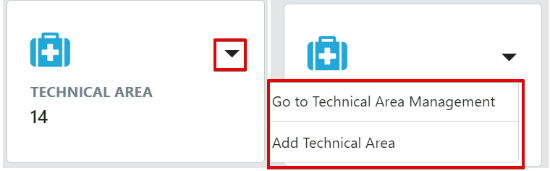 | This tile displays the number of technical areas in the realm. Clicking on the pull-down button displays two functions ("Go to Technical Area Management" and "Add Technical Area"). Both redirect users to the Technical Area screen, which is also accessible in the left menu under Application Masters > Technical Area (See Technical Area for more) |
| Realm | 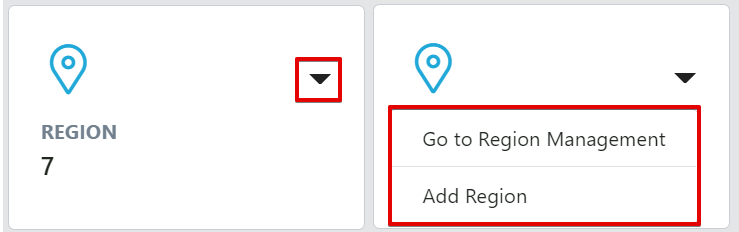 | This tile displays the number of regions in the app. Clicking on the pull-down button displays two functions ("Go to Region Management" and "Add Region"). Both redirect users to the Language screen, which is also accessible in the left menu under Application Masters > Region (See Realm Country for more) |
| Realm | 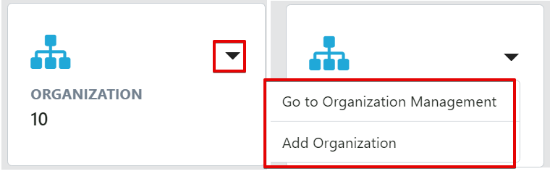 | This tile displays the number of organizations in the app. Clicking on the pull-down button displays two functions ("Go to Organization Management" and "Add Organization"). Both redirect users to the Language screen, which is also accessible in the left menu under Application Masters > Organization (See Organization for more) |
| Realm |  | This tile displays the number of programs in the app. Clicking on the pull-down button displays ("Go to Program Management"), which redirects users to the Update Program Info screen, which is also accessible in the left menu under Program Management > Update Program Info (See Program Information for more) |
| Realm |  | This tile allows users to click on the pull-down button to navigate to the "Setup Program" screen, which is also accessible in the left menu under Program Management > Setup Program (See Setting up a new program for more) |
Table 11: App and Realm Admin Tiles
C. Managing Master Data
Application Masters is the top-most data hierarchy level in QAT. Application master data applies to all the Realms and Programs within QAT. Most of it is only accessible to Application Admins, though a few of the Application functions are available to Realm Admins such as adding and updating users and assigning roles to users. Application Admins can select the specific application-wide master data they want to add or update.
Realm Level Masters covers all the master data for that Realm which apply to its programs and supply plans. The Realm Admin will be able to view, create and edit this master data. Programs, Technical Areas, Planning Units and Procurement Agents are a few examples of realm master data that the Realm Admin can add and maintain. A lot of the realm level masters are accessible for viewing to Program Admins; however, they do not have the ability to add/update this data.
Program Level Masters is the third level of hierarchy in QAT. While program admins cannot add programs, they can update the program information (e.g., lead times, freight costs, etc.) within their assigned program(s). Program Admin and Program Users can also add and update the program's data (consumption, inventory, shipments).
C1. Application Masters
a. Database Translation
The database translation screen, which is accessible for application admins is used to translate "Dynamic labels" that are stored in QAT. The dynamic labels are included in drop-down lists throughout QAT as well as be labels that reference other labels (e.g. QAT Problem List problems that reference shipment IDs).
For every dynamic label, there must be at least an English translation as identified by the red asterisk next to 'English' in the below figure. The translations for the other software languages are highly recommended but not required to save a translation.
To edit a translation, double-click that cell and input the desired text. Then click the "Submit" button. The submitted translation(s) will not be changed on the front end in QAT until the next software release.

Figure 193a: Navigation to Database Translation

Figure 194: Database Language Translation Screen
b. Label Translation
The Label translation screen is used to translate "static labels" that do not reference other QAT labels and are not part of drop-down lists. Table column headers are an example of a static label in QAT.
For the static labels, there must be at least an English translation as identified by the red asterisk next to 'English' in the below figure. The translations for the other software languages are highly recommended but not required to save a translation.
To edit a translation, double-click that cell and input the desired text. Then click the "Submit" button. After you click submit, the translation will immediately reflect in QAT for all users.
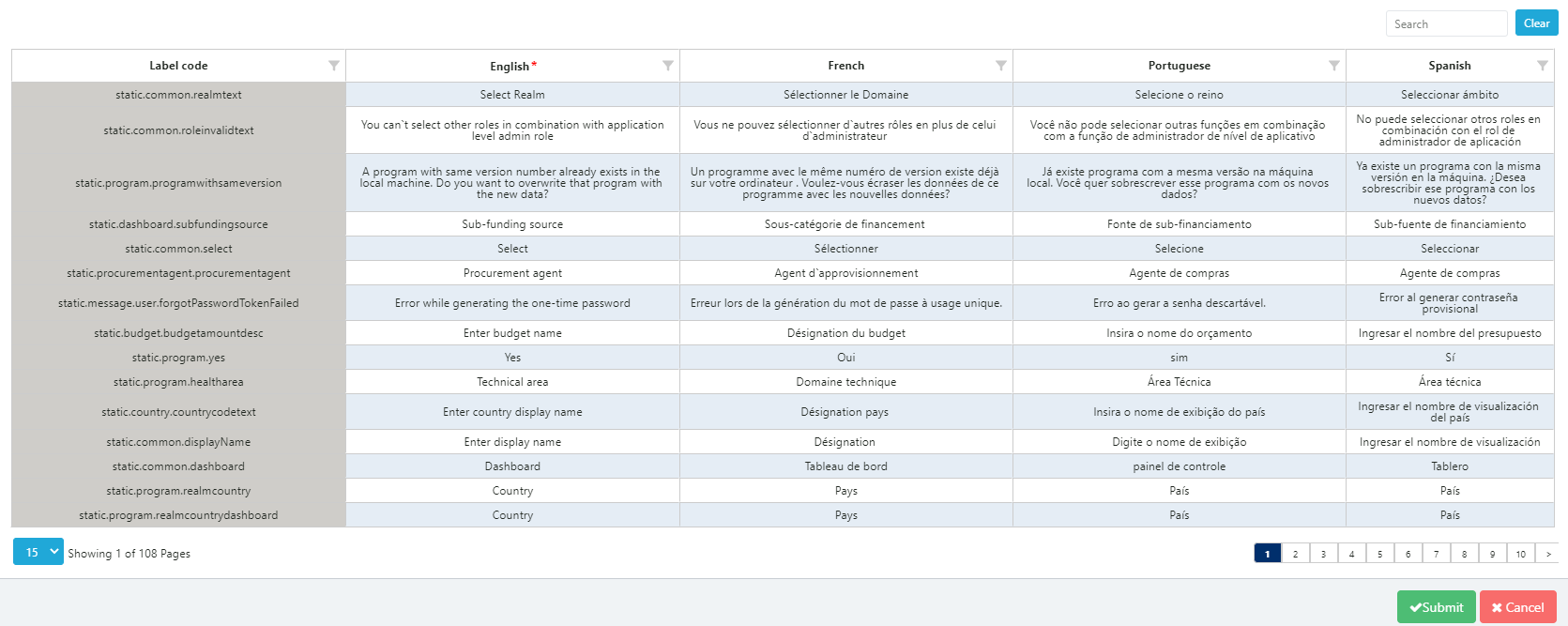
Figure 195: Label Translation Screen
c. Country
QAT displays a Country table listing all default countries in the application, but new countries can be added, as needed.
To view a list of the current countries that are in QAT:
- Go to "Application Masters" and click on "Country."
- The application administrator can view and filter the countries by their status of "Active" or "Disabled." Additionally, the user can search for a specific country by using the search bar.
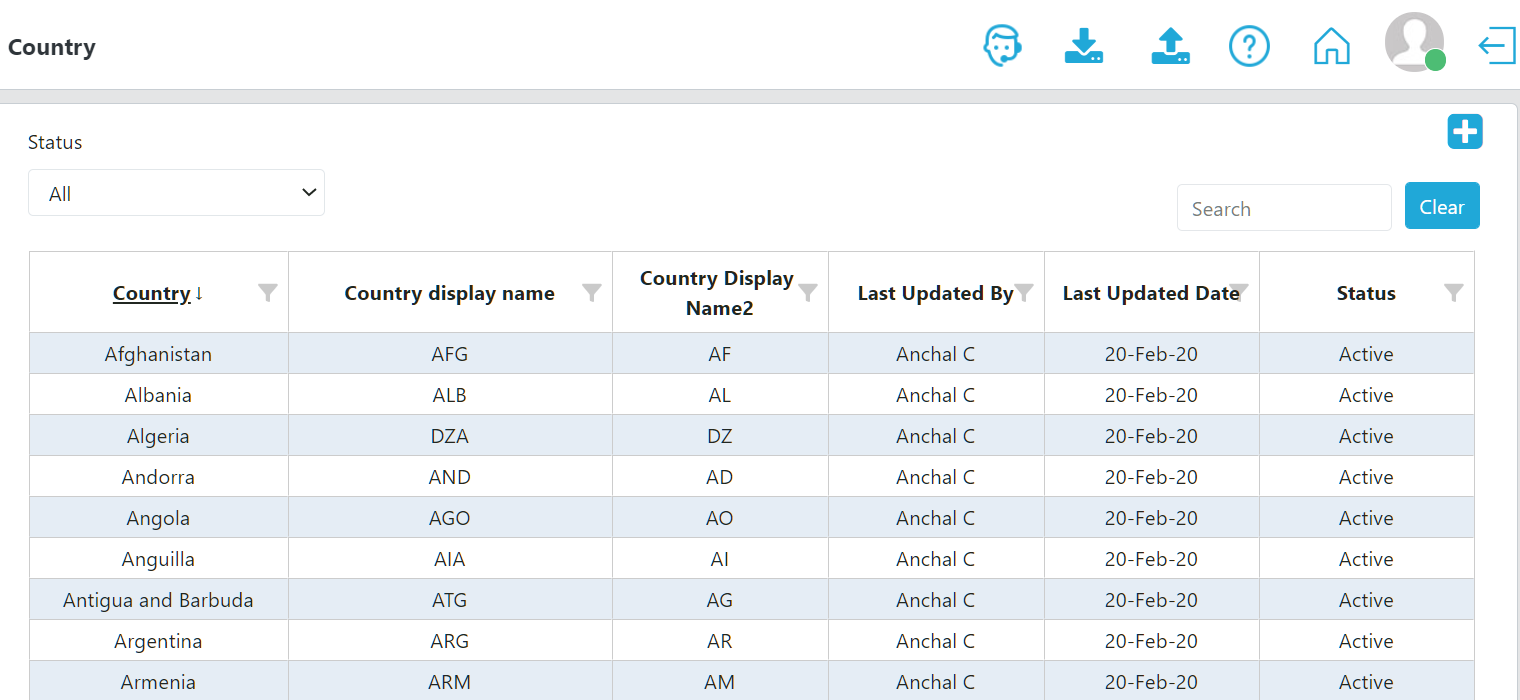
Figure 196: List of Countries
To add a country:
-
In the top right corner of the country list, click on the "+" icon.
-
A new screen "Add Country" will be opened as shown below.
-
Enter the new Country, Country Display Name, Country Display Name2, and Currency and click on the "Submit" button.
a. Note: Country Display Name is always the three-letter country code (e.g., Angola = AGO). Country Display Name2 is always the two-letter country code (e.g., Angola = AO).*

Figure 197: Add Country Screen
To update a country:
- To update a current country, go to the Application Admin country list.
- Click on the country that needs to be changed or updated.
- Update the information as needed and then click on the "Update" button. This can include "disabling" a country or making one "active."

Figure 198: Add Country Screen
d. Currency
To view a list of the current currencies that are in QAT:
- Go to "Application Masters" and click on "Currency."
- A list of currencies and their attributes, such as conversion rate will be shown as below.

Figure 199: Currency Screen
To add a currency:
-
In the top right corner of the currency list, click on the "+" icon.
-
Enter the new Currency, Currency Display Name, Conversion Rate to 1 USD, and whether it should Sync Online. When all information has been entered, click on the "Submit" button.
a. Note: The conversion rate to 1 USD can be entered manually or it can be obtained from the integration with the public online source by selecting "Yes" on the "Sync online conversion rate", which is the default.

Figure 200: Add Currency Screen
To update an existing currency:
- Go to the Application Admin currency list.
- Click on the currency that needs to be changed or updated.
- Update the information as needed and then click on the "Update" button.
e. Dimension
Dimensions denote various measurable values, such as length, volume, weight, or height.
To view a list of the current dimensions that are in QAT:
- Go to "Application Masters" and click on the "Dimension."
- A list of dimensions will be shown as below.

Figure 201: List of Dimensions
To add a dimension:
- In the top right corner of the Dimension List, click on the "+" icon.
- A new screen “Add Dimension” will be opened as shown below.
- Enter the new dimension and click on the "Submit" button.

Figure 202: Add Dimension Screen
To update a dimension:
- To update a current dimension, go to the Application Admin dimension list.
- Click on the dimension that needs to be changed or updated.
- Update the information as needed and then click on the "Update" button.
f. Language
QAT is avaibble in four different languages: English, French, Spanish, and Portuguese.
To view a list of the current languages that are in QAT:
- Go to "Application Masters" and click on the "Language."
- A list of languages will be shown as below:
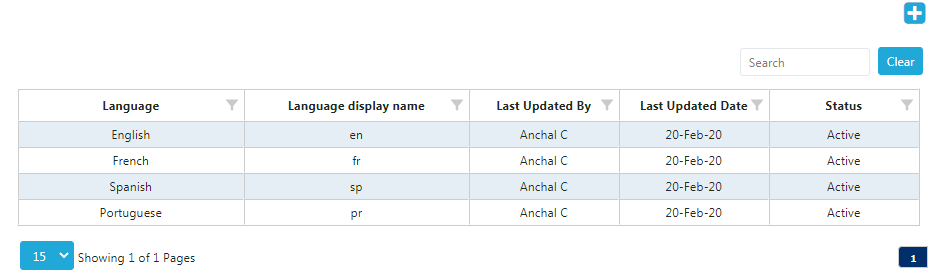
figure 203: List of Languages
To add a language:
- In the top right corner of the language list, click on the “+” icon.
- A new screen “Add Language” will be opened as shown below.
- Enter the new Language and the Language Display Name and click on the “Submit” button.
- Note: All QAT database and display labels must be translated in order for a new language to appear across QAT. Please see Database Translation and Label Translation in Appendix I for more information.

Figure 204: Add Language Screen
To update a language:
- To update a current language, go to the Application Admin language list.
- Click on the language that needs to be changed or updated.
- Update the information as needed and then click on the "Update" button. This can include "disabling" a language or making one "active."
g. Roles
Application Administrators are able to create and edit role types for the entire application as the need arises to modify the business rules that certain roles can access. For a list of the current roles, access, and associated functions, please see Annex 3: User Role Matrix.
To view a list of the current roles that are in QAT:
- Go to "Application Masters" and click on the "Roles."
- A list of roles will be shown as below:
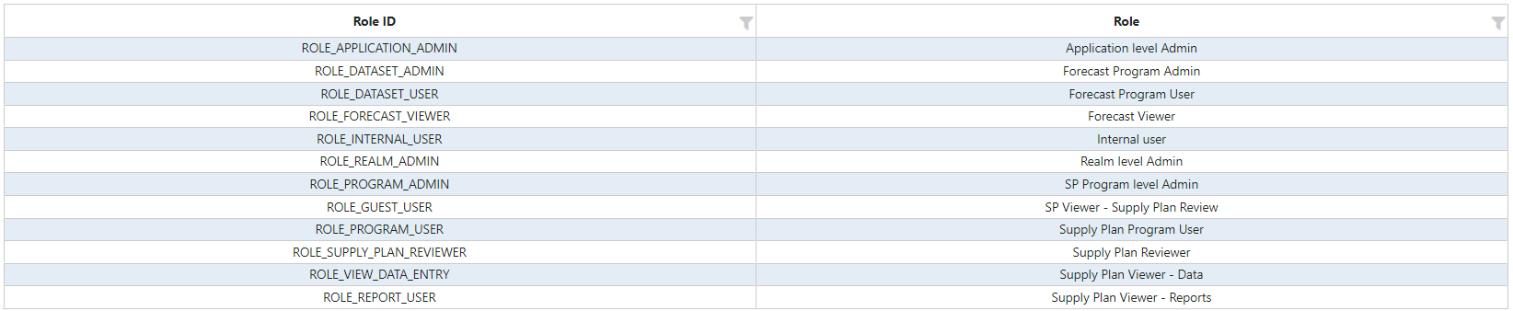
Figure 205: Current list of roles
To add a role:
- In the top right corner of the role list, click on the "+" icon.
- A new screen "Add Role" will be opened as shown below.
- Enter the new Role, Business Function, and Can Create Role and click on the "Submit" button.
- For a description and more information on individual business functions, see Annex 4: Business Functions.
- "Can Create Role" allows the new role to create users and assign them to specific roles and access. For example, a Realm Admin can create a user, assign them as a Program Admin, and determine which countries and programs the user will have access to.
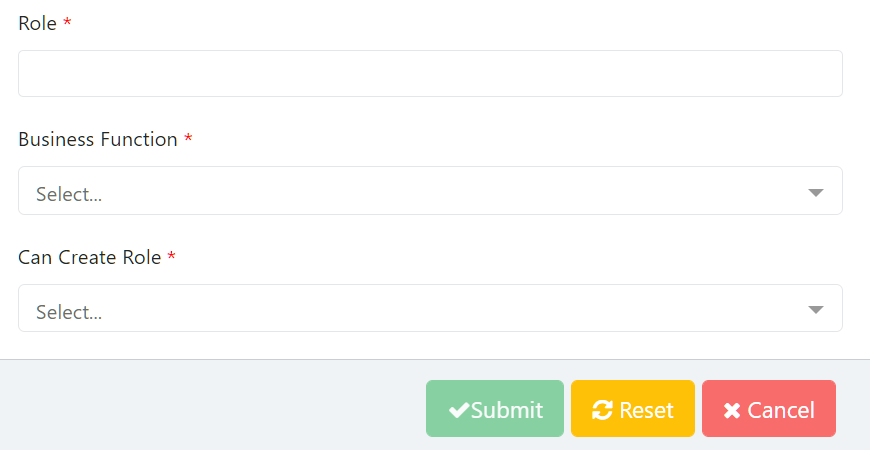
Figure 206: Add Role Screen
To update a role:
- To update a current role, go to the Application Admin role list.
- Click on the role that needs to be changed or updated.
- Update the information as needed and then click on the "Update" button.
- For a description and more information on individual business functions, see Annex 4: Business Functions.
- "Can Create Role" allows the new role to create users and assign them to specific roles and access. For example, a Realm Admin can create a user, assign them as a Program Admin, and determine which countries and programs the user will have access to.
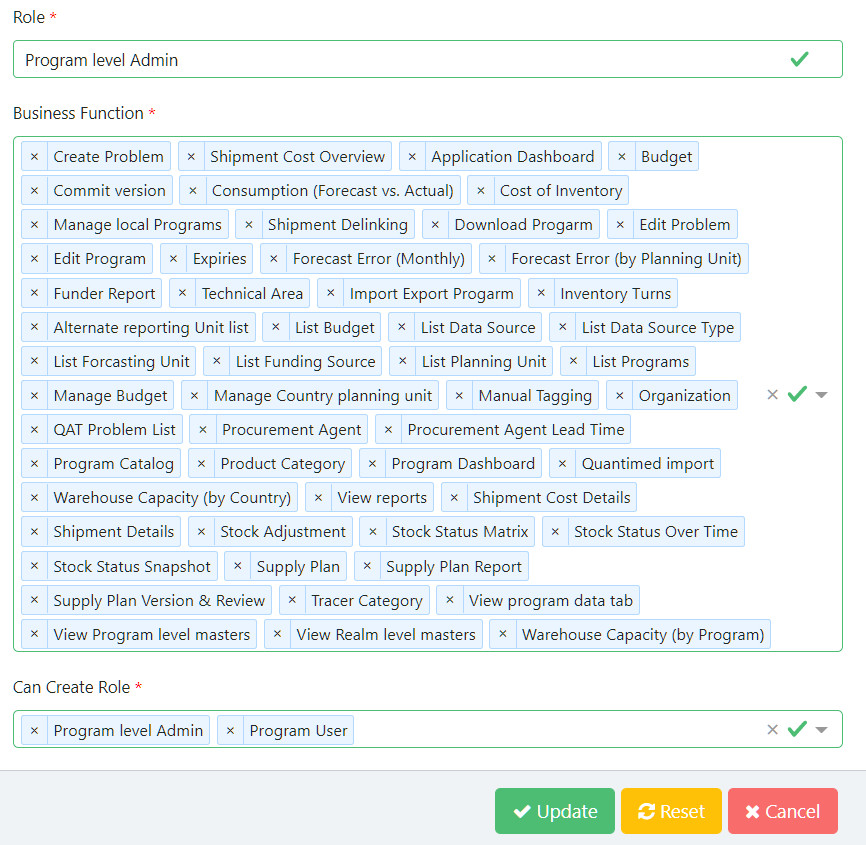
Figure 207: Edit Role Screen
h. Realm
QAT is subdivided into realms, each one governed by their own master data (inclusive of product catalog, funder names, procurement agent names, etc.). Future realms could be set up for other fields such as education supply chains, agriculture supply chains, etc. For information and functions that can be performed by a Realm Admin, see Realm Level Masters.
To view a list of the current realms that are in QAT:
- Go to "Application Masters" and click on the "Realm."
- A list of realms will be shown as below:

Figure 208: List of Realms
To add a realm:
-
In the top right corner of the realm list, click on the "+" icon.
-
A new screen "Add Realm" will be opened as shown below.
-
Enter the new Realm, Realm Display Name, Min Guardrail for MIN MOS, Min Guardrail for MAX MOS, and Max Guardrail for MAX MOS. Continue to add all tolerance and restriction values for the realm and then click on the "Submit" button.
a. When adding a user to QAT, if they are not assigned a realm, they will be automatically assigned to the realm that is considered the "default." There can only be one default realm per QAT instance.
b. Note: the MIN/MAX guardrails are the absolute inferior and superior limits for setting program MINI/MAX parameters; they are set at the realm level. This means a program cannot have a MIN MOS that is less than the "Min guardrail for MIN MOS", or a MAX MOS that is greater than the "Max guardrail for MAX MOS"

figure 209: Add Realm screen
To update a realm:
- To update a current realm, go to the Application Admin realm list.
- Click on the realm that needs to be changed or updated.
- Update the information as needed and then click on the "Update" button. This can include "disabling" a realm or making one "active."
To add a country to a realm
- To add a country an existing realm, go to the Application Admin realm list
- Right click on the realm and then click on "Map countries to this realm" as shown below:

Figure 210: Map Countries
- From this new window, the application admin can add a country by clicking the "Add Row" button at the bottom of the screen. The new country cannot already exist in the realm to be added. For more information on how to add a country see Application Masters: Country.
- From this new window, the application admin can also make a country "Active" as programs are on-boarded to QAT, or inactive by using the checkbox in the last column.
- When all updates and changes have been made, click "Submit."
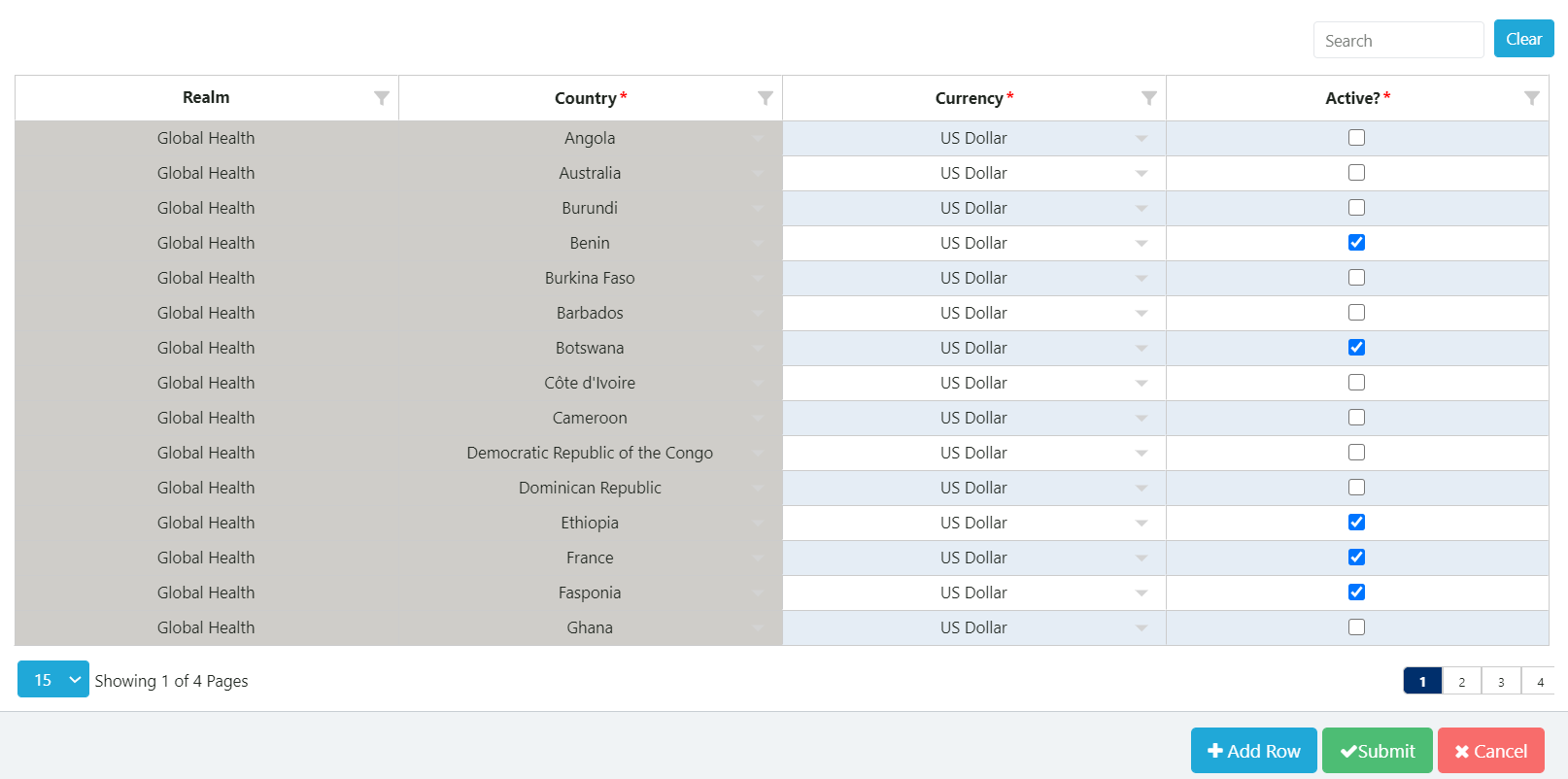
Figure 211: Mapping countries to a Realm
i. Users
Adding and updating users and their roles/access controls is available to both application administrators and realm administrators.
To view a list of the current user that are in QAT:
- Go to "Application Masters" and click on the "User."
- A list of users will be shown, along with information, such as email, last login date, and status.
To add a new user:
- In the top right corner of the realm list, click on the "+" icon.
- A new screen "Add User" will be opened as shown below.
- Enter the new user's name, email address, organization & country, role, and language and click "Submit."
- For a detailed description on roles, their function, and access, see Annex 3: User Role Matrix
To update an existing user or manage user access controls:
- Navigate to the user list.
- Click on the user that needs to be changed or updated.
- Update the information or access controls as needed and then click on the "Update" button. This can include "disabling" a user or making one "active."
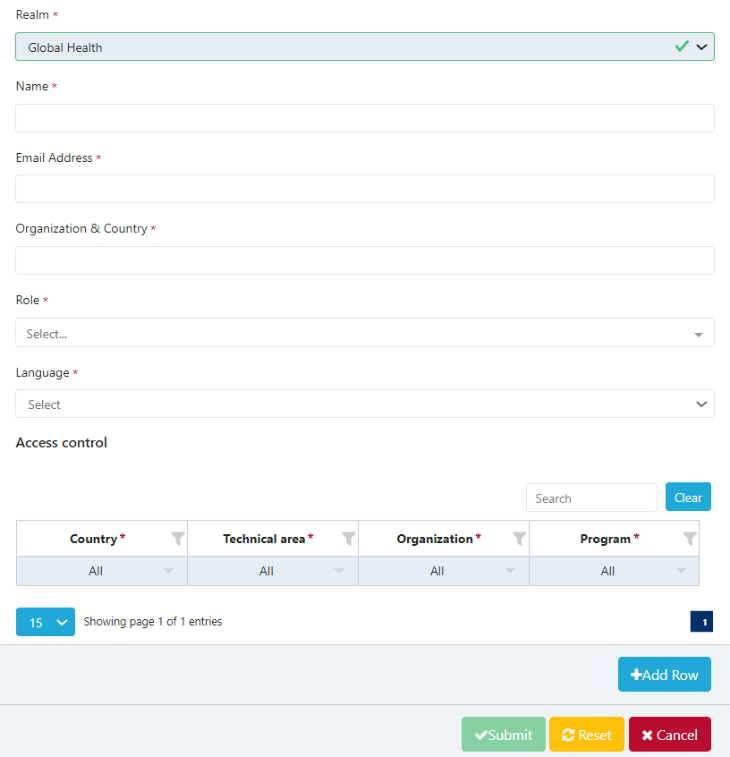
Figure 212: Add User Screen
j. Usage Period
Usage period is used in the forecasting module for users to associate a time period with certain elements of the forecast (e.g. how often a planning unit is used).
To view a list of the current units that are in QAT:
- Go to "Application Masters" and click on "Usage Period."
- A list of usage periods and their attributes, such as whether it's active or not will be shown as below:

Figure 213b: List of Usage Periods
To add a usage period:
- In the bottom right corner of the unit list, click on the "+ Add Row" button.
- A new row appear.
- Enter the usage period name, conversion factor, and click on the "Submit" button.
To update an existing usage period:
- To update an existing usage period, go to the Application Admin usage period list.
- Double-Click on the usage period name or conversion factor that needs to be changed or updated. To de-activate or re-activate, select the checkbox.
- Update the information as needed and then click on the "Submit" button. This can include "disabling" a usage period or making one "active."
k. Unit
Unit is a fixed quantity (in this case a value like mL, gm or even Box) used as a standard of measurement.
To view a list of the current units that are in QAT:
- Go to "Application Masters" and click on "Unit."
- A list of units and their attributes, such as dimension will be shown as below:
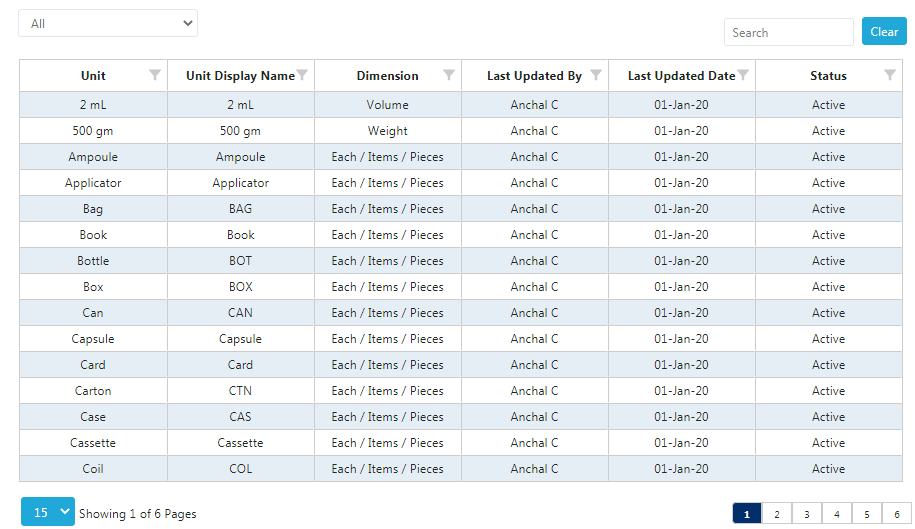
Figure 214: List of Units
To add a unit:
- In the top right corner of the unit list, click on the "+" icon.
- A new screen "Add Unit" will be opened as shown below.
- Enter the new Unit, Unit Display Name, and its corresponding Dimension and click on the "Submit" button.
To update an existing unit:
- To update an existing unit, go to the Application Admin unit list.
- Click on the unit that needs to be changed or updated.
- Update the information as needed and then click on the "Update" button. This can include "disabling" a user or making one "active."

Figure 215: Updating a Unit Screen
l. Upload User Manual
The user manual can be uploaded at any time by an application admin.
To upload a new version:
- Go to "Application Masters" and click on "Upload User Manual"
- Click on 'Select File' or 'Browse'
- Select the user manual you want to upload, from your computer. Note that the file must be in PDF format.
- Click "Submit".
C2. Realm Masters
The QAT application is subdivided into Realms, each with their own master data (inclusive of product catalog, funder names, procurement agent names, etc.) Realm is the second level of hierarchy in the QAT system.
A Realm covers all the programs and their supply plans. For example, "Global Health" is a Realm under which various programs are managed. Other realms could be set up for other fields such as education supply chains, agriculture supply chains, etc.
a. Country
The Country menu under Realm Level Masters allows Application and Realm Admins to create/assign regions to previously created countries.
A region could be "National" for single-region programs, or it could be any number of regions for multi-region programs. The decision to add regions depends on how inventory and consumption data will be entered into QAT. Note that QAT shipments are always National and may not be attributed to Regions.
- Go to "Realm Level Masters".
- Click on "Country" and the screen below will be shown.
- Right click on a specific country that needs to be updated.
- Click on "Map Region" to show the Realm Country Region screen.
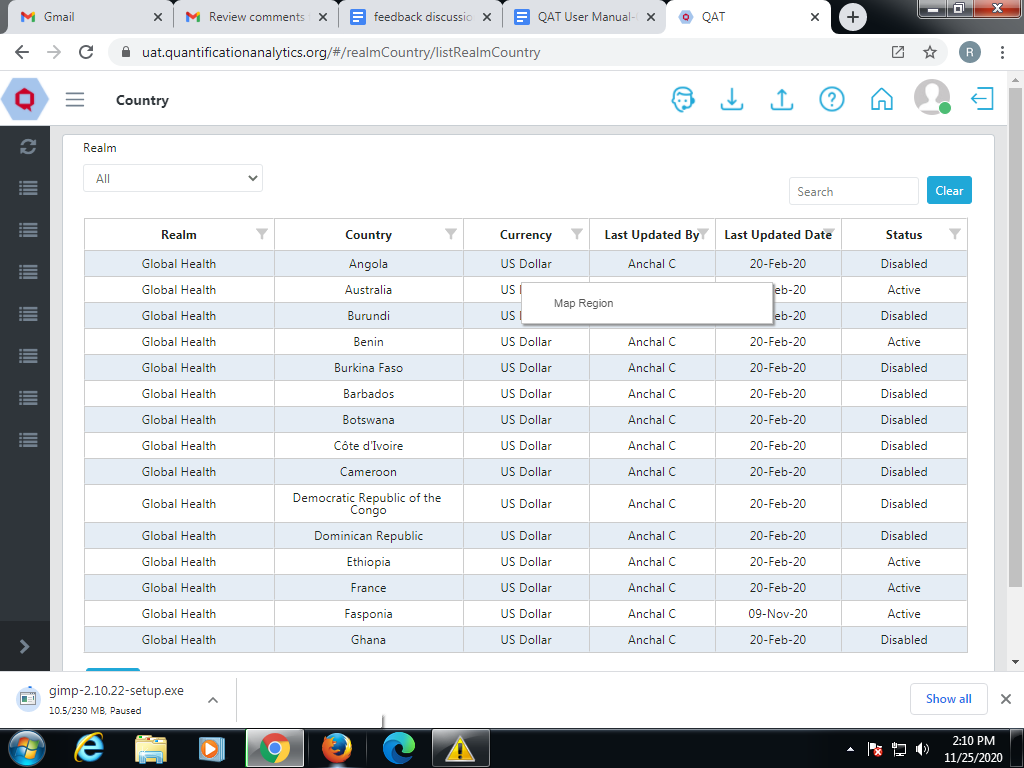
Figure 216: Mapping regions to a country within a realm
- Enter a Region description as well available warehouse volume and Global Location Number (GLN) of your warehouse.
- Select the status ("Active" or "Disabled") as shown in the screen. a. Note: To add multiple regions, click the blue "+ Add row" button, or right-click on the form and select "Insert new row before" or "Insert new row after".
- Click "Submit" to save your changes or "Cancel" to close the form without saving.
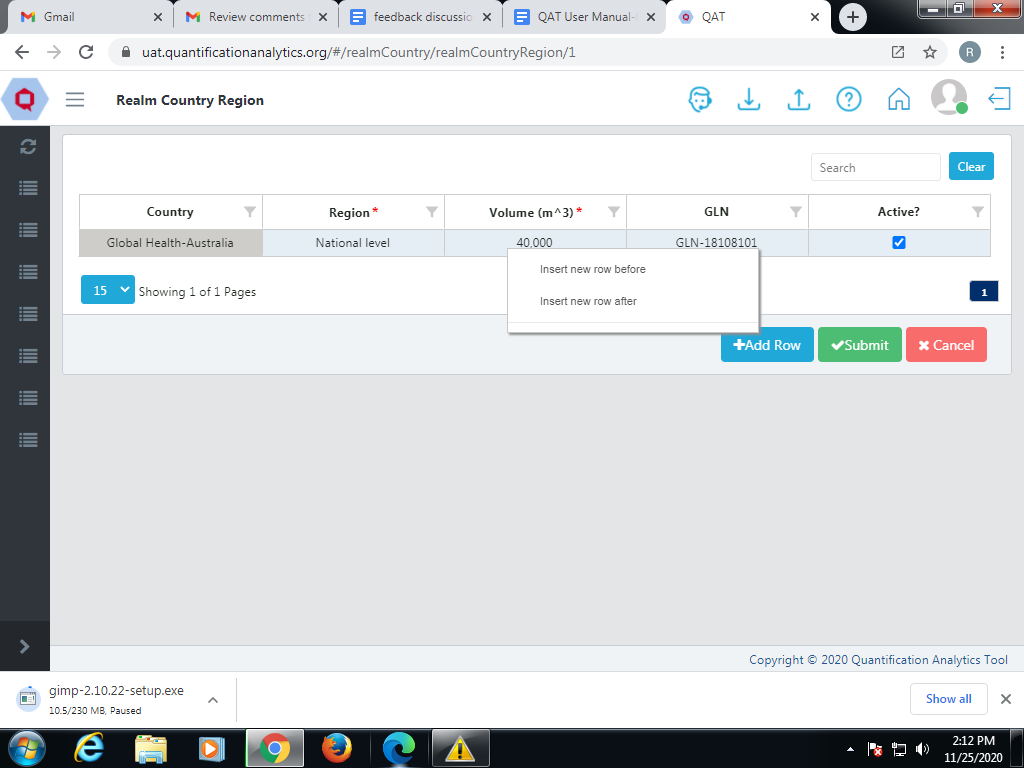
Figure 217: Adding multiple regions to a country
b. Data Source
A data source is the location where data that is being entered into QAT originates from. Users should apply data sources to all transactional records (Consumption, Inventory, Adjustments and Shipments) in QAT. The user selects data sources as required from drop down lists. The selection of data sources for each transactional record will depend on which Data Source Type that applies to that type of transactional record. Application and Realm Admins can add/edit Data source(s) as follows:
Add a Data Source
Go to the top right corner in the "Data Source" screen and click on the blue "+" icon.
- A new screen showing "Add Data Source" will appear.
- Enter the required details and click on the "Submit" button.
- Click on the "Cancel" button to not add the data source.
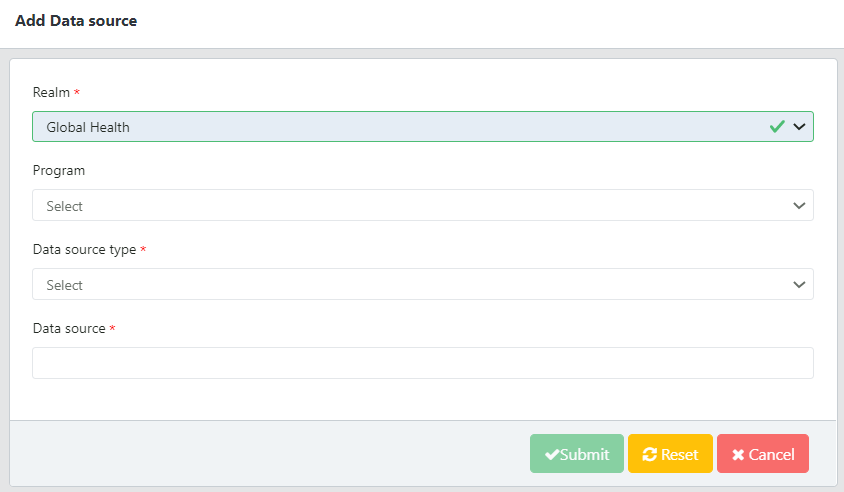
Figure 218: Adding a data source
Update Data Source
- Go to the "Data Source" screen.
- Click on the data source row that you want to update.
- A new screen showing "Update Data Source" will appear.
- Enter the updated details.
- If you want to activate/de-activate that data source, select the corresponding circle.
- Click on the "Submit" button.
- Click on the "Cancel" button to keep the existing information.
c. Data Source Type
Refers to the type of data a source is providing information for. There are four data source types: actual consumption, forecast consumption, inventory, shipments. Application and Realm Admins can add/edit Data Source Type.
Add Data Source Type
- Go to "Realm Level Masters" and then on "Data Source Type" to show the below table.
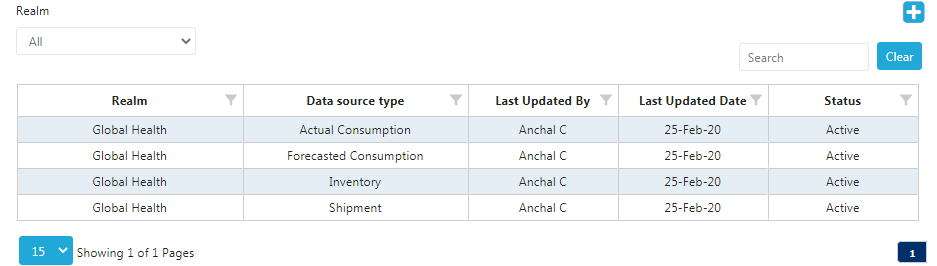
Figure 219: Data Source type
- Click on the blue “add” button on the top right corner. A new screen showing “Add Data Source Type” will be opened.

Figure 220: Adding a Data Source Type
Update Data Source Type:
- Go to the Data Source Type List.
- Click on any parameter that needs to be changed or updated.
- Click on the "Update" button.
d. Funding Source
Funding Source refers to the entity providing funding for procurement for the program. Application and Realm Admins can add/edit Funding Sources
To add a Funding Source:
- Go to “Realm Level Masters” and click on “Funding Source” to display the list of current funding sources.
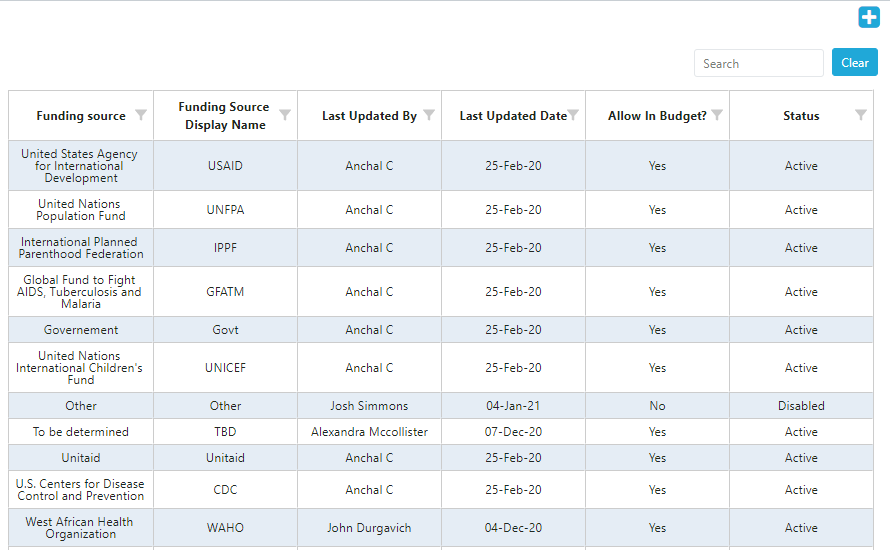
Figure 221: Adding a Funding Source
- Click on the blue “+” (add) button below the profile icon.
- A new screen “Add Funding Source” opens.
- Enter the required details and click on the “Submit” button to save your changes or “Cancel” to close the form without saving.

Figure 222: Adding a Funding Source
To update a Funding Source:
- Go to the Funding Source List.
- Click on the funding source that needs to be changed or updated.
- Enter the required information and click on the "Update" button.
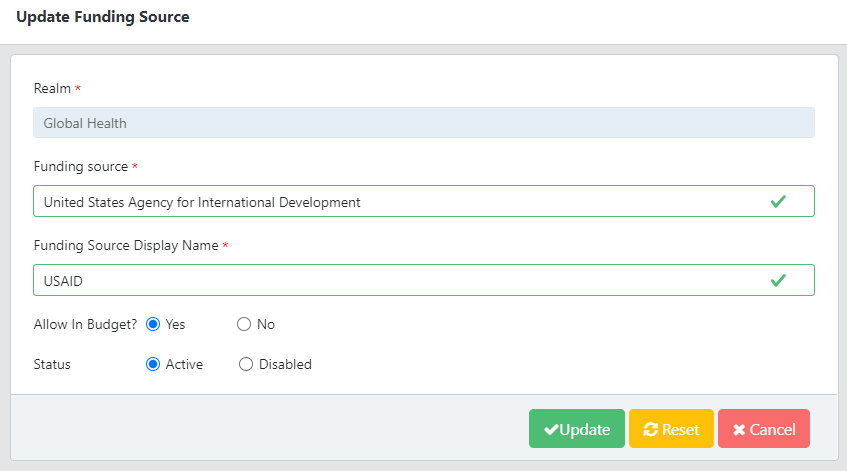
Figure 223: Adding a Funding Source
e. Manufacturer
The manufacturer of a commodity is master data that is not accessible/visible to main users of QAT. However, they are part of shipment/order data that can/will be received from order management systems along with manufacturer-specific commodity attributes.
To add a manufacturer:
- Go to “Realm Level Masters” and then click on “Manufacturer” to display the below table.
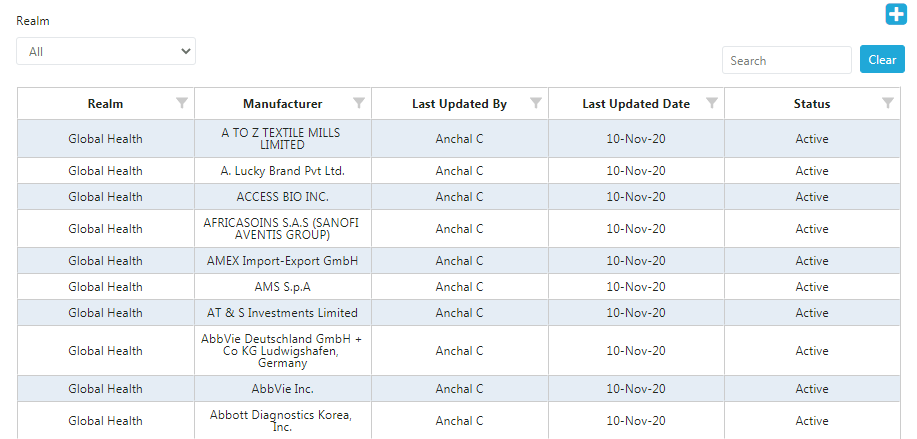
Figure 224: Adding a Funding Source
- Click on the blue “+” button to open a new “Add Manufacturer” screen.
- Enter the required details.
- Click “Submit” to save changes or “Cancel” to close the form without saving.

Figure 224: Adding a Funding Source
Update Manufacturer
- Go to the Manufacturer screen.
- Click on the manufacturer that needs to be updated.
- Enter the required information and click on the “Update” button.
f. Organization
An organization is a group of people with a particular purpose, which can be a private or government body. Application, Realm Admins, Program Admin, Program User and Guest User can list/view organizations.
To add an Organization:
- Go to “Realm Level Masters” and then click on “Organization” to display the below table.
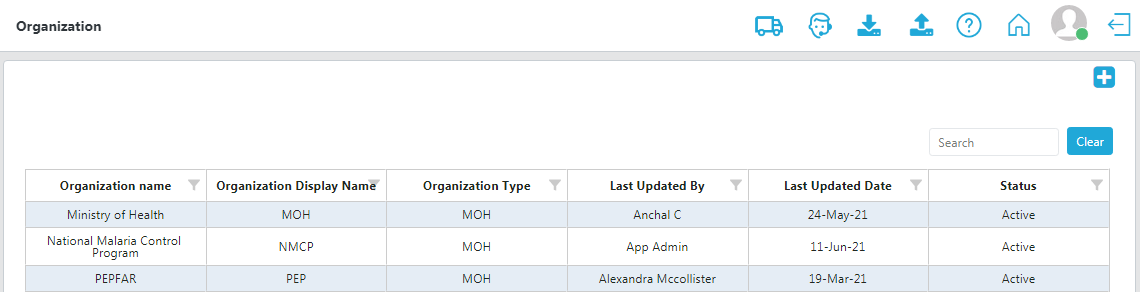
Figure 225: Adding a Funding Source
- Click on the blue "+" button to open a new "Add Organization" screen.
- Enter the required details.
- Click “Submit” to save changes or “Cancel” to close the form without saving.
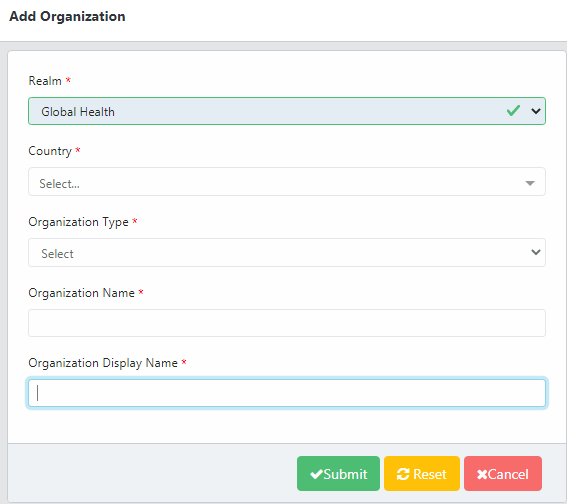
Figure 225: Adding a Funding Source
To update an Organization:
- Go to the Organization screen.
- Click on the record that needs to be updated.
- Enter the required information and click on the "Update" button.
g. Organization Type
Organization names can be customized per user need; however, in order to maintain standardization through master data, QAT includes an “organization type” that can be managed by a realm administrator.
The realm administrator assigns an organization type to each organization in QAT; for example, in the Global Health Realm, country A might request their program name include the organization Ministry of Health and Wellness (MOHW), while country B requires their program name to include Ministry of Health and Social Welfare (MOHSW). This level of customization is possible in QAT, while maintaining standardization through the Organization Type masters. In the example above both MOHW and MOHSW would be assigned the organization type “Govt”, as any ministry of health would be considered a governmental entity, regardless of what that ministry of health if called in each country.
As organization type is realm-level master data, QAT users can request new organization types if those don’t already exist, through the ticketing function.

Figure 225: Adding a Funding Source
Add Organization Type:
- Go to “Realm Level Masters” and then click on “Organization Type” to display a list of current Or- ganization types.
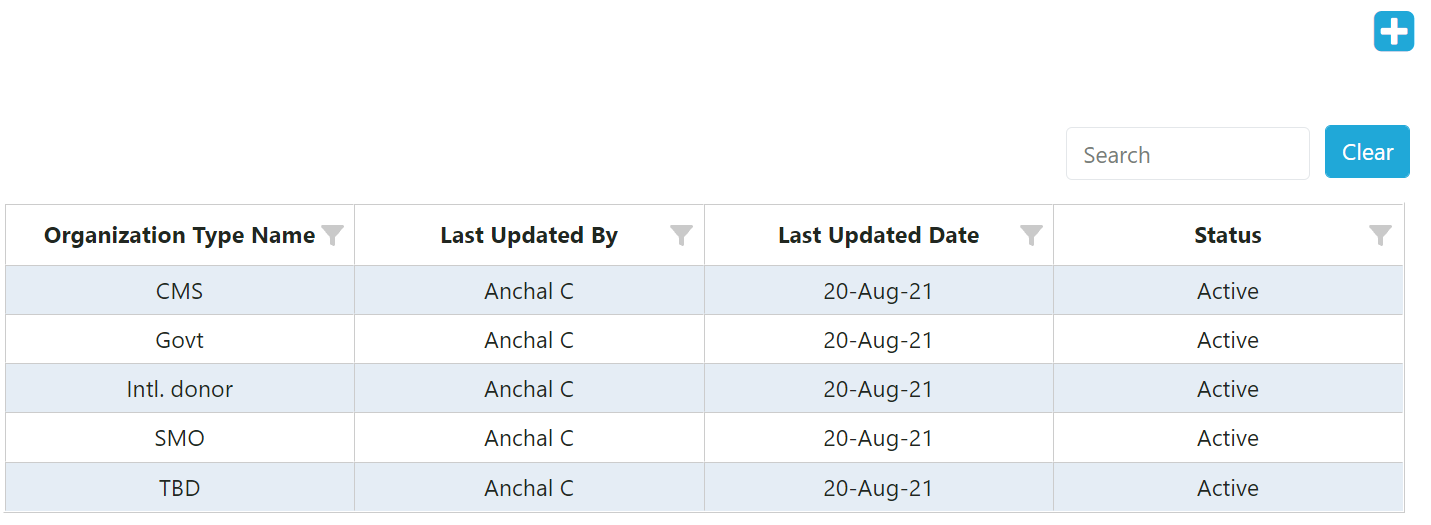
Figure 225: Adding a Funding Source
- Click on the blue “+” button to open the “Add Organization Type” screen
- Enter the required details.
- Click “Submit” to save changes or “Cancel” to close the form without saving.
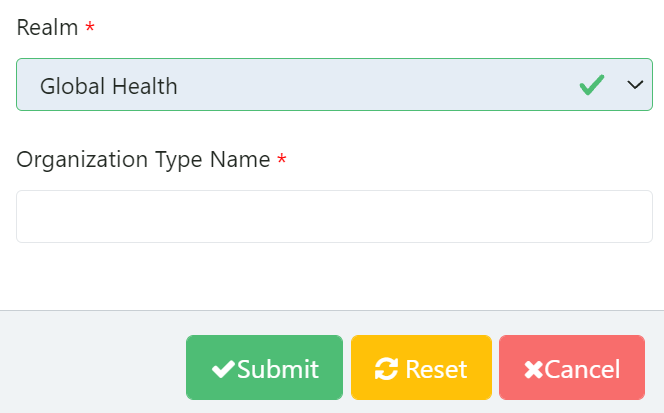
Figure 225: Adding a Funding Source
Note: QAT does not allow to put space before starting the name of organization type. Spaces are only allowed in between words if the organization type name consists of multiple words.*
To update an Organization Type:
- Go to “Realm Level Masters” and then click on “Organization Type”,
- Click on an existing organization type to display below screen.
Figure 225: Adding a Funding Source
- Enter the required details.
- Click "Submit" to save changes or "Cancel" to close the form without saving.
h. Product
QAT supports data standardization within each realm through master data management. An essential piece of master data are products. In QAT, “Product” refers to the multiple tiers of commodities that should be configured and managed by realm: forecasting units, planning units, procurement units, and alternate reporting units. Products in QAT can be edited/added by Application or Realm Admins, except for the alternate reporting units, which are managed at the country/program level. Country-level users can also request new planning/forecasting units to be added to the QAT catalog by raising a ticket.
Forecasting Unit
The forecasting unit is the QAT equivalent of the product base unit. It will be used for estimating future demand, i.e., the forecast. For example: one tablet, one milliliter, one condom. These forecasting units have a one-to-many relationship with the planning unit, that is, many planning units (e.g., TLD, Bottle of 90 tablets, TLD, Bottle of 180 tablets, etc.) may relate to a single forecasting unit (e.g., 1 tablet TLD)
To see and export the list of all forecasting units in the realm-level catalog:
- Go to “Realm Level Masters”
- Click on “Product” and then “Forecasting Unit”.
- Select the Planning Unit Category and then the Tracer Category and click on “Search”
- By clicking on the export to CSV Icon you could export all the selected Forecasting Units.
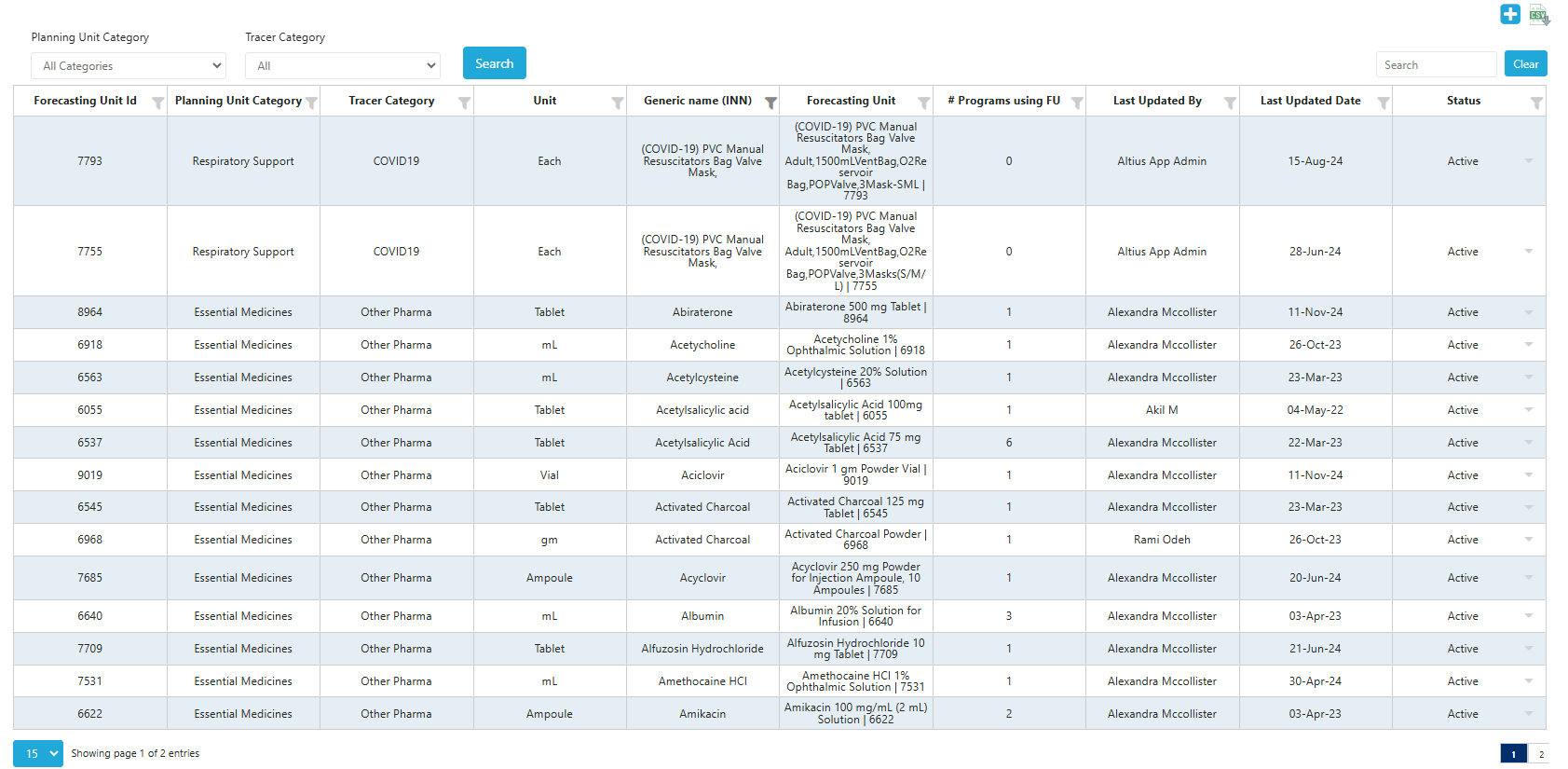
Figure 225: Adding a Funding Source
To add forecasting units:
- Go to “Realm Level Masters”
- Click on “Product” and then “Forecasting Unit”.
- Click the blue “add” button on to the top right corner of the Forecasting Unit screen.
- A new screen called “Add Forecasting Unit” will be opened.
- Enter the required details and click “Submit”.
To edit/update forecasting units:
- Go to “Realm Level Masters”.
- Click on “Product” and then “Planning Unit”.
- Click on any forecasting unit that needs to be changed or updated.
- Edit the required information.
- Click on “Update” to save the changes.
Planning Unit
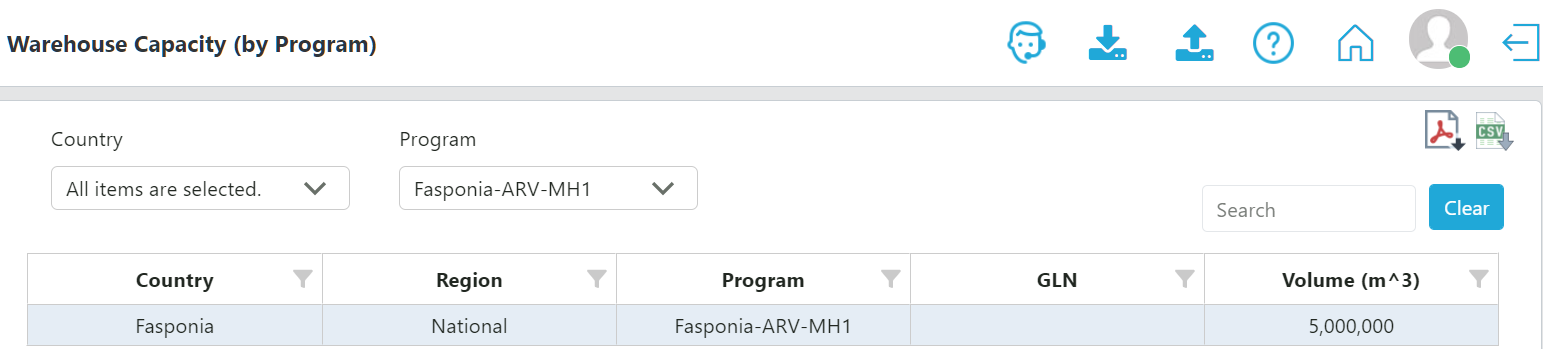
figure 232: List of Planning Units
To add planning units:
- Go to "Realm Level Masters".
- Click on "Product" and then "Planning Unit".
- Click the blue "add" button on to the top right corner of the Planning Unit screen.
- Enter the required details.
- Click the "Submit" button to save the changes.
To edit/update planning units:
- Go to "Realm Level Masters".
- Click on "Product" and then "Planning Unit".
- Click on any forecasting unit that needs to be changed or updated.
- Edit the required information.
- Click on "Update" to save the changes.
Planning Unit Volume
As mentioned in the Planning Unit section, planning units can have volumetrics attributed to them to enable more detailed planning. However, this screen is view only for program Admins, and its purpose is to show volumetric data for each planning unit, not to edit or add. Application and Realm admins can add/edit planning unit volumetric data in the Planning Unit screen.
To add volumetric data to planning units:
Application and Realm admins can add/edit planning unit volumetric data from the Planning Unit screen.
- Go to "Realm Level Masters".
- Click on "Product" and then "Planning Unit".
- Right click on the planning unit to be edited.
- Click "Map Volumes"
- Use the blue "Add Row Button" to add a new row if needed or edit the Planning Unit details in the existing planning unit row.
- Click on the "Submit" button.
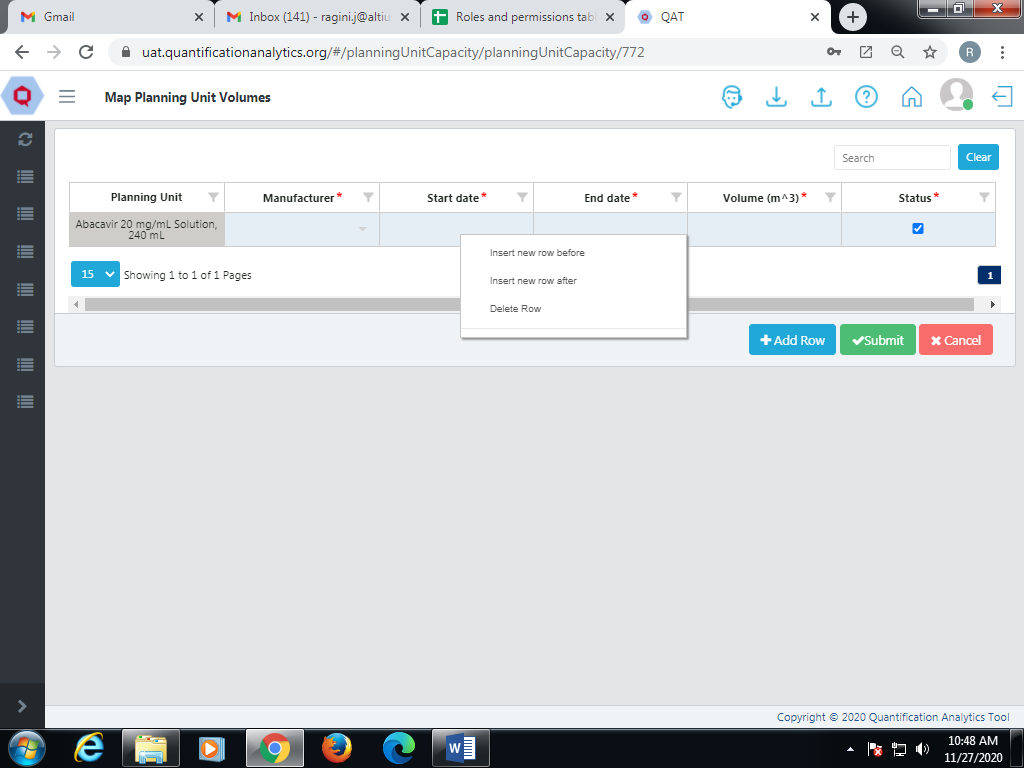
FFigure 233: Adding volumetric data to planning units
Planning Unit Category
At the realm-level, planning units should grouped in broad categories, such as HIV/AIDS pharmaceuticals, Reproductive Health Pharmaceuticals & Devices (in the Global Health Realm) in order to filter searches and reports. Application and Realm Admins can add/edit planning unit categories.
To add planning unit categories
- Go to "Realm Level Masters"
- Click on "Product" and then "Planning Unit Category"
- Write the name of the new category to add, click "Add" and then "Submit".
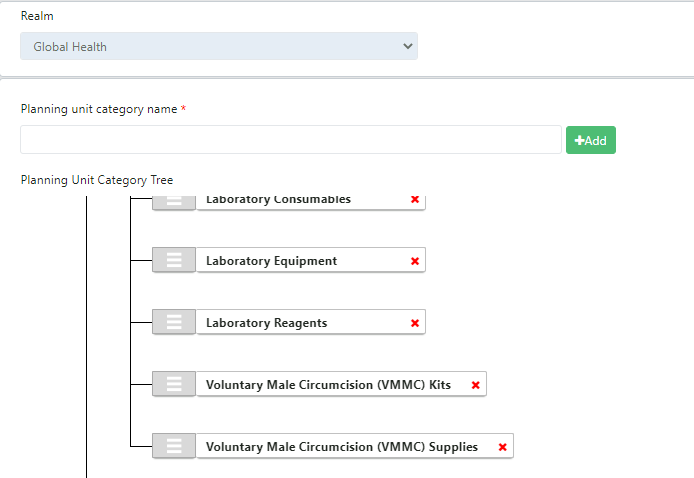
Figure 234: Viewing/adding planning unit categories
Alternate Reporting Unit
See Alternate Reporting Units for more information.
Procurement Unit
An item-level description of the "planning unit" including supplier/manufacturer-specific attributes such as GTIN and order prices, that can be manually added/edited by Application and Realm Admins or received automatically through integration and mapping QAT planning units to a procurement agent order management system. Procurement units are specific to each procurement agent. Procurement units are not visible to/editable by country/program-level users.
To add procurement units to the realm-level catalog, the Application or Realm Admin must:
-
Go to "Realm Level Masters" and Click on "Product".
-
Click on "Procurement Unit" and a table of procurement units will be displayed.
-
Click on the blue "add" button on the top right corner of the screen.
-
Enter all the required details on the "Add Procurement Unit" screen and click "Submit".
a. Note: Required details include planning unit name, manufacturer, conversion factor, volume and weight attributes, units per pallet and per container, etc.
To edit/update procurement units:
-
Go to "Realm Level Masters" and Click on "Product".
-
Click on "Procurement Unit" and a table of procurement units will be displayed.
-
Click on any procurement unit that needs to be changed or updated.
-
Edit the required information.
a. Note: Details such as planning unit name and manufacturer are not editable.
-
Click on the "Update" button to save the changes.

Figure 235: Add/Update Procurement Unit
Tracer Category
Tracer categories are a second tier, less broad grouping of product types specific to a Realm. Application Admins and Realm Admins can add/edit Tracer categories. For example, Adult antiretrovirals are a tracer category belonging to the broader grouping HIV/AIDS Pharmaceuticals (Planning Unit Category).
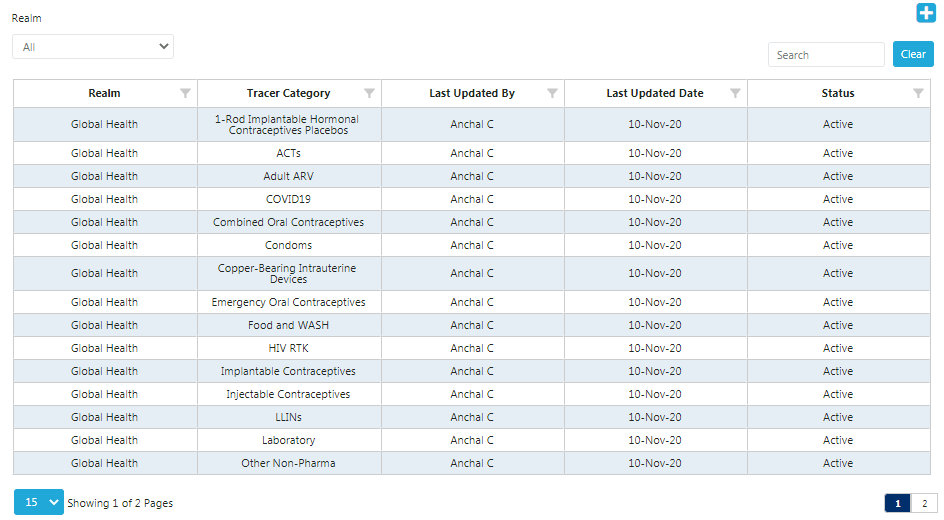
Figure 236: List of tracer categories
To add tracer categories to the realm-level catalog:
- Go to "Realm Level Masters" and Click on "Product".
- Click on "Tracer Category" and a Tracer category table will be shown for the selected Realm.
- Click the blue "add" button on the top right corner of the screen.
- Enter all the required details on the "Add Tracer Category" screen and click "Submit".
To update/edit tracer categories:
- Go to "Realm Level Masters" and Click on "Product".
- Click on "Tracer Category" and a Tracer category table will be shown for the selected Realm.
- Click on any row that needs to be changed or updated.
- Update the required information and click "Update" to save the changes.
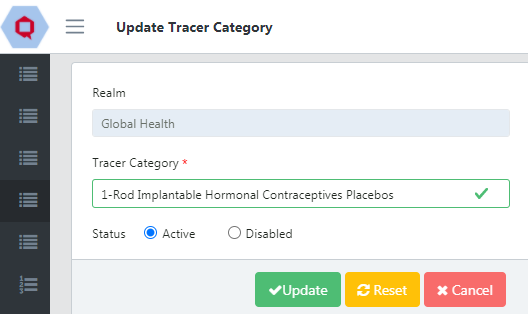
Figure 237: Update Tracer Category
i. Equivalency Unit
Equivalency Unit enables users to manage aggregate data across product that are different, but related. Equivalency Units can be used in the compare and select forecast screen, the monthly forecast screen, the forecast error (monthly) screen and the supply plan report.
To add an Equivalency Unit Mapping:
-
Go to "Realm Level Masters" and Click on "Equivalency Unit".
-
Click on the "+Add Row" button in the bottom right of the screen. You can also right click on any row and select 'Add Row'.
-
Enter the required details and click on the "Submit" button.
a. Realm level mappings are available to all users and are indicated by all. These are created and managed by Realm Admins. Program specific mapping can be created and managed by program admins. If there are any conflicts, program specific mappings will take precedence and be used instead of realm level mappings.
For example, a user is forecasting medicines to treat QATitis, a condition where people cannot stop using QAT. The user may forecast by different treatments (different forecasting units) but want to see how they are aggregated together.
| Equivalency Unit | Forecasting Unit | Conversion to EU | Average Treatment Required to cure QATitis |
|---|---|---|---|
| 1 Treatment for QATitis | 1 tablet of FASPicillin | 14 | 1 tablet a day for 2 weeks |
| 1 Treatment for QATitis | 5mL tube of FASPasone (cream) | 1 | 0.5mL/day applied on the forehead over 10 days (1 tube total) |
| 1 Treatment for QATitis | 2mL vial of FASPicaine (injection) | 0.5 | One injection of 1mL (Two people can share one vial) |
| 1 Treatment for QATitis | 1 bar of white chocolate | 2 | 2 bars of chocolate. The type of chocolate does not matter, as all chocolate contains the natural form of FASPicillin. |
| 1 Treatment for QATitis | 1 bar of dark chocolate | 2 | |
| 1 Treatment for QATitis | 1 bar of milk chocolate | 2 |
Creating and Managing Equivalency Units:
If you don't see an equivalency unit that you would like to map or you would like to edit an existing equivalency unit, click on the Manage Equivalency Unit button in top right of the screen. From there, you can edit a pre-existing equivalency unit or select 'Add Row' and add a new one.
j. Technical Area
Technical Area is a key component of a QAT program and specifies the focus of that program. For example, in the Global Health Realm, the technical areas are aligned with medical conditions or health care, treatment and prevention programs such as Malaria, Family Planning and HIV/AIDS, each of which requires a variety of medicines and supplies. Application Admins and Realm Admins can add/update Technical Area(s).
To add a Technical Area:
- Go to the top right corner in the Technical Area screen and click on the blue "+" button. A new screen showing "Add Technical Area" will open:
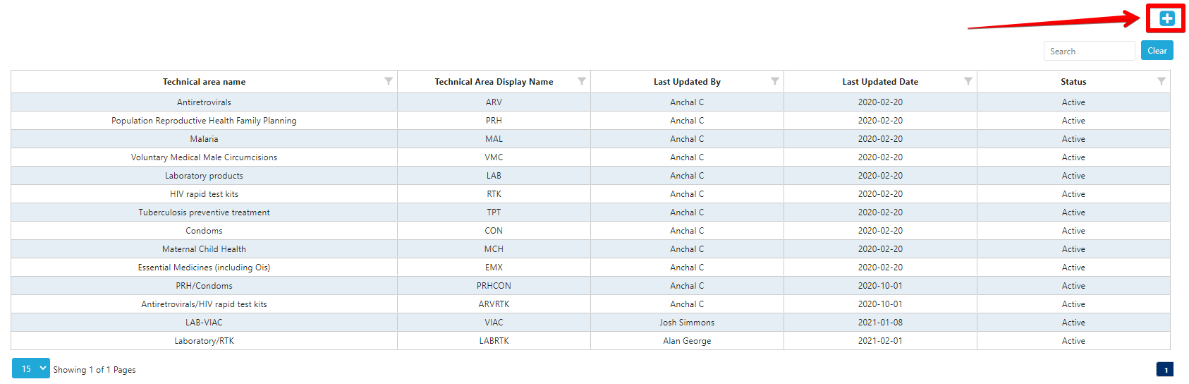
Figure 238: Add Technical Area Screen
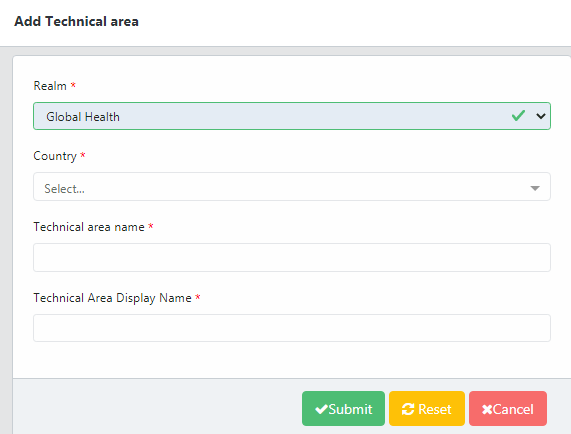
Figure 239: Add Technical Area
-
Enter the required details and click on the "Submit" button.
a. If you do not wish to proceed with creating a new technical area, and you have not clicked submit, click on the "Cancel" button and QAT will close the form without saving and take you back to the Technical Area screen.
To update a Technical Area:
-
To update the technical area, go to the Technical Area Screen.
-
Left click on the technical area that you wish to update.
-
Enter the desired edits to the technical area and click the "Submit" button.
-
If you want to disable or re-activate the technical area, click the circle next to that option and click the "Submit" button.
a. By clicking on the "Reset" button, the information in the technical area will not go away, rather it will reset to what it was prior to updating it.
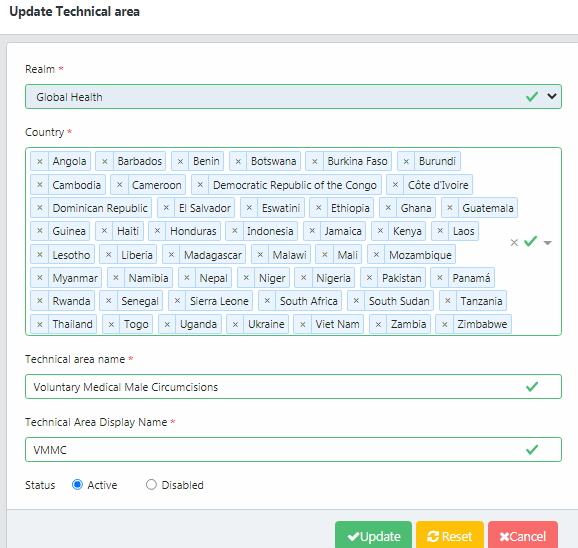
Figure 240: Update Technical Area
k. Procurement Agent
A Procurement Agent selects the vendors, establishes payment terms, strategic vetting, selection, the negotiation of contracts and actual purchasing of goods that are shipped to a program. Procurement Agents are generally hired by the agency funding a particular shipment (a "Funding Source" in QAT) and identified by the Program-level user when planning a shipment. Procurement Agents are managed by Application Level Admins and Realm Level Admins.
To see the list of realm level procurement agents:
- Go to "Realm Level Masters" from the sidebar menu.
- Click on "Procurement Agent".
To add a Procurement Agent:
-
On the Procurement Agent screen, go to the top right corner of the screen and click on the blue “+” button.
-
A screen titled “Add Procurement Agent” will appear.
-
Enter the required details.
-
Click on the “Submit” button to save the procurement agent.
a. Before submitting, if you wish to not proceed with that procurement agent, click the “Cancel” button.
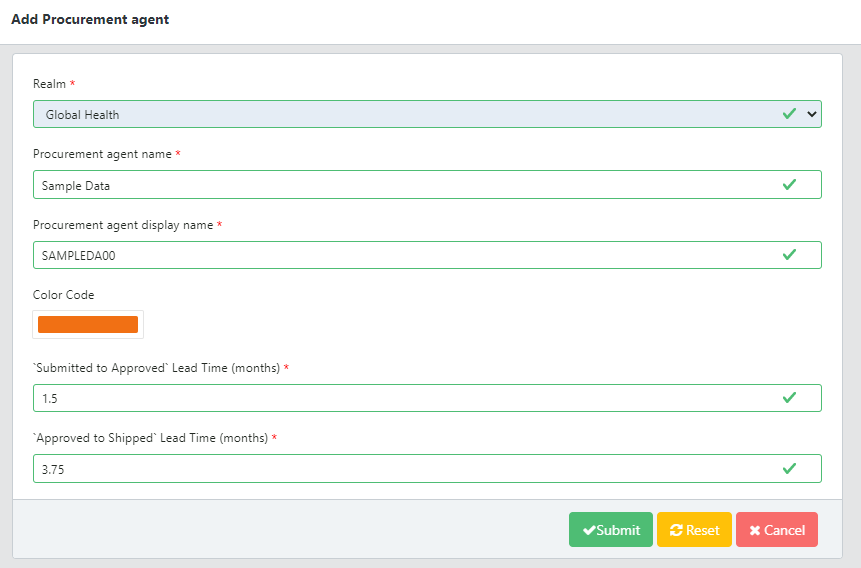
Figure 241: Add Procurement Agent
To update a Procurement Agent:
- Go to the Procurement Agent screen.
- Left click on the Procurement Agent that needs to be updated.
- A screen labeled “Update Procurement Agent” will appear.
- Input the desired change(s), for example modifying the agent’s color code or Lead Times.
- If you want to either activate or disable the procurement agent, select the corresponding option at the bottom of the screen.
- Click the “Update” button to save changes or cancel to close the form without saving.
Planning Unit Details for Mapping to a Procurement Agent:
| Planning Unit | The planning unit is the product to be planned in QAT. It is a product with full description up to the primary packaging (e.g. bottle of 30 tablets, 10x10 blister pack, etc.). |
| Procurement Unit | The procurement unit is a higher-level description of the Planning Unit which includes supplier-specific attributes such as costs and GTINs. |
| SKU Code | Stock Keeping Unit (SKU) Code is a feature used to identify specific products and often printed on the product and case labels. The SKU code should match with what is in the procurement agent’s catalog. |
| Catalog Price | Price included in the procurement agent’s catalog. |
| MOQ | Minimum Order Quantity refers to the minimum amount that can be ordered from a procurement agent for that specific planning unit. |
| Units per Container | The maximum number of units for a planning unit that can fit in a container used by the procurement agent to ship the product to a program. |
| Units per Pallet | Units per pallet defines the number of planning units that can be packed onto a standard pallet, per pallet dimension. Units per pallet describes the individual items on a pallet into single "units" that can be moved easily with a pallet jack or forklift truck. |
| Volume | The volume of the planning unit. |
| Weight | The weight of the planning unit. |
| GTIN | The Global Trade Item Number is an identifier for trade items, developed by GS1. Such identifiers are used to look up product information in a database which may belong to a manufacturer. |
Table 12: Procurement Agent Planning Unit Details
To add a Procurement Agent Planning Unit:
- Go to the "Procurement Agent" screen.
- Right click on the desired procurement agent that you want to add a planning unit to. Then select "Map Planning Unit".
- A screen titled "Add Procurement Agent Planning Unit" will appear.
- Either click on the "Add Row" button or right click and select "Insert New Row" to add a row.
- Enter the details for the new planning unit. Refer to the table above for definitions on any of the data elements.
- If you enter information for "MOQ", "Unit Per Pallet" or "Unit Per Container", this procurement agent/planning unit combination will be considered a strategic product. (Refer to Shipment Data section to learn more about strategic products).
- Click the "Submit" button.
To update a Procurement Agent Planning Unit:
- Go to the "Procurement Agent" screen.
- Right click on the desired procurement agent that you want to update a planning unit(s) for. Then select "Map Planning Unit".
- A screen titled "Add Procurement Agent Planning Unit" will appear.
- Enter the details for the existing planning unit by double clicking into the cells and typing in the information. Refer to the table above for definitions on any of the data elements.
- If you enter information for "MOQ", "Unit Per Pallet" or "Unit Per Container", this procurement agent/planning unit combination will be considered a strategic product. (Refer to Shipment Data section to learn more about strategic products).
- Click the "Submit" button.
Note: If the procurement agent's catalog is integrated with QAT, the planning units and associated details in QAT will automatically reflect that catalog and any change you manually make in QAT will be overridden automatically with the data from the procurement agent's catalog at the time their data updates.
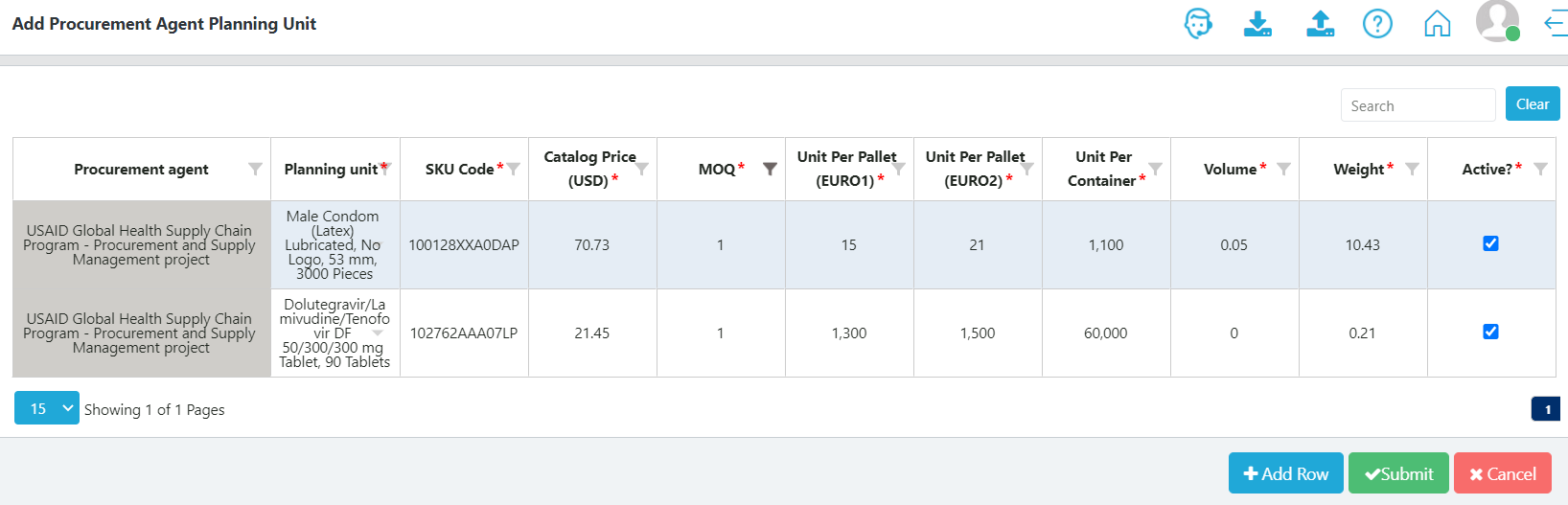
Figure 242: Map Procurement Agent Planning Unit
To add a Procurement Agent Procurement Unit:
- Go to the "Procurement Agent" screen.
- Right click on the desired procurement agent that you want to add a planning unit to. Then select "Map Procurement Unit".
- A form titled "Add Procurement Agent Procurement Unit" will appear.
- Either click on the "Add Row" button or right click and select "Insert New Row" to add a row.
- Enter the details for the new procurement unit. Refer to the table above for definitions on any of the data elements.
- All the fields are required except for the GTIN field which is optional.
- Click the "Submit" button.
To update a Procurement Agent Procurement Unit:
- Go to the "Procurement Agent" screen.
- Right click on the desired procurement agent for which you want to update a procurement unit(s). Then select "Map Procurement Unit".
- A form titled "Add Procurement Agent Procurement Unit" will appear.
- Enter the details for the existing procurement unit by double clicking into the cells and typing in the information. Refer to the table above for definitions on any of the data elements.
- All the fields are required except for the GTIN field which is optional.
- Click the "Submit" button.
Note: If the procurement agent's catalog is integrated with QAT, the procurement units and associated details in QAT will automatically reflect that procurement agent's catalog and any change you make manually in QAT will be overridden by the integration at the time of the next update.
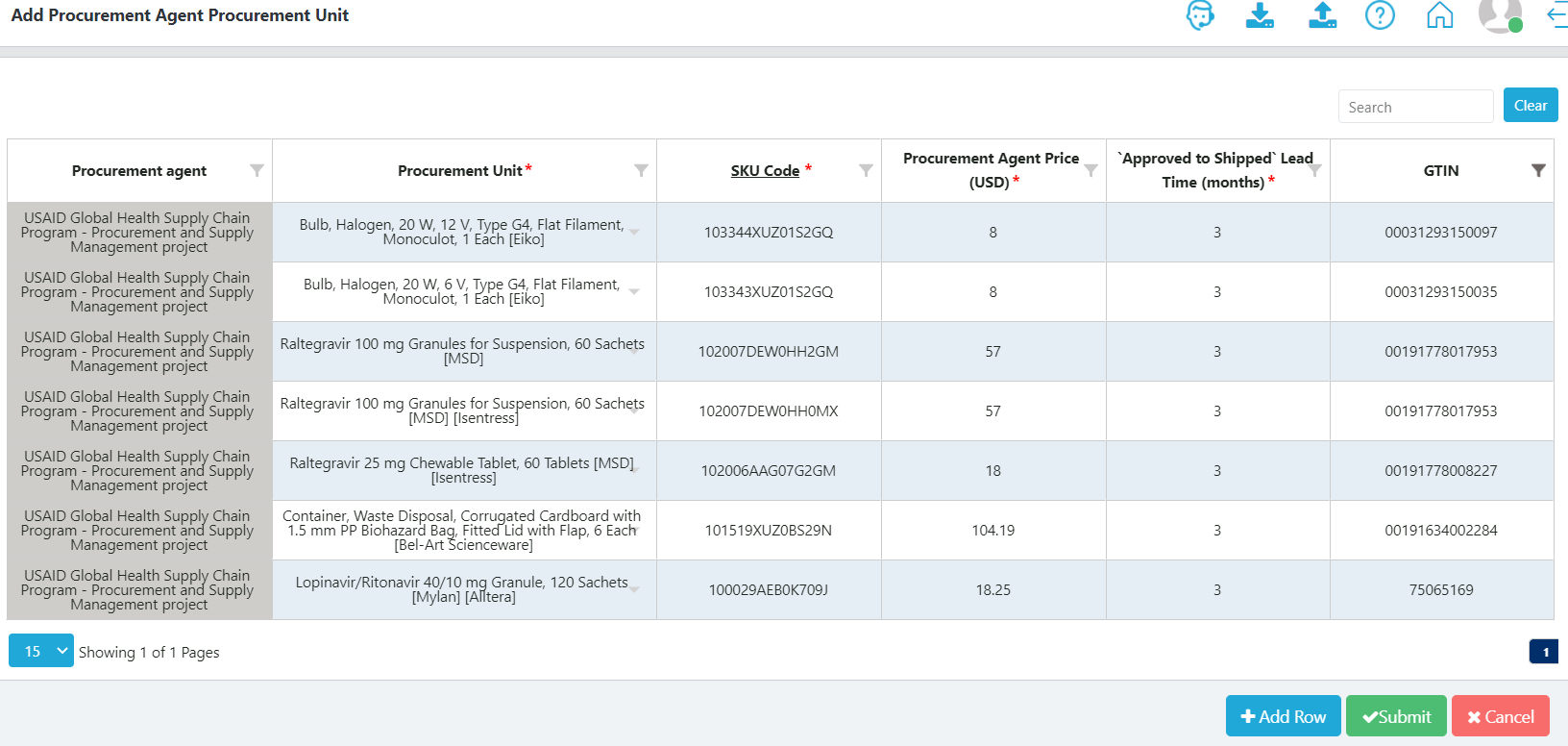
Figure 243: Map Procurement Agent Procurement Unit
l. Procurement Agent Type
Procurement agents can be customized per program need; however, in order to maintain standardization through master data, QAT includes an "procurement agent type" that can be managed by a realm administrator.
The realm administrator assigns a procurement agent type to each procurement agent in QAT; for example, in the Global Health Realm, country A might request their program shipments include the procurement agent Joint Medical Store, while country B requires their program shipments to include National Medical Store. This level of customization is possible in QAT, while maintaining standardization through the procurement agent type masters. In the example above both procurement agents would be assigned the procurement agent type "Government".
As procurement agent type is realm-level master data, QAT users can request new organization types if those don't already exist, through the ticketing function.

Figure 244 – Procurement agent types in the Global Health Realm
Add Procurement Agent Type
- Go to 'Realm Level Masters' and then click on 'Procurement Agent Type' to display a list of current Organization types.

- Click on the blue "+" button to open the "Add Procurement Agent Type" screen.
- Enter the required details.
- Click "Submit" to save changes or "Cancel" to close the form without saving.

Note: QAT does not allow to put space before starting the name of procurement agent type. Spaces are only allowed in between words if the procurement agent type name consists of multiple words.
Update a Procurement Agent Type
- Go to "Realm Level Masters" and then click on "Procurement Agent Type".
- Click on an existing Procurement Agent type to display below screen.
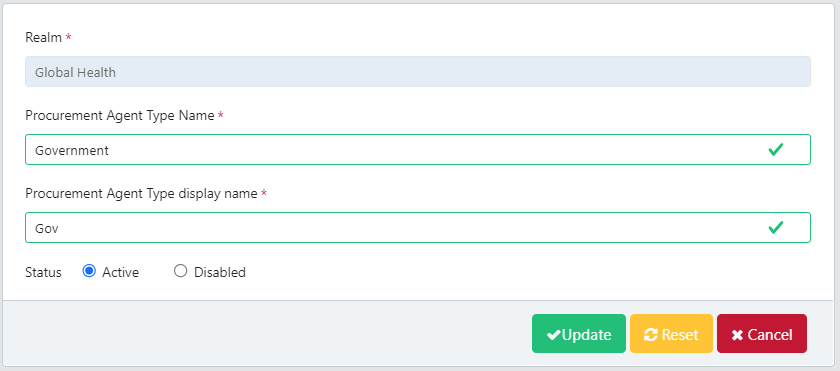
- Enter the required details.
- Click "Update" to save changes or "Cancel" to close the form without saving.
m. Forecast Method
This screen enables realm admins to add or edit forecast methods which can be used by users when creating forecast programs.
Add a Forecast Method:
- Go to "Realm Level Masters" and click on "Forecast Method" to display a list of current forecast methods.

- Click on the blue "+Add Row" button.
- Enter details and click Submit.
D. Setting Up a New Program
A Realm or Application administrator can create a new program when required. Each program must consist of a country, technical area (can be 1 or more), region(s) and organization. Once the program is setup in QAT, program admins will have the ability to update certain program settings. Information on updating these settings can be found in the Program Information section.
To set up a new Supply Planning Program follow these steps:
- Go to “Program Management” from the sidebar menu.
- Click on “Setup Program”.
OR
- Go to “Program Management” from the sidebar menu and select “Update Program Info”.
- Click on the blue “+” icon in the top right corner of the screen. This button will redirect the user to the “Set up Program” screen.
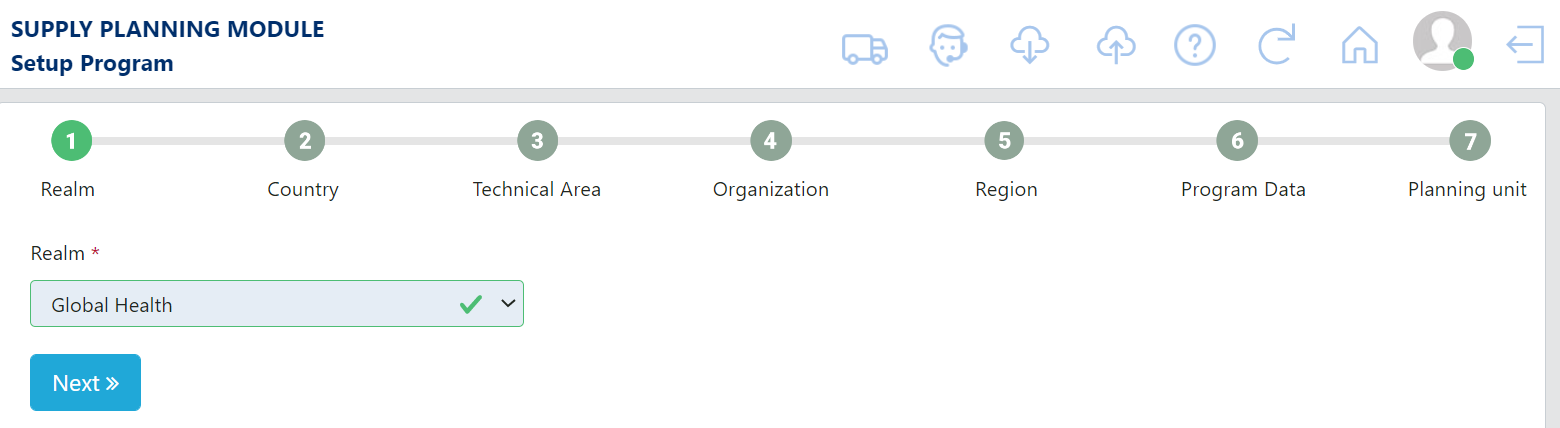
Figure 245: Supply Planning Module Setup Program Screen
- Fill in the Realm section and click on “Next”. If the user only has access to one realm then this will automatically be selected for the user.
- Next, select the Country that the program is for and click “Next”. If the country is not listed, the Application admin will need to add or activate that specific country for the realm.
- Select the Technical Area(s) that the program is for and click “Next”. If the Technical Area is not listed, the Application admin will need to add or activate that Technical Area for the realm.
Note: Multiple Technical Areas can be selected using the Technical Area dropdown list.
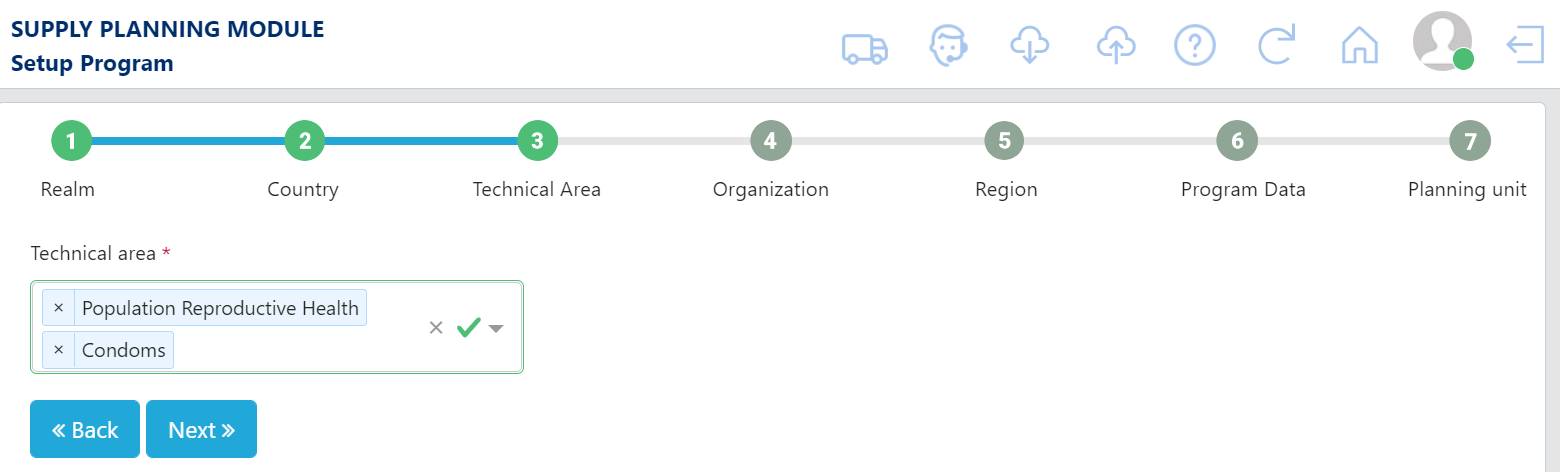
Figure 246 Setting-up a program with multi-select technical areas
- Select the Organization that the program is for and click “Next”. If the Organization is not listed, the Application admin will need to add or activate that Organization for the realm.
- Select the Region(s) that the program is for and click “Next”. If a Region the user needs is not listed, the Application admin will need to add or activate that Region for the realm. This step allows for one or more selections.
- Step 6 is where the user will provide the Program Data. Fill in all the required details.
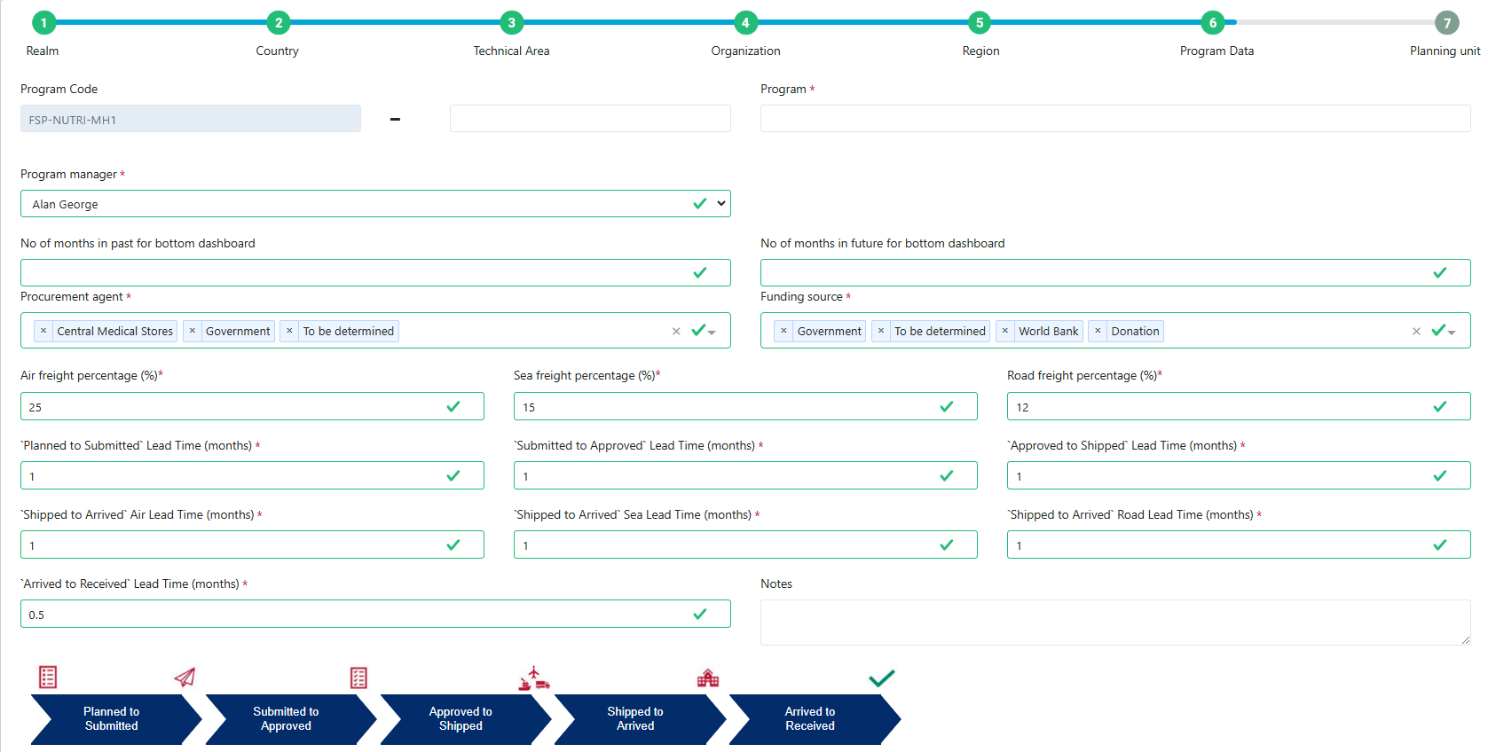
Figure 247: Add Program Data
- The final step to setup the program is to add in the planning unit(s). All of the fields in this step are required in order to proceed. Any field that is left blank will be highlighted yellow until it is filled in.
- Click “Submit”.
To set up a new Forecasting Program follow these steps:
- Go to “Program Management” from the sidebar menu and select “Update Program Info”.
- Click on the blue “+” icon in the top right corner of the screen.
- Complete the required fields for Country, Technical area, Organization, Region, Forecasting Program, Program Manager, and the Version 1 Settings (Forecast Start, Forecast Period, Forecast End). The Version Settings can be updated at any time by the Program Admins.
- Forecast Start, Forecast Period (Months), and Forecast End – based on the start & end date, QAT will automatically calculate the forecast period in months. Alternatively, users can choose to enter a forecast start date and number of months in the forecast period, and QAT will automatically calculate the forecast end date.
- Click “Submit”
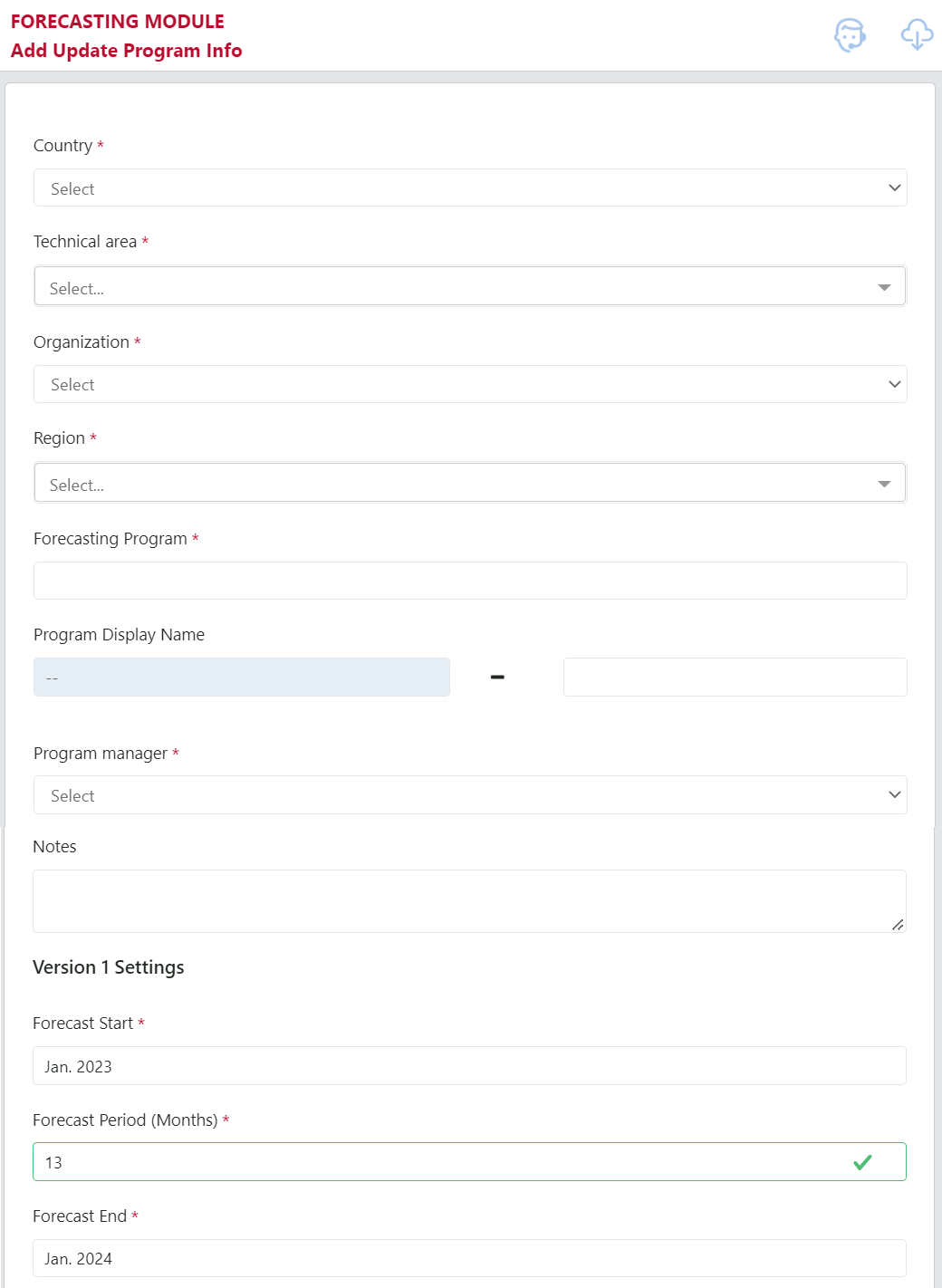
Figure 248: Forecasting Module Setup Program Screen
E. Resetting the QAT Problem List
Realm administrators have the ability to reset the QAT Problem List for all programs, regardless of version type or status. The programs can be reset in bulk or individually by program. Resetting the QAT Problem List for a program will revert all problems with an “addressed” status to “open.” This automatically happens when a supply plan is Final-Approved by a supply plan reviewer, but does not automatically happen for any other version types or statuses. Resetting the QAT Problem List can be useful at the end of a supply plan submission period for programs that were submitted as Final, not Approved, but all problems should be reopened for review for the next submission period.
To reset the QAT Problem List:
- Navigate to the Supply Plan Version and Review screen
- Click on the “Reset QPL” button in the top right corner
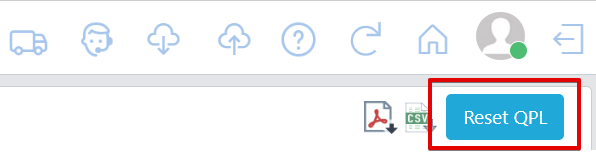
Figure 249: Reset QPL Button
- Choose the Version Type, Status, and Program that should be reset
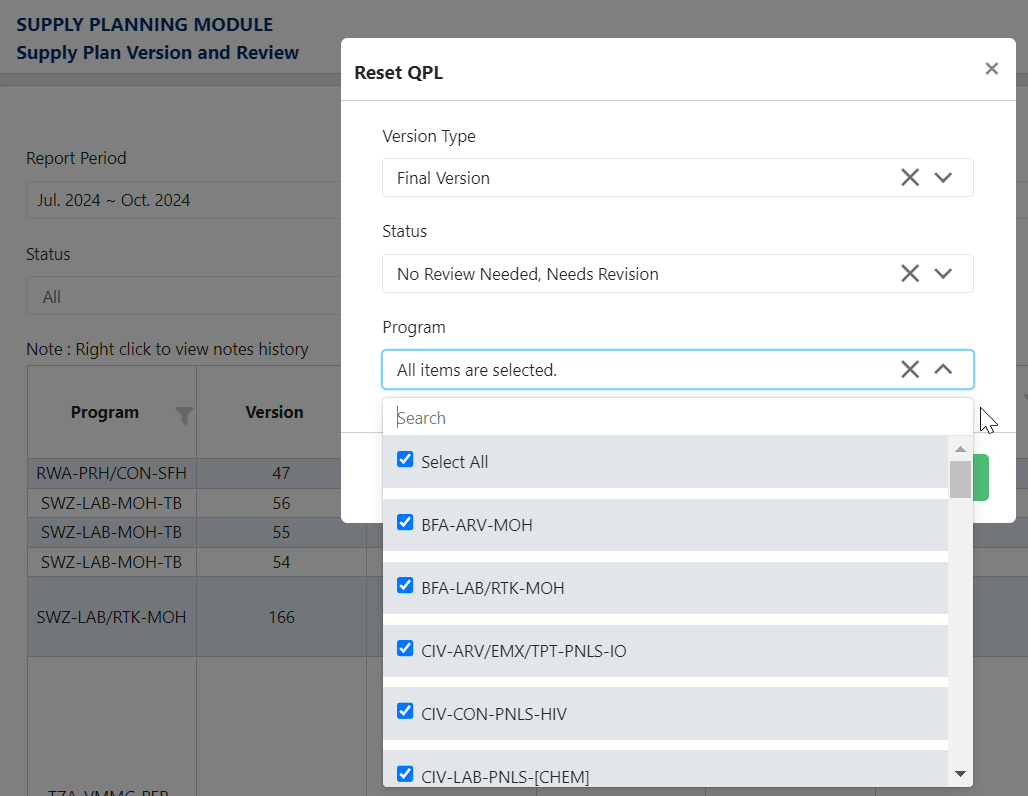
Figure 250: Reset QPL Dropdowns
- Click "Submit"