Section 5. Supply Planning Module: Supply Planning
A. Supply Planning: An Overview
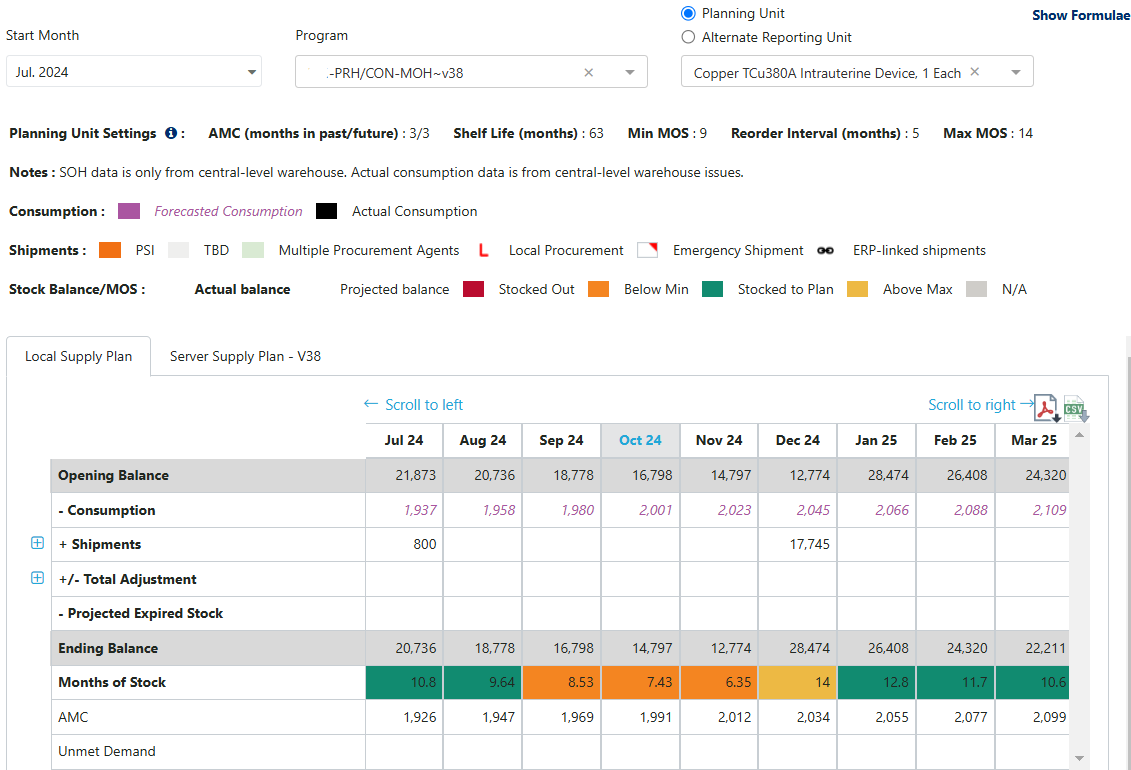 Figure 99: Supply Planning Screen – Plan by MOS
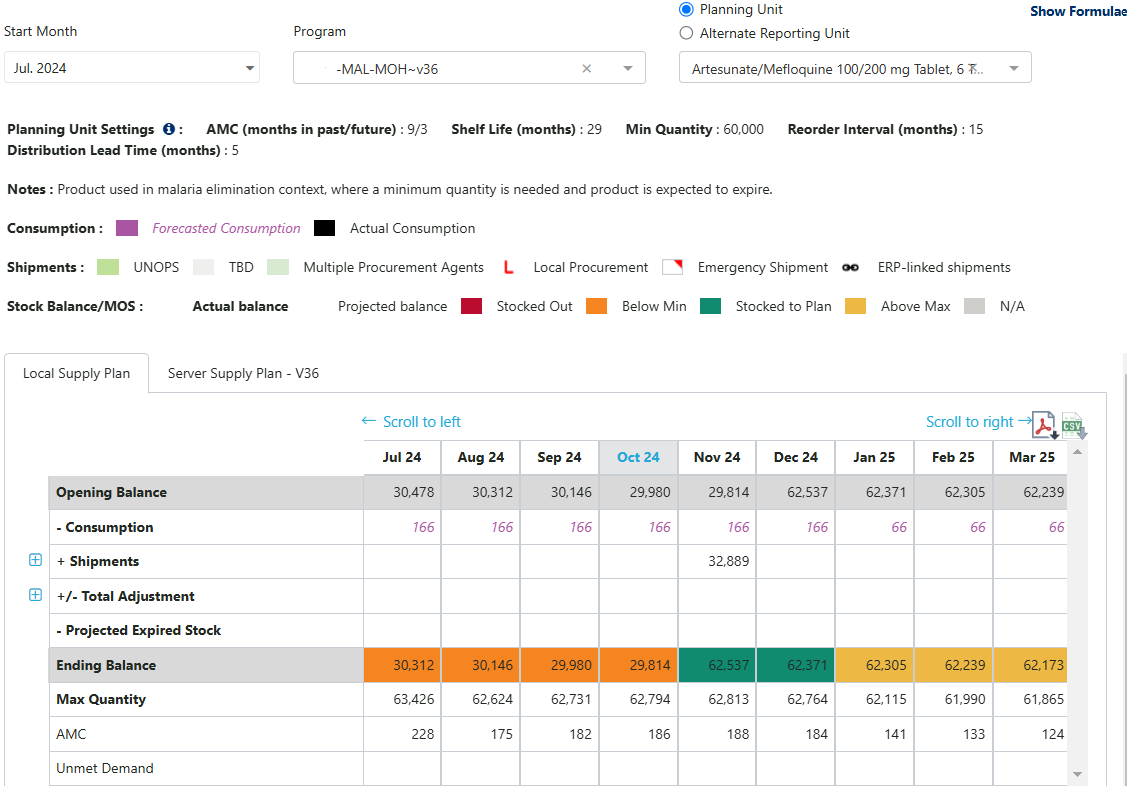 Figure 100: Supply Planning Screen – Plan by Quantity
-
What? All major data points (consumption, shipments, inventory) come together on the supply planning screen, and this is where most QAT users will spend the majority of their time. Users can click on many of the cells in the table to directly edit their data. It is recommended to use this screen for active supply planning (including data updates and planning new shipments), but to use the data entry screen when significant data entry is required. Note that some sections vary based on whether the planning unit is planned by MOS or planned by Quantity (as selected in Updating Planning Units) – differences are noted below.
-
This screen can also be viewed by the alternate reporting unit (ARU) associated with the planning unit. This means that users can view their supply plans in terms of the product names and units of measure they enter the data in, with values on the table and graph changing according to the ARU/PU conversion factor that is established by the user (see Alternate Reporting Units). The user selects to view by ARU clicking on the radio button and then selecting the desired ARU to display.
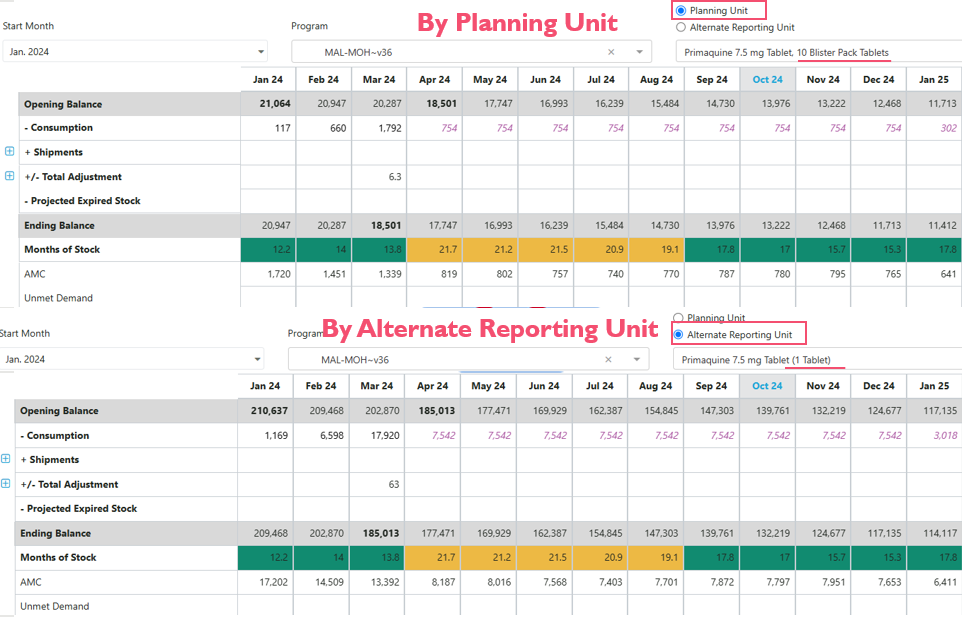 Figure 101: Supply Planning Table –by Planning Unit vs by Alternate Reporting Unit
-
-
Who? Realm Admins, Program Admins, Supply Plan Reviewers, and Program Users can add data/edit data in the supply plan. Certain “view only” roles can view the supply plan.
-
When? At any time. The user does not have to be online. However, they must have downloaded a program onto their local computer while online before beginning.
-
How?
Note: other than step 1 being required, the remaining steps are not sequential, but an explanation of the features available in the supply planning screen.
On the left menu bar, go to Supply Planning > “Supply Planning”
- Select the desired Program. The drop-down list in the supply plan screen will show all the programs that have been downloaded by the user. Refer to Download Program for details on how to download a program.
- Select the desired QAT Planning Unit or Alternate Reporting Unit (ARU).

The screen displays two Supply Plan tabs: Local Supply Plan and Server Supply Plan - VX. The “Local Supply Plan” tab is the local version that was selected under “program” and is available to be edited. The “Server Supply Plan” is the latest version available on the server and is only available for viewing (not editable).

By default, the past 3 months and 15 future months from the current date are shown. Use Scroll to Left/Right to show data for 3 months in the past/future

Click “Show Formulae” at the top right of the screen for explanations on calculations on this screen.

Click on the PDF & CSV icons to export this report, and will include all planning units in the program. In PDF, only the graph for the selected product will be included, but there will be tables for each planning unit.

Understanding the stock balance calculations on the top half of the table:
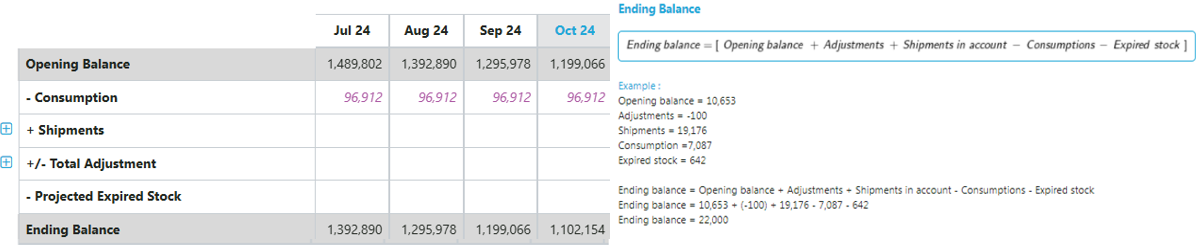
Figure 102: Ending Stock Balance Calculation- Opening Balance represents the quantity of stock at the beginning of the month. It is equal to the ending balance of the previous month, except the very first month of the program, where the opening balance is zero. It can be an inventory count from the previous month (bolded), or a projected value (unbolded).
- Ending Balance represents the quantity of stock at the end of the month. It can be an inventory count (bolded), or a projected value (unbolded).
- Follow the +/- signs besides each row to understand how the math works from opening balance to ending balance.
The bottom half of the table contains more detail to help the user interpret the stock status.
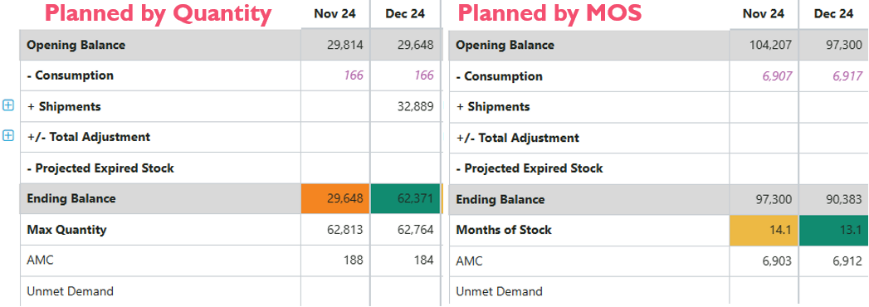 Figure 103 Differences in the Supply Planning Table - Plan by MOS vs Plan by Quantity
-
Average monthly consumption (AMC) is an average of the consumption over the months indicated by the AMC parameters, which are displayed above the table. To edit these parameters, see Updating Planning Units.
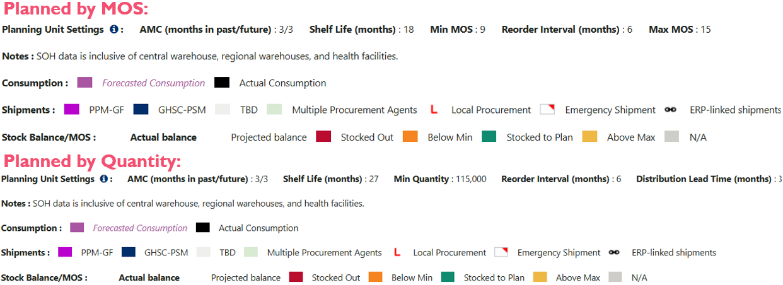 Figure 104 Differences in the Supply Planning Legend- Plan by MOS vs Plan by Quantity
 -
Unmet demand. Estimated quantities of product that would have been consumed if sufficient stock was available:
- When the forecast consumption is greater than the projected available beginning stock on hand.
- When the actual consumption includes days of stock out
- When a negative manual adjustment is larger than the projected ending balance
- The QAT unmet demand functionality is what captures what would have been negative stock in legacy software PipeLine.
-
The second row from the bottom
- Planned by MOS: Months of Stock is calculated as the ending balance of the month divided by the AMC.
- Planned by Quantity: Max Quantity is calculated as the Minimum Qty + Reorder Frequency x AMC.
-
Stock Status Color-coding
- Planned by MOS: The “Months of Stock” row is color-coded based on the stock status using the color coding displayed in the legend. Stock status is determined by comparing the MOS with the MIN MOS and MAX MOS.
- Planned by Quantity: The “Ending Balance” row is color-coded based on the stock status using the color coding displayed in the legend. Stock status is determined by comparing the quantity of the “ending balance” with the min quantity (provided by user) and max quantity (calculated).
Reading the stock status graph. The dates on this graph follow the table. By default, all graph elements are displayed. Click on any data element in the legend to hide a data element. The Stock Status graph has two vertical (Y) axes:
- The primary (left) axis is in units, and depicts shipments, consumption, stock, and expiries. For Plan by Quantity, there minimum and maximum quantities use the primary axis.
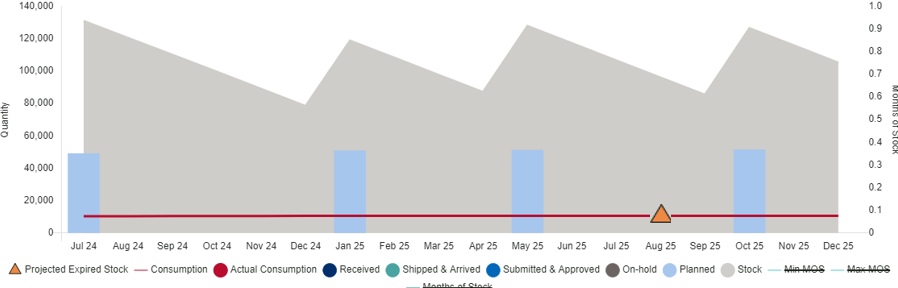
Figure 105 Supply Planning Graph - Primary Axis (Plan by MOS)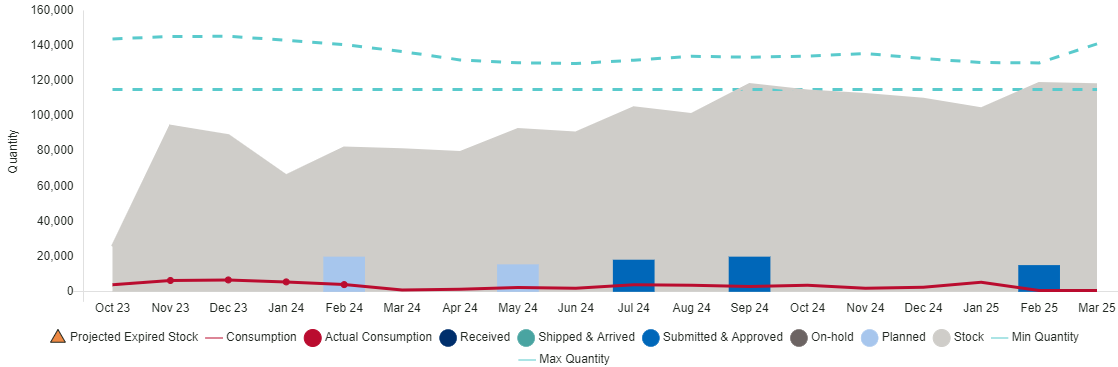
Figure 106 Supply Planning Graph - Primary Axis (Plan by Quantity) - For plan by MOS, there is a secondary (right) axis in months, and depicts the stock parameters (minimum, maximum) and the calculated months of stock.
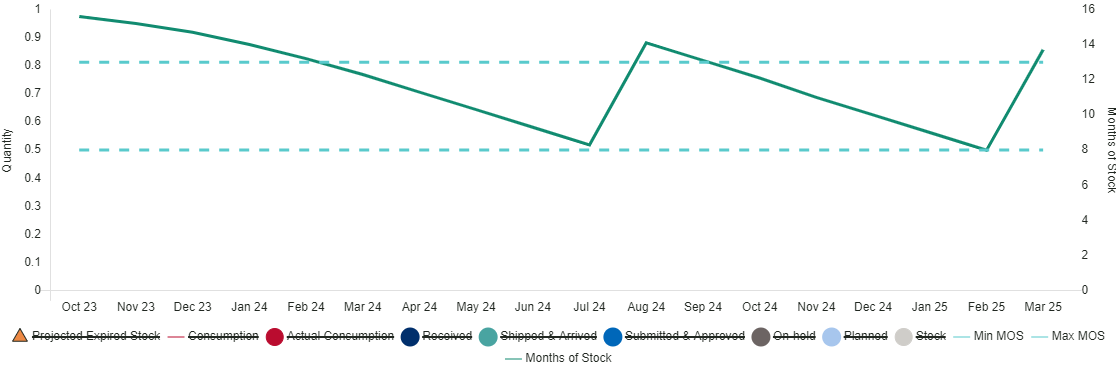
Figure 107 Supply Planning Graph - Secondary Axis (Plan by MOS)
- The primary (left) axis is in units, and depicts shipments, consumption, stock, and expiries. For Plan by Quantity, there minimum and maximum quantities use the primary axis.
B. Supply Planning: Consumption
In the supply planning table, only one number will show per month for the whole program in the consumption row. As noted in the legend, forecasted consumption is indicated by purple italic text, while actual consumption is indicated by black non-italicized text.
- For single-region programs, the actual consumption will be displayed when it is available. If actual consumption is not available, the forecasted consumption will display.
- For multi-region programs, QAT will display the greater between Σ(actuals) or Σ(forecast) across regional data. (Note: this logic is being reviewed and may be updated in the future).

To add or edit consumption records
Lots of data to add/update?
Go to data entry screen!
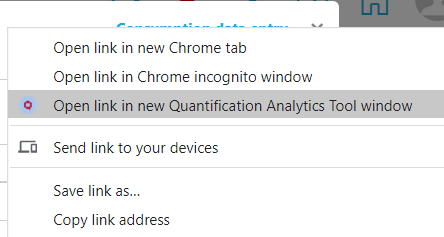
On the consumption details pop-up, users can directly access the Consumption data entry by clicking the link on the top right corner (see Consumption Data). Left click to open a tab on your browser, right click and select “Open link in new Quantification Analytics Tool window” to open a separate QAT PWA window.
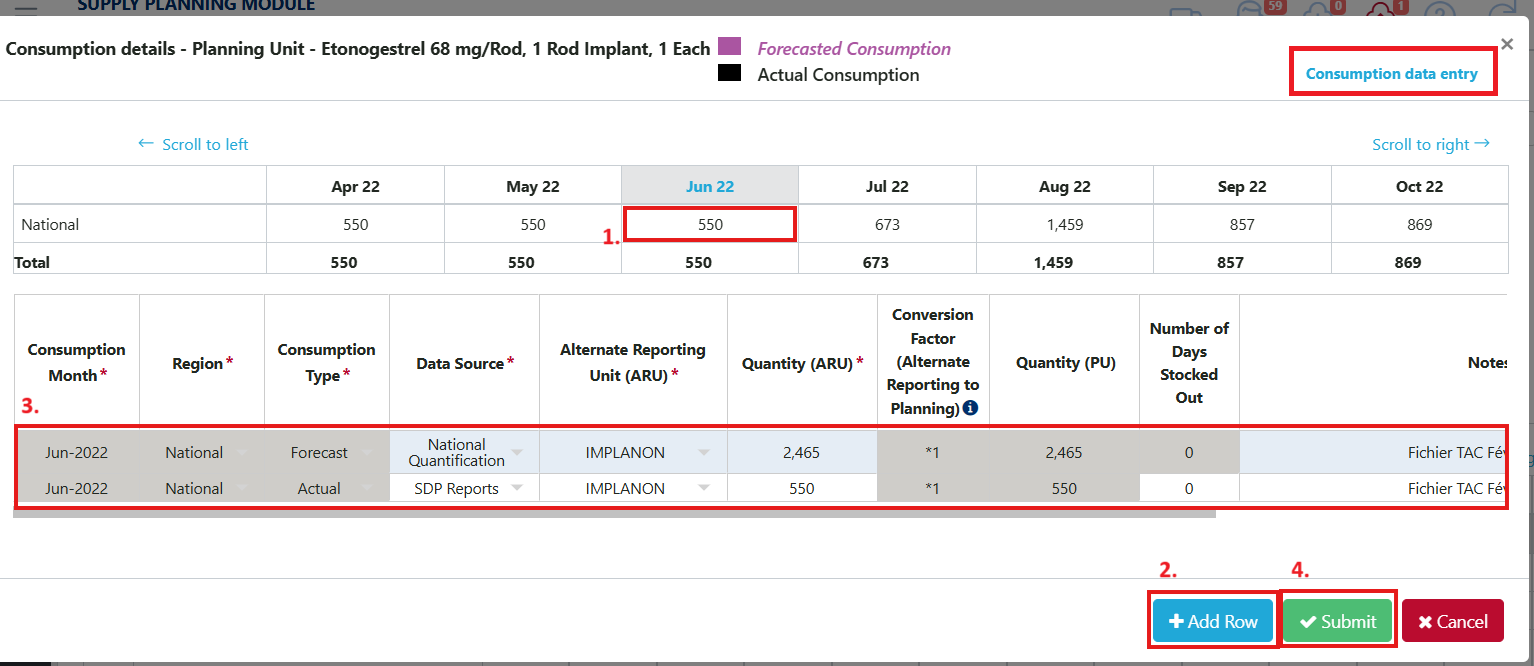
- Click on the month and cell on the Consumption row in the supply planning screen. A new window called Consumption Details will pop up. In the table that appears, each row represents a region. Single-region programs will only have one row, while multi-region programs would have multiple rows. The total shows the aggregated consumption for all regions.
- Click on the consumption record of any month and region to display further details. Any records for that month and region will display below.
- To create a new record, right click on the details row and select "Add new consumption" or click the "+ Add Row" button.
- To edit a record, click on any cell and edit consumption details (consumption type, data source, quantity, etc.) Double click to activate any dropdowns. See Consumption Data for additional guidance on consumption data entry.
- Click "Submit" to save the changes and return to the main supply planning screen, where your changes will be reflected.
C. Supply Planning: Shipments
By default, shipments are only shown as one row in the supply planning screen – this is the aggregate quantity of all shipments (excluding suggested shipments). To show more details, click on the + icon to the left of the "+ Shipments" row to expand and display the sub-rows. You will see five rows split up by order status (top row for suggested shipments which are automatically calculated).
To see a detailed breakdown of all shipments in a month, click on the cell in the corresponding month in the '+Shipments' row. To see the detailed breakdown of all shipments by status, click on the cell in the corresponding month in the individual status row.
ERP (enterprise resource planning): data linked to ERP from procurement agents are non-editable (see ERP Shipment Linking)
For all shipment rows, the colors indicate the procurement agent. If a month has multiple shipments with different procurement agents, the cell will be green. Red triangles on the top right of the cell indicate that a shipment is an emergency. If the shipment is a local procurement, there will be an L icon in the bottom left of the cell. If the shipment is ERP linked, there will be a link icon in the top left of the cell. Shipments can have multiple icons such as a local ERP linked emergency order. The legend appears at the top of the screen.
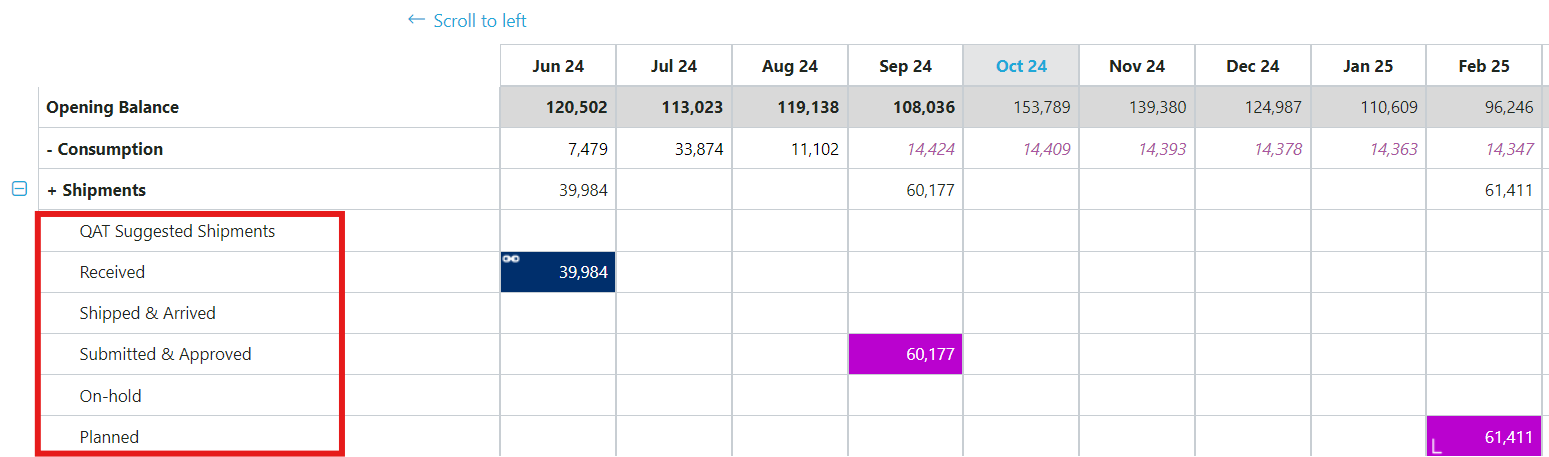 Figure 108: Shipments in Supply Planning
The following sections will cover how to update existing shipments and create new shipments within the supply planning screen. See Shipment Data for more tips on the shipment data fields, which apply across the Shipment Data Entry screen and the supply planning screen.
CI. Updating an Existing Shipment
- Click on the cell representing the month and shipment to be edited. Clicking on the "+Shipments" row will open up a tab with all shipments for that month regardless of status. Clicking on one of the status rows will open up a tab showing only shipments for that month with that status.
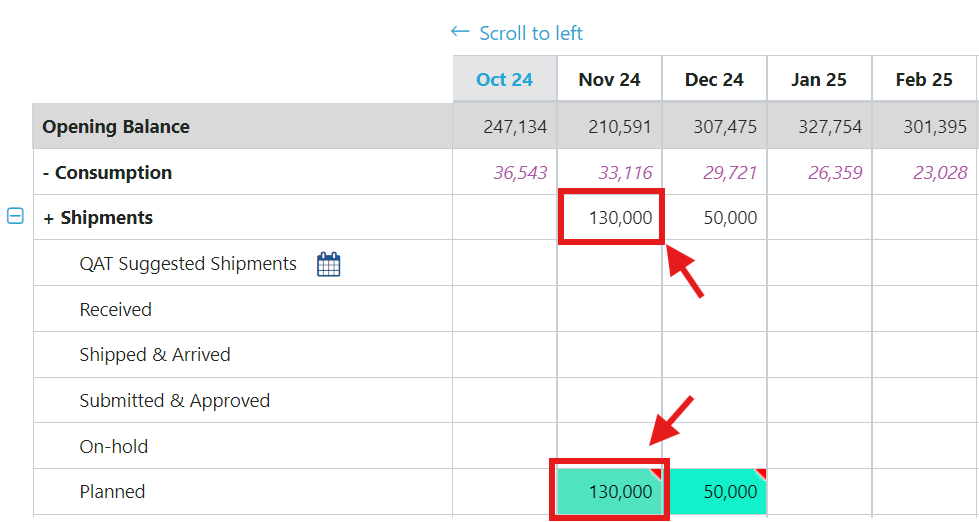
- The Shipment Details pop-up will appear. Make all desired changes. To update batch or date information, right click on the shipment row. The top of the pop-up allows users to navigate to a different month to make changes to those shipments as well.
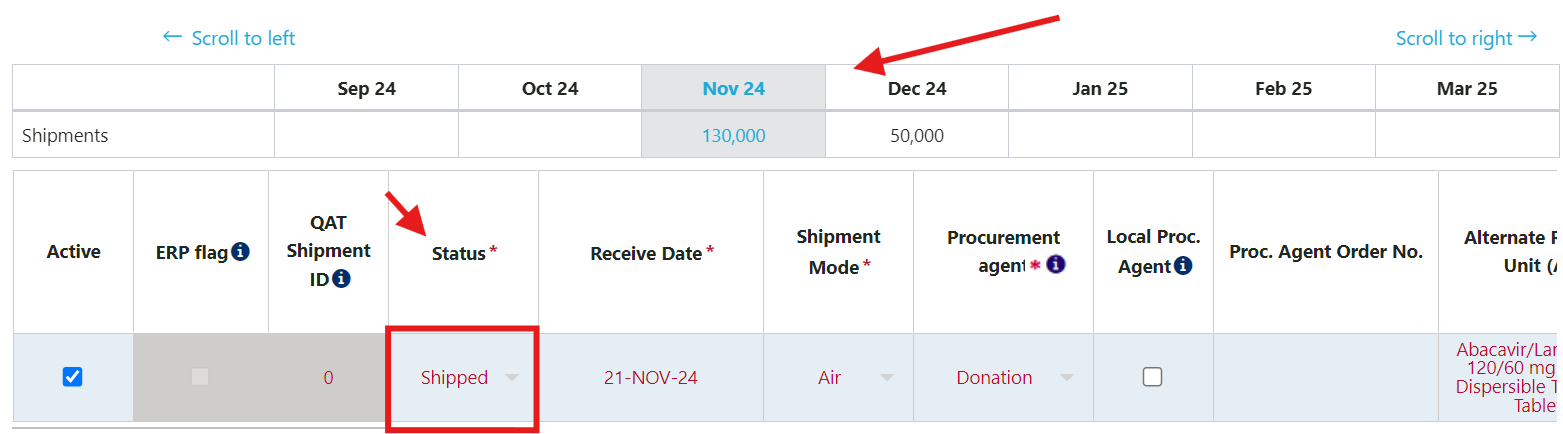
- Click "Submit" to save the changes and return to the main supply planning screen, where changes will be reflected (Note: The Submit button will not appear if all required fields are not filled.)
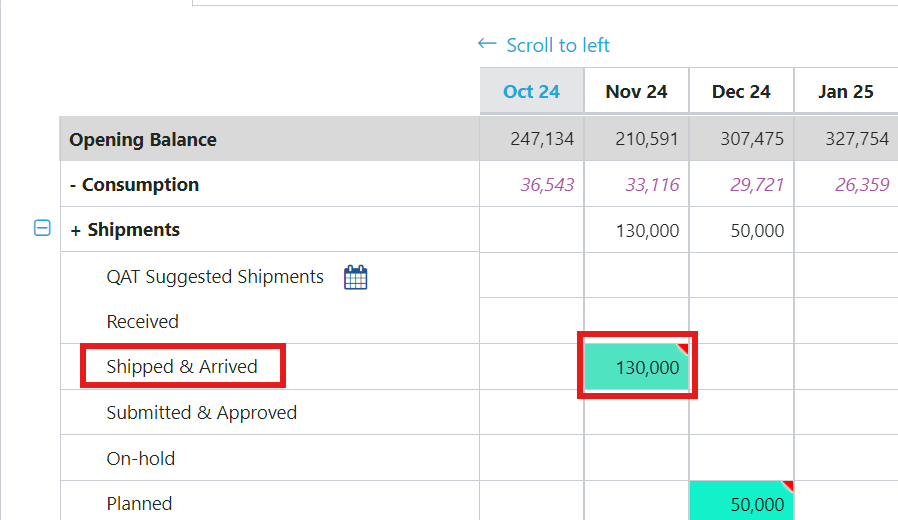
Note: Planned shipment was edited to shipped, showing the 130,000 has now been moved from "Planned" row to the "Shipped & Arrived" row.

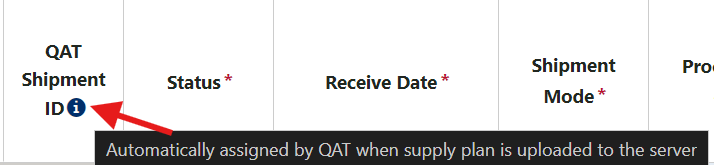
Reminder: Tool tips are provided to help guide where to update specific parameters. These provide clarity into what users need to update.
Updating Shipment Quantity with Recalculate Button
For planned shipments in the future, QAT will suggest a revised shipment quantity as an early warning to avoid going below minimum stock levels. Just like suggested shipments (see Creating a New Shipment), QAT will only provide the recalculate button if the shipment falls in a month that is below min followed by at least two months that also below minimum stock level. The quantity recommended by the recalculate button will follow the same logic as the QAT suggested shipments (see Rules for Suggested Shipments below).
Below are the steps to use the recalculate button in the Supply Planning screen:
- Go to a planned shipment in the future where the current month and at least following 2 months are below minimum stock level.
- Left click on the shipment.
- Find the 'Order Quantity' column and right click.
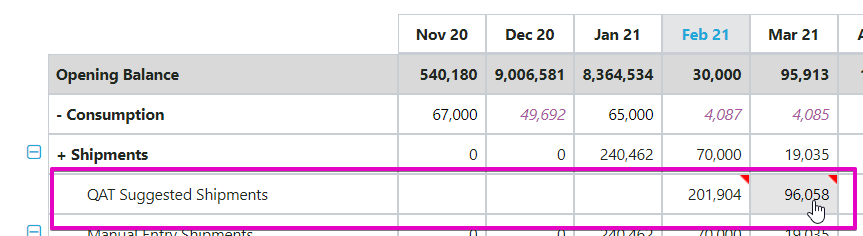
- Click 'Recalculate'. A pop-up message will appear telling you how much quantity QAT is suggesting to add and how much quantity the revised shipment will be.
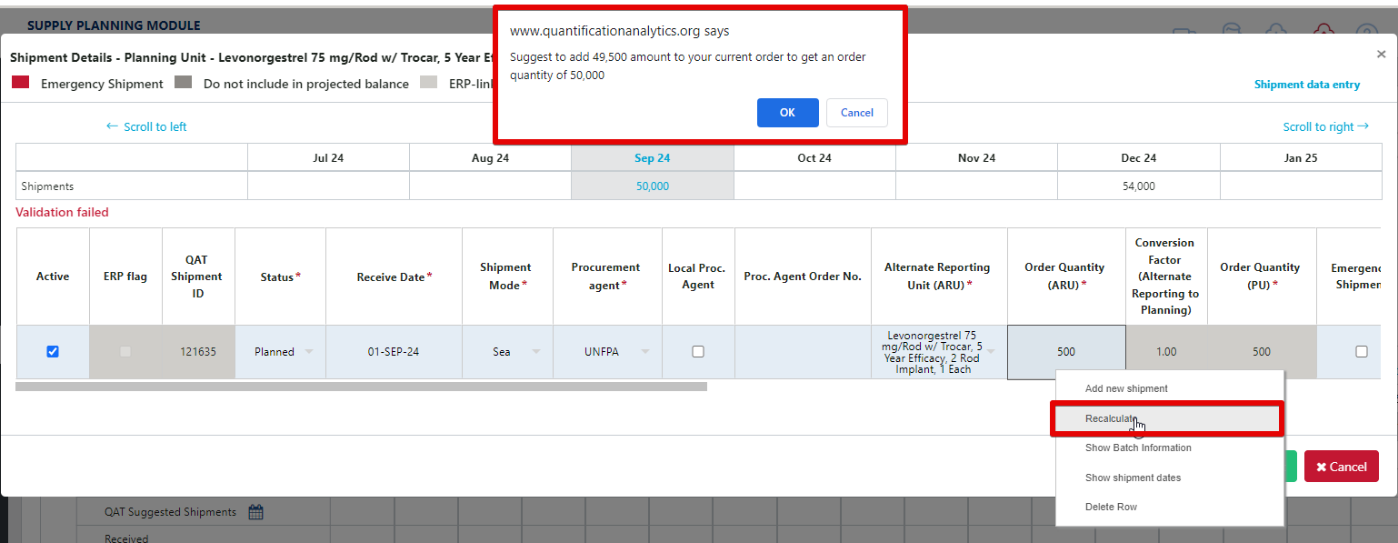 Figure 109: Recalculate Button
- Click 'Ok'. The pop-up will go away, and the revised order quantity will appear in the 'Order Quantity' column. Click 'Submit' if you wish to proceed with the revised order quantity. At any point, the user can override the quantity by double clicking into the cell and typing in a new quantity.
The revised quantity will now reflect in the supply plan.
C2. Creating a New Shipment
There are two ways to create new shipments – 1) converting a QAT suggested shipment into a planned shipment or 2) manually adding a shipment.
QAT Suggested Shipments
QAT suggests a shipment as an early warning to avoid going below minimum stock levels. These are not actual shipment and as such, do not affect stock projections. Only when a suggested shipment is accepted and the status changes, will it be counted towards your stock projections. QAT will automatically mark a suggested shipment as an emergency shipment if it is within the lead time. See Rules for Suggested Shipments below.
To Convert a Suggested Shipment into a planned shipment:
- Click on the row for Suggested Shipment under the desired month.
- The Shipment Details pop-up will appear. Change the status to the desired status, fill out the required fields, indicated by an asterisk. Double click to activate any dropdowns. Scroll to the right to see all fields. Hover over tool tips if any clarification is needed (shown in picture below). The order quantity will be pre-filled by the suggested order quantity.
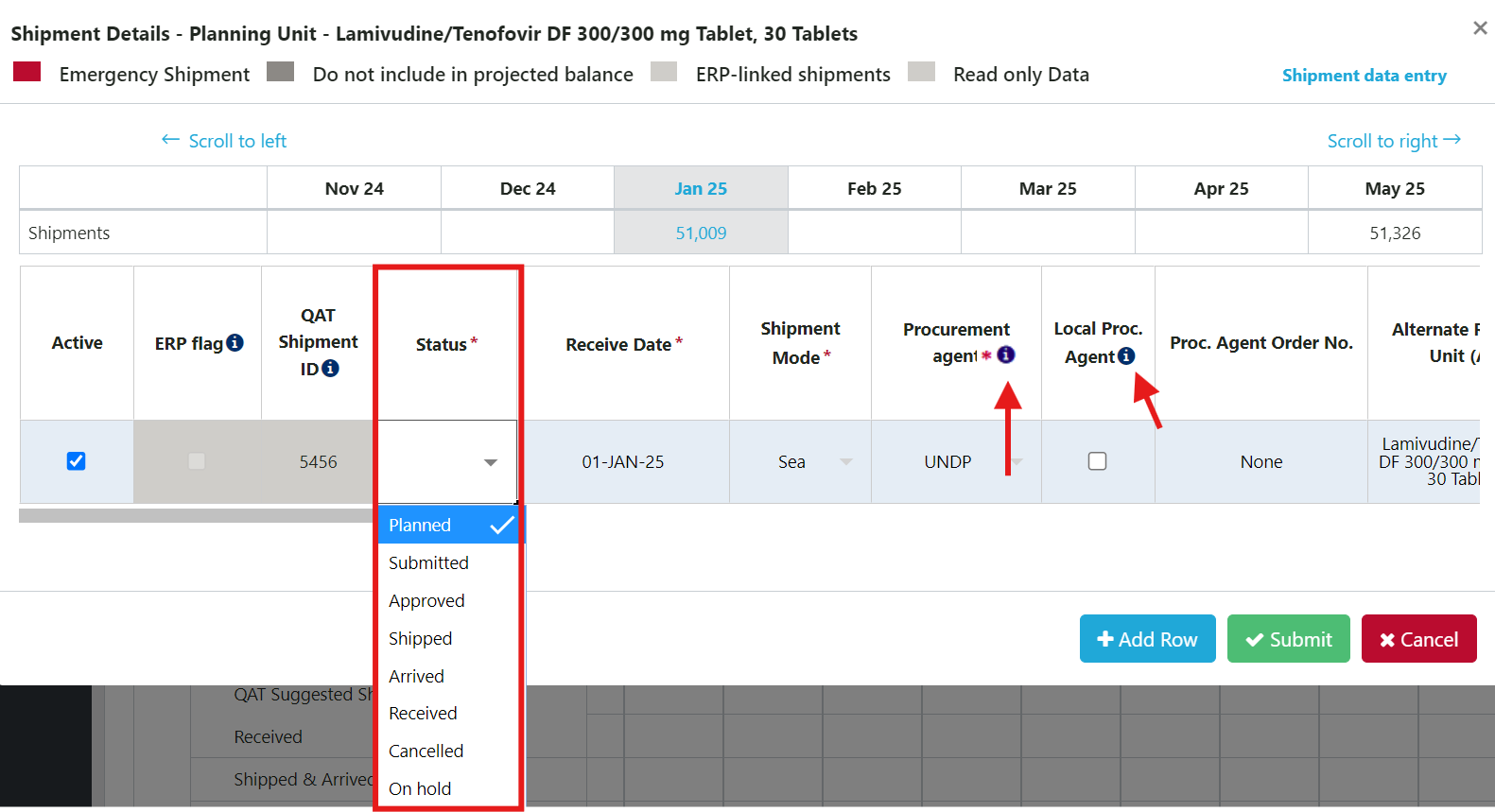
- Click “Submit” to save the changes and return to the main supply planning screen, where changes will be reflected (Note: The Submit button will not appear if all required fields are not filled)
Rules for Suggested Shipments:
For Plan by MOS:- Is the planning unit understocked (MOS<Min) for 3 straight months? a. If yes, suggested shipment will bring the current month’s stock level to maximum. b. If no, no suggested shipment.
- If the planning unit is stocked out, QAT will always suggest a shipment. a. If both of the next 2 months are <Min, the suggested shipment will bring the current month’s stock level to maximum. b. If 1 of the next 2 months is >Min, the suggested shipment will bring the current month’s stock level to minimum.
- If AMC = 0 or N/A, there will not be a suggested shipment for that month.
Where Month N is the month QAT is calculating for, and X = Distribution Lead Time
- If AMC = 0 or N/A for Month N, no suggested shipment
- If Month N is stocked out (Ending balance = 0), QAT will always suggest a shipment a. If both of next 2 months (N+1, N+2) are < min qty, suggested shipment is the quantity that would bring month N to maximum qty. b. If one or both of the next 2 months (N+1 or N+2) is > min qty, suggested shipment is the quantity that would bring month N to minimum qty.
- Is product understocked (ending balance < Min qty) for 3 straight months (Month N, N+1, N+2)? a. If yes, suggested shipment is the quantity that would bring Month N to maximum qty. b. If no, no suggested shipment
QAT puts the suggested quantity in Month N-X. In other words, X months before Month N, where X is the distribution lead time.
To Manually Create a New Shipment:
- Click on the cell representing the month the shipment should be added to. Clicking on the '+Shipments' row will open up a tab with all shipments for that month regardless of status. Clicking on one of the status rows will open up a tab showing only shipments for that month with that status. Either option will work for adding a new shipment.
- The Shipment Details pop-up will appear. To add a new row, click on the '+ Add Row' button or right click on any row and select 'Add new shipment' Double click to activate any dropdowns. Change to the desired status, quantity, and complete the required fields indicated by an asterisk. Scroll to the right to see all fields.
- To create multiple new shipments, right click on any row and select “Add new shipment” or click the “+ Add Row” button. a. Be mindful of tool tip icons to help guide which specific parameters need to be updated.
- Click “Submit” to save the changes and return to the main supply planning screen, where changes will be reflected (Note: The Submit button will not appear if all required fields are not filled.)
D. Supply Planning: Inventory/Adjustments
In the supply planning table, one number will show per month for the whole program in the manual adjustments row, regardless of how many manual adjustments are made. Similarly, the ending balance will always be one row, regardless of whether the ending balance is projected by QAT or provided by the user as an inventory count.

Logic for Adjustments and Ending Balances
When there are no inventory counts,
- Adjustments = the sum of all manual adjustments (Σ(manual adjustments))
- Ending balance = projected inventory
When there are inventory counts,
- For single-region programs, if there is an inventory count, that inventory count will be the ending balance.
- For multi-region programs where not all regions are reporting, QAT will use whichever is greater, Σ(inventory count) or (projected inventory) as the ending balance
- For multi-region programs where all regions are reporting, QAT will use Σ(inventory count) as the ending balance.
Whenever QAT uses inventory count as the ending balance, auto adjustments are calculated on top of manual adjustments.
To add or edit adjustment or inventory records, click on the month and cell on the adjustments or ending balance rows in the supply planning screen.
- A new window called Adjustments and Inventory Details will pop up. In the table that appears, each row represents a region. Single-region programs will only have one row, while multi-region programs would have multiple rows.
- The total shows the aggregated adjustments and inventory for all regions.
- Click on the record of any month and region to display further details
Lots of data to add/update?
Go to data entry screen!
On the Adjustments and Inventory Details pop-up, users can directly access the Adjustments and Inventory data entry by clicking the link on the top right corner (see Inventory Data). Left click to open a tab on your browser, right click and select “Open link in new Quantification Analytics Tool window” to open a separate QAT PWA window.
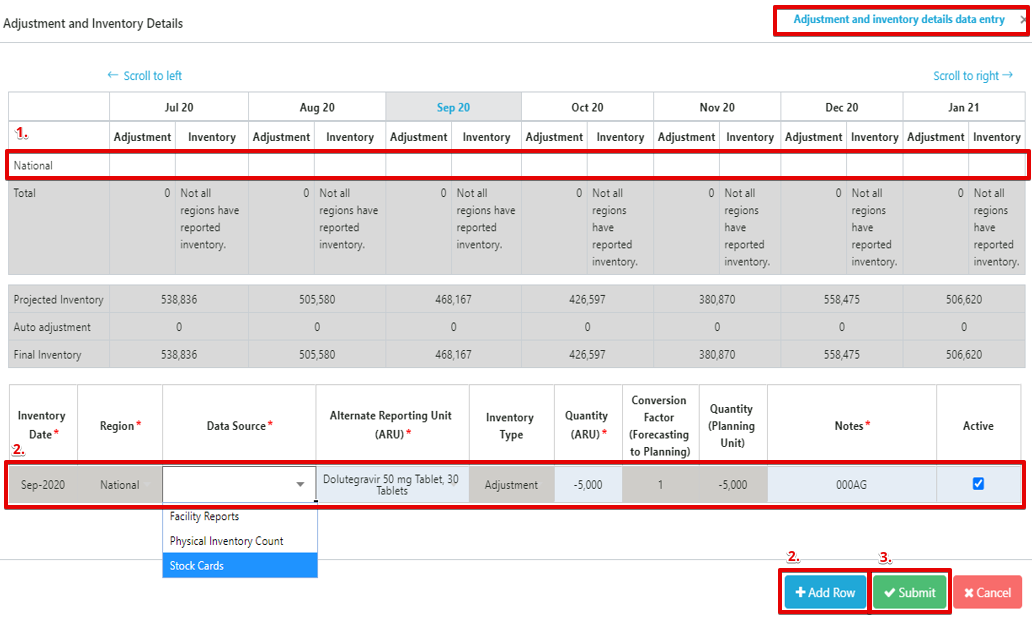
Any records for that month and region will display below.
- To add an adjustment or inventory record, click on add row, or right-click on the bottom table and select “Add new adjustment” or “Add new inventory”. Enter the required details. For adjustments, users can enter both positive and negative adjustments, in the past and in the future, and notes are required

- To edit a record, click on any cell to edit.
Note: A user can review which batch is affecting their ending balance for a particular month, by clicking on “Final Inventory” in the “Adjustment and Inventory Details” screen pop-up.
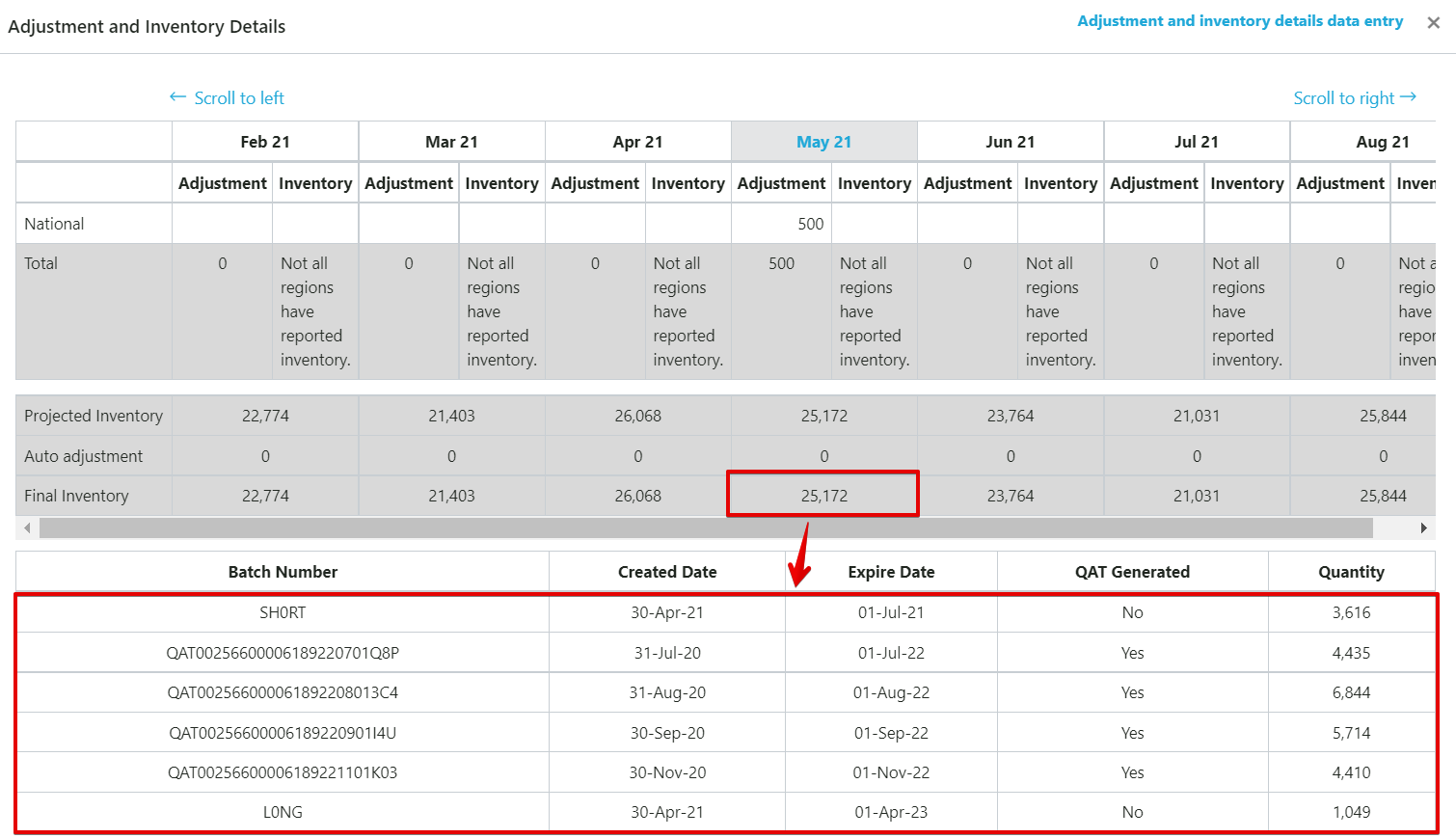 Figure 111: Batches included in Final Inventory Pop-up
For months with an inventory record, the user can click edit the batch quantities.
- Note: redistributing batch quantities should be the last resort. It’s always better to update the information upstream (shipment, consumption, adjustment) instead of updating the inventory batch information.
- How to do it?
- Ensure there is an actual/manual inventory count for the month
- Click on “final inventory” to pull up the batches
- Type over the actual quantity – use the dropdowns if you want to change batches
- Remember, the total of the batches must match the total inventory total for the month
- Right click on any batch to view the batch ledger (learn more in Supply Planning: Project Expired Stock and Batch Information)
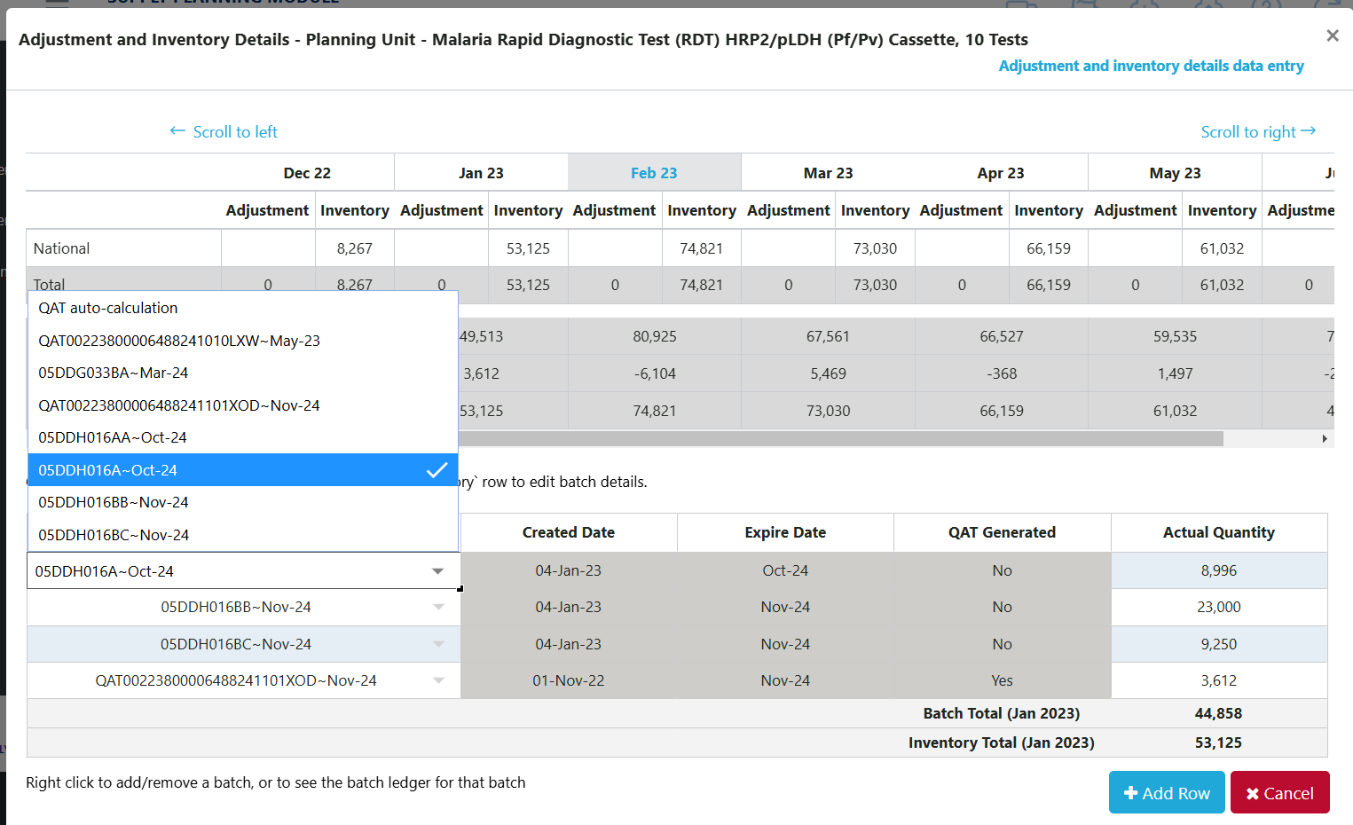 Figure 112: Batches Affecting Final Inventory Pop-up
E. Supply Planning: Project Expired Stock and Batch Information
Users can view the projected expired stock, if any, for each month in their supply plan in the Projected Expired Stock row. Clicking on the cell will bring a pop-up window with the expiry details.

From the pop-up – users can do 2 functions:
Edit the batch that contributed to the expiry: Click on the Batch Number. QAT will automatically redirect the user to the shipment from which the batch was generated. From the shipment screen, a user can edit the Batch Name, Expiry Date, and Shipment Quantity.
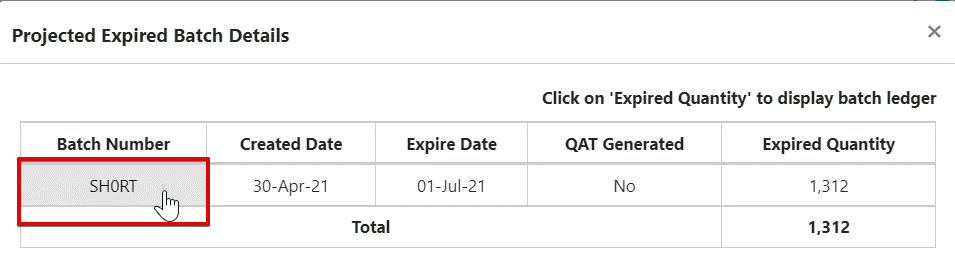
Note: Users can also edit this information in the Shipment Data entry screen (see Shipment Data).View the batch ledger: Click on the Expired Quantity cell. QAT will automatically open a pop-up screen below with the batch ledger, which shows the life of a batch month-by-month from shipment receipt to expiry.
Logic for Batches & Expiries
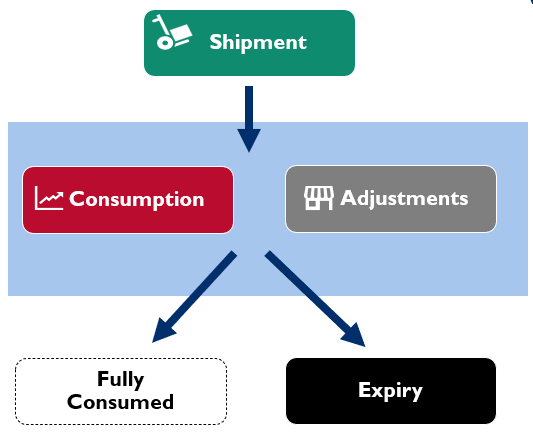
Batches start with shipments.
- QAT automatically generates one batch for each shipment that equals the quantity of the shipment.
- Batch expiry dates are based on shipment receive date plus planning unit shelf life (Updatable by Program Admins in Update Planning Units).
- Users can override the batch number, expiry date, and split shipments into multiple batches.
For consumption
- By default, QAT uses First Expired, First Out (FEFO) logic.
- Users can override the FEFO logic and instead, choose a specific batch from a dropdown to tag to that actual consumption record.
For adjustments
- By default, QAT uses the Best-Case Scenario logic: For positive adjustments (manual or automated), QAT adds to the batch that is last to expire (longest shelf life). For negative adjustments (manual or automated), QAT subtracts from the batch that is the expiring soonest (shortest shelf life).
- Users can override the Best-Case Scenario logic and instead, choose a specific batch from a dropdown to tag to that manual adjustment record.
- Users cannot override the Best-Case Scenario logic for an auto-adjustment record.
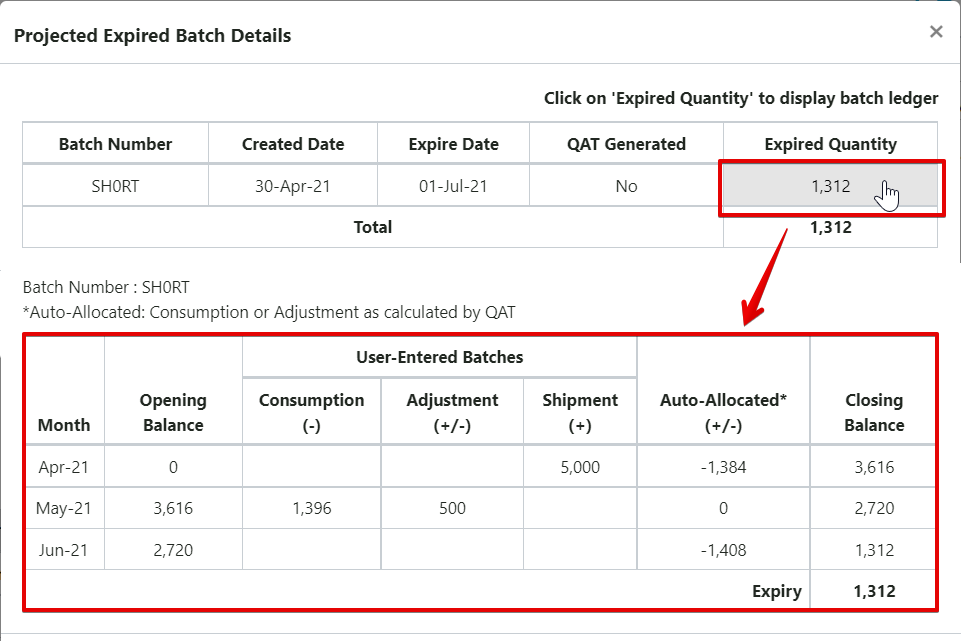
Note: unless the user tags a batch to specific actual consumption or adjustment entries (see “Add/Update Batch Details” in Consumption Data and Inventory Data), QAT will default to monthly batch quantities being placed in the “Auto-Allocated” column in the Batch Ledger.
F. Scenario Planning
QAT provides users with predefined scenarios for supply planning. This functionality will allow users to make changes to- and visualize their data in different ways, without necessarily affecting their current supply plan. Users can apply one or more scenarios to their data to see how those changes affect stock projections. The selected scenario(s) can then be applied to a current supply plan, creating a new version.
There are currently six predefined scenarios available to users; more can be programed into QAT depending on the need and use cases. QAT users can request new scenarios through raising a ticket. The need for new scenarios will be managed centrally by the Realm Admin.
Available scenarios:
- Increase forecasted consumption: for a user-defined percentage and period. This will apply a percent increase to forecast values for each month of the selected period.
- Decrease forecasted consumption: for a user-defined percentage and period. This will apply a percent decrease to forecast values for each month of the selected period.
- Forecast phase in/out product: for a user-defined period and start and end forecast consumption values. QAT will draw a straight line by interpolating between the start and ending values, and will replace the current forecast consumption values.
- Remove unfunded shipments: all shipments without an assigned funding source (i.e., funding source = TBD) will be removed from the supply plan and stock projections.
- Remove all Planned shipments: all shipments with status “planned” will be removed the supply plan and from stock projections. User can check a box to only remove the “planned shipments” that do not comply with the established lead times (i.e. expected receipt date is sooner than what would be feasible given lead times).
- Remove all Submitted shipments not within the lead time: all shipments with status “submitted” that do not comply with the established lead times will be removed from the supply plan and stock projections.
- Remove all On Hold Shipments not within the lead time: all shipments with status “on hold” that do not comply with the established lead times will be removed from the supply plan and stock projections.
- Re-plan supply plan: for a user-defined time period, QAT removes planned shipments that are not correctly maintaining stock between MIN/MAX parameters and creates new planned shipments to comply with stock parameters, using suggested shipment logic described in Section 5.C2 Creating a New Shipment.
To access these scenarios:
- Go to Supply Planning and click on “Scenario Planning”.
- Select a predefined scenario from the dropdown menu and edit the required fields
- Click Add to view the changes.
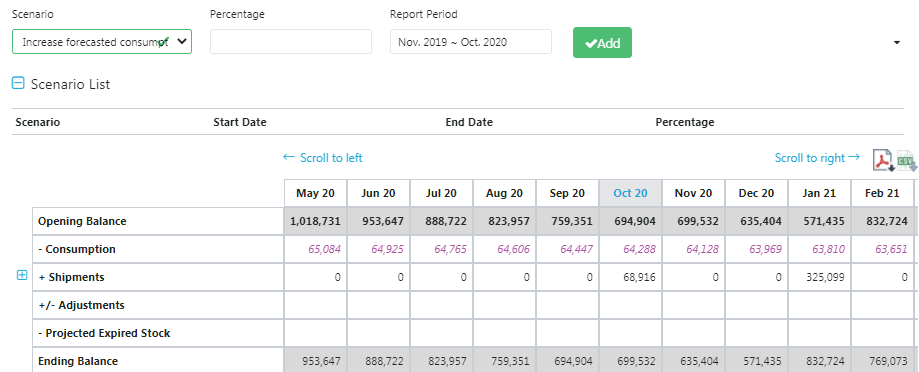 Figure 113 Scenario Planning Screen
- The scenario will be shown in the "Scenario List".
 Figure 114 Scenario Planning Scenario List
- If the user wishes to apply the scenario to their supply plan, they can click on the "Submit" button. The new supply plan will get stored in the computer of that user, and the user can upload this to the server as a new version via the Upload functionality.
- If the user does not wish to apply the scenario to their current supply plan, they can click on the "Cancel" button or the "Reset" button, and the changes will not take effect.
G. Supply Plan Report
The purpose of the supply plan report is to allow the user to quickly assess the stock status of one or more selected programs and/or planning units, by graphically comparing the stock projections to dynamic minimum and maximum inventory levels and to be able to see all consumption (both actual and forecast), inventory, and shipping details in one place. The report provides a graphical representation of the supply plan, as well as a tabular view. The report can be exported in PDF and/or CSV format.
- Accessible to: Realm Admins, Program Admins, Program Users, and Reports Viewer
- Navigation: Supply Planning → Supply Plan Report
Users can utilize the various dropdown parameters at the top of the screen to generate different views of the Supply Plan Report. Each view of report generated, will have both a graphical representation and tabular equivalent of the data. There are three main views of the Supply Plan Report:
- Single Program View
- Single program
- Single Planning Unit (PU) or single Alternate Reporting Unit (ARU)
- Shipments disaggregated by status (i.e. planning, shipped, received, etc.)
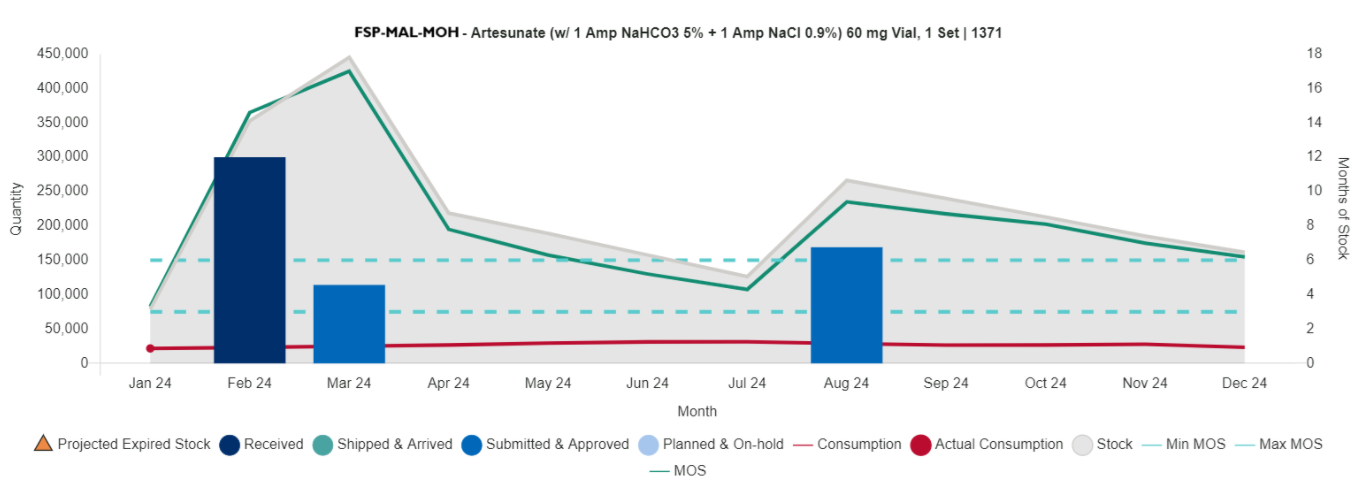 Figure 115: Supply Plan Report: Single Program View, Graph
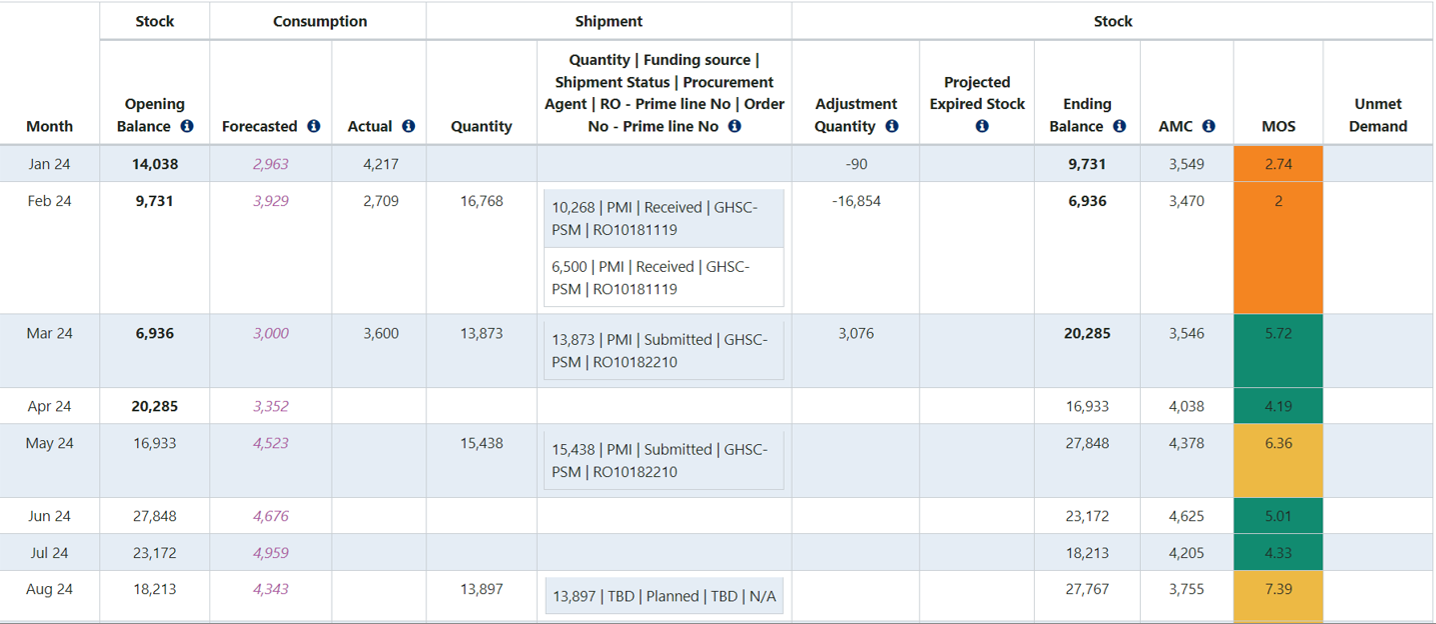 Figure 116: Supply Plan Report: Single Program View, Tabular Data
 - Multi-Program View
- Multiple programs
- Single PU or ARU
- Shipments disaggregated by program (i.e. FASPonia Malaria MOH & FASPonia Malaria Social Marketing)
- Notes: QAT is able to aggregate the supply planning data across multiple programs if they share the same PU/ARU. This could be useful if a country has multiple parallel programs monitoring the same products and would like to see an aggregated or national view of the stock status over time.
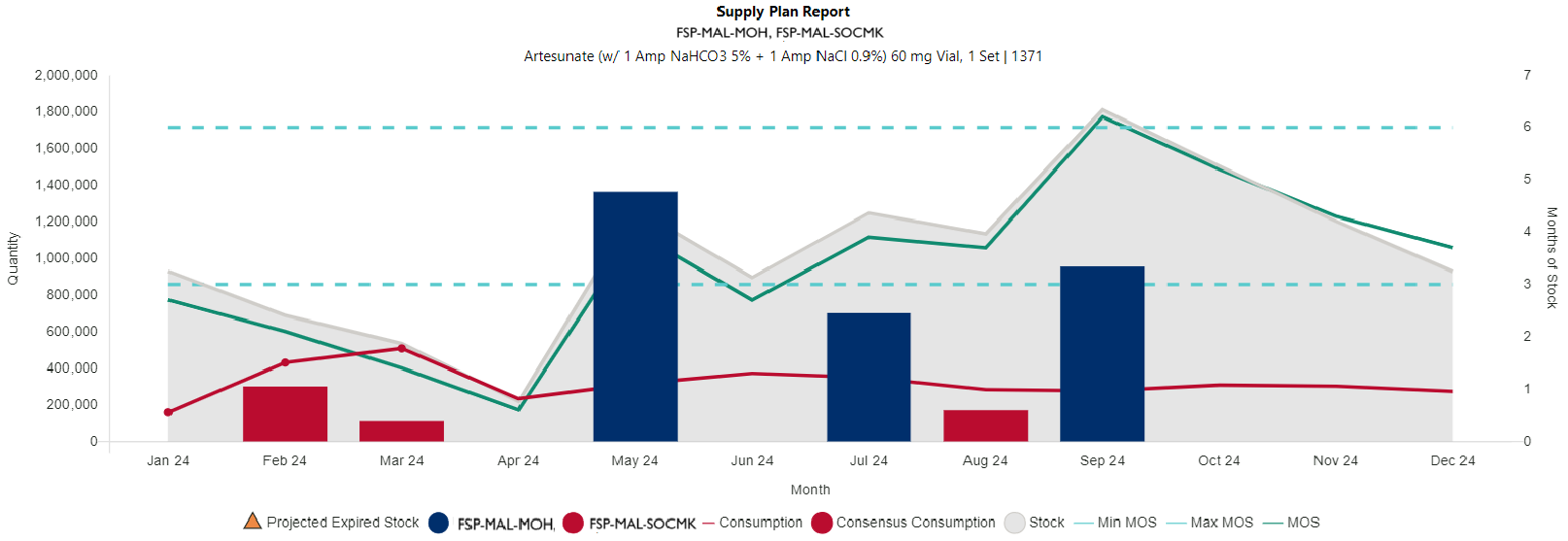 Figure 117: Supply Plan Report: Multi-program View
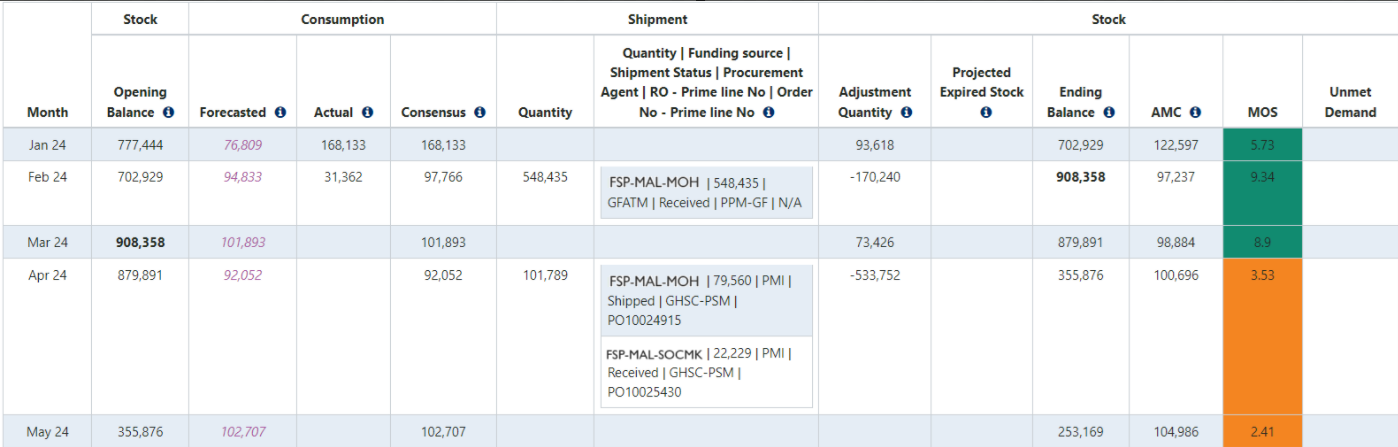 Figure 118: Supply Plan Report: Multi-program/EU View, Tabular Data
 - Equivalency Unit (EU) View
- Single or multiple programs
- Multiple PUs (ARUs cannot be used with EUs)
- Shipments disaggregated by program, PU, or program-PU
- Notes: QAT is able to aggregate across PUs that are different (different pack sizes, usage rates, etc.), but related by utilizing an EU (see Equivalency Units for more information) and a corresponding conversion factor. This could be useful for countries or global viewers that would like to see concepts such as, Malaria Treatments, Couples Year Protection (CYP), ARV Patient Months, etc. as an aggregate.
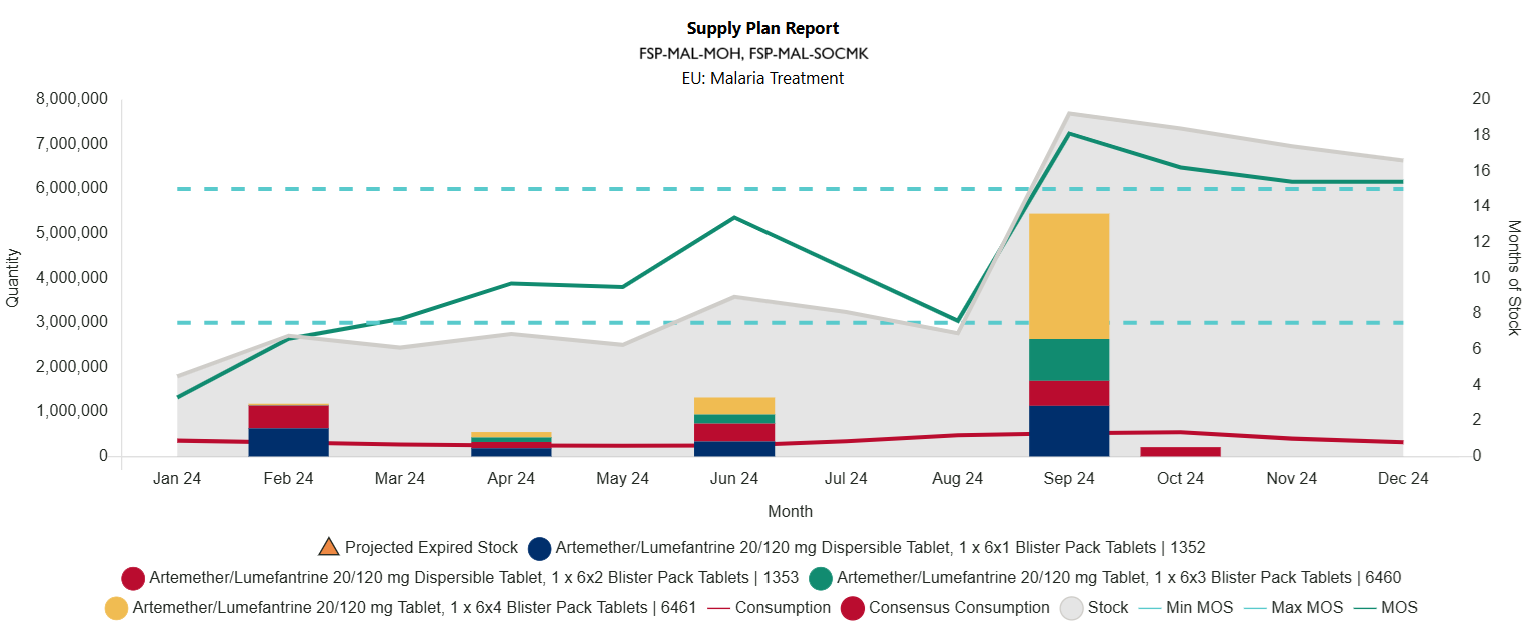 Figure 119: Supply Plan Report: Equivalency Unit View
Note:
- The report utilizes the Planning Unit settings set by the Program Admin for AMC, shelf life, MIN, reorder interval, and MAX
- The Shipment Quantity column is the sum of all shipments that have a receive date in the same month for that planning unit
- The “Shipment Quantity | Funding Source | Shipment Status | Procurement Agent | RO – Prime line No | Order No – Prime line No” column allows the user to see the disaggregated shipments that have receive date in the same month, including details of quantity, procurement agent, status, funding source, and order number assigned to that order
- The “Consensus Consumption” column only appears if a user chooses multiple programs for aggregation
- The PDF and CSV exports have multiple options, similar to the report dropdowns, allowing for exports of aggregated programs, multiple single product supply plans, or aggregated products (via EUs)
Ending Balance = Opening Balance – Consumption + Shipments ± Adjustments – Expiries
MOS = Ending Balance / AMC
Forecast, Actual, Shipment, Adjustment, Expiries, MIN, MAX = Σ selected programs individual data elements
Consensus consumption: Σ selected program actuals (if available), otherwise forecasts. Therefore, this could be a sum of actuals and forecasts depending on data available.