Section 9. Forecasting Module: Reports and Outputs
A. Compare and Select
Purpose: Enable users to compare all the available forecasts (from tree and consumption methods) and select their final forecast. In this screen, users select their forecasts one planning unit and region at a time. For selecting forecasts across multiple planning units and regions, use the Forecast Summary screen. Users should utilize all tables and graph on this screen for comparing data and choosing a final forecast.
Using this screen:
-
Check to make sure all expected forecasts appear in the Compare & Select table. To add forecasts, navigate to the Manage Tree screen to build a tree forecast or the Extrapolation screen to build a consumption-based forecast. Users may also need to double-check the Update Planning Units screen to make sure the Consumption Forecast or Tree Forecasts methods have been checked/unchecked for each Planning Unit.
a. Note: Rows are highlighted gray and non-editable when there is nothing to display or select.
-
Review available forecasts for each planning unit using the following information on the screen:
a. Forecast Error (%): this error is calculated using the Weighted Absolute Percentage Error (WAPE) calculation in the same manner as it is calculated in the Consumption Extrapolation screen. If the forecast error is highlighted in green text, this forecast has the lowest forecast error out of the available forecasts.
Note: the forecast error is not always reliable for tree forecasts – unless a tree forecast has a significant overlap with the past actual data, there may not be past forecast data available for comparison.
b. Compare to Consumption Forecast: QAT compares available Consumption Forecasts and Tree Forecasts. For any Tree Forecasts. QAT will flag the percentage above the highest or below the lowest Consumption Forecast. The comparison will be highlighted in red text if it is outside of the threshold percentages set by the user in the Version Settings screen. Assuming reliable actual consumption data, this comparison helps users determine if their Tree Forecasts are comparable to historical consumption. This statistic will not be available for consumption forecasts.
c. Graph: Visually compare the different forecasts. The forecast selected in the top table will appear bolded in the graph.
d. Detailed Data Table: Compare the data between forecasts side-by-side by clicking the "Show Data" button below the graph. Any bolded/bolded italicized purple data fall within the forecast period.
e. Viewing the forecasts in calendar year or fiscal year aggregations: by default, QAT shows the forecast in monthly figures, but users have the option to view an aggregation of those figures by calendar year or by fiscal year (and defining the start/end of the fiscal year that works in their context).
i. When choosing to view by calendar/fiscal year, a new table appears between the graph and the detailed data table. This new table shows the aggregate forecast values by calendar or fiscal year, and denotes the number of months used in the calculation for that year.
-
Select the final forecast in the Compare & Select table. If there is a
 symbol next to the Planning Unit, there is no forecast selected. If there is a
  symbol next to the Planning Unit, there is a forecast selected.
 -
Repeat steps 1-3 for each Planning Unit and Region until no more
symbols remain. Once completed, continue forward to the Monthly Forecasts to verify all planning units together.
Note: Users may select multiple tree forecasts as their final forecast, which will aggregate the monthly forecast quantities; however, users cannot select multiple consumption forecasts or a combination of consumption and tree forecasts.
Tips on Using the Graph & Detailed Data Table:
-
A user may view the graph in Planning Unit, Forecasting Unit, Equivalency Unit, and for a specific period of time. If a user chooses to "Show only Forecast Period," the graph will display only the period of time the user chose as the forecast period in the Version Settings screen.
-
By default, QAT will display all available forecasts by Planning Unit and any actuals entered or imported from QAT Supply Planning module in the graph; however, a user may deselect the "Display?" checkbox for any forecasts in the top table if they do not wish to view it in the graph.
-
Like the graph on the Consumption Extrapolation screen, the user may choose to display the 'backwards' forecast. Note that if you choose this option, that will bring back the "Actuals (adjusted)" line.
B. Monthly Forecast
Purpose: Enable users to view the final (selected) forecasts for a single program, and displays the forecast by planning unit and month. This output aggregates all regional forecasts into one total forecast. To view disaggregated regional forecasts, users can export the output as a CSV. This report is great for verifying all planning units in one place, as it has multiple report view options:
- Planning Unit or Forecasting Unit
- Aggregated by Equivalency Unit
- Monthly or yearly graph & tabular data
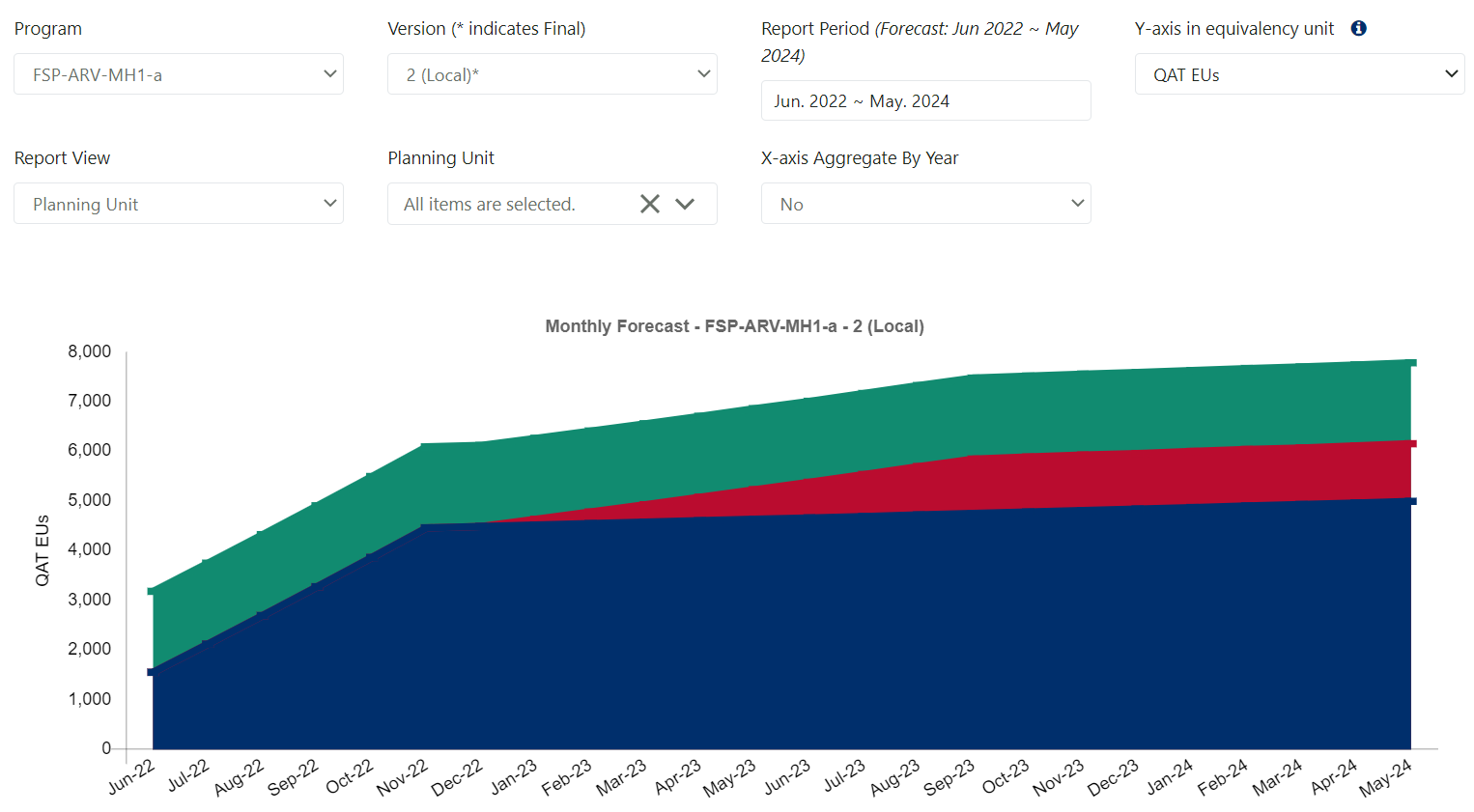
Figure 188: Monthly forecast Displayed with Y-axis in EUs
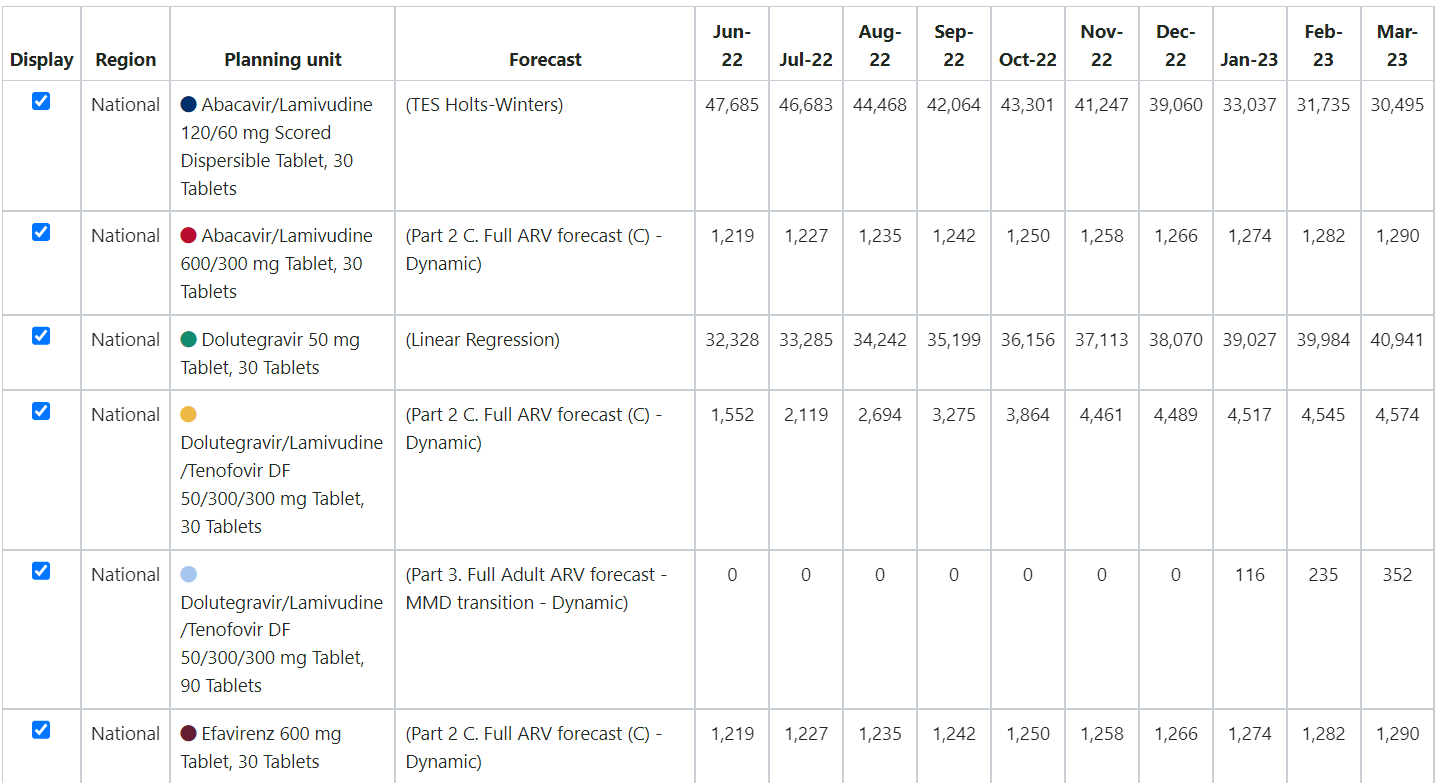
Figure 189: Monthly Forecast Tabular Data
Using this screen:
-
Only selected forecasts will be shown in this output. To select a forecast for a product, go to the Compare and Select Forecast screen. To see total forecasts across products, go to the Forecast Summary screen.
-
The Report Period will be used to determine the period of time that will display in the graphical/tabular output and must be within the forecast period.
-
Use the parameters to view the graph/tabular data either by forecasting units or planning units as well as showing the y-axis in equivalency units.
-
Equivalency Units (EUs) allow users to aggregate data across planning units or forecasting units that are different but have the same equivalency unit. See Equivalency Units for more information.
-
The 'X-axis Aggregate By Year' filter allows you to view the data aggregated by year instead of by month.
-
For the graph view, there are 3 ways you can hide which planning units that are being displayed:
- Use the filter at the top to select the planning unit(s).
- Click on a planning unit in the legend of the graph.
- Uncheck the 'Display' checkbox on the far left of the tabular view.
C. Forecast Summary
Purpose: Enable users to see a summary of their final (selected) forecasts for the entire forecast period. To view the forecasts by month, use the 'Monthly Forecast' screen instead.
-
Regional View: Use this view to see your forecast across planning units and regions. Directly update the forecast method for every region-planning unit combination and add notes in the table, if desired. Forecast selections can also be updated in the Compare and Select Forecast screen.
-
National View: Use this view to see your forecast at a national level and evaluate your procurement surplus or gaps.
C1. Regional View
-
Utilize the dropdowns at the top of the screen to select the Program and Version
-
Ensure the "Regional View" radio button under Display.
-
View a summary of all the planning units, their select forecast quantity and the notes, by region.
-
(if a local version is selected), user can update the selected forecast by double clicking any of the cells under the "Selected Forecast" column as well as any notes in the "Notes" column.
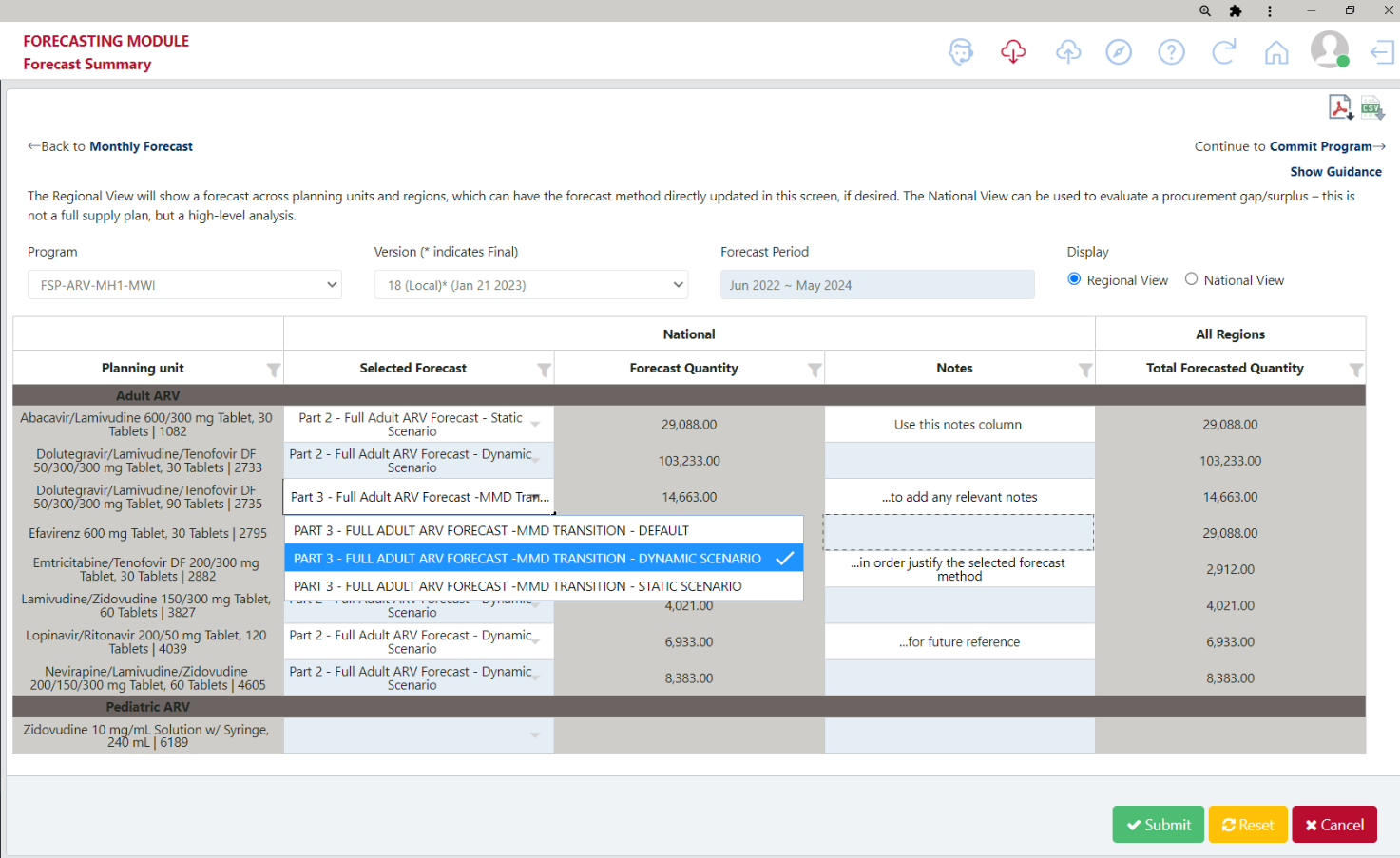
Figure 190 Forecast Summary - Regional View
C2. National View
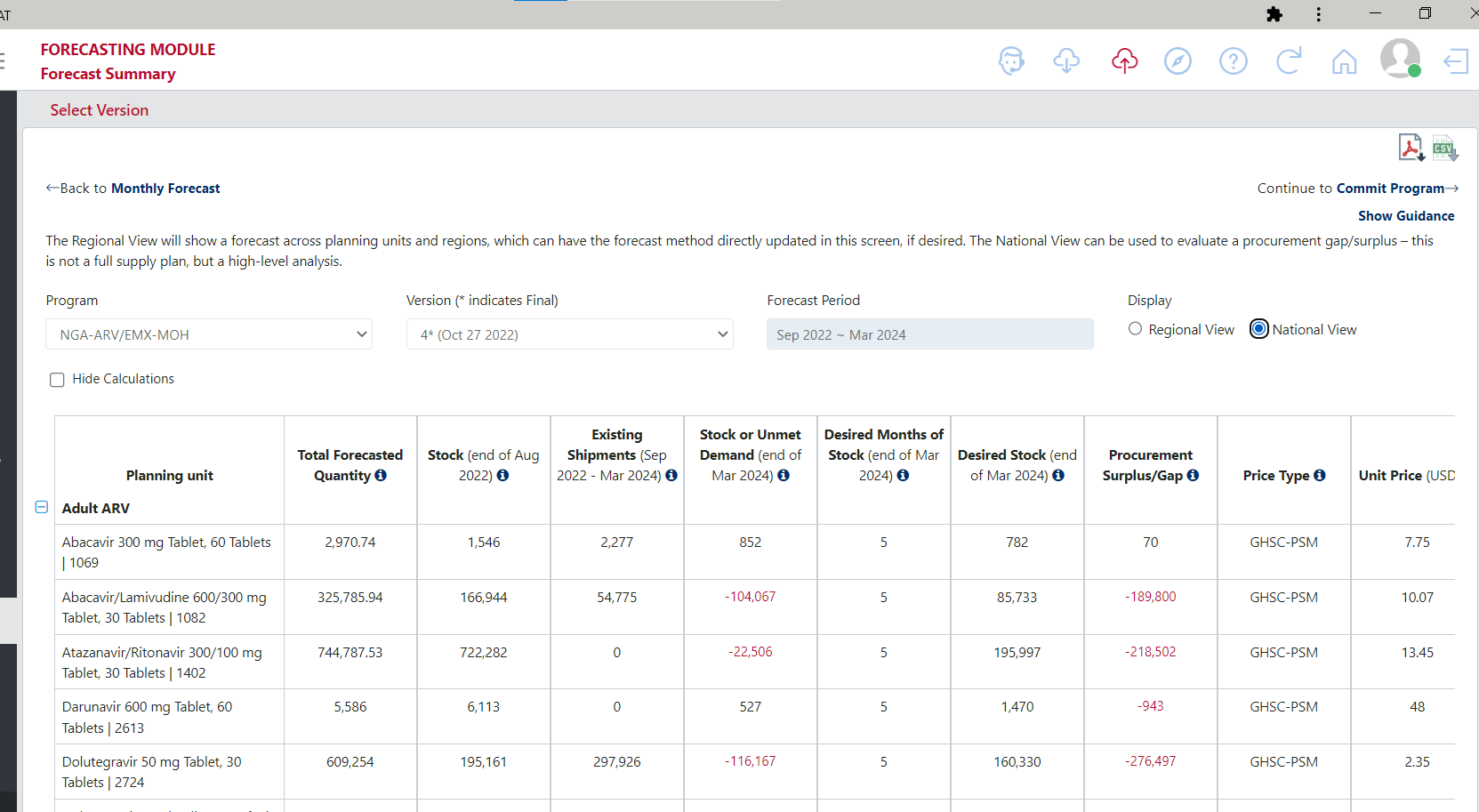
Figure 191 forecast Summary - National View
-
Utilize the dropdowns at the top of the screen to select the Program and Version
-
Ensure the "National View" radio button under Display.
-
View the resulting surplus gap analysis. Note: This is not a full supply plan, but a high-level procurement surplus/gap analysis. We recommend importing your forecast into the supply planning module for granular supply planning.
-
Click the "hide calculations" checkbox to see a simplified version of the table.
-
For the data to display here properly, enter the following data:
a. Under Update Planning Unit:
i. Stock – at the beginning of your forecast period
ii. Existing shipments – during your forecast period
iii. Desired Months of stock – at the end of your forecast period
iv. Price Type and Unit Prices
b. Under Update Version Settings:
i. Freight % - Freight cost is calculated as a percentage of product cost
Formulas used to calculate the Procurement Surplus/Gap
- Project Stock at Forecast end = (Starting Stock) + (Existing Shipments) - (Forecasted Quantity)
- Desired Stock at Forecast end = (Forecasted Quantity * Desired Months of Stock) / (Number of Months in Forecast Period)
- Procurement Surplus/Gap = (Projected Stock at Forecast end) - (Desired Stock at Forecast end)
For example, a forecast from Jan 2021 to Dec 2023 (36-month forecast)
| Total Forecasted Quantity | Stock (end of Dec 2020) | Existing Shipments (Jan 2021 - Dec 2023) | Stock (end of Dec 2023) | Desired Months of Stock (end of Dec 2023) | Desired Stock (end of Dec 2023) | Procurement Surplus/Gap |
|---|---|---|---|---|---|---|
| 360,000 | 5,000 | 20,000 | 5,000 + 20,000 - 360,000 = -335,000 | 5 | (360,000 * 5) / 36 = 50,000 | -335,000 - 50,000 = -385,000 |
Formulas used to calculate the Procurement Costs
Note: the cost is only calculated if there is a procurement gap, not if there is a surplus
- Product Cost = Procurement Gap * Unit Cost
- Freight Cost = Product Cost * Freight Percentage
- Total Cost = Product Cost + Freight Cost
For the example above, assuming a unit cost of 0.10 USD and a freight % of 7%:
- Product Cost = -385,000 * 0.10 = $38,500
- Freight Cost = $38,500 * 7% = $2,695
- Total Cost = $38,500 + $2,695 = $41,195