Section 6. Supply Planning Module: Reports
QAT reports allow the user to extract and view their supply planning data in graphs, tables, and other visual formats. The user will also be able to navigate, sort, filter, and view the data for specific needs. QAT reports produce visualizations and display data in a way that can support decision making.
The reports are divided into Global Reports and Program-specific Reports. Program-specific Reports are shown offline, as well as online. However, the Global Reports are shown only in online mode and are only available to Global Users, such as the Realm Administrator and the Application Administrator.
Note: All QAT reports have the ability to be exported into an Excel CSV file as well as PDF format. Additionally, all graphs allow for the user to hover over a visual for a tool tip with more information.
A. QAT Problem List
Purpose: A Supply Plan Review integrated within QAT that allows for a quality check to easily identify problematic data/issues and correct these before uploading a supply plan to the server as a “Draft” or “Final” version.
- Accessible to: Realm Admins, Program Admins, and Program Users
- Navigation: Reports → QAT Problem List
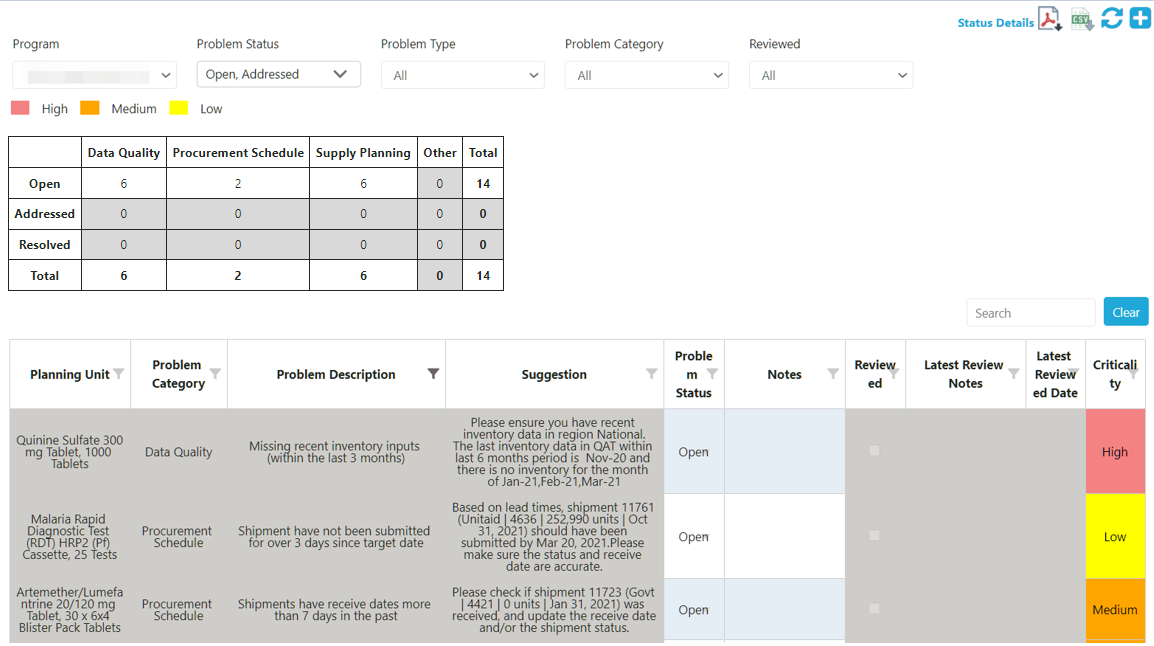 Figure 120: QAT Problem List
Note: Only the Problem associated with the programs that have been downloaded by the user in their local machine will appear in the QAT Problem List. For details on how to download specific programs and versions, refer to the Download Program section of the User Manual.
A1. QAT Problem List Basics
Each Problem that is flagged in the QAT Problem List will have a separate line. This will have the associated planning unit, a description of the problem, a suggestion on how to fix the problem, the problem status, user notes, a checkbox for identifying if the problem has been reviewed, the latest reviewer notes (as applicable), the date it was last reviewed and the criticality.
 Figure 121: Aspects QAT Problem List
QAT Problems can be subdivided into four main categories: Data Quality, Procurement Schedule, Supply Planning, and Other. They are also assigned to different levels of criticality: Low (yellow), Medium (orange), and High (red). The criticality informs users the extent to which a problem affects the quality of the supply plan. However, regardless of criticality, all problems must be “In-compliance” or “Addressed” in the QAT Problem List to be uploaded as a Final Version. There are five main statuses associated with the individual problems in the QAT Problem List:
-
In-Compliance – Issue has been closed through data entry by the user. Status will be automatically changed, and notes are not required.
Example – A planning unit is missing actual consumption in the last 3 months. A user enters actual consumption data for the last 3 months. QAT automatically marks this as 'in-compliance'.
-
Resolved – Issue has been manually marked by reviewer as 'resolved'. The reviewer uses this status if this issue will unlikely be corrected via data entry and also does not require further notes in the future. Only a reviewer can mark an issue as 'resolved'.
Example – A planning unit gets flagged for not following dynamic forecasting. The user enters a note that this planning unit does not follow dynamic forecasting as it is not a seasonal product. The reviewer marks this as resolved because the explanation will most likely not change in the future.
-
Addressed – Issue has been manually marked by either reviewer or user as 'addressed'. The user applies this status when they cannot resolve the issue through data entry. This status must be accompanied by a note. The reviewer uses this status if this issue cannot be resolved in this review period, but will be resolved in the future, most likely in a few periods, rather than before the next review.
Example – A planning unit being phased out only has 8 months of forecasted consumption in the future instead of 18. This is acceptable as it is a phasing out planning unit, but the user will still need to de-activate the planning unit once it is fully phased out, which is why the issue is marked as 'addressed' instead of 'resolved'.
-
Open – This problem has been automatically flagged by QAT, or the problem has been manually marked by the reviewer as ‘Open’. The reviewer could use this status when rejecting a supply plan to indicate that the notes are not accepted.
Example – A user has a planning unit that is missing actual consumption data in the last 3 months. QAT will automatically flag this as 'Open'. If the problem has been 'Addressed' when uploaded and approved, the problem will revert back to the 'Open' status for the next submission.
-
Reviewed - The issue has been reviewed by the supply plan reviewer. This field is only editable by the supply plan reviewer.
A2. Closing and Addressing Problems
-
Closing a problem via data entry: to change an ‘Open’ problem to one that is ‘In-compliance,’ the user will need to complete the suggestion provided in the “Suggestion” column for the specific problem. For example, the suggestion may be to “provide actual consumption” for specific months. Thus, the user will need to:
 Figure 122: Closing a Problem Example
- Navigate to the Consumption Data Entry screen by either clicking directly on the Problem (which will open a new QAT window) or by clicking on Supply Plan Data → Consumption Data.
- From the consumption data entry screen, the user will add actual consumption for the requested months. For instructions on how to add consumption, please refer to Consumption Data.
- Navigate back to the QAT Problem List and click Recalculate to refresh the QAT Problem List to include the most recent addition of actual consumption data. The previously flagged problem should now be “In-compliance” and no longer be flagged by the QAT Problem List.
 Figure 123: QAT Problem List Recalculate/Refresh
 -
Addressing a problem with a comment: If a problem that has been flagged in the QAT Problem List cannot be fixed and made 'In-compliance' through data entry as recommended in the "Suggestion" column, a user can provide a comment and manually change the status to "Addressed." For example, a planning unit may be overstock/understocked and the suggestion to "re-evaluate supply plan to meet the min/max parameters" is presented. If a user is unable to fix this problem via data entry, they will need to address the problem:
- Double-click on the Problem Status dropdown for that problem and choose "Addressed." Users must provide an explanatory note in the Notes column for all problems marked as "Addressed."
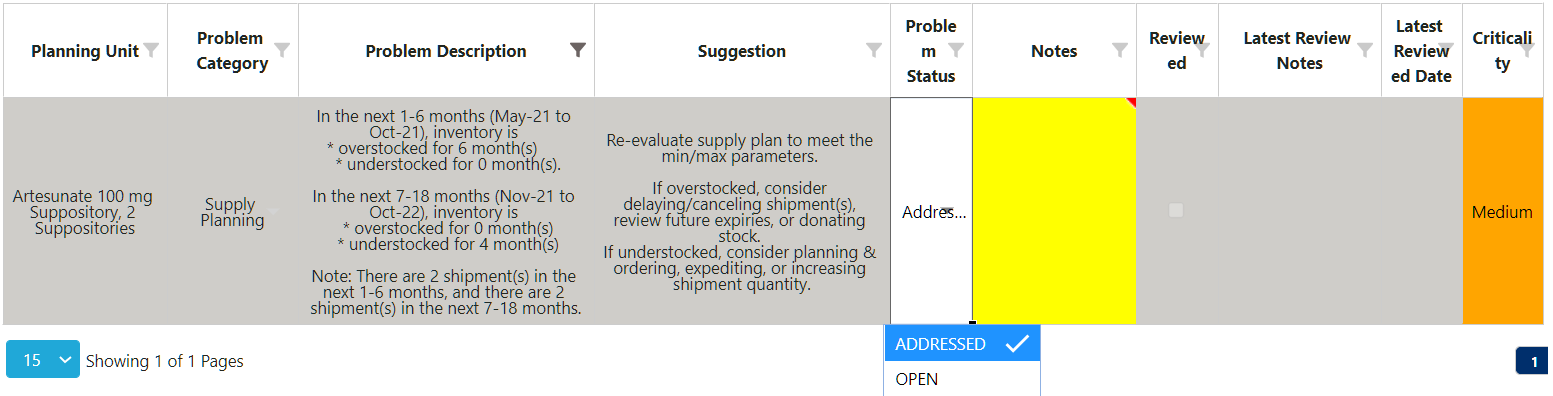 Figure 124: Addressing a Problem & Adding a Note
Note: the user can also see in the "Problem Transaction Details" screen by right clicking on the Problem. This area will show the user past notes, reviewers, dates reviewed, etc.
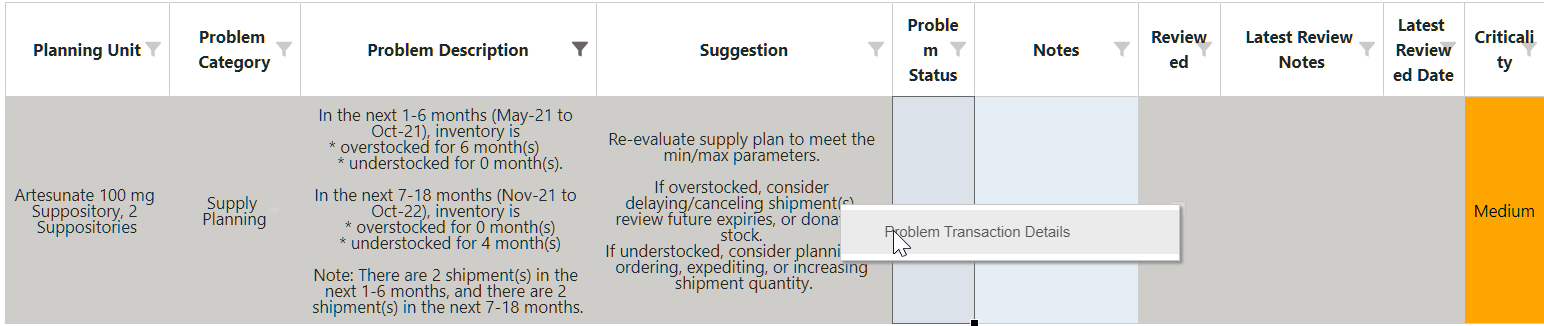 Figure 125: Problem Transaction Right Click
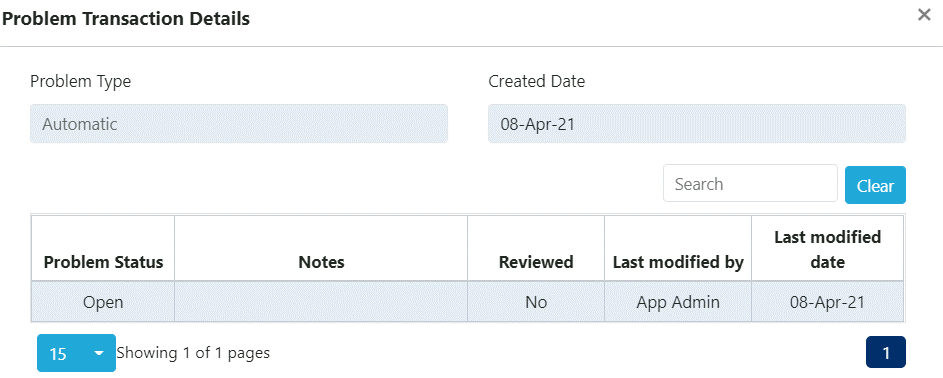 Figure 126: Problem Transaction Details
- Click "Update." The QAT Problem List will now include the most recent addition of explanatory notes and the status.
A3. QAT Problem List: Explanation of Problems
-
Missing recent actual consumption inputs (within the last 3 months) If a planning unit is missing recent actual consumption data inputs within the last three months, it will be flagged in the QAT Problem List. If the inputs are filled in for any of these last three months, whether it is one month or all three months, the problem will not be flagged by the system.
-
Any gaps in the last 6 months (actual consumption) QAT checks if a planning unit is missing a month or multiple months of recent actual consumption inputs between two actual consumption entries in the specified 6-month range. This problem is looking for accidental gaps in actual consumption inputs. If there is any gap in actual consumption data in the past 6 months, the QAT Problem List will flag this as an issue. For example, a user inputs actual consumption for September 2022, December 2022, and January 2023. This will be flagged by the QAT Problem list because there is a gap of missing actual consumption inputs for October 2022 and November 2022.
-
Missing recent inventory inputs (within the last 3 months) If a planning unit is missing recent actual inventory data inputs within the last three months, it will be flagged in the QAT Problem List. If the inputs are filled in for any of these last three months, whether it is one month or all three months, the problem will not be flagged by the system.
-
Supply Plan lacks forecasted consumption within the next 18 months If a planning unit is missing the forecasted consumption inputs for one or more months for a period of 18 months from the current month, QAT will flag it as a problem. QAT will check for gaps to ensure that all of the future 18 months have forecasted consumption values.
Note: If there is a planning unit that is phasing out, it is recommended that the user puts zero as the forecasted consumption, until it is fully phased out, at which point the planning unit will need to be deactivated.
-
Shipments with received dates in the past QAT will check the receive dates of all shipments to see if any are in the past based on the current date. If the receive date for a shipment is in the past, it will be flagged in the QAT Problem List. For example, there is a planning unit with a receive date of December 31st, 2022. As this date is in the past, QAT will flag it, and the user will need to either change the shipment status to “Received” or change the receive date to one that is in the future.
Note: there is a fourteen-day buffer time for QAT to recognize that the shipment receive date is in the past and for the problem to be flagged.
-
Shipments that should have been submitted by the target date QAT will check the estimated shipment dates, which are calculated based on the Program’s pre-defined lead times, to see if there are any shipments with an estimated “Submitted” date in the past. If the estimated shipment submitted date is in the past, it will be flagged in the QAT Problem List. For example, there is a planning unit with a target submitted date of January 15th, 2023. As this date is in the past, QAT will flag it, and the user will need to either change the shipment status to “Submitted” or change the receive date to one that is further in the future. Changing the receive date to one further in the future, will cause QAT to automatically recalculate the target shipment dates. If it is not possible to change the status or receive date, a user many ‘Address’ the problem (see Closing and Addressing Problems).
Note: There is a fourteen-day buffer time for QAT to recognize that the shipment submitted date is in the past and for the problem to be flagged.
-
Dynamic forecasting is not used (for commodity groups Malaria, ARV, VMMC) For any products that belong to the following tracer categories: Malaria, ARV, or VMMC, QAT will check for dynamic forecasting. GHSC-PSM encourages forecasting with dynamic monthly values, in order to show that factors, such as seasonality, program scale-up, or campaigns have been taken into account. If a planning unit from one of these three commodity groups has four consecutive months with static consumption, it will be flagged in the QAT Problem List.
-
Supply Plan does not follow minimum/maximum parameters If a planning unit is overstocked, understocked or stocked out at any point during the next 18 months, it will be flagged in the QAT Problem List. QAT will count the number of months the planning unit is overstocked and understocked, by subdividing it in two different time windows: those months within lead time (1-6 months) and those within the planning window (7-18 months). The QAT Problem List will also denote the number of shipments being received in the next 1-6 months and the next 7-18 months. Stock-outs will be flagged as a separate problem in the QAT Problem List. QAT will directly state which months are stocked out in the subdivided time periods of 1-6 months and 7-18 months. The QAT Problem List will also denote the number of shipments being received in the next 1-6 months and the next 7-18 months.
Plan by MOS: Overstocked is defined by MOS > Maximum MOS. Understocked is defined by MOS < Minimum MOS. See below for an example of a problem and the accompanying supply plan graph:
Flagged in Feb 2021
In the next 1-6 months (Mar 21 - Aug 21), inventory is...
understocked for 2 month(s)
overstocked for 1 month(s)
In the next 7-18 months (Sep 21 - Aug 22), inventory is...
understocked for 0 month(s)
overstocked for 3 month(s)
Note: There are 2 shipment(s) in the next 1-6 months, and
there are 3 shipment(s) in the next 7-18 months.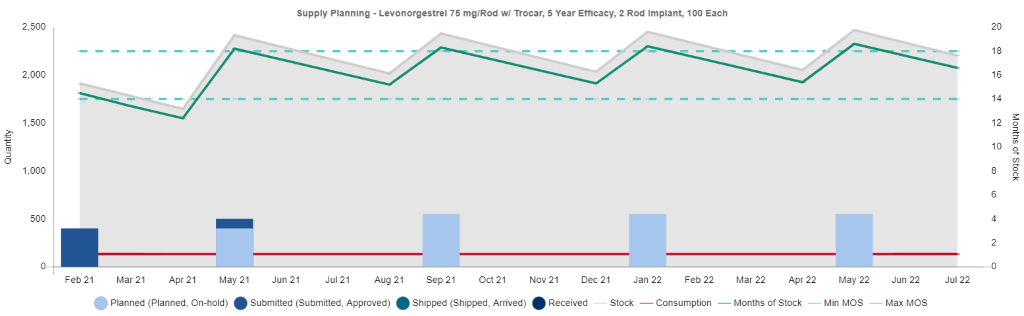 Figure 127: Supply Plan does not follow min/max MOS parameter example
Note: If the MOS value for a given month is “N/A”, then all such instances are excluded while calculating the overstocked, understocked or stocked out problems.
Plan by Quantity Example: Overstocked is defined by Ending Balance Quantity > Maximum Quantity. Understocked is defined by Ending Balance Quantity < Minimum Quantity. Note that QAT will only flag the overstock if this overstock occurs more than distribution lead time in a row (e.g. if lead time is 2 months, then QAT flags if there is an overstock more than 2 months in a row - but won’t flag the problem if the overstock every other month). See below for an example of a problem and the accompanying supply plan graph:
Flagged in Feb 2021 (Distribution lead time is 1 month)
In the next 1-6 months (Mar-23 to Aug-23), inventory is...
* over the max stock qty + distribution lead time for 1 month(s)
* under the min stock qty for 0 month(s)
In the next 7-18 months (Sep-23 to Aug-24), inventory is...
* over the max stock qty + distribution lead time for 6 month(s)
* under the min stock qty for 0 month(s)
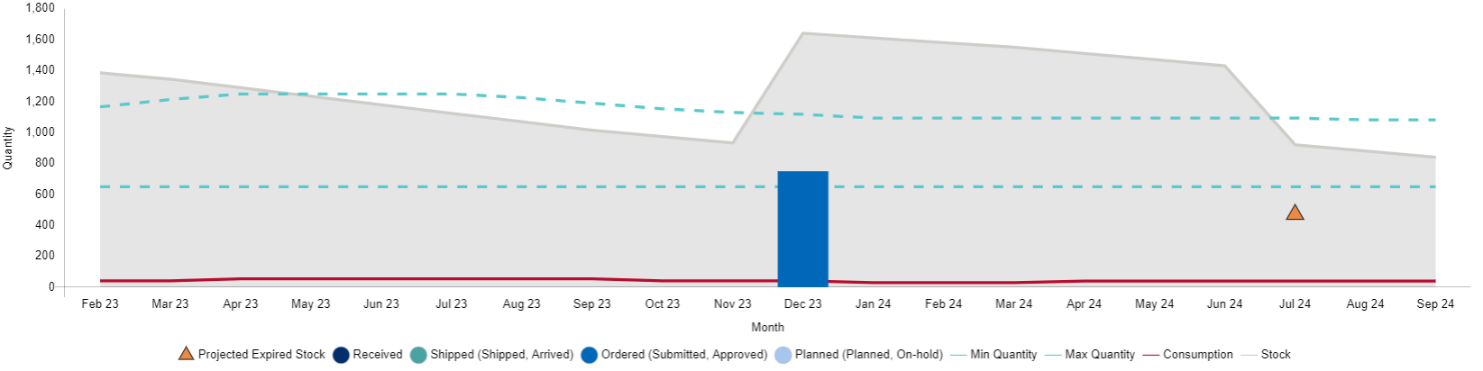 Figure 128: Supply Plan does not follow min/max quantity parameter example
 -
Other – Manual These are specific questions or clarifications manually entered by the supply plan reviewer that are not automatically flagged by QAT. These problems could be items that supply plan reviewer wants addressed that quarter before finalizing or a reminder for the next quarterly submission. The problem description, suggestion, and the criticality are determined by the supply plan reviewer.
B. Program Catalog
Purpose: to view a standardized list of all the planning units and forecasting units in a QAT program and their corresponding attributes.
- Accessible to: Realm Admins, Program Admins, Report Viewers, and Program Users
- Navigation: Reports ➔ Program Catalog
- Notes: A user may select all Planning Unit Categories and Tracer Categories, or they may choose a specific category for viewing. If a user would like to add a planning unit that does not appear in the Program Catalog Report, please refer to Tickets for Adding/Updating Users and Master Data.
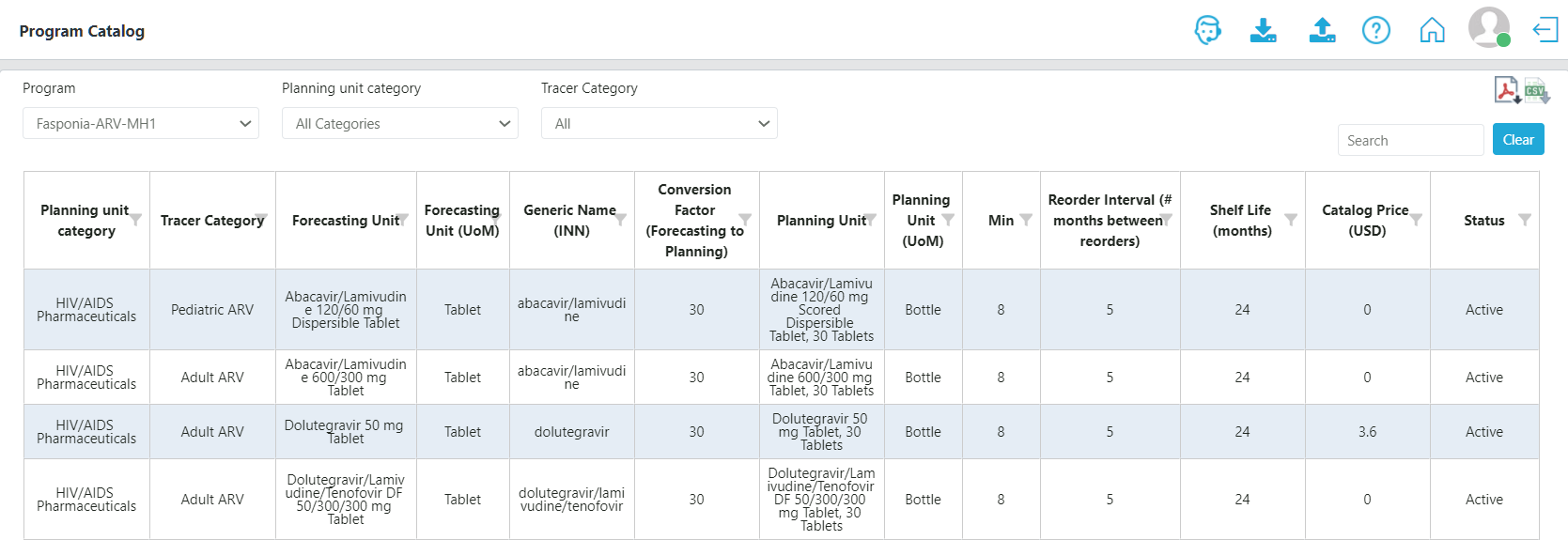 Figure 129: Program Catalog Report
C. Stock Status Reports
C1. Stock Status Over Time
Purpose: to compare one or more products and their inventory-levels across a period time.
- Accessible to: Realm Admins, Program Admins, Report Viewers, and Program Users
- Navigation: Reports ➔ Stock Status ➔ Stock Status Over Time
- Notes: The Planning Unit can be single, multi-select, or select all. The “Select All ” option may not be advantageous if the program has many planning units, as the graph will not be able to decern the individual lines on the graph. We suggest choosing less than ten products at once. Specifically, this report can be useful to compare categories.
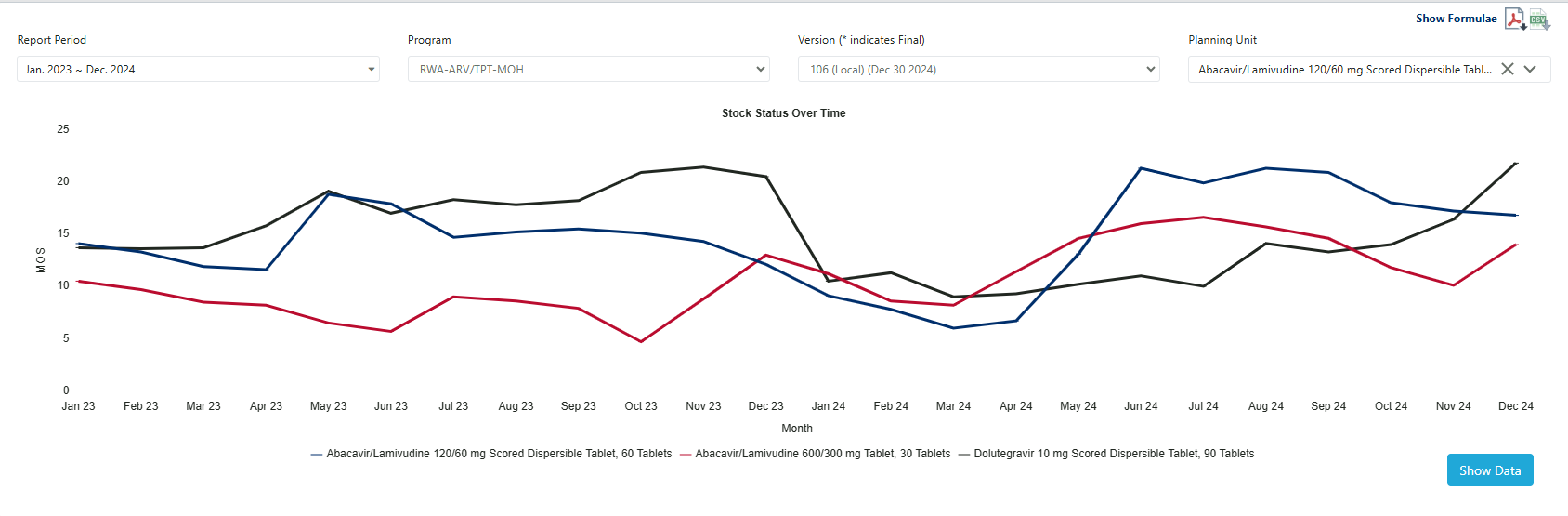 Figure 130: Stock Status Over Time Report
C2. Stock Status Matrix
Purpose: to provide a quick snapshot of the months of stock across time in an easy-to-read table format.
- Accessible to: Realm Admins, Program Admins, Report Viewers and Program Users
- Navigation: Reports ➔ Stock Status ➔ Stock Status Matrix
- Notes:
- One row is shown for every planning unit & year combination, based on what’s selected in the top filters.
- QAT will display the MOS or quantity for each planning unit based on whether the product is planned by quantity or MOS, as selected in the Update Planning Units screen (see Section 4.A2).
- Colors corresponds to the stock levels during that particular month:
- Red – Stocked Out
- Orange – Under Stocked
- Green – Stocked to Plan
- Yellow – Over Stocked
- Grey – N/A (QAT is unable to calculate the value due to missing data)
- Although the CSVs does not export the conditionally formatted colors, the PDF contains the colors and users may copy and paste the table to keep all the colors and formatting.
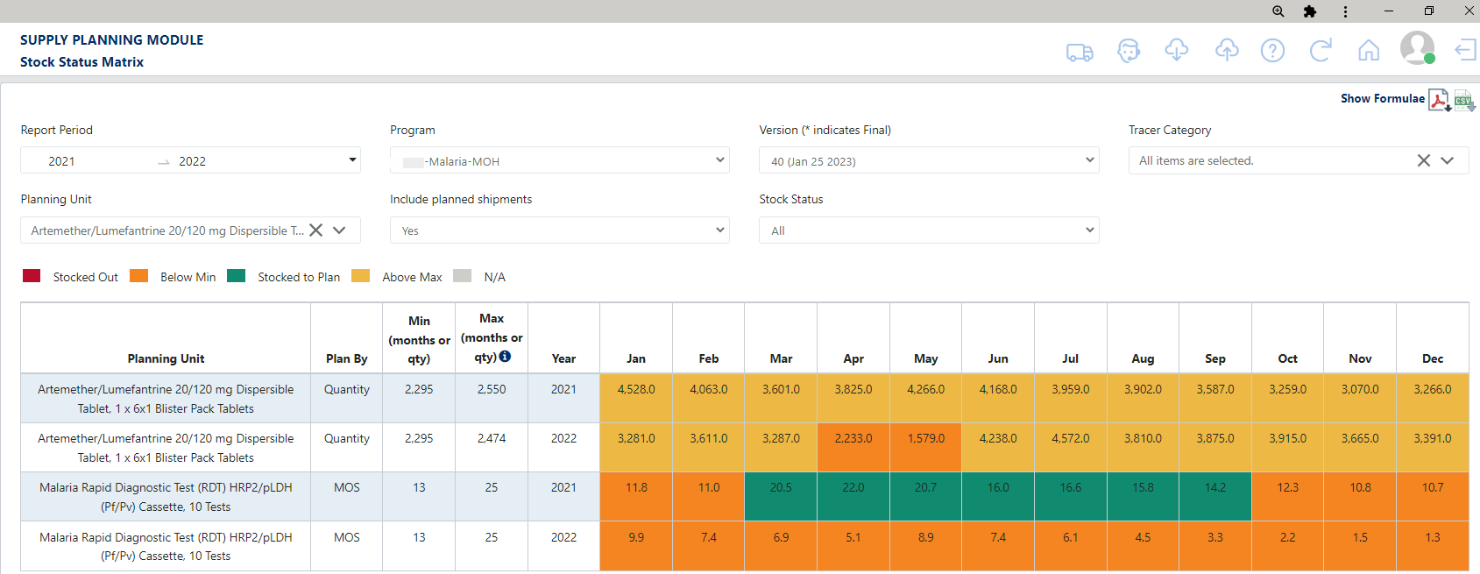 Figure 131: Stock Status Snapshot Report
C3. Stock Status Snapshot
Purpose: to give a high-level view of a program’s stock status across planning units at a single point in time (one month).
- Accessible to: Realm Admins, Program Admins, Report Viewers, and Program Users
- Navigation: Reports ➔ Stock Status ➔ Stock Status Snapshot
- Notes:
- The various color corresponds to the stock levels during that particular month:
- Red – Stocked Out
- Orange – Under Stocked
- Green – Stocked to Plan
- Yellow – Over Stocked
- Grey – N/A (QAT is unable to calculate the value due to missing data)
- Although the PDF and CSV do not export the conditionally formatted colors, users may copy and paste the table to keep all the colors and formatting.
- The various color corresponds to the stock levels during that particular month:
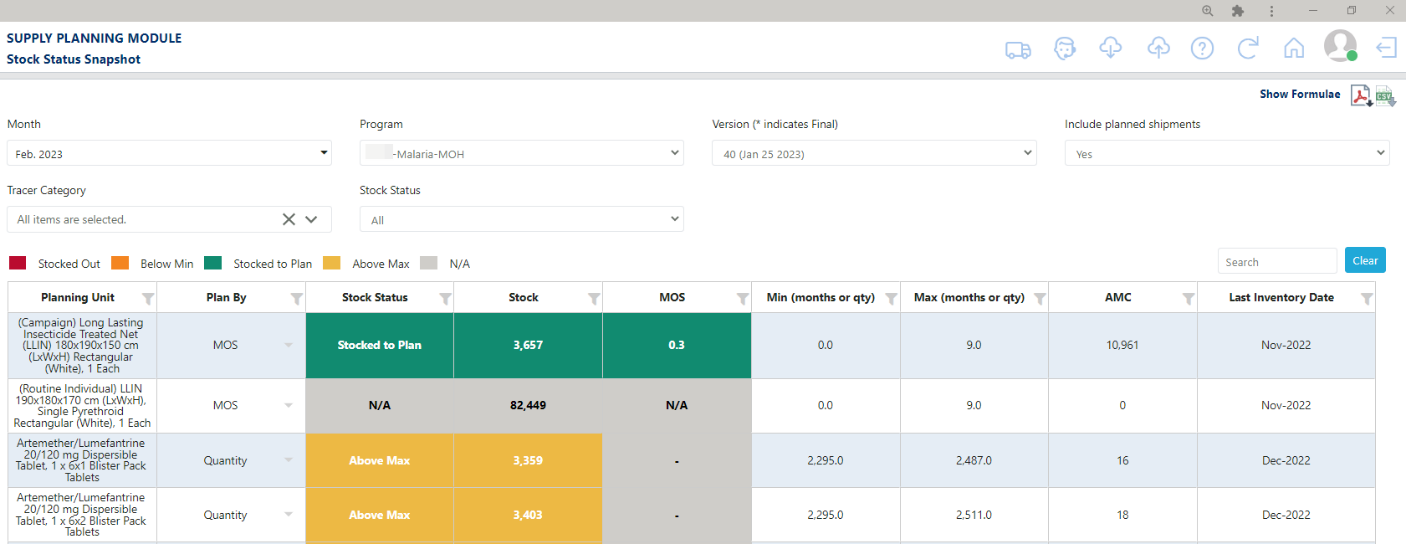 Figure 132: Stock Status Snapshot Report
C4. Stock Status Snapshot (Global)
Purpose: to give a high-level view of a program’s stock status across planning units at a single point in time (one month) for multiple programs.
- Accessible to: Realm Admins, Program Admins, Program Users, and Report Viewers
- Navigation: Reports ➔ Stock Status ➔ Stock Status Snapshot (Global)
- Notes:
- The various color corresponds to the stock levels during that particular month:
- Red – Stocked Out
- Orange – Under Stocked
- Green – Stocked to Plan
- Yellow – Over Stocked
- Although the PDF and CSV do not export the conditionally formatted colors, users may copy and paste the table to keep all the colors and formatting.
- The various color corresponds to the stock levels during that particular month:
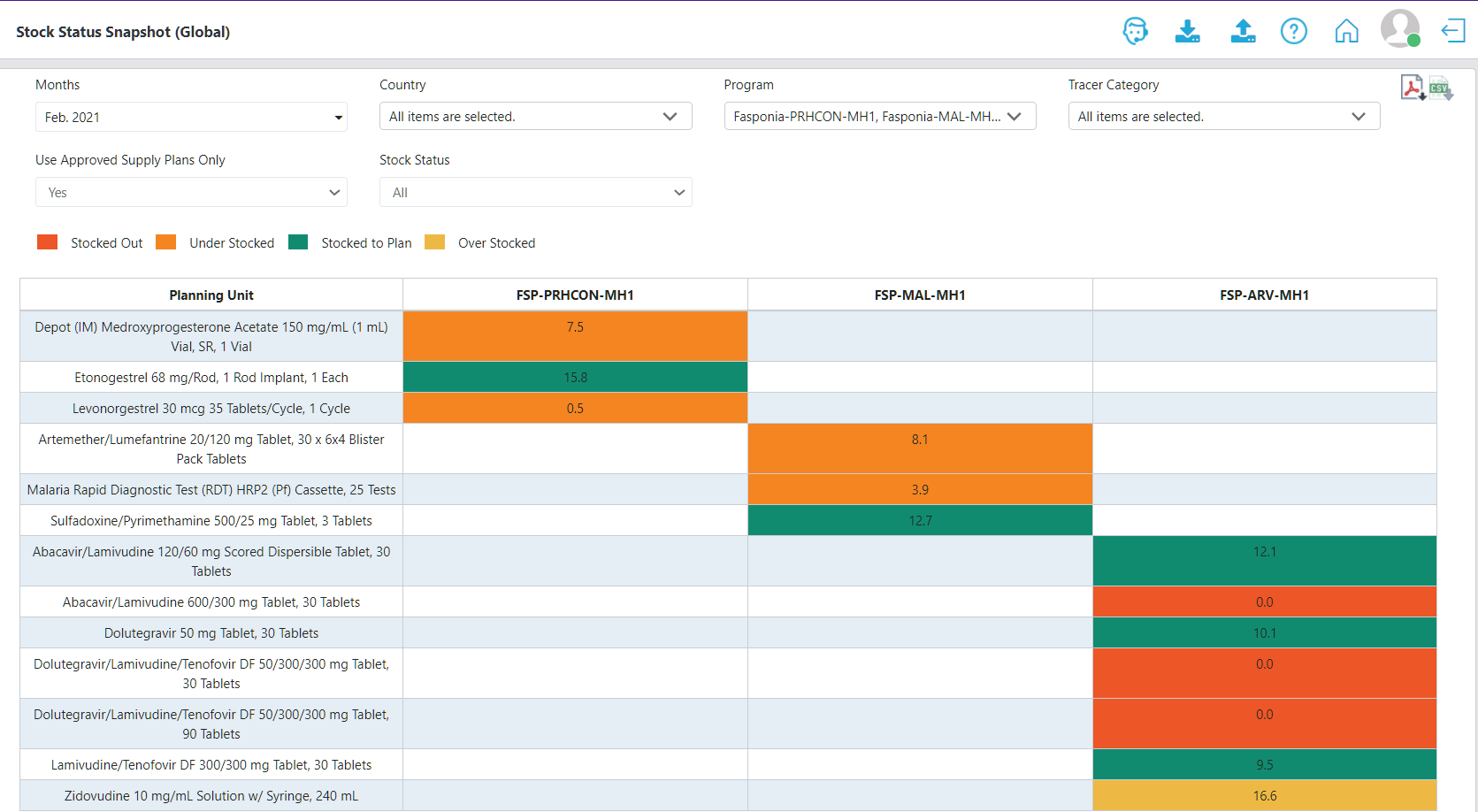 Figure 133: Stock Status Snapshot (Global) Report
D. Consumption Reports
DI. Consumption (Global)
Purpose: to visually show the consumption of a planning unit or multiple planning units across countries.
- Accessible to: Realm Admins, Program Admins, Program Users, and Report Viewers
- Navigation: Reports ➔ Consumption Reports ➔ Consumption (Global)
- Notes:
- The various colors stacked in the horizontal bars represent different countries. Users can determine which country by referencing the graph legend.
- The x-axis corresponds to the consumption quantity (in millions) for each country.
- Notes:
D2. Forecast Error (Monthly)
Purpose: to visually show forecast accuracy using the weighted average percent error (WAPE) method, over time, while viewing the forecasted consumption against the actual consumption.
- Accessible to: Realm Admins, Program Admins, Report Viewers, and Program Users
- Navigation: Reports ➔ Consumption Reports ➔ Forecast Error (Monthly)
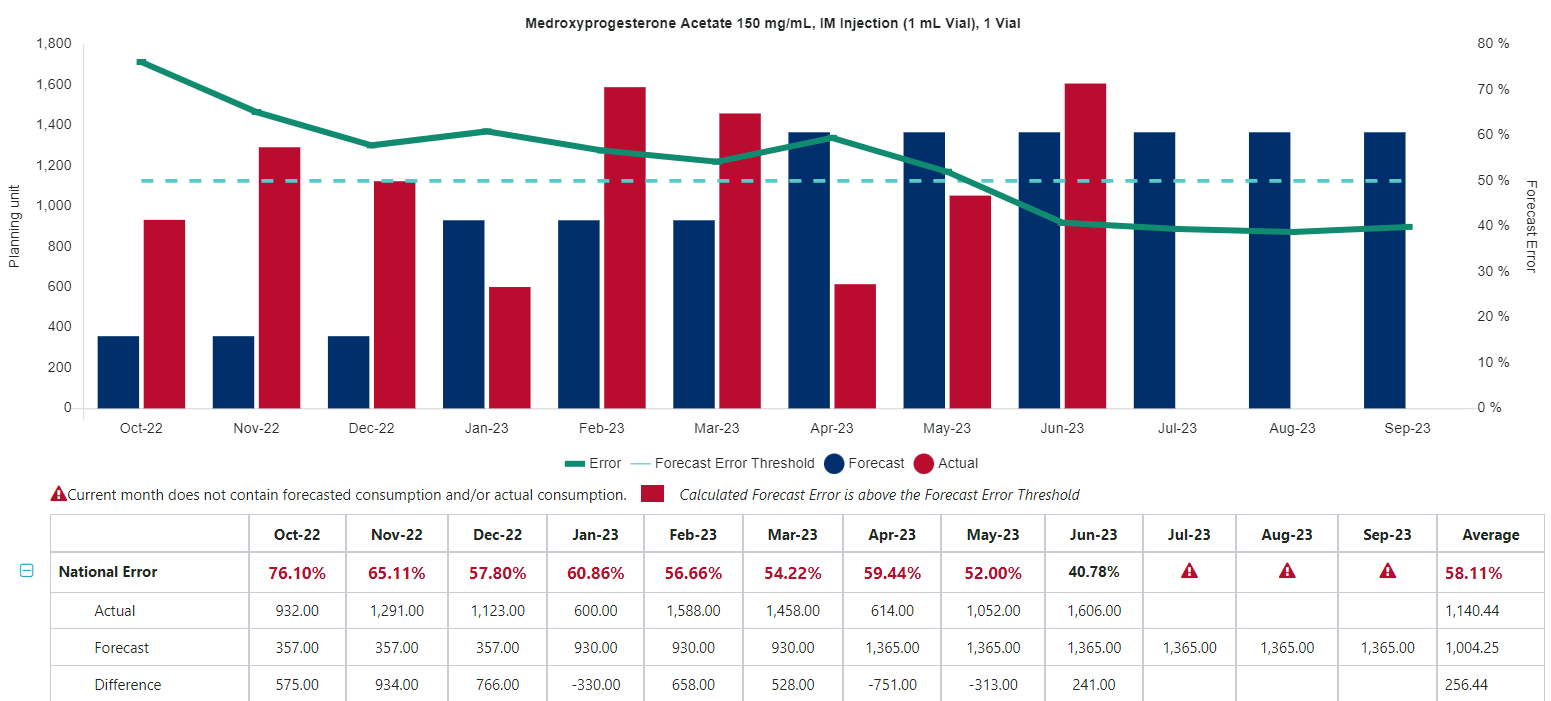 Figure 135: Forecast Error (Monthly) Report
- Notes:
- In the graph, the red vertical bars represent the actual consumption, the blue vertical bars represents the forecasted consumption, the green line (which uses the right axis), represents the forecast error, and the turquoise dotted line represents the forecast error threshold (see Figure 115: Forecast Error (Monthly) Report).
- The forecast error threshold (%) per planning unit is set by the Program Admin in the Update Planning Units screen. If a forecast error is above the set forecast error threshold (%), it will appear in red text in the data table.
- The Report View can be viewed in multiple ways:
- Forecasting unit. A user may want to choose forecasting unit when comparing in base units, such as with medicines that have different bottle sizes (planning units) sharing the same forecasting unit (e.g. the antiretroviral TLD30 vs TLD90 - See Figure 116.)
- Equivalency Unit: A user may want to choose forecasting unit when comparing products with different forecasting units, but some programmatic link (e.g. malaria treatments AL 6x1 vs 6x2 – see Figure 117.)
- “Show consumption adjusted for stock out?”: If this checkbox is checked, QAT uses the adjusted actual consumption instead of the actual consumption. QAT calculates the total days in the month based on the calendar.
- Missing Data:
- If data is missing for either forecasted or actual consumption, there will be a missing segment of the line or a missing bar in the graph
- If there is missing data for actual or forecasted consumption, it will not be possible to calculate the forecast error and the user may see a gap in the line graph
- Formula: Forecast Error uses the Weighted Average Percent Error (WAPE) formula. The example below uses the time windows of 6 months.
- Time Window: For non-seasonal products with predictable consumption pattern, use a short time window, but consider using a longer time window for those products with a more variable consumption or those with seasonality (use a time window at least long enough to consider the entire season).
- For more details on the logic QAT uses to calculate this report, see the “Show Formulae” in the tool.

Figure 136: WAPE Formula with 6-month time window as example
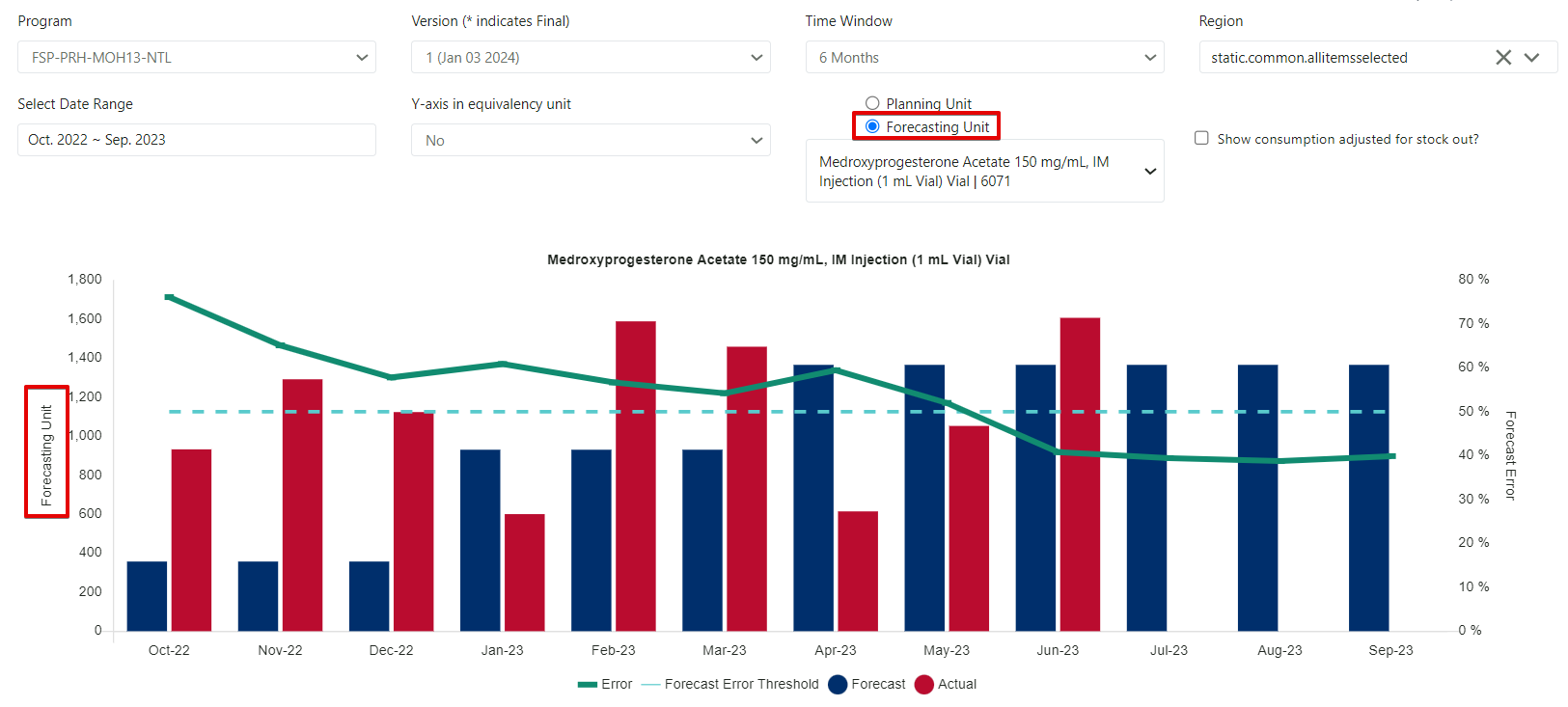 Figure 137: Forecast Error (Monthly) Report – displayed by forecasting unit
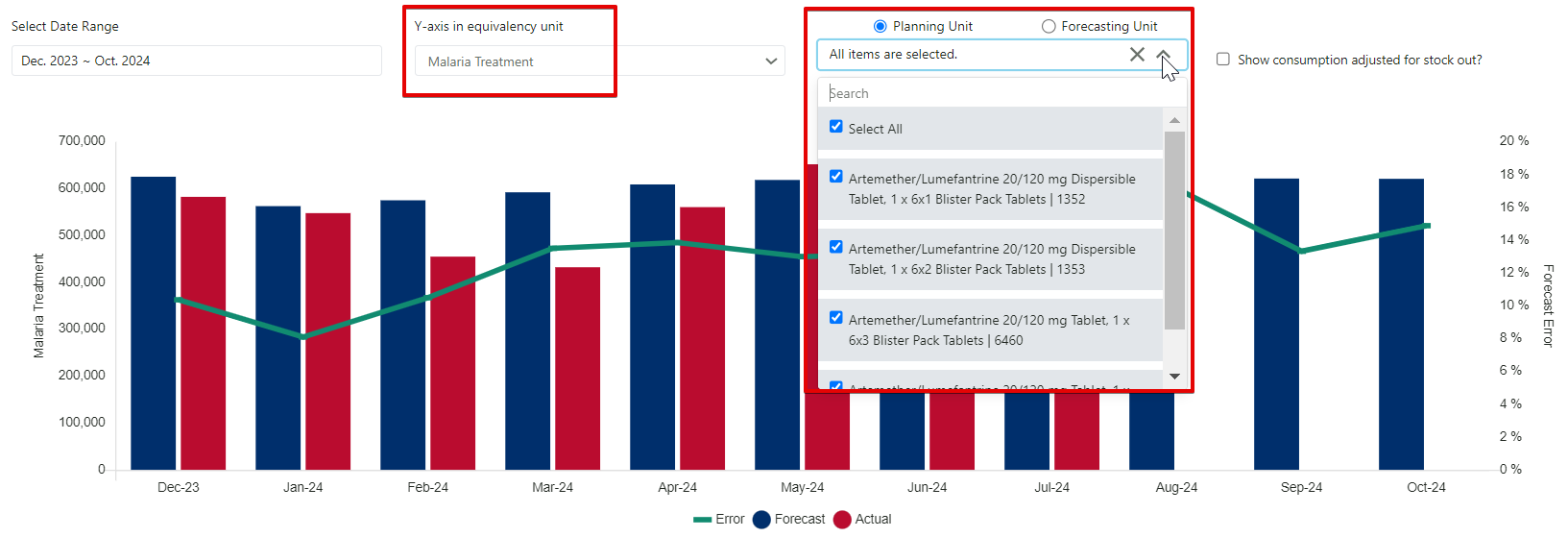 Figure 138: Forecast Error (Monthly) Report – displayed by equivalency unit
D3. Forecast Error (by Planning Unit)
Purpose: to assess forecast accuracy for selected products during a specific month across countries and programs.
- Accessible to: Realm Admins, Program Admins, Report Viewers, and Program Users
- Navigation: Reports ➔ Consumption Reports ➔ Forecast Error (by Planning Unit)
- Notes:
- For the time window, non-seasonal products with predictable consumption pattern can have a short time window, but those that have a more variable consumption/those with seasons should have a long-time window, or at least long enough to consider the entire season.
- In the table, the forecast error percentages that are above the forecast error threshold (%), set by a Program Admin in the Update Planning Units screen, will be highlighted red
- If there is missing data for actual or forecasted consumption, it will not be possible to calculate the forecast error and the user will see an error message in the table.
- Forecast Error uses the Weighted Average Percent Error (WAPE) formula:
- Notes:
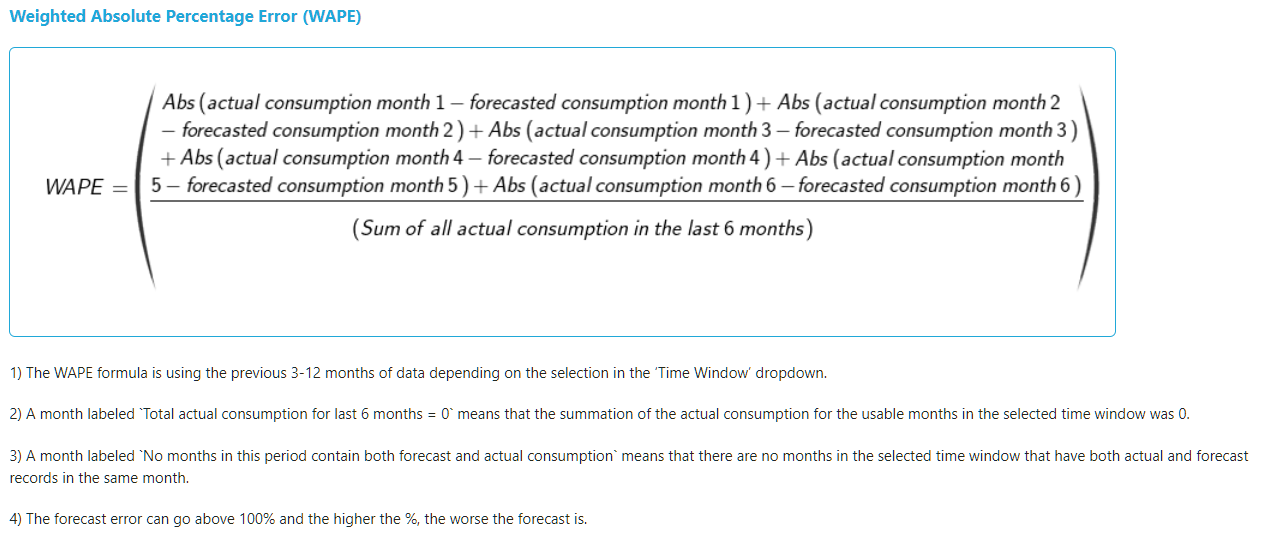
Figure 139: WAPE Formula
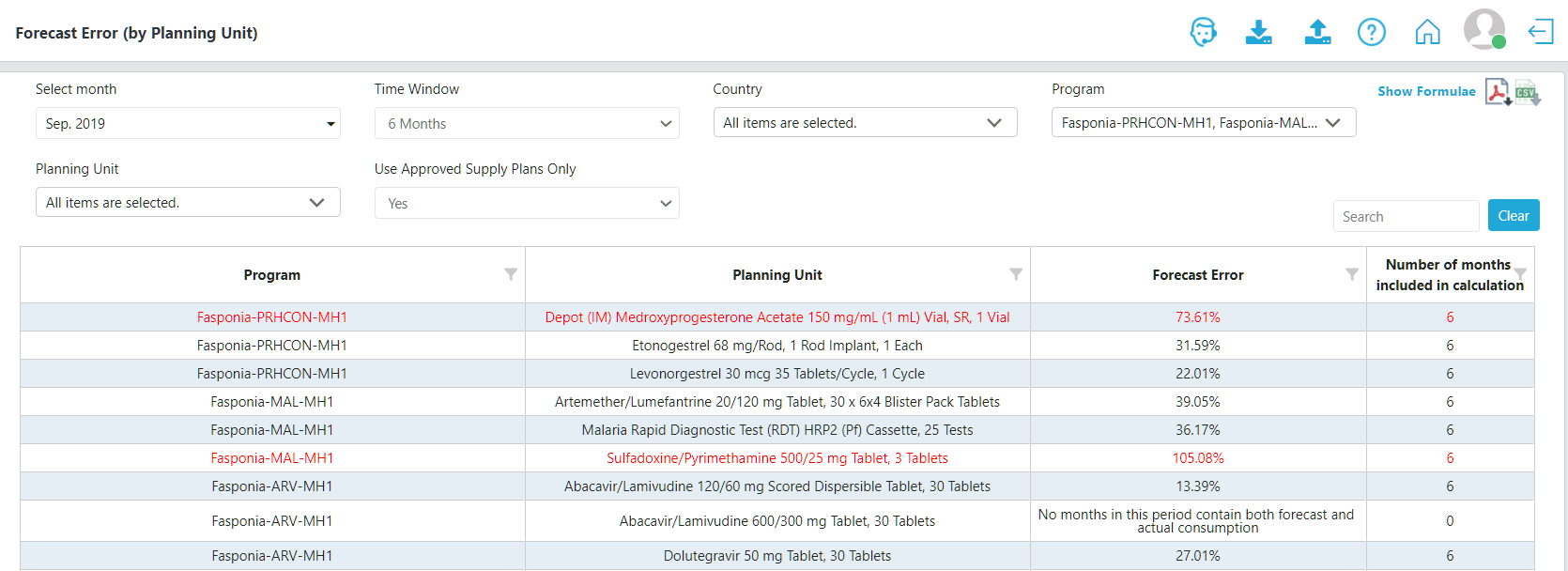 Figure 140: Forecast Error (by Planning Unit) Report
E. Shipment Reports
EI. Shipment (Global)
Purpose: to aggregate procurement quantities by funding source, procurement agent, and procurement agent type across all countries and programs.
- Accessible to: Realm Admins, Program Admins, Program Users, and Report Viewers
- Navigation: Reports ➔ Shipment Reports ➔ Shipments (Global)
- Notes:
- The two graphs that appear first in the Shipments (Global) Report depict the aggregated quantity of shipments per country and cost of the shipments (in USD) per funding source for a single planning unit. For a tabular view of the data, the user may find details in the bottom two tables.
- If a country does not procure the selected planning unit, it will not appear in the graph of the tables in the report.
- Notes:
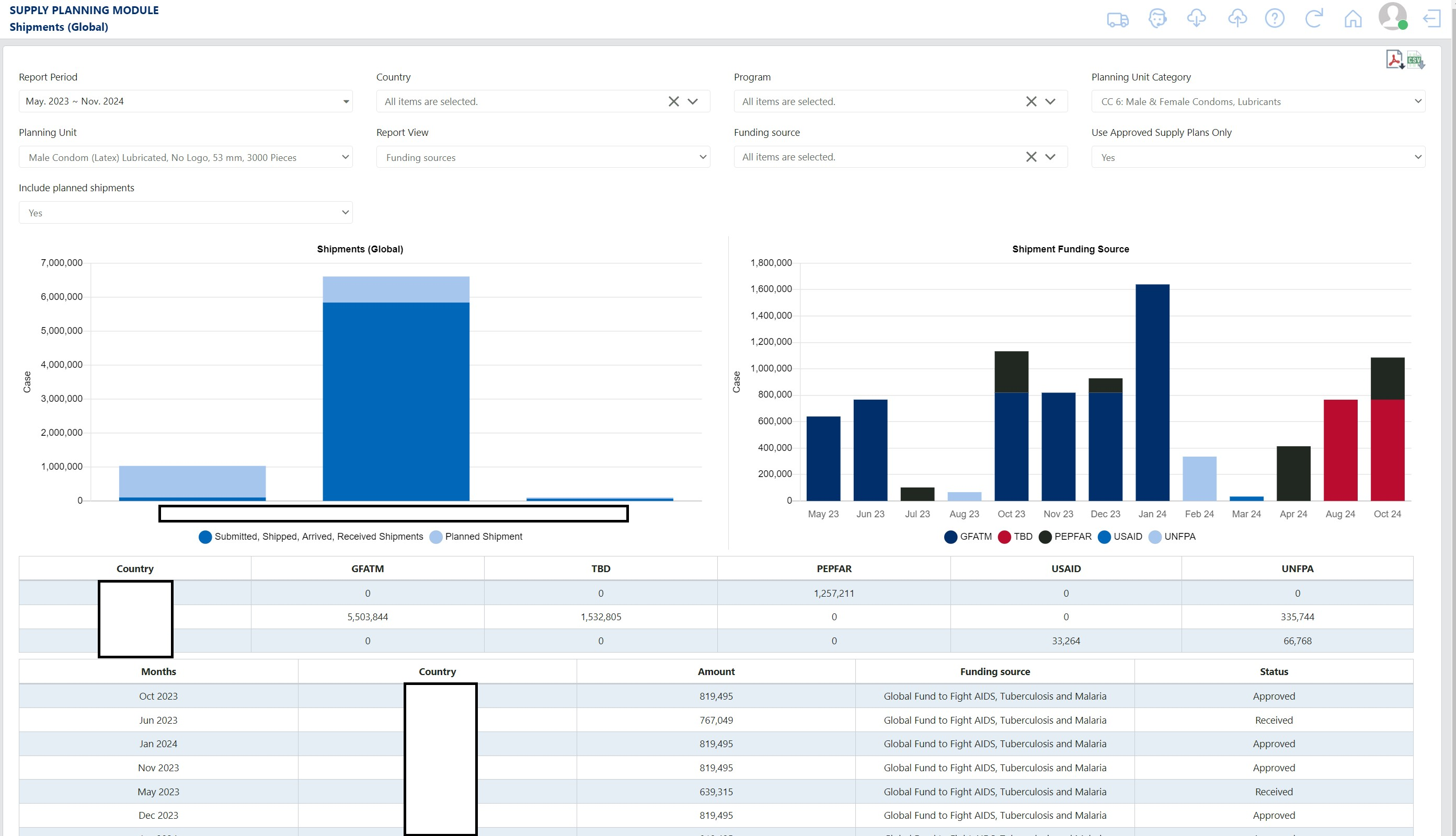 Figure 141: Shipment (Global) Report
E2. Shipment Overview
Purpose: to aggregate procurement quantities by funding source or by procurement agent type across all countries and programs.
- Accessible to: Realm Admins, Program Admins/Users, and Report Viewers
- Navigation: Reports → Shipment Reports → Shipment Overview
- Notes:
- Once navigating to the Shipment Overview screen, Users will see dropdowns in which they must fill out to show specific data. Once selecting certain dropdowns or all, users are shown a graph and a pie chart. The graph that appears first in the Shipments Overview Report depicts the aggregated quantity of shipments across countries and cost (in USD) of the shipments per funding source across planning units. The pie chart shows percentages of Funding Source depending on user selections while also being able to hover over to see the total amount (in USD). Users may also choose to group the data by Procurement Agent Type or Funding Source Type. For a tabular view of the data, the user may find details in the bottom table.
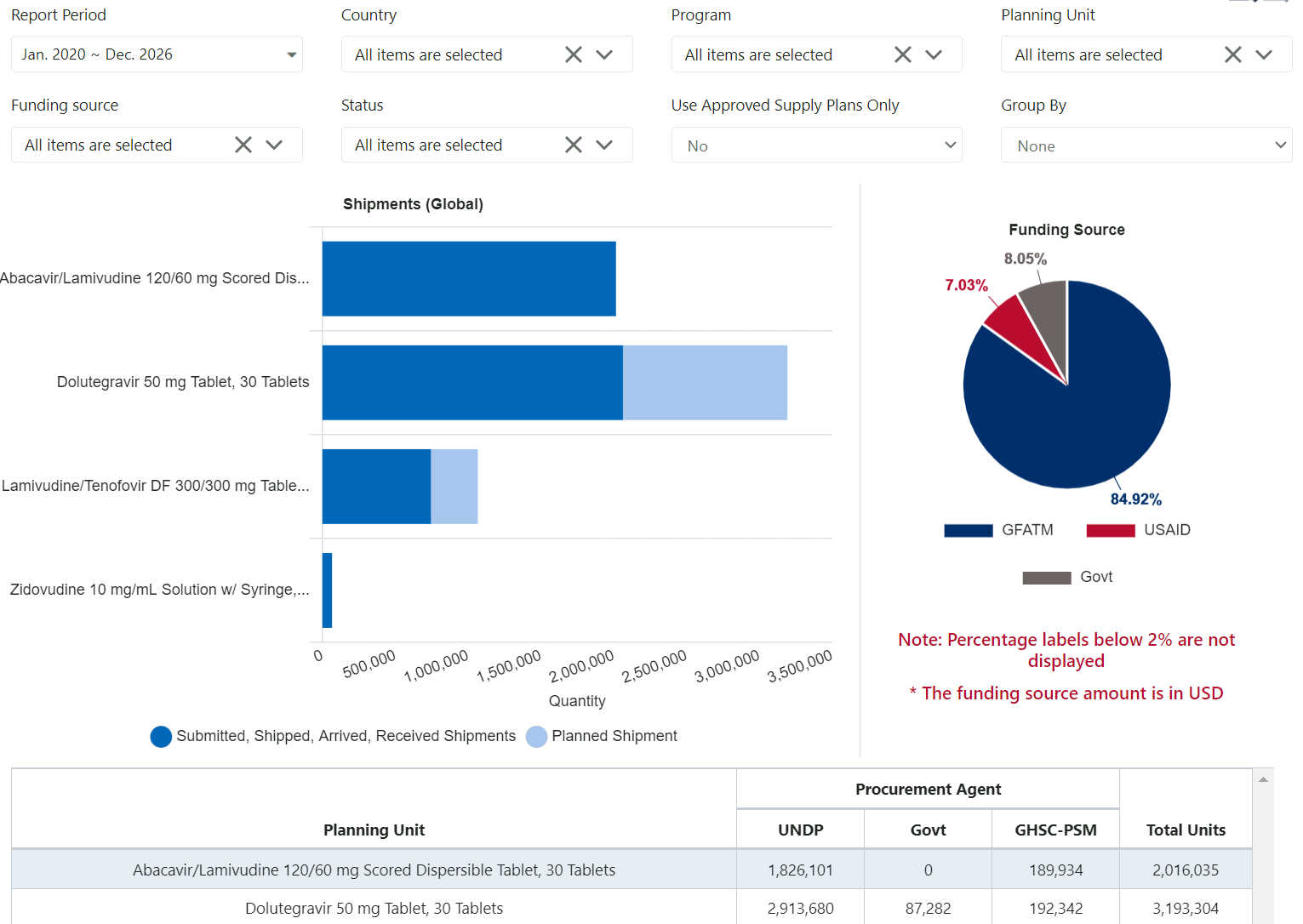 Figure 142: Shipment Overview Report
E3. Shipment Details
Purpose: to provide a comprehensive view of all shipments for a program.
- Accessible to: Realm Admins, Program Admins, Report Viewers, and Program Users
- Navigation: Reports → Shipment Reports → Shipment Details
- Notes:
- The top graphs shows total USD per month by shipment status
- There are two tables below the graph: the first one provides a summary and the second one provides detailed information on shipments.
- The summary table shows the total number of shipments, and total costs per funding source, for the selected time period.
- The detailed table contains the shipments disaggregated by planning unit, etc.
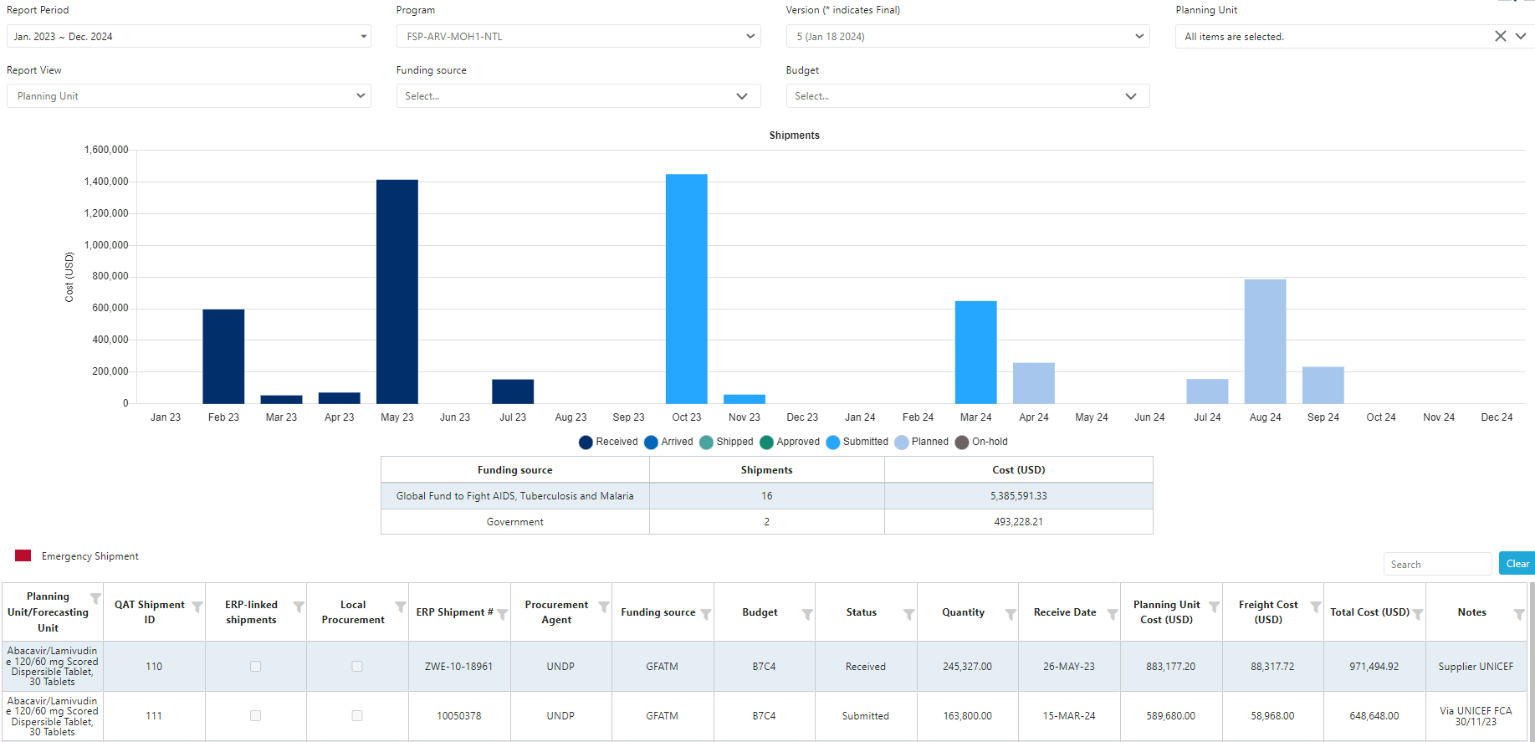 Figure 143: Shipment Details Report
E4. Shipment Cost Details
Purpose: to provide a simple view of all shipments for a program and their total costs.
- Accessible to: Realm Admins, Program Admins, Report Viewers, and Program Users
- Navigation: Reports → Shipment Reports → Shipment Cost Details
- Notes:
- Can be displayed by funding source, procurement agent, or planning unit.
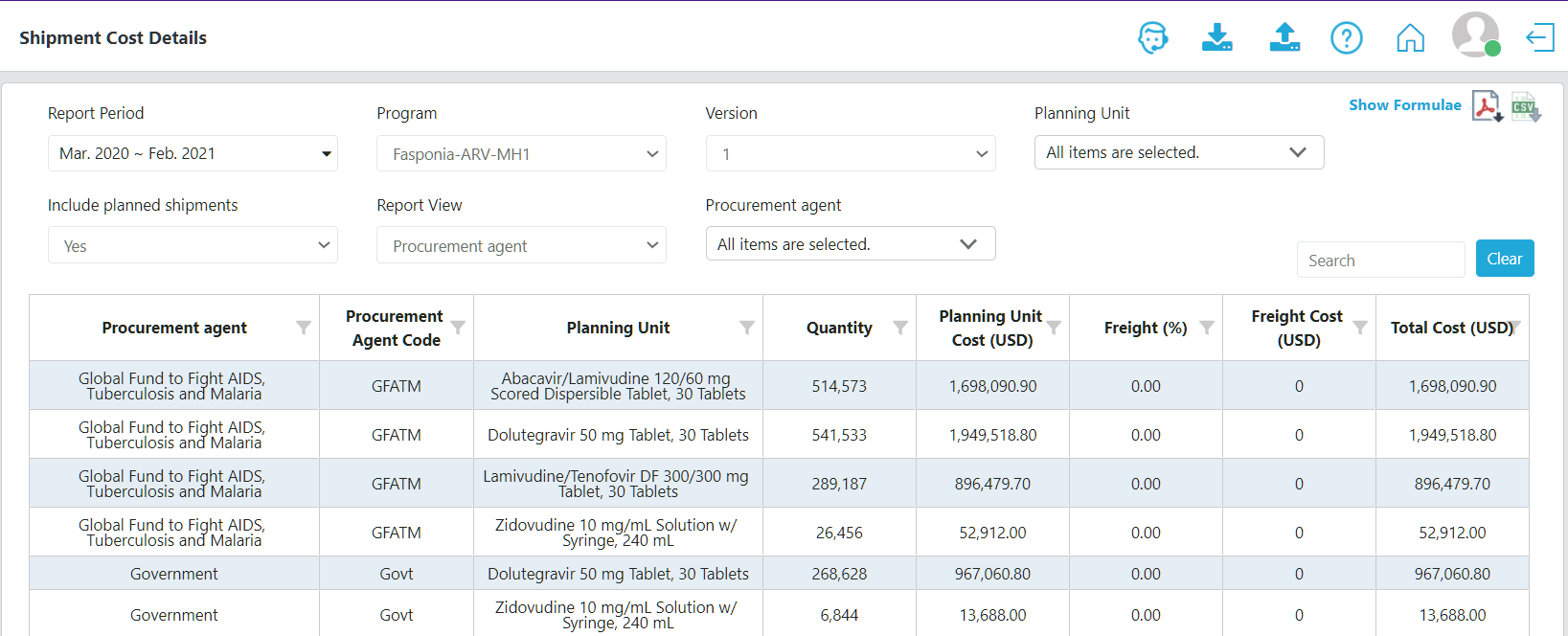 Figure 144: Shipment Cost Details Report
E5. Shipment Cost Overview
Purpose: to provide a general view of the total shipment costs per calendar year for a program and planning unit, by funding source.
- Accessible to: Realm Admins, Program Admins, Report Viewers, and Program Users
- Navigation: Reports → Shipment Reports → Shipment Cost Overview
- Notes:
- This report can be viewed in PDF or Excel (CSV) format
- This report can be based on either the shipment receive date, or the shipment submitted date
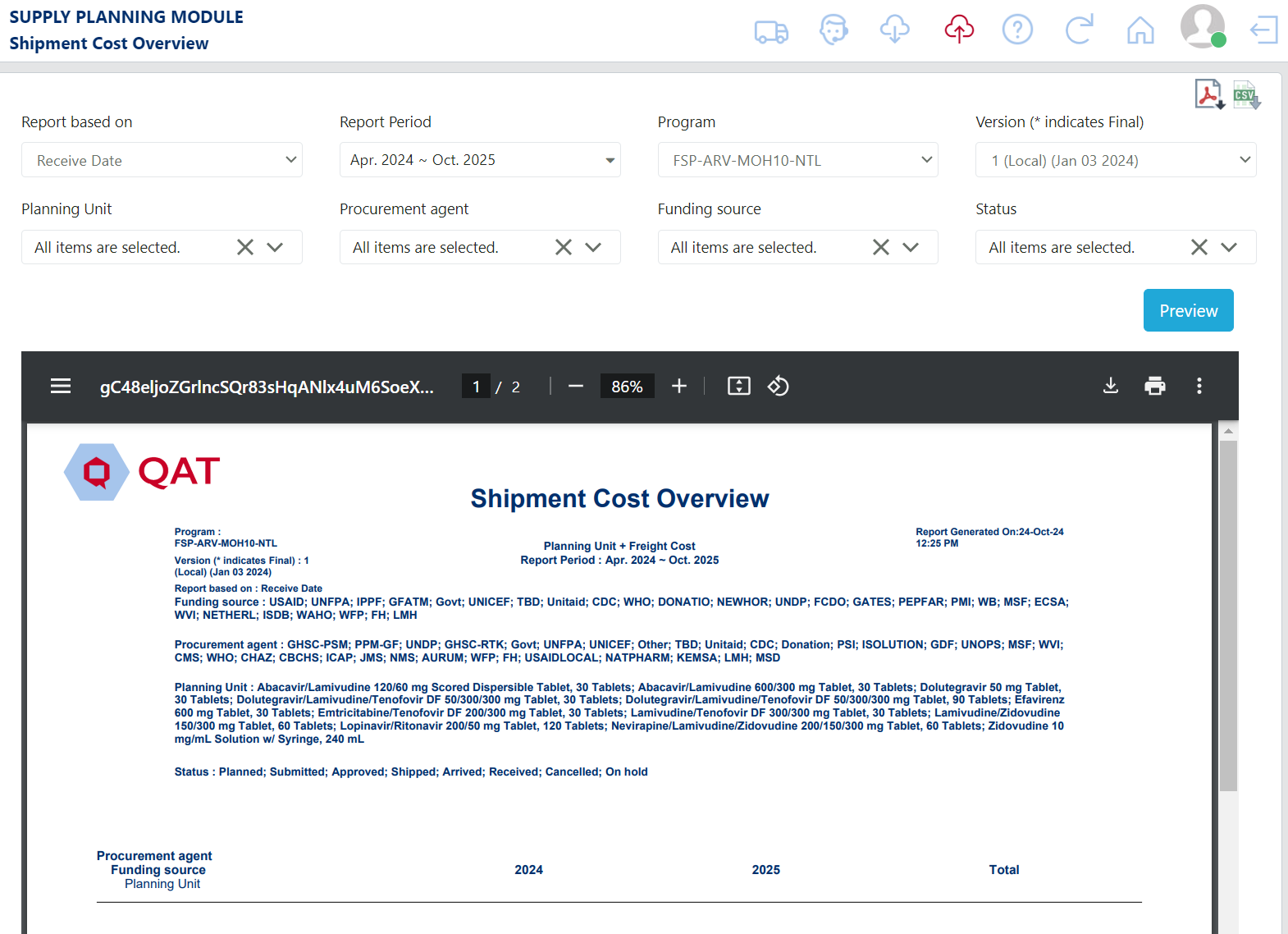 Figure 145: Shipment Cost Overview Report
E6. Budget
Purpose: to show the different budgets assigned to a program(s), the amounts allocated to shipments, the amount overspent (if applicable), and estimated amounts remaining. This program dropdown in this report is multi-select since multiple programs can share the same budget.
- Accessible to: Realm Admins, Program Admins, Report Viewers, and Program Users
- Navigation: Reports → Shipment Reports → Budget
- Notes:
- The graph shows every predefined Budget in a program and whether it is allocated to shipments (planned or ordered) and the remaining amount.
- The tabular view of the graph also provides information on the funding source for each budget, start and end date, and other detailed information.
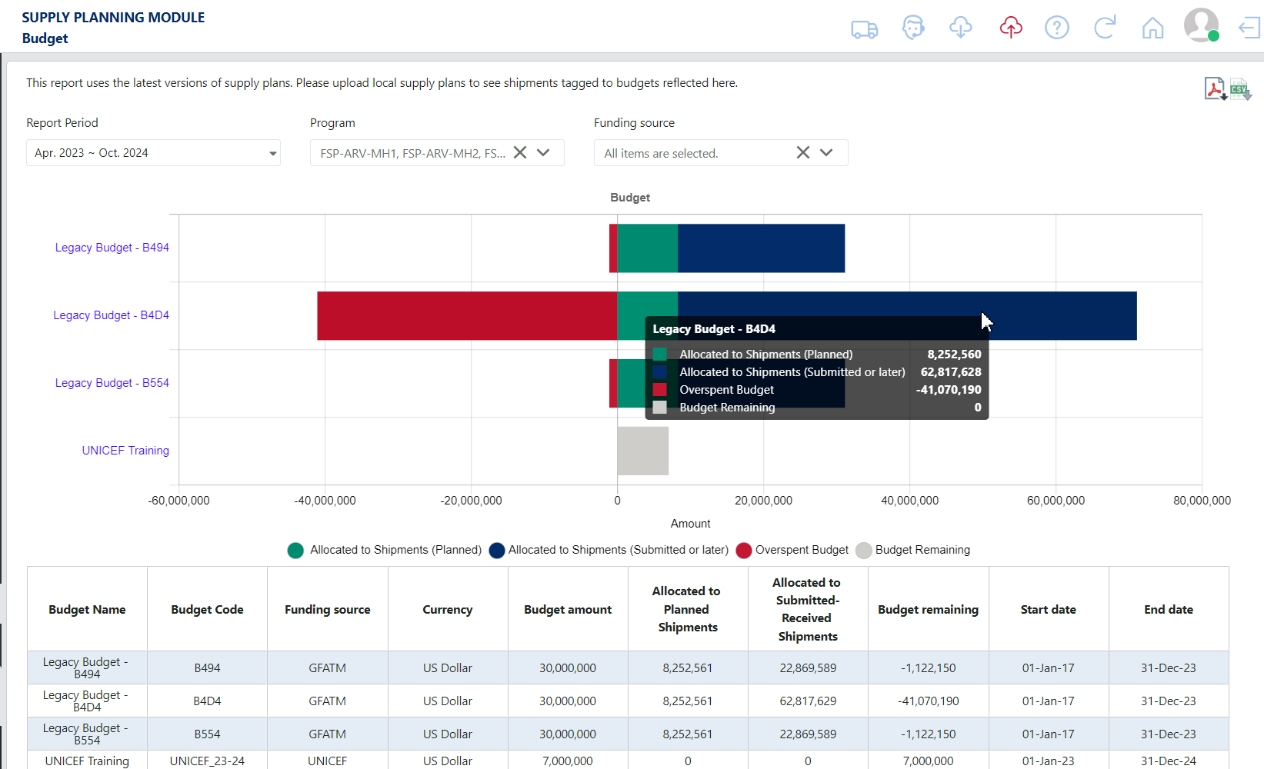 Figure 146: Budget Report
E7. Procurement Agent Lead Time
Purpose: to show the detailed lead times (in months) for all planning units, by procurement agent.
- Accessible to: Realm Admins, Program Admins, Report Viewers, and Program Users
- Navigation: Reports → Shipment Reports → Procurement Agent Lead Time
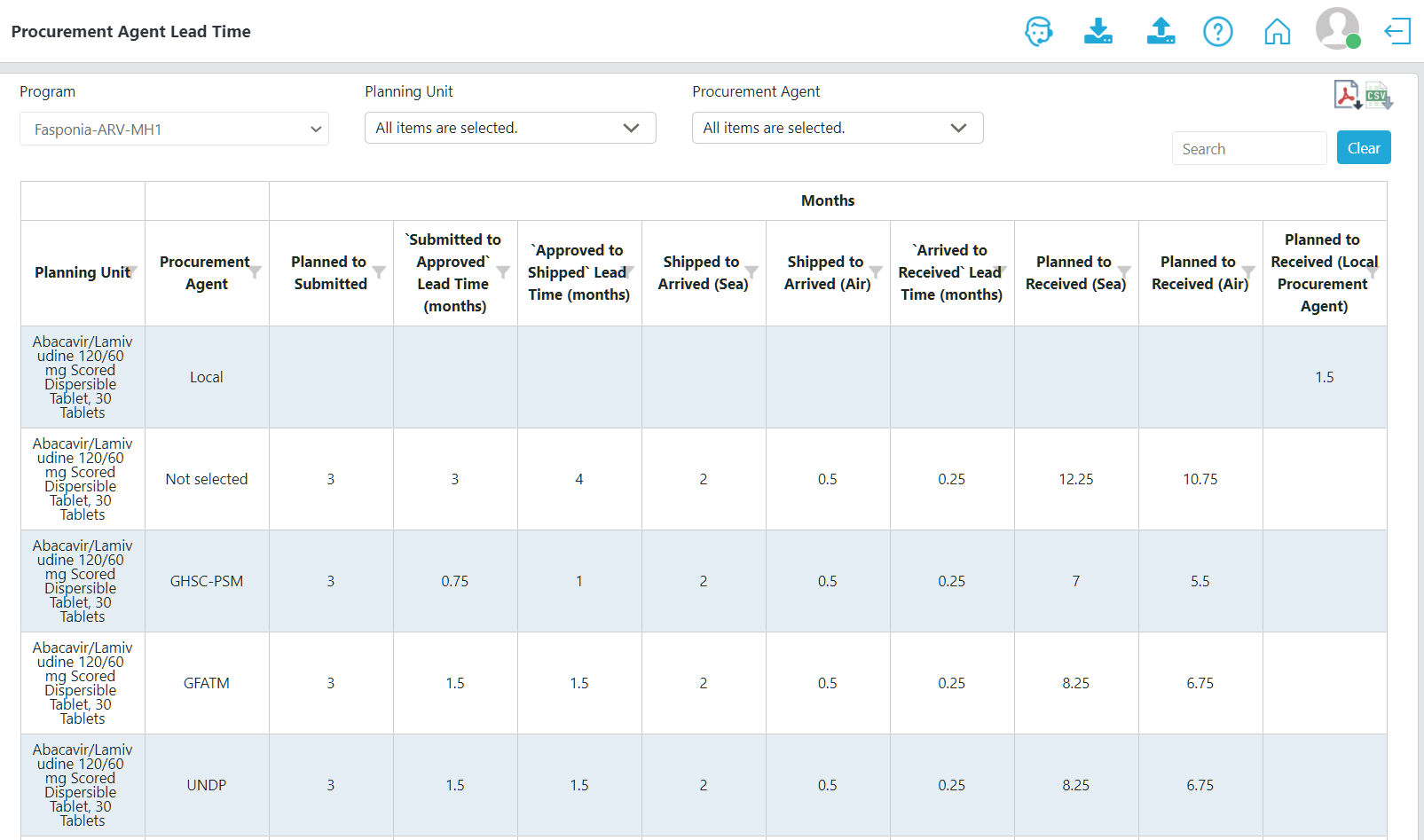 Figure 147: Procurement Agent Lead Time Report
F. Inventory Reports
F1. Expiries
Purpose: to provide planners with estimated quantities of planning units expiring in the future based on batch/shelf life
- Accessible to: Realm Admins, Program Admins, Report Viewers, and Program Users
- Navigation: Reports → Inventory Reports → Expiries
- Notes:
- This report pulls from data previously entered by including batch information on shipments, inventory, and actual consumption, and shelf life per planning unit. It displays the batch numbers, the receive date of the batch, shelf life of that batch (or planning unit), expiry date, and cost of the expired product.
- The report can include quantities in planned shipments expected to arrive and expiry during the selected timeframe.
- It will calculate (based on shelf life, stock projections, and forecast consumption) how much of a particular batch is expected to expire and when.
- For the expiry calculation, refer to Annex 2: Business Rules.
- The report will calculate a cost of expired product, based on the quantity expired and the planning unit default price set by the user in the Update Planning Units screen.
- The table is interactive. When the user clicks on the expired quantity, QAT will open a pop up with the batch ledger.
 Figure 148: Expiries Report
F2. Cost of Inventory
Purpose: for a selected month, provides an estimated cost of inventory based on actual or projected stock on hand and the planning unit catalog price.
- Accessible to: Realm Admins, Program Admins, Report Viewers, and Program Users
- Navigation: Reports → Inventory Reports → Cost of Inventory
- Notes:
- The report can include quantities in planned shipments expected to arrive during the selected timeframe.
- The stock column could be based on an actual inventory or projected ending balance.
- This report uses the following formula:

Figure 149: Cost of Inventory Formula
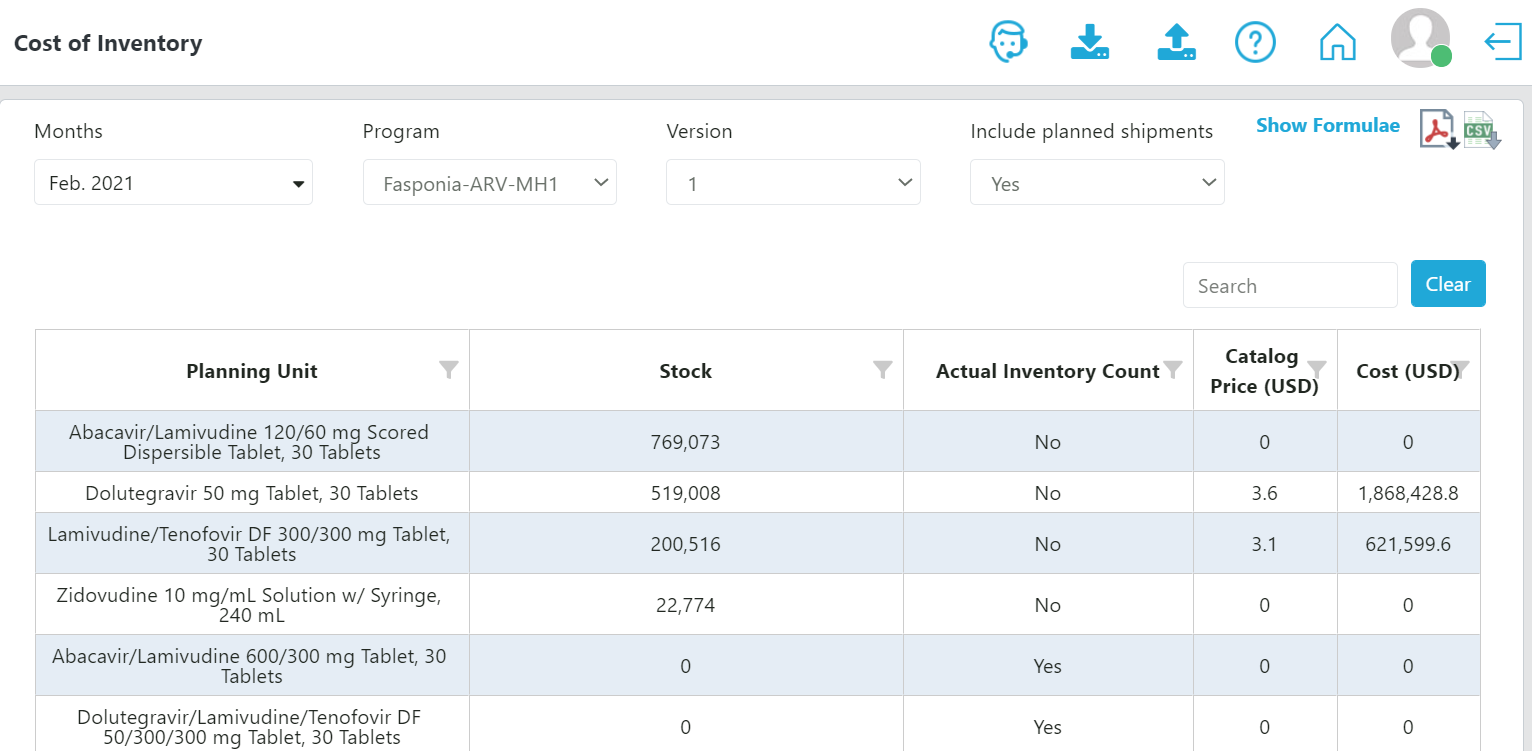 Figure 150: Cost of Inventory Report
F3. Inventory Turns
Purpose: to show the number of inventory turns per planning unit, program, country, or planning unit category at a particular point in time. Inventory turns are a way to measure the velocity of the supply plans. Inventory turnover is a key performance metric often used to signal supply chain management effectiveness. It is usually a backward looking metric, but because QAT uses forecast data to estimate stock projections into the future, the report can also be used to view estimated inventory turns based on the plans. Generally, higher turns mean a healthier supply chain – products are moving downstream and being replaced by fresh products more frequently. Low turnover implies low consumption, possibly excess inventory – it could point for instance to program targets being too ambitious.
- Accessible to: Realm Admins, Program Admins, Report Viewers, and Program Users
- Navigation: Reports → Inventory Reports → Inventory Turns
- Notes:
- This report calculates inventory turns at various levels: at the individual planning unit level, at an aggregate level for an entire program (multiple planning units), and at an aggregate level for an entire country (multiple programs), or commodity category.
- Planned Inventory turns: Are the possible months of stock for each month over 12 months if the inventory rules worked perfectly considering the Planning Unit’s MIN and Reorder Interval.
- At the planning unit level, the report utilizes the MIN and Reorder Interval from Planning Unit Settings to calculate the “Planned” inventory turns.
- At the program level (multiple planning units) QAT utilizes the mode of all planned inventory turns of all Planning units under a specific program.
- At the country and/or Planning Unit Category level QAT utilizes the mode of all planned inventory turns of all Planning units under a specific country / PU Category.
- Actual inventory turns:
- At the planning unit level, QAT uses the following formula for each planning unit to calculate the actual inventory turns:
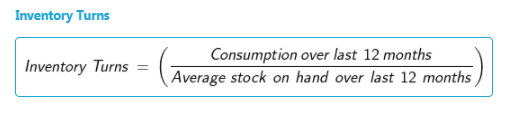
Figure 151: Inventory Turns Formula at the planning unit level
- For each planning unit, the report compares the actual and planned turns, and calculates the MAPE and MSE.
- To calculate the actual inventory turns at the program level, QAT will look for the mode across all planning units in that program. If no mode can be found, QAT will use the average from all planning units as that program’s actual inventory turns.
- To calculate the actual inventory turns at the country (or commodity category) level, QAT will look for the mode across all programs. If no mode can be found, QAT will use the average.
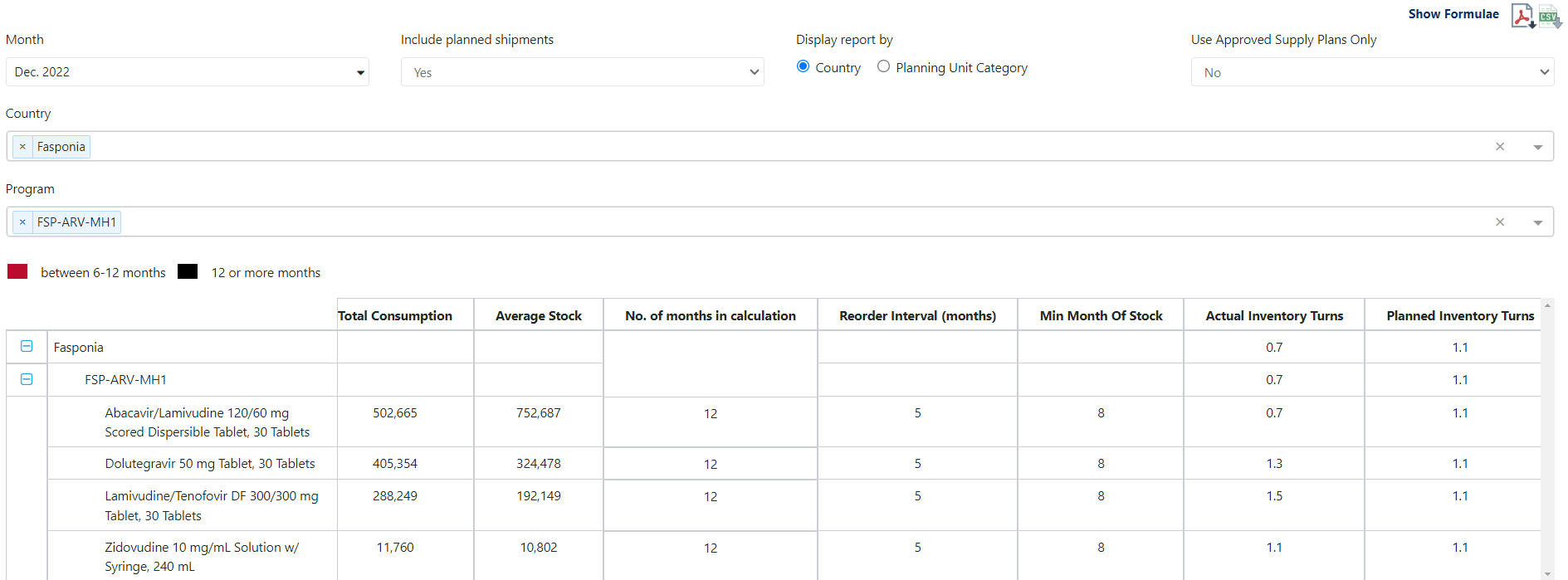 Figure 152: Inventory Turns Report
F4. Stock Adjustment
Purpose: to show a list of all the manually entered stock adjustments in a program. Note: automatically calculated adjustments will not display on this report.
- Accessible to: Realm Admins, Program Admins, Report Viewers, and Program Users
- Navigation: Reports → Inventory Reports → Stock Adjustment
- Notes:
- Automatically calculated adjustments (as a result of a difference between projected ending balance and an inventory count) do not appear in this report.
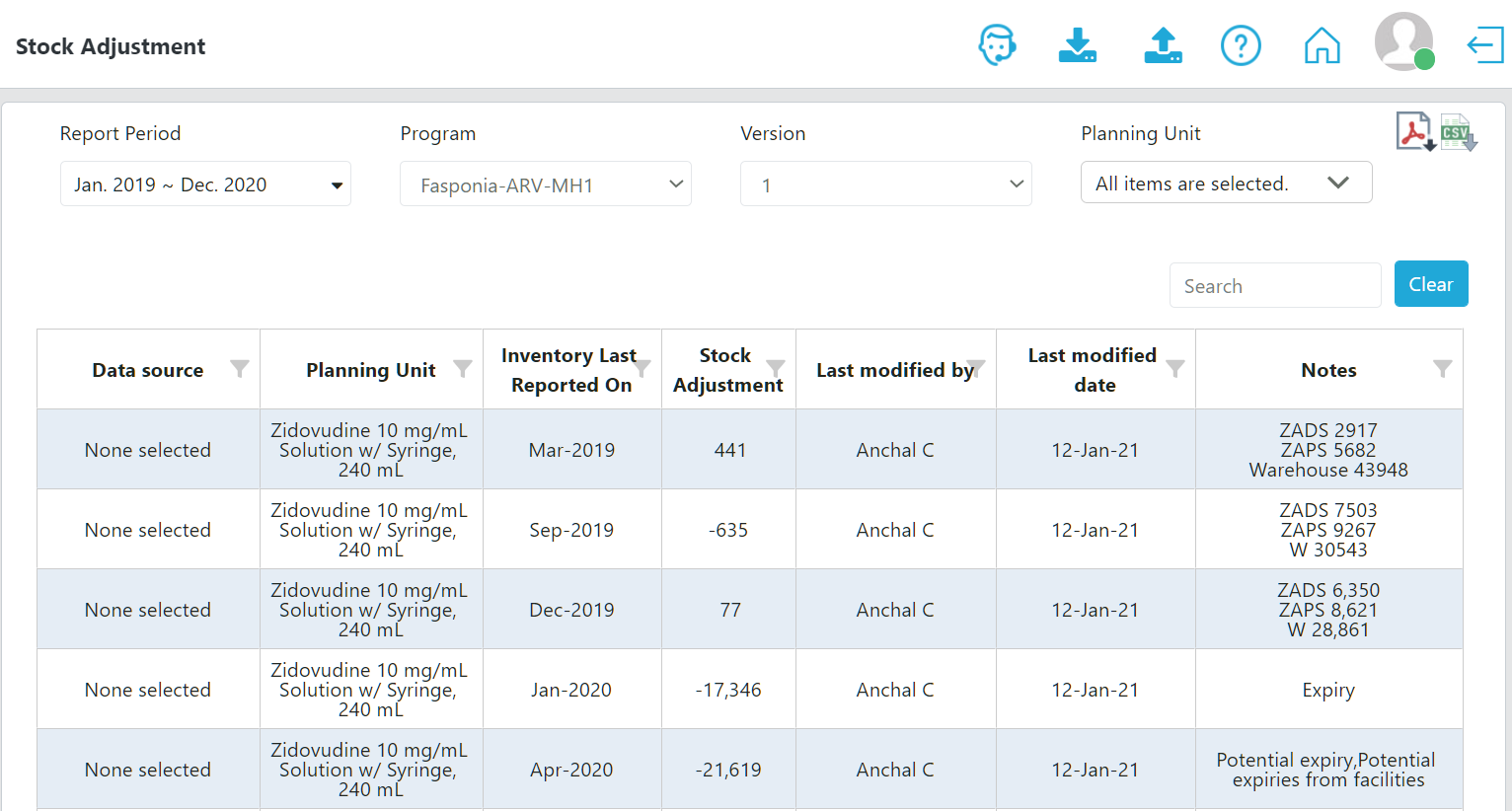 Figure 153: Stock Adjustment Report
F5. Warehouse Capacity (by Program)
Purpose: displays the volume (in cubic meters) of all regions within a country (if a user enters such information upon setting up a program).
- Accessible to: Realm Admins, Program Admins, Report Viewers, and Program Users
- Navigation: Reports → Inventory Reports → Warehouse Capacity (by Program)
- Notes:
- This report is most useful for those countries with multiple regions.
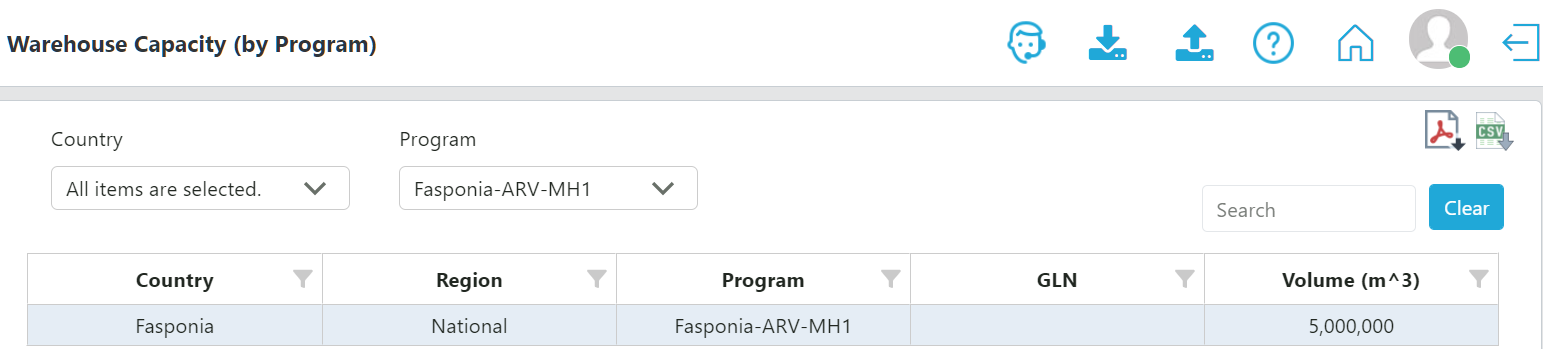 Figure 154: Warehouse Capacity (by Program)
F6. Warehouse Capacity (by Country)
Purpose: displays the volume (in cubic meters) of all countries and regions within a country (realm-level access required).
- Accessible to: Realm Admins and Report Viewers
- Navigation: Reports → Inventory Reports → Warehouse Capacity (by Country)
- Notes:
- This report is most useful for those countries with multiple regions.
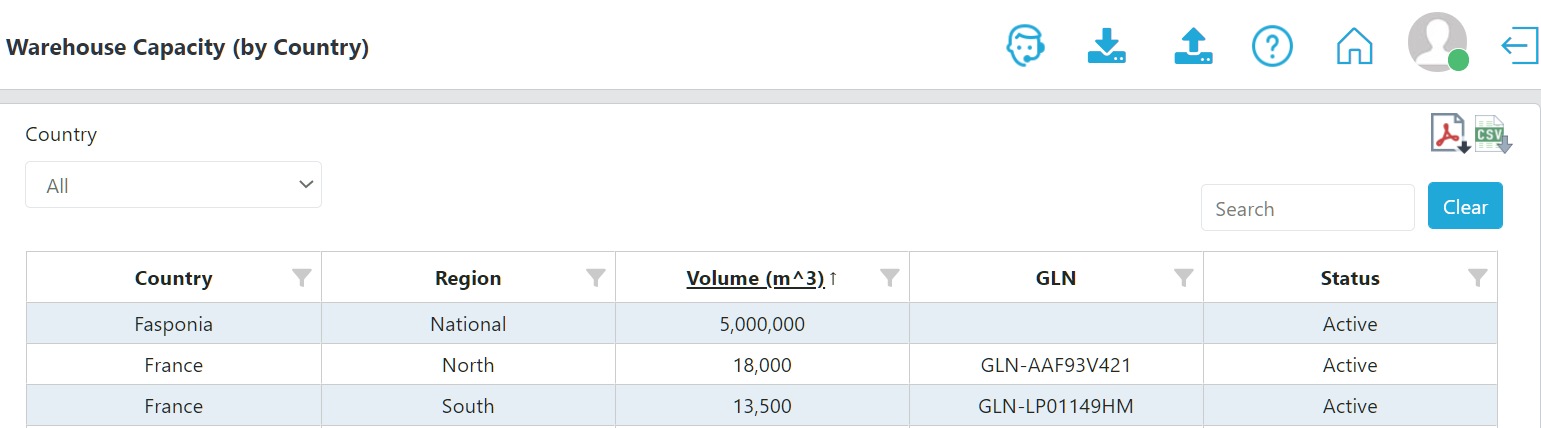 Figure 155: Warehouse Capacity (by Country)